How do I add users and choose what they can access?
Create a login for a colleague, choose which apps they can use and at what level, and send their invitation.
Each person who signs in to Fullfinity has their own user. What they can see and do is set by their access: for each app, no access, or a level such as User or Manager.
1. Create the user
Go to Settings → Users and click New.
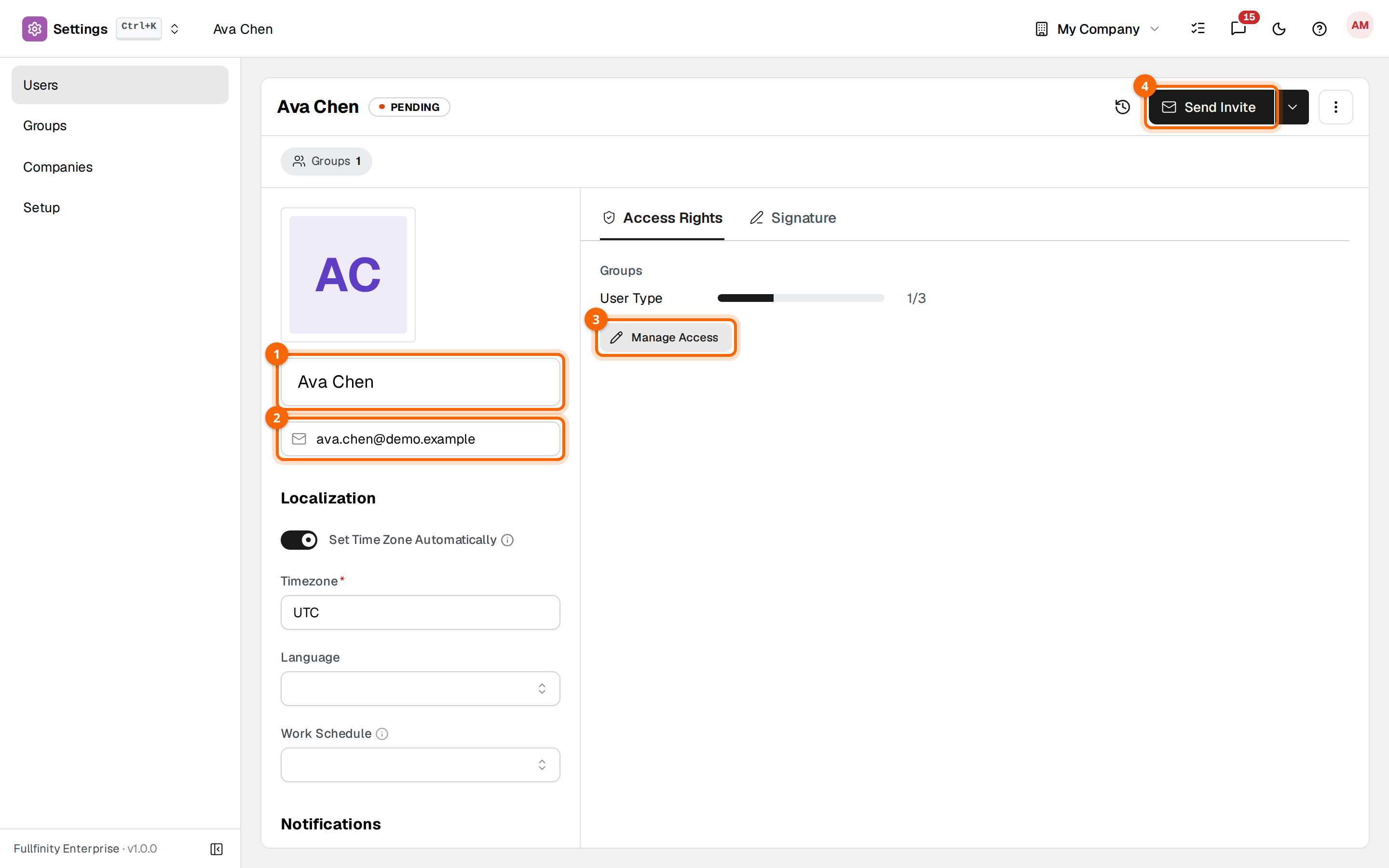
- Their name.
- Their email address — they sign in with it, and their invitation is sent to it.
- Manage Access — choose what they can use (next step).
- Send Invite — email them a link to set their password (step 3).
Under Localization you can set their Language and Timezone — or leave Set Time Zone Automatically on to follow the device they sign in from — and the Work Schedule their calendar shows as working hours. The Signature tab holds the signature added to emails they send.
2. Choose what they can access
On the Access Rights tab, click Manage Access. The Select Groups panel lists each app with its levels.
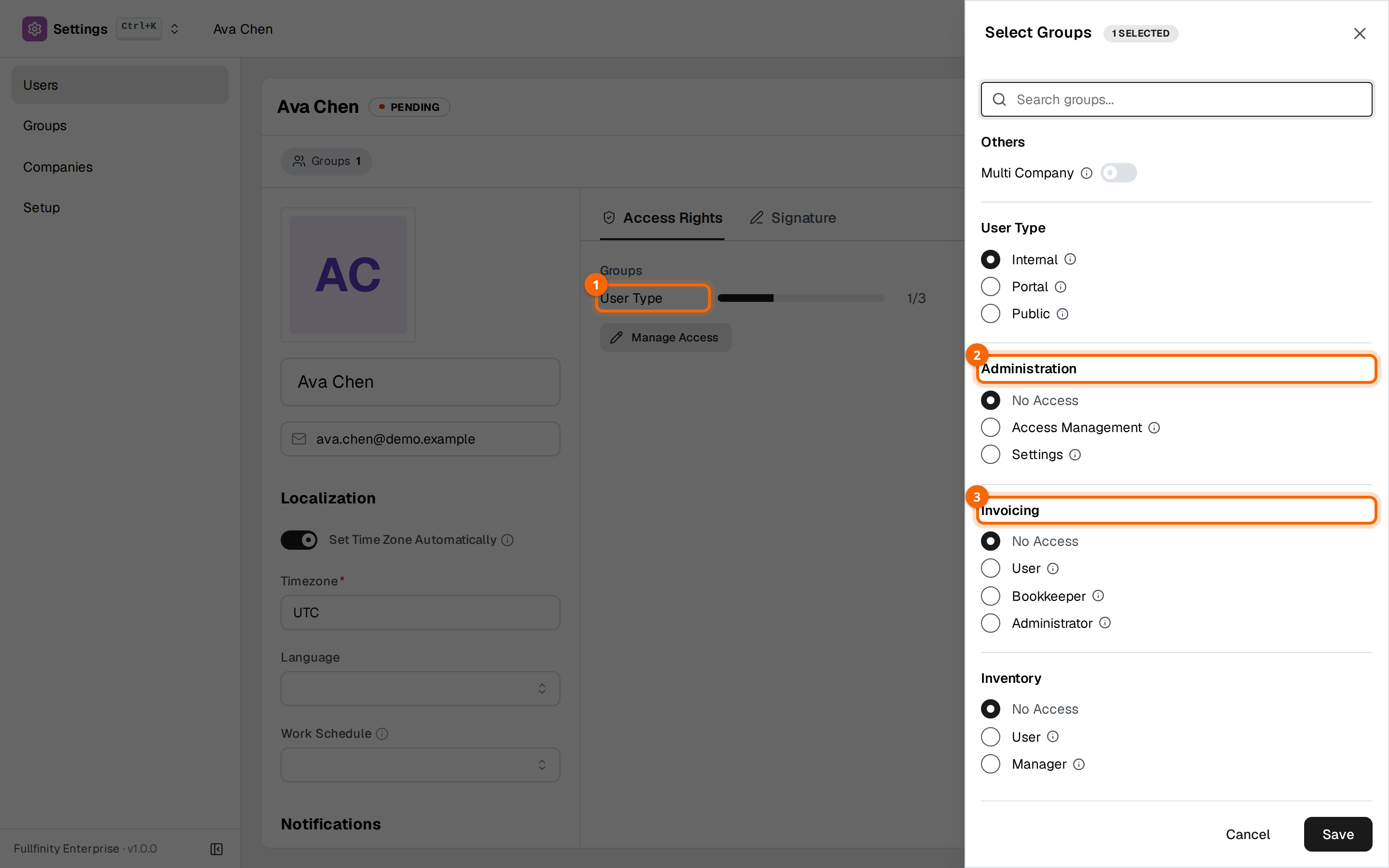
- User Type — Internal for your own staff. Portal is for customers and vendors who only see their own documents online.
- Administration — Access Management lets them add users and change access; Settings makes them a full administrator. Leave it on No Access for everyone else.
- Each app — pick a level, or No Access to hide the app from them. Hover the i beside a level to read what it allows. A higher level includes everything below it.
Type in Search groups... to find an app quickly. Click Save in the panel, then save the user.
3. Invite them
Click Send Invite. They receive an email with a link to set their password; the link works for 7 days. Until they use it the user shows Pending; once they have set their password, Activated.
If someone forgets their password, open their user, click the arrow beside Send Invite and choose Reset Password: they receive a link, valid for 24 hours, to choose a new one.
When someone leaves
Open their user, click the three-dot menu at the top right and choose Archive. They can no longer sign in, and everything they did stays on record under their name.