How do I set up the Shop Floor?
Turn on work orders, give each work center its operations and instructions, and give operators a login that opens straight into the Shop Floor.
The Shop Floor is a full-screen app for a tablet at each work center. Operators pick their station, see the work waiting there, and start, pause and finish it with big buttons. It runs the same work orders as Manufacturing — nothing has to be set up twice.
1. Make sure there are work orders
- In Manufacturing → Setup, switch on Work Orders and click Save.
- Set up your Work Centers — the machines or benches the work is done at. See How do I set up Manufacturing and its work centers?
- On each bill of materials, add Operations and give each one its Work Center. Confirming a manufacturing order then creates one work order per operation, and each shows up at its work center. See How do I add operations and work instructions to a bill of materials?
The text and file you put in an operation's work instructions are what the operator opens with View instructions on the floor.
2. Give operators access
In the user's access rights, give the Manufacturing role Shop Floor Operator to someone who only works at a station: they see the Shop Floor app and nothing else of Manufacturing. Manufacturing users and managers can open the Shop Floor too. See How do I add users and choose what they can access?
3. Open it on the tablet
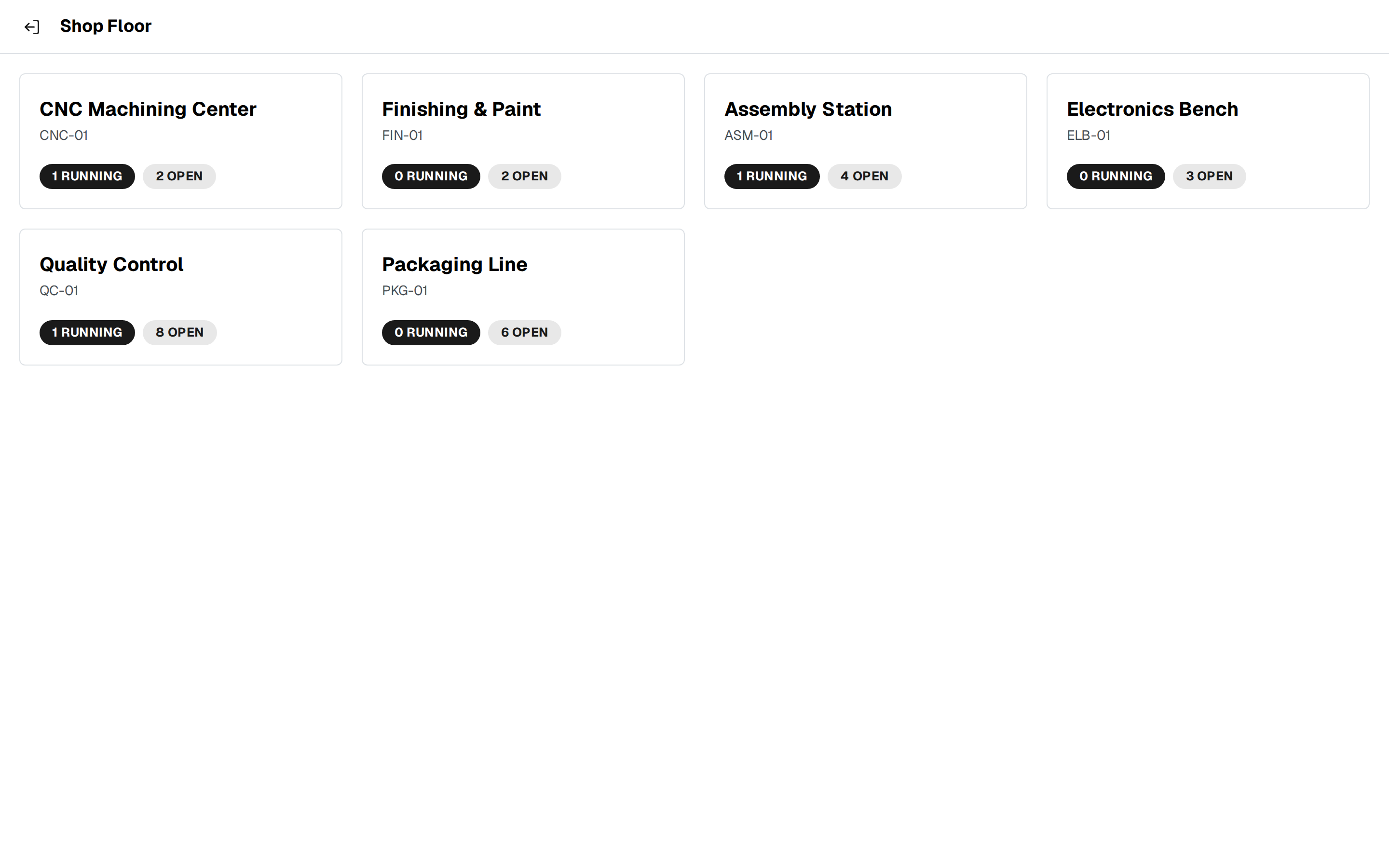
Sign in on the tablet and open Shop Floor. Tap your work center. Each card shows how many of its work orders are running and how many are open.
➡️ Related: How do I run a work order on the Shop Floor?