How do I set up Sales?
Choose how orders are invoiced, how much slack to add to promised delivery dates, your monthly sales target, and which sales features to switch on.
A few settings decide how every new quote and order behaves. Set them once before your team starts quoting; you can change them at any time, and each order can still be adjusted on its own.
Go to Sales → Setup. The Setup screen opens on the Sales tab.
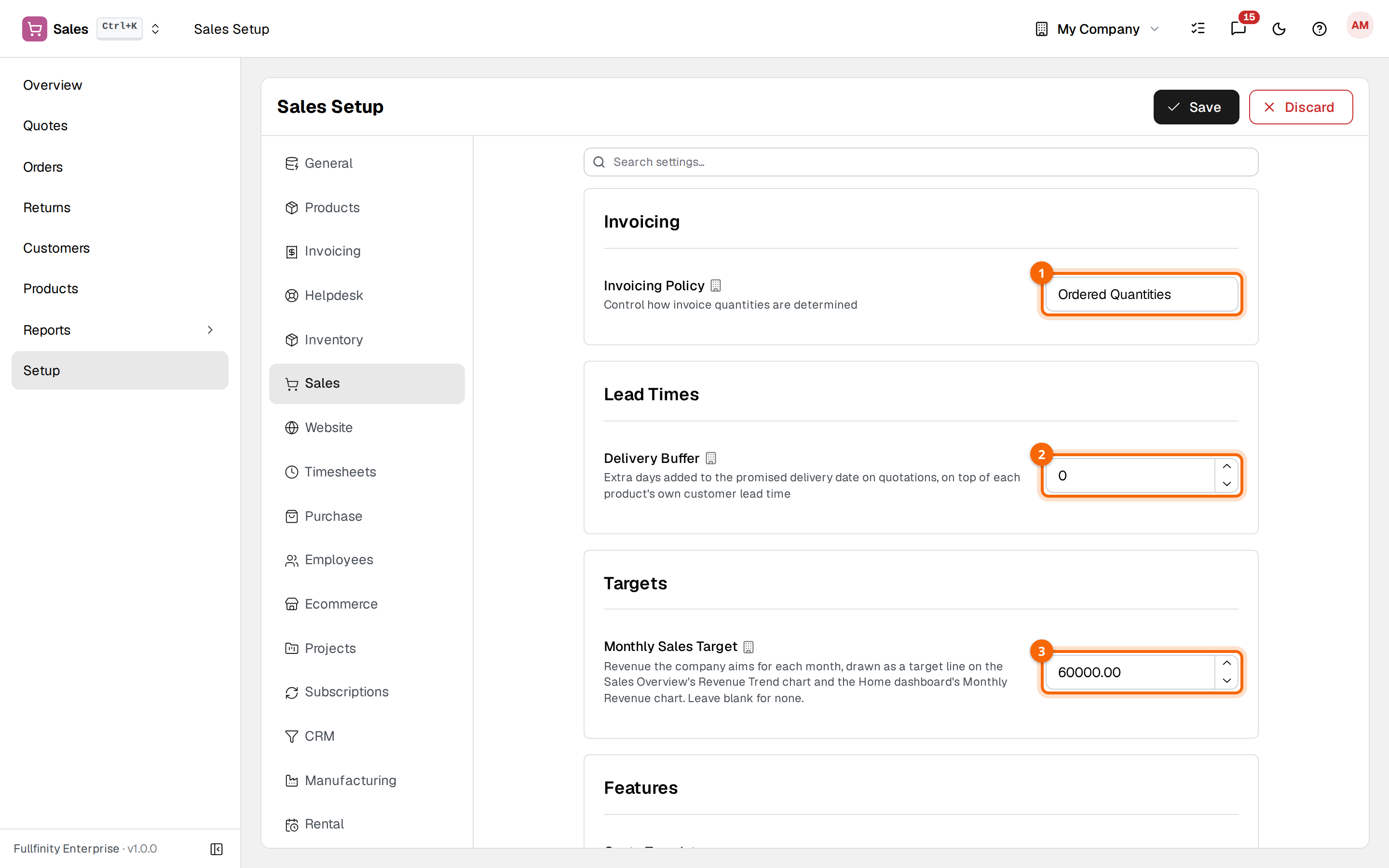
1. Invoicing Policy
Decides which quantity you bill a customer for:
- Ordered Quantities — bill everything on the order as soon as it is confirmed. Good for services and made-to-order goods you invoice up front.
- Delivered Quantities — bill only what has actually been delivered. Good when you ship in parts or deliver over time.
This is the starting point for new orders. A salesperson can change it on a quote (Additional Details tab → Invoice Policy), and a product can insist on its own policy — see How do I invoice a sales order?
2. Delivery Buffer
Every quote has a Commitment Date — the delivery date you promise the customer. Fullfinity works it out from the products on the quote: each product has a Customer Lead Time (Days) on its Sales tab, and the longest one on the quote wins. The Delivery Buffer adds the same number of extra days to every quote on top of that, so you don't have to pad each product. Leave it at 0 to promise the earliest date your products allow.
3. Monthly Sales Target
The revenue your company aims for each month. It is drawn as a target line on the revenue chart of the Sales Overview. Leave it blank if you don't want a target — see How do I track sales against our target?
Features you can switch on
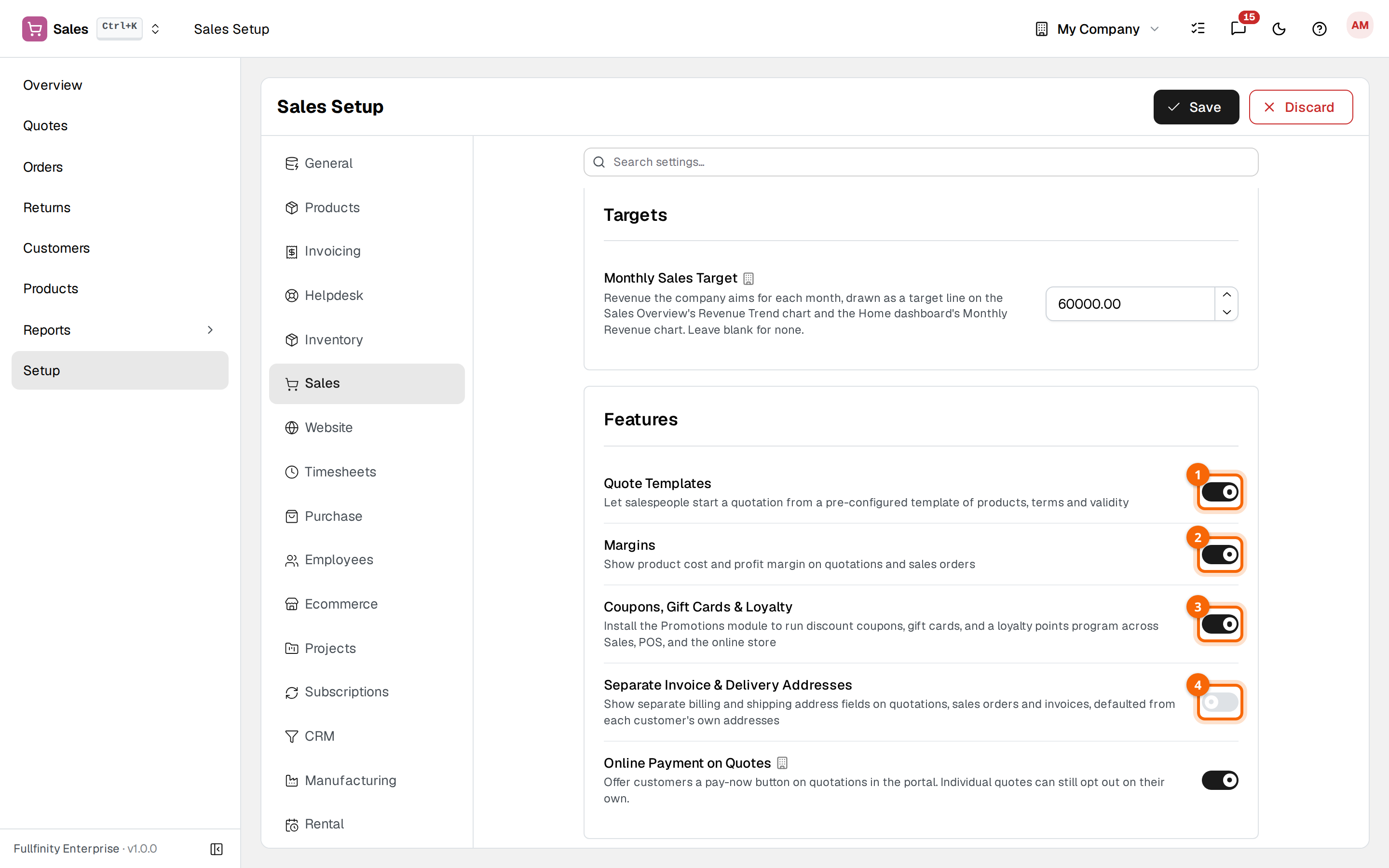
Further down the same tab, under Features:
| Switch | What it adds |
|---|---|
| Quote Templates | A Quote Template field on quotes, so salespeople can start from a prepared set of products and terms. |
| Margins | Product cost and profit margin on quotes and orders. Off by default, because it shows salespeople what your products cost you. |
| Coupons, Gift Cards & Loyalty | Installs Promotions: coupon codes, automatic promotions, gift cards and a loyalty program. |
| Separate Invoice & Delivery Addresses | Separate billing and shipping addresses on quotes, orders and invoices, filled in from the customer's own addresses. |
Click Save at the top when you're done.
The Setup section at the bottom of the tab links to Pricelists, Country Groups and, once switched on, Quote Templates and the promotions screens.
➡️ Next: How do I create price lists?