How do I add optional products to a quote?
Set up add-on products once on each product, then add them to any quote in one click.
Optional products are the add-ons you'd suggest alongside a product: a monitor arm with a desk, a cable with a laptop. Set them once on the product, and any quote containing that product can pick them up in one click. A quote template can name optional products too — see How do I create quote templates?
1. Set a product's optional products
Go to Sales → Products, open the product and choose the Sales tab. Add the add-ons in Optional Products, then click Save.
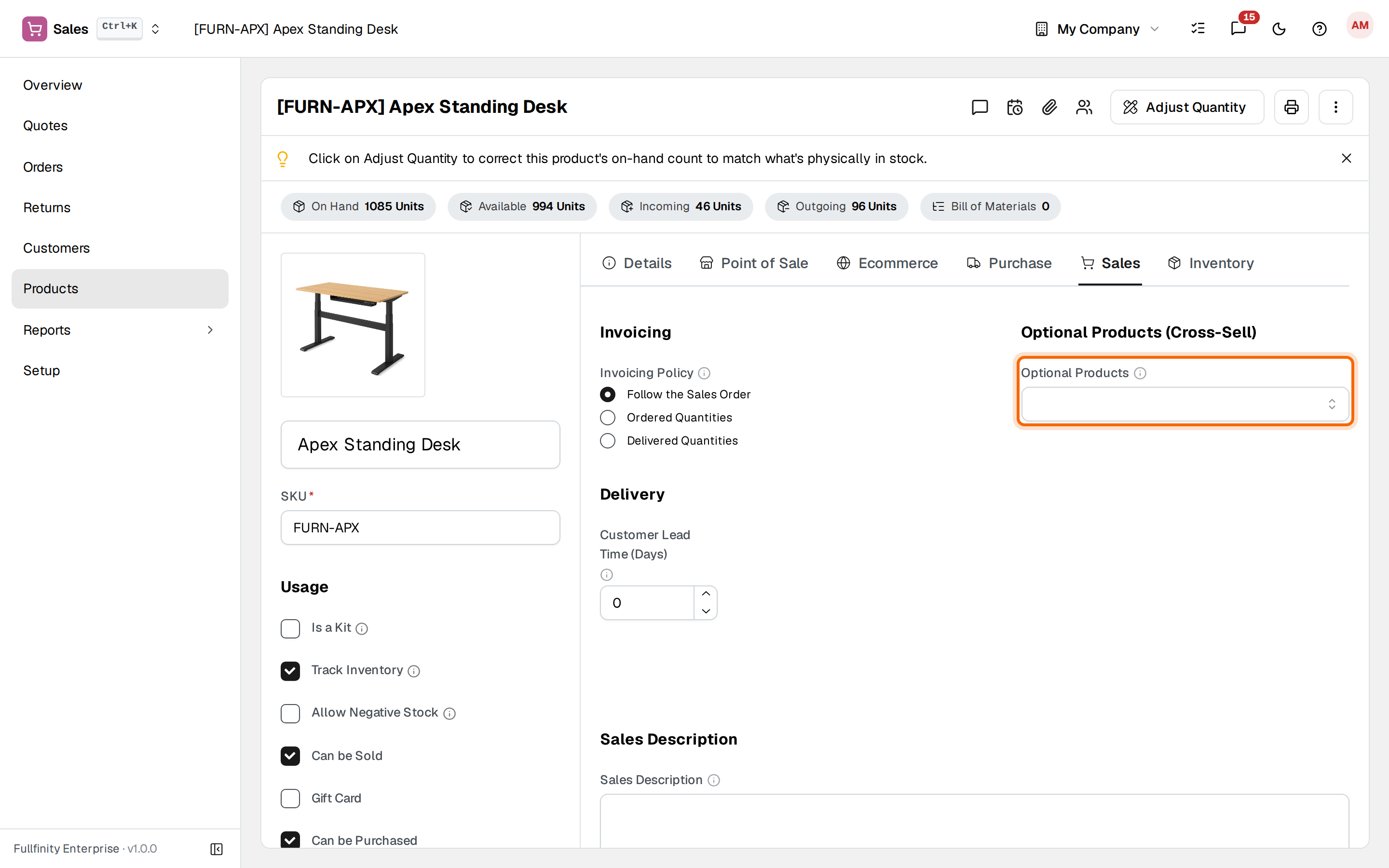
If the product comes in variants, a single variant can have extra suggestions of its own on top of these.
2. Add them to a quote
On a quote with status Quote or Sent, click the arrow next to Confirm and choose Add Optional Products.
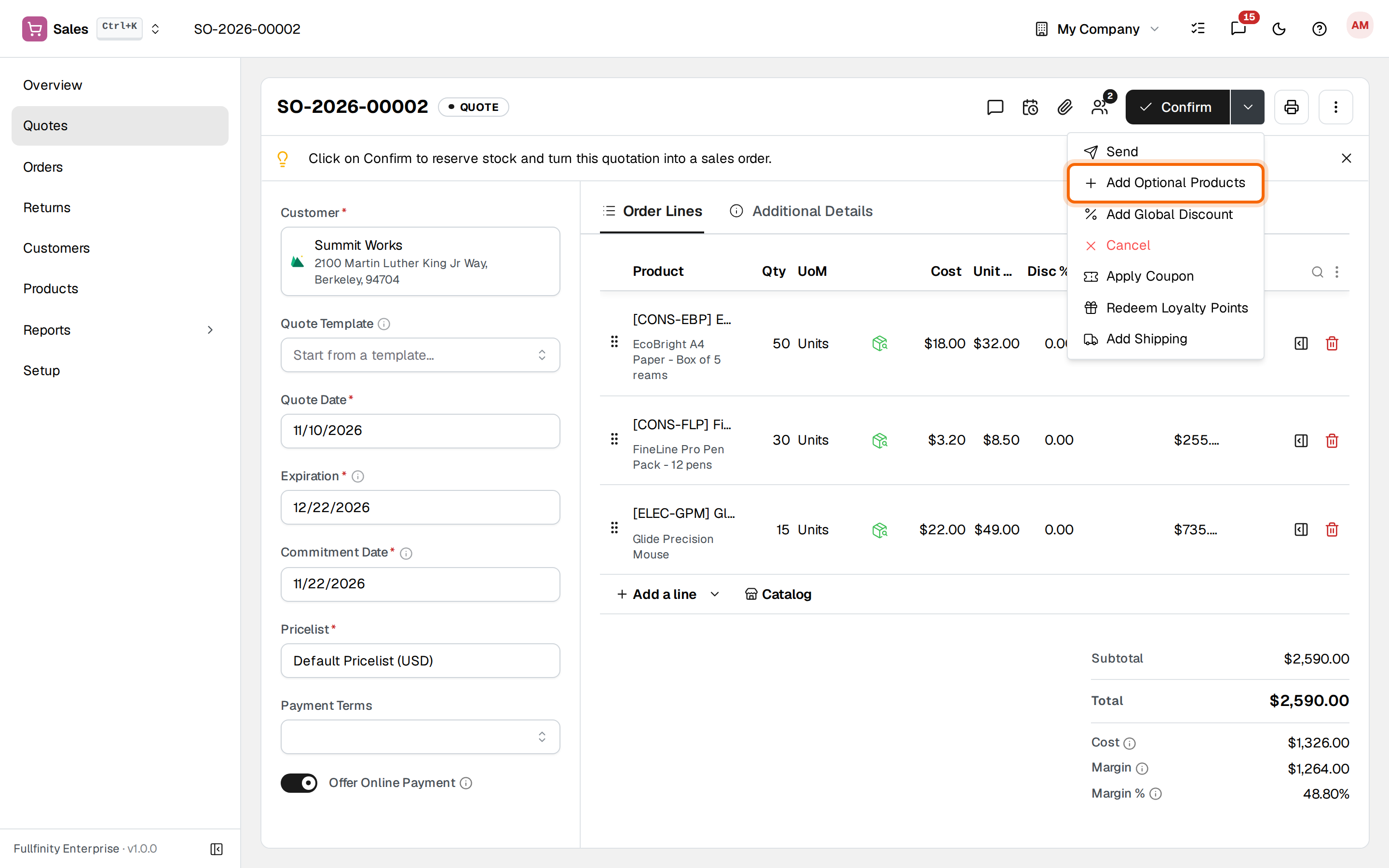
Every optional product of the products on the quote — and of the quote template it was started from — is added as a new line, with a quantity of 1 at its price on the quote's pricelist. Products already on the quote aren't added twice. Adjust or delete the new lines as you need.