How do I create quote templates?
Save a standard set of products, terms and a validity period, then start any quote from it in one click.
If your team sends similar quotes again and again — a starter package, a yearly service bundle — a quote template saves retyping. Pick the template on a new quote and its products, terms and expiration date are filled in.
Create the template
In Sales → Setup, click Quote Templates in the Setup section, then click New.
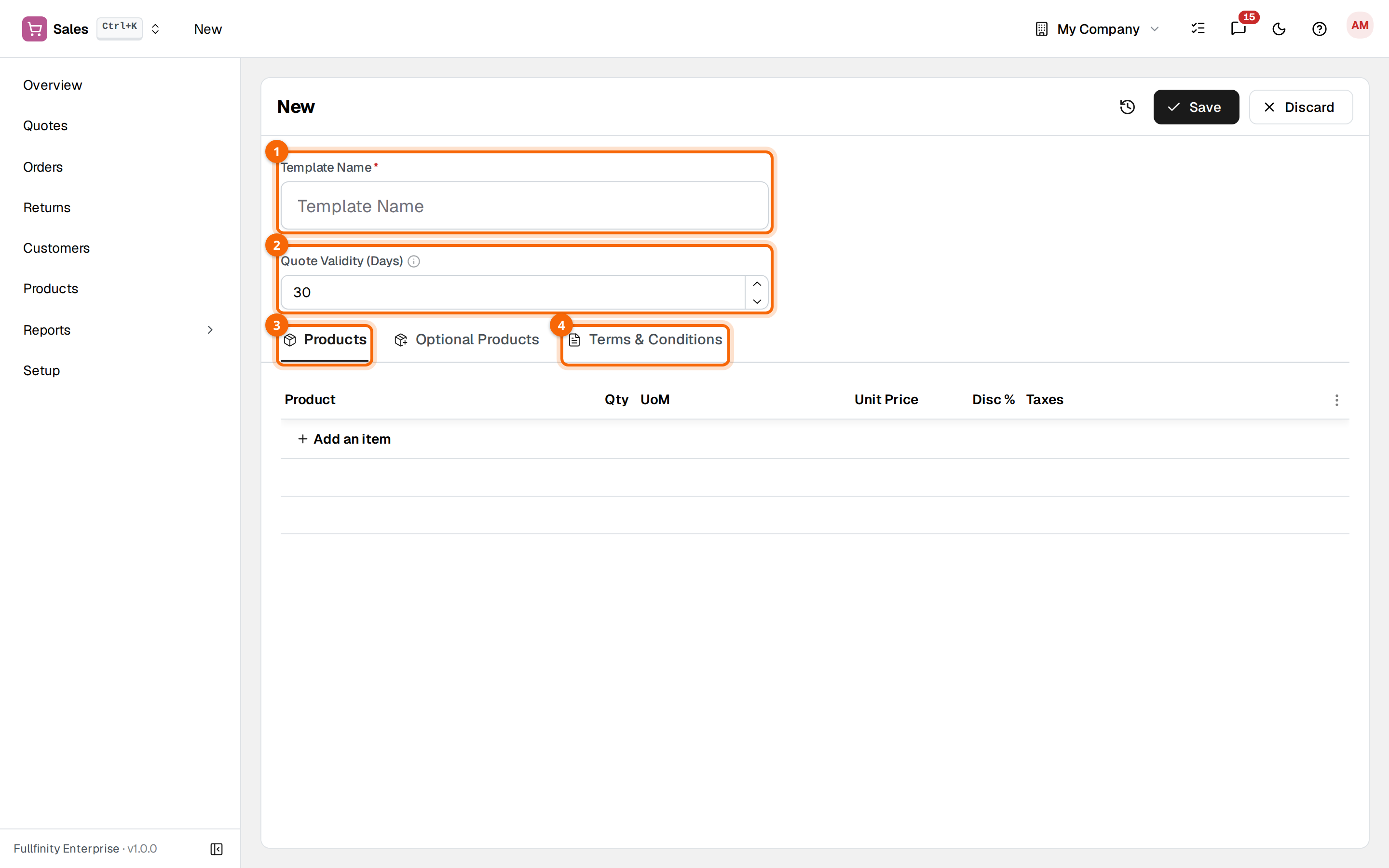
- Template Name — what salespeople will pick, for example Office starter kit.
- Quote Validity (Days) — how long a quote made from this template stays valid. Its Expiration is set this many days from the day the template is picked.
- On the Products tab, click Add an item for each product and set its quantity, Unit Price, Disc % and Taxes. Picking a product fills in its current sales price, and the quote uses the price the template line holds. Set the Unit Price to 0 instead to have each quote price that line at the product's current price on the quote's pricelist.
- On the Optional Products tab, add products to suggest with this template. Add Optional Products on a quote made from it adds them.
- On the Terms & Conditions tab, write the terms to print on these quotes.
Click Save.
Start a quote from a template
On a new quote, choose the template in Quote Template. Or open the template and click Create Quote: a new quote opens with the template already picked, ready for you to choose the customer.
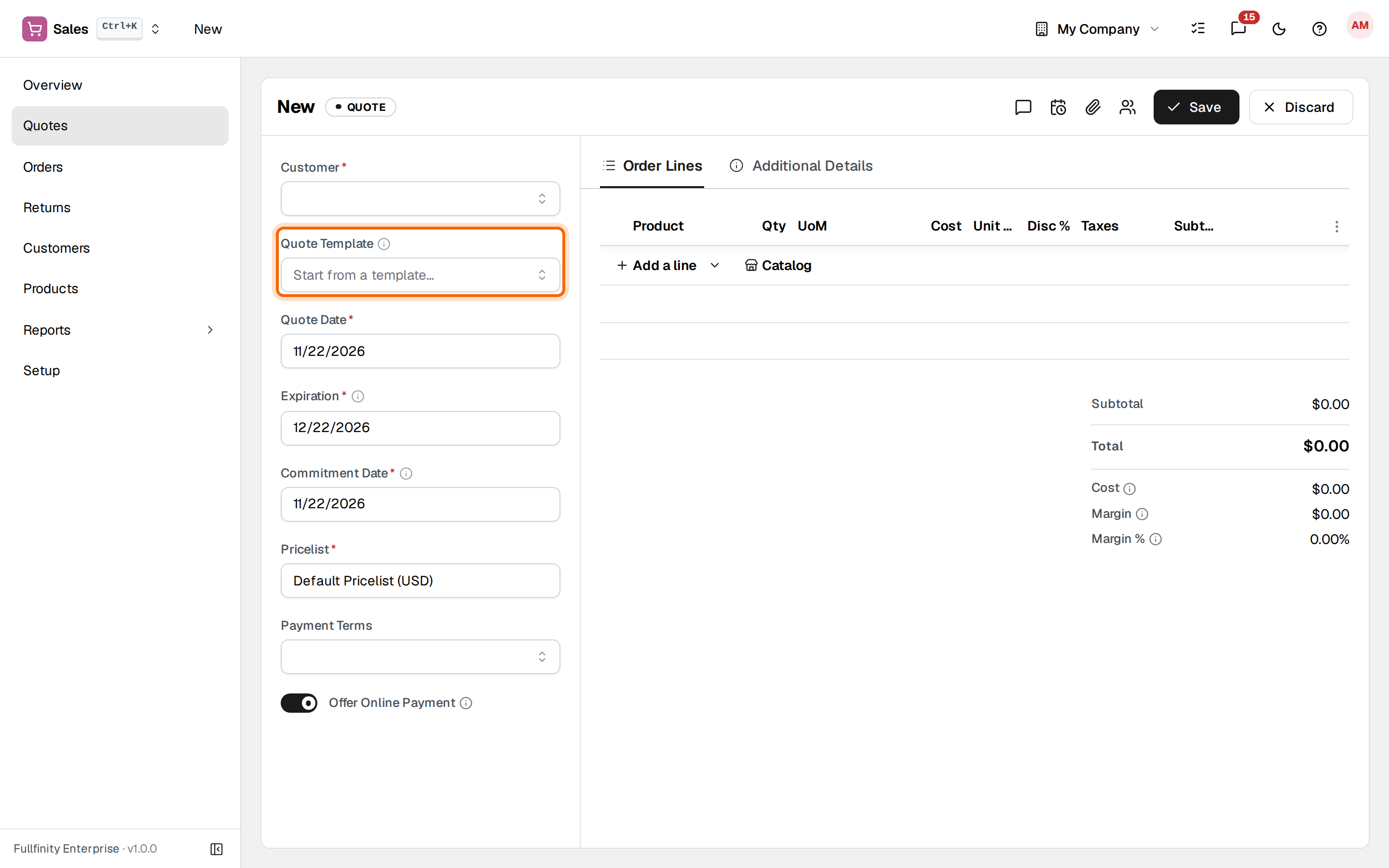
The quote's lines are replaced with the template's lines, and its Expiration and Terms & Conditions are set from the template. Everything stays editable — add, remove or change lines before you send it.