How do I set up coupons, gift cards and loyalty?
Create coupon codes and automatic promotions, issue and sell gift cards, and run a loyalty points program.
Promotions let you take money off an order in three ways: a coupon code the customer gives you, an automatic promotion that applies to every qualifying order, and a gift card that pays for part of an order. A loyalty program lets customers collect points as they buy.
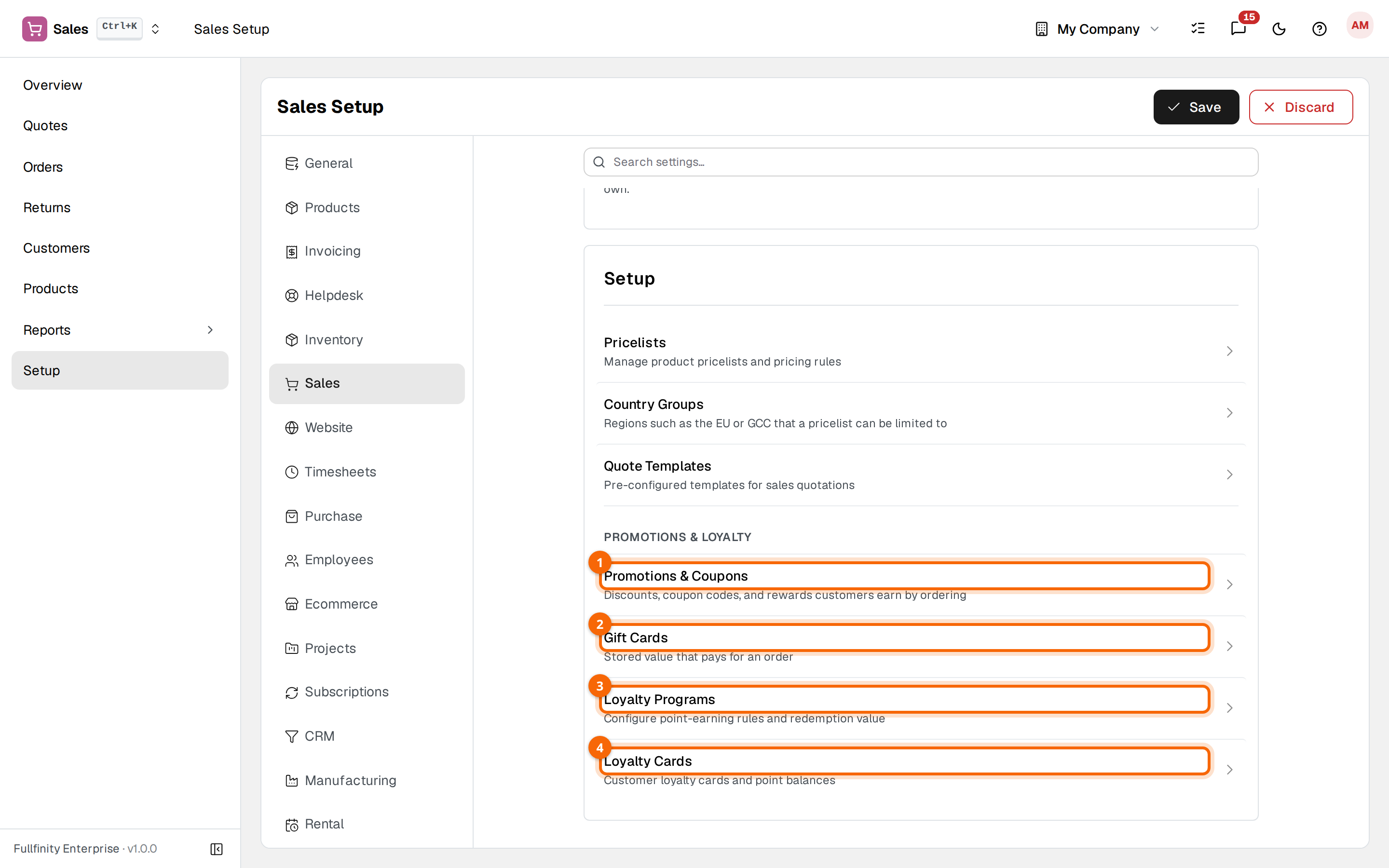
Everything is reached from the Setup section of the Sales tab, under Promotions & Loyalty:
1. Coupons and promotions
Click Promotions & Coupons, then New.
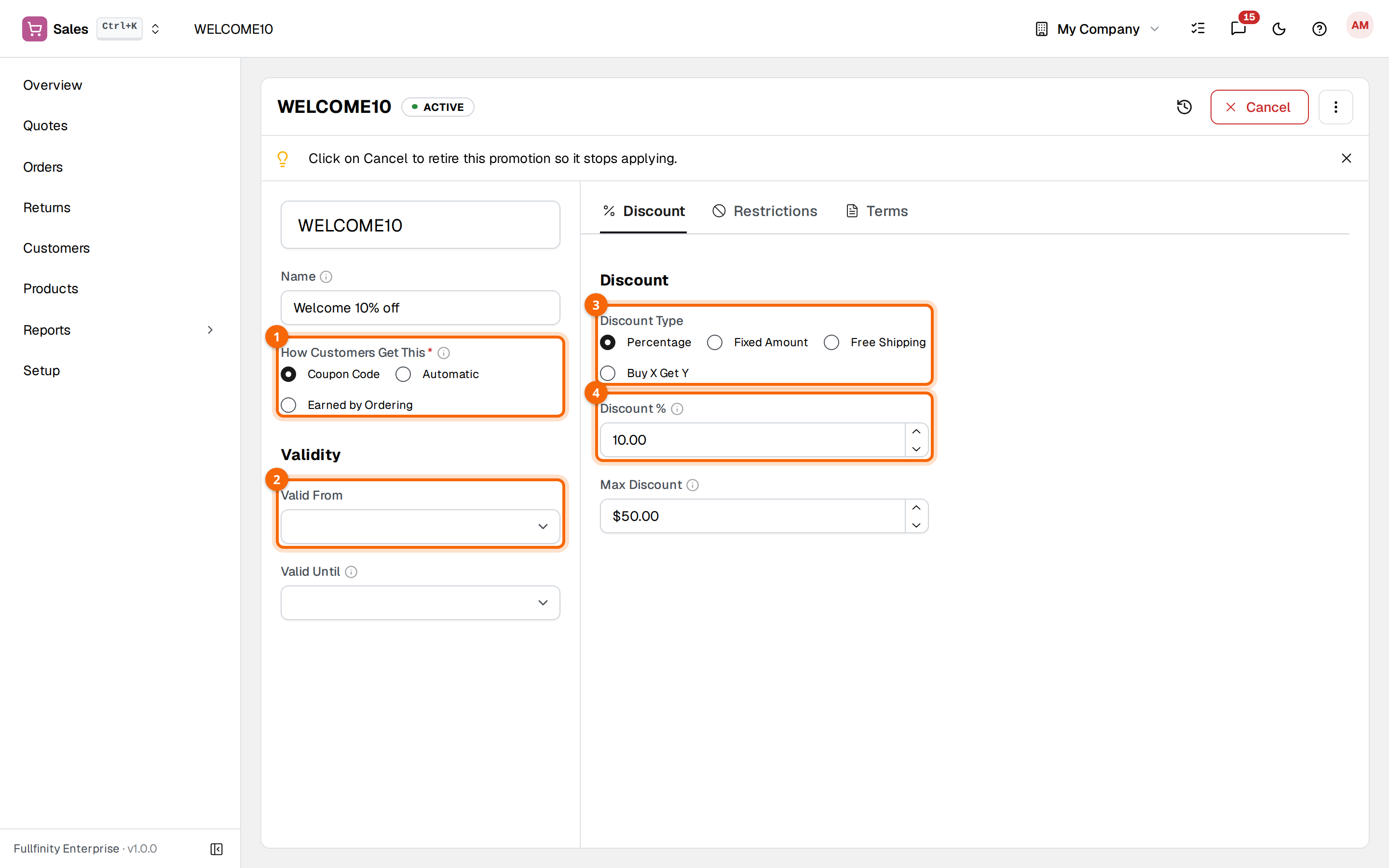
- How Customers Get This:
- Coupon Code — the customer gives a code. Type the code in the large field at the top (for example WELCOME10) and a Name for your own reference.
- Automatic — applies to every order that qualifies, no code needed.
- Earned by Ordering — an order over Order That Earns It Is Over earns the customer a single-use coupon for their next order, valid for Coupon Valid For (Days).
- Valid From and Valid Until — optional dates the promotion runs between.
- Discount Type — Percentage, Fixed Amount, Free Shipping or Buy X Get Y.
- The amount: Discount % (with an optional Max Discount ceiling) or Discount Amount. For Buy X Get Y, set the Buy Quantity, the Get Quantity, where the free items come from (Get Products From) and the Get Discount % (100 means free).
On the Restrictions tab, set a Minimum Order Amount and whether it Applies To all products or only some. For a promotion used with a code, Usage Limits caps how often it can be redeemed: Total Usage Limit in all, Per Customer Limit for each customer (leave either blank for no limit), and First Order Only for customers with no confirmed order yet. Save, then click Activate to put it live. Cancel retires it.
For an Earned by Ordering promotion you can also hand out codes yourself: click Issue Coupon and choose the Customer to give one coupon to that customer, or leave Customer empty and set How Many to generate unassigned codes for a mailing.
Using a code on a quote
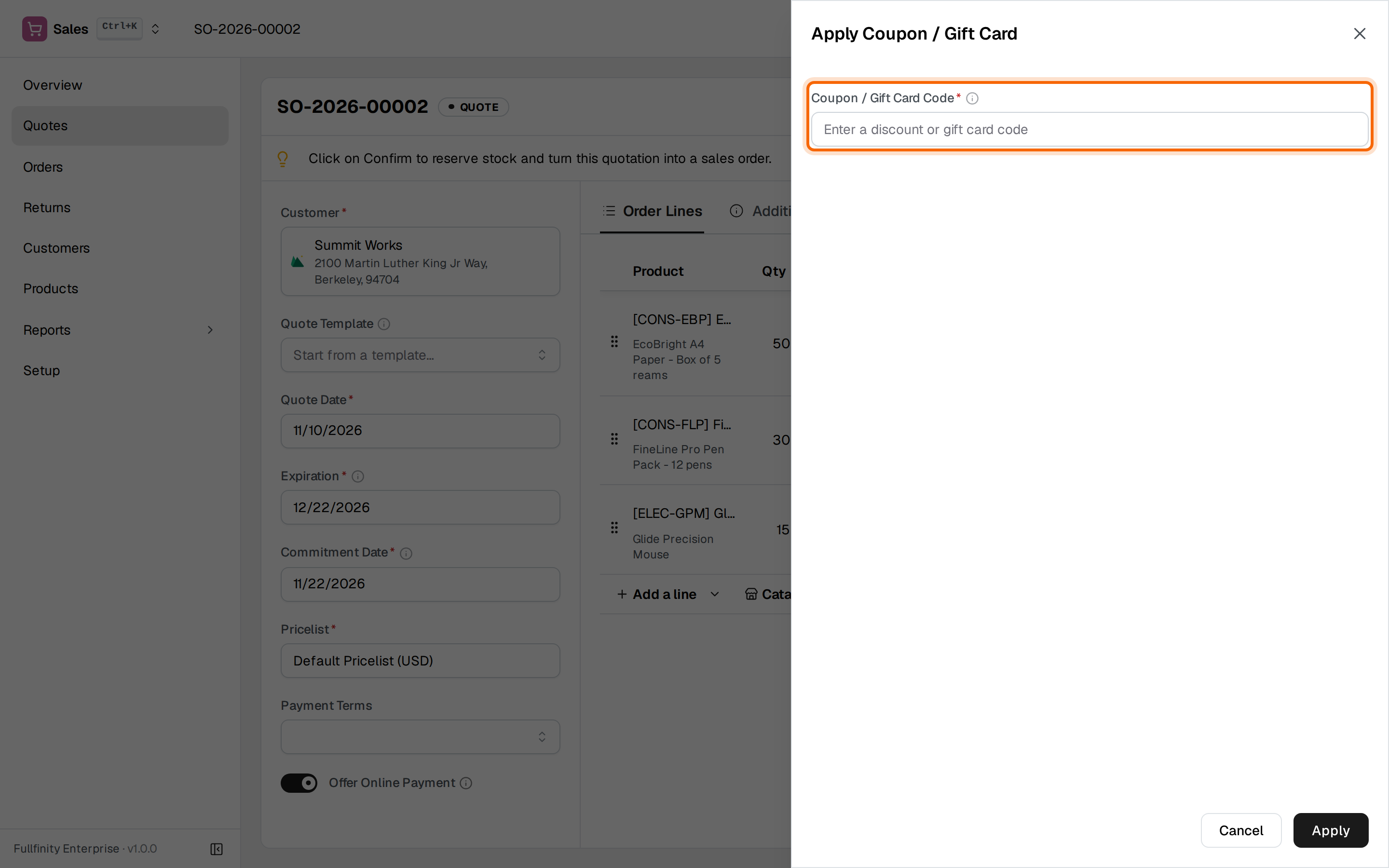
On a quote, click the arrow next to Confirm, choose Apply Coupon, type the code in Coupon / Gift Card Code and click Apply. The discount appears under the order lines as Coupon; Remove Coupon takes it off again. Automatic promotions appear on their own as Promotions.
2. Gift cards
Click Gift Cards. Create one by hand with New, or sell them: tick Gift Card on a product, and each unit sold creates a gift card when the order is confirmed.
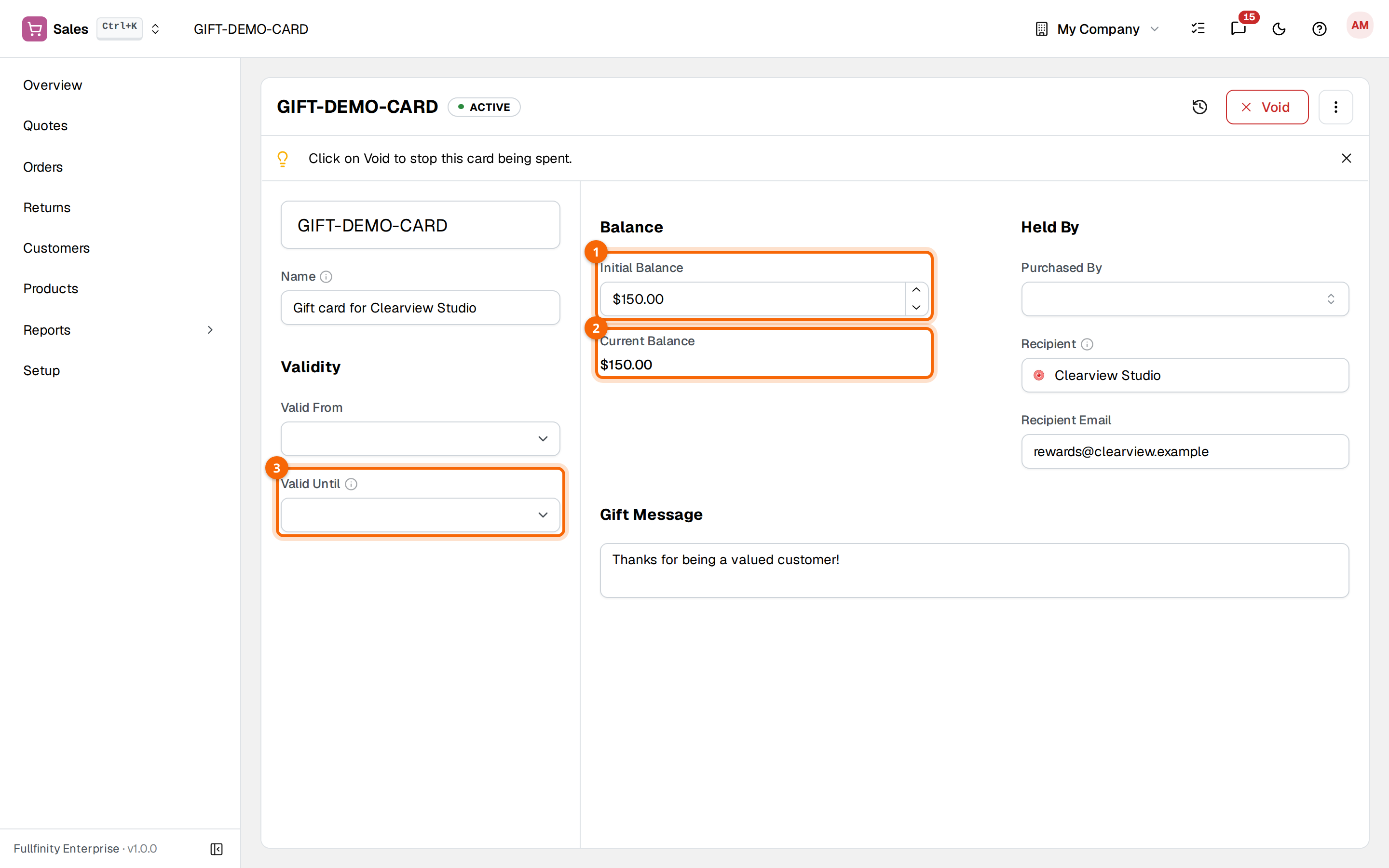
- Initial Balance — the value loaded onto the card.
- Current Balance — what is left after the card has been used.
- Valid Until — optional; the card can't be spent after this date.
Optionally name the Recipient and add a gift message. Click Activate to make the card usable; Void stops it being spent. The customer spends a card with its code, entered through Apply Coupon like a coupon. It pays for part of the order rather than discounting it, so the order shows Gift Cards and the Amount Due that remains.
3. Loyalty
Click Loyalty Programs to set up your program. Each company has one active program.
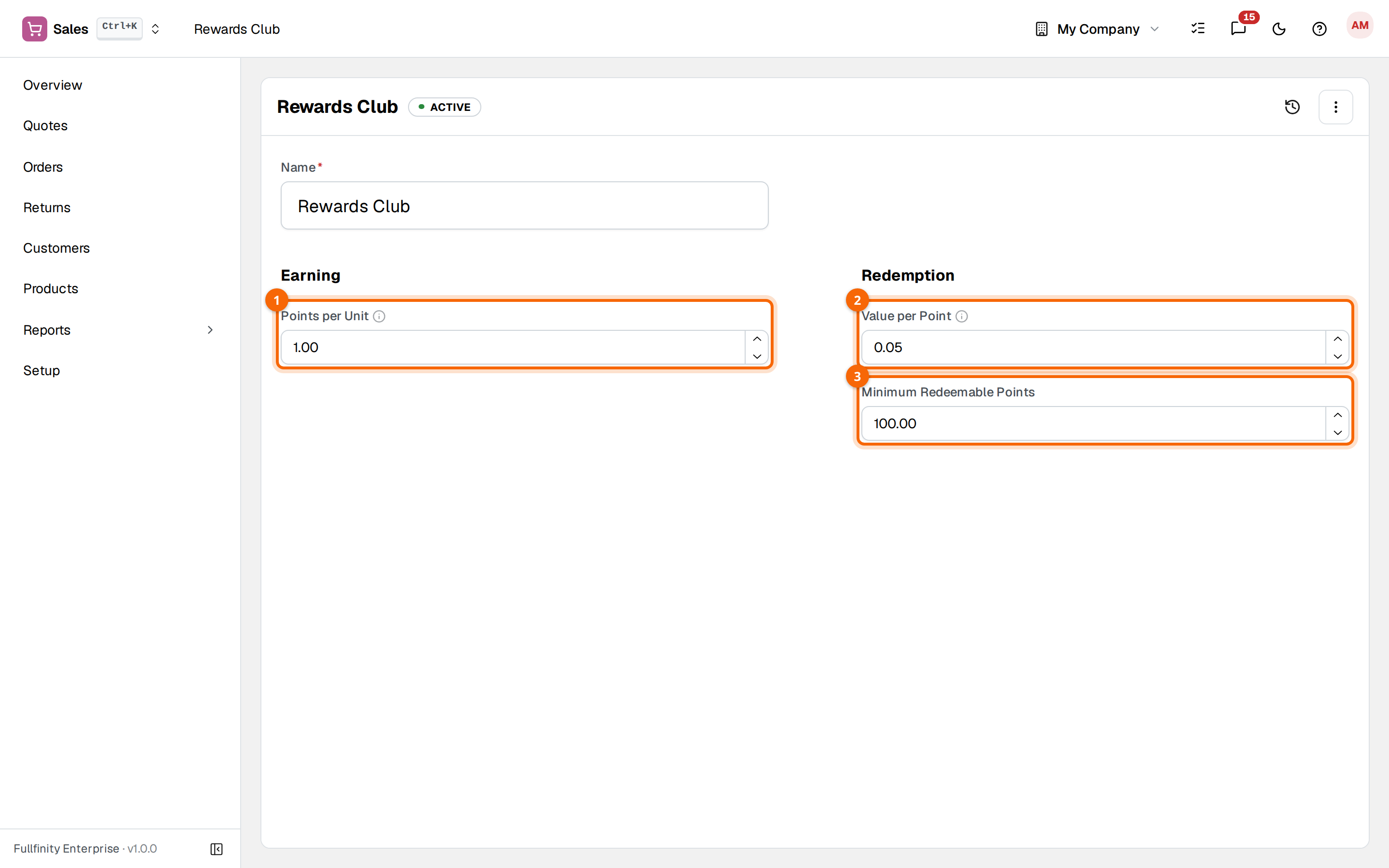
- Points per Unit — points earned for each unit of currency spent, before tax.
- Value per Point — what one point is worth when it is spent.
- Minimum Redeemable Points — the balance a customer needs before they can spend points.
Loyalty Cards lists each customer's card and points balance.
Customers earn points on every confirmed sale — at the Point of Sale, on sales orders, and on orders placed in your online store. Cancelling an order takes back the points it earned. They spend points at the Point of Sale, at checkout in your online store when signed in, and on a quote: click the arrow next to Confirm, choose Redeem Loyalty Points and enter how many points to spend. The points become a gift card applied to the order, so it shows under Gift Cards and lowers the Amount Due.
To see how your promotions perform, go to Sales → Reports → Promotions.