How do I send payment follow-ups?
See which customers are overdue and at which reminder level, send the reminder, or skip it.
The Payment Follow-Ups list is your collections worklist: every customer with an overdue balance, how late they are, and whether a reminder is due.
1. Open the worklist
Click Payment Follow-Ups in the left menu. The list is brought up to date each time you open it.
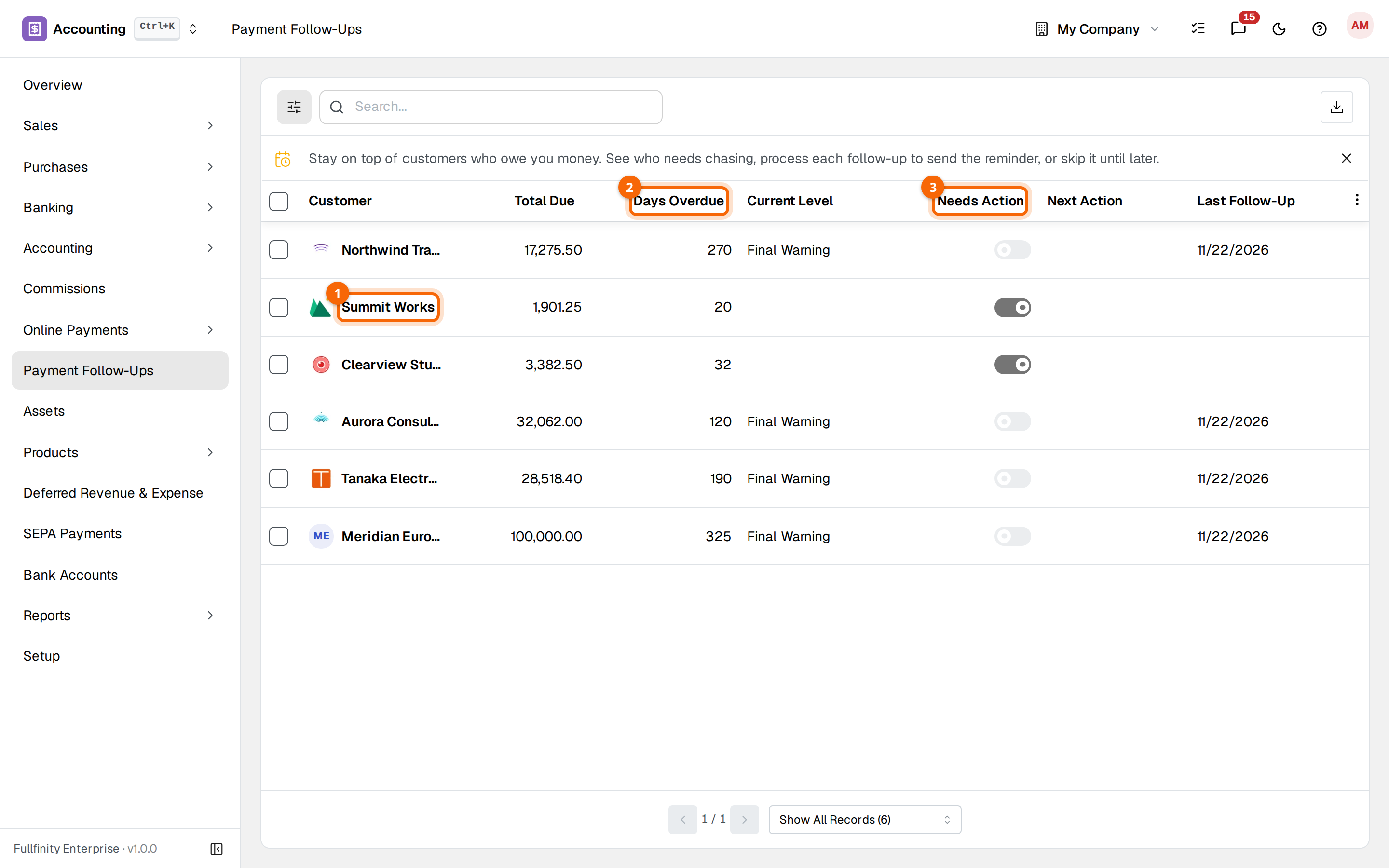
| Column | What it shows |
|---|---|
| Total Due | The customer's whole receivable balance. |
| Days Overdue | How many days their oldest open invoice is past its due date. |
| Current Level | The last reminder level they reached. |
| Needs Action | On when they've reached a level they haven't had yet. |
| Next Action | When the next level is due. |
Use the Needs Action filter to see only the customers waiting for a reminder, or Overdue 30+ Days, Overdue 60+ Days and Overdue 90+ Days.
2. Send the reminder
Open the customer and click Process: the level's email is sent, its activity created, and the customer moves to that level. The arrow beside it has the other choices.
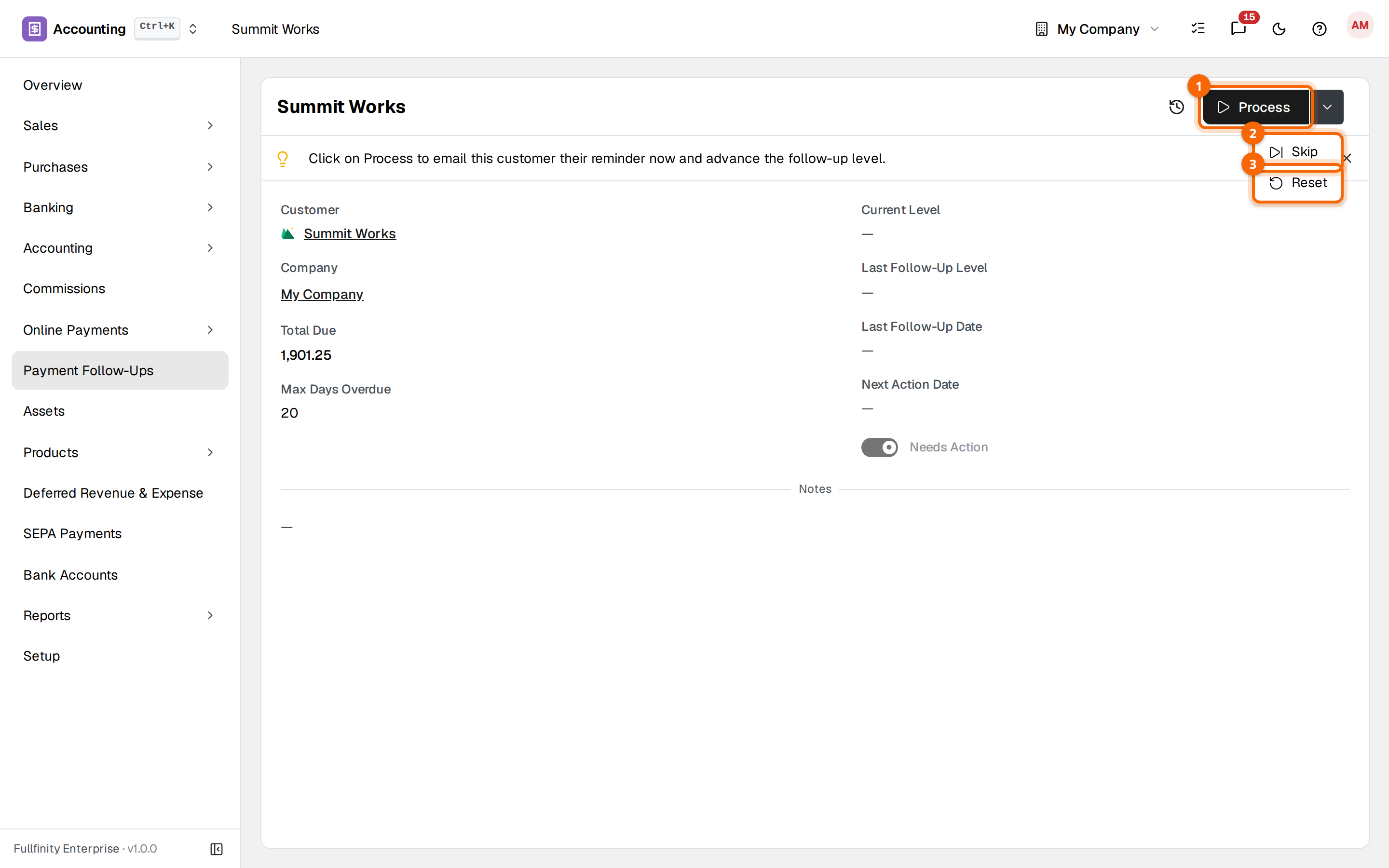
- Skip — move the customer to the level without sending anything, for example when you've just spoken to them.
- Reset — start the customer from the beginning again, for example after they've paid and later fall behind.
A customer who reaches a level skips the ones below it: if they're already 70 days late when you start, they get the Final Warning, not the first reminder. Once they pay their overdue invoices, they leave the list.