How do I run a tender across several vendors?
Send the same requirement to several vendors as RFQs, collect their prices, and award the business — to one vendor or line by line.
A tender puts the same requirement in front of several vendors so you buy from the best offer instead of your usual supplier. Fullfinity sends each invited vendor their own RFQ, and when you award the tender it confirms the winners and cancels the rest.
1. Describe the requirement
Go to Purchase → Tenders and click New.
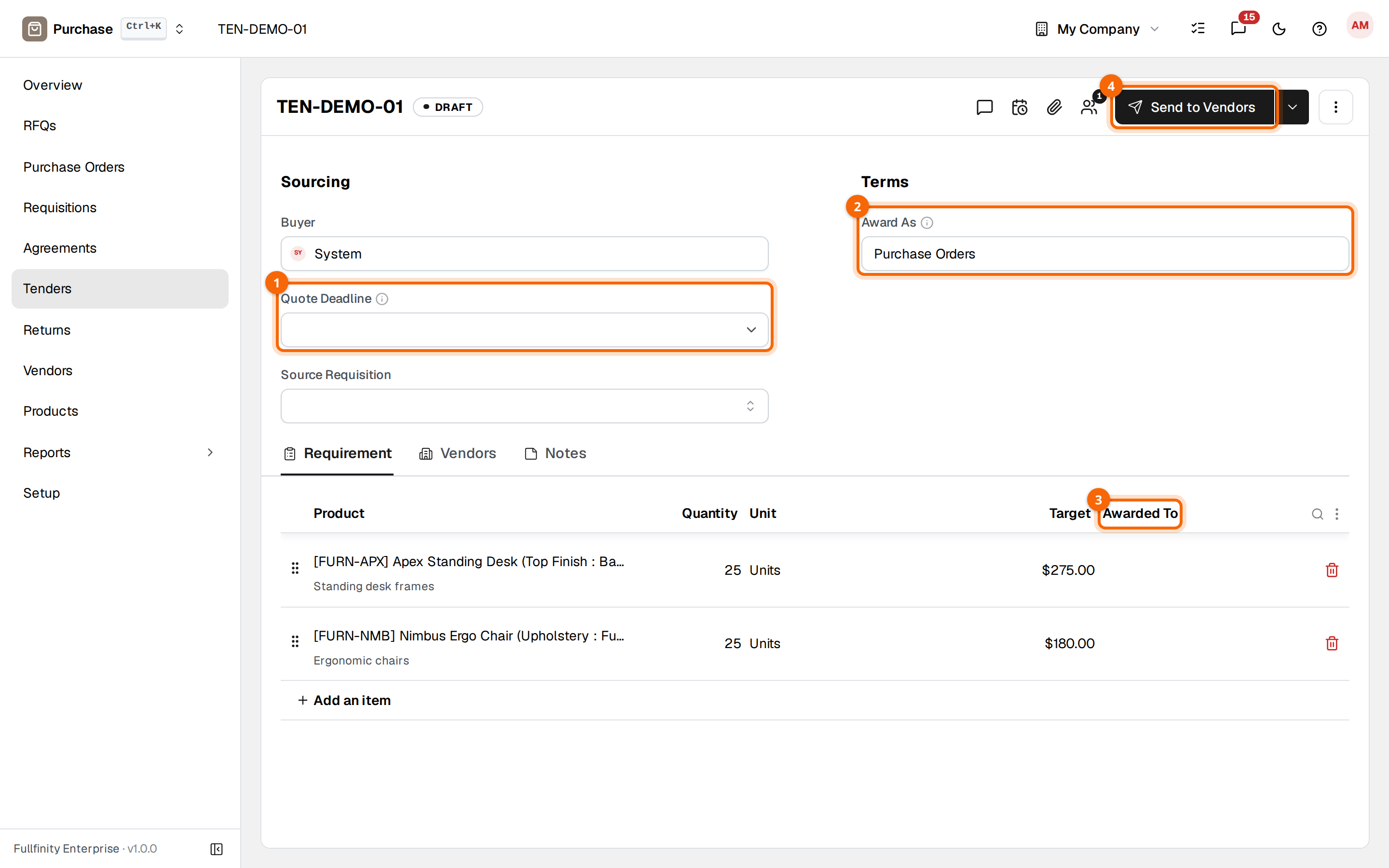
- Quote Deadline — the date vendors should quote by.
- Award As — what the winning offers become:
- Purchase Orders buys the requirement once.
- Blanket Agreement locks in the winning prices as a purchase agreement for later orders; set Agreement Valid To for when it ends.
- On the Requirement tab, add each product with its Quantity and, optionally, a Target price. Awarded To stays empty until you decide.
2. Invite the vendors and send
On the Vendors tab, click Add an item for each vendor you want to compete. You can note each one's Lead Time (days).
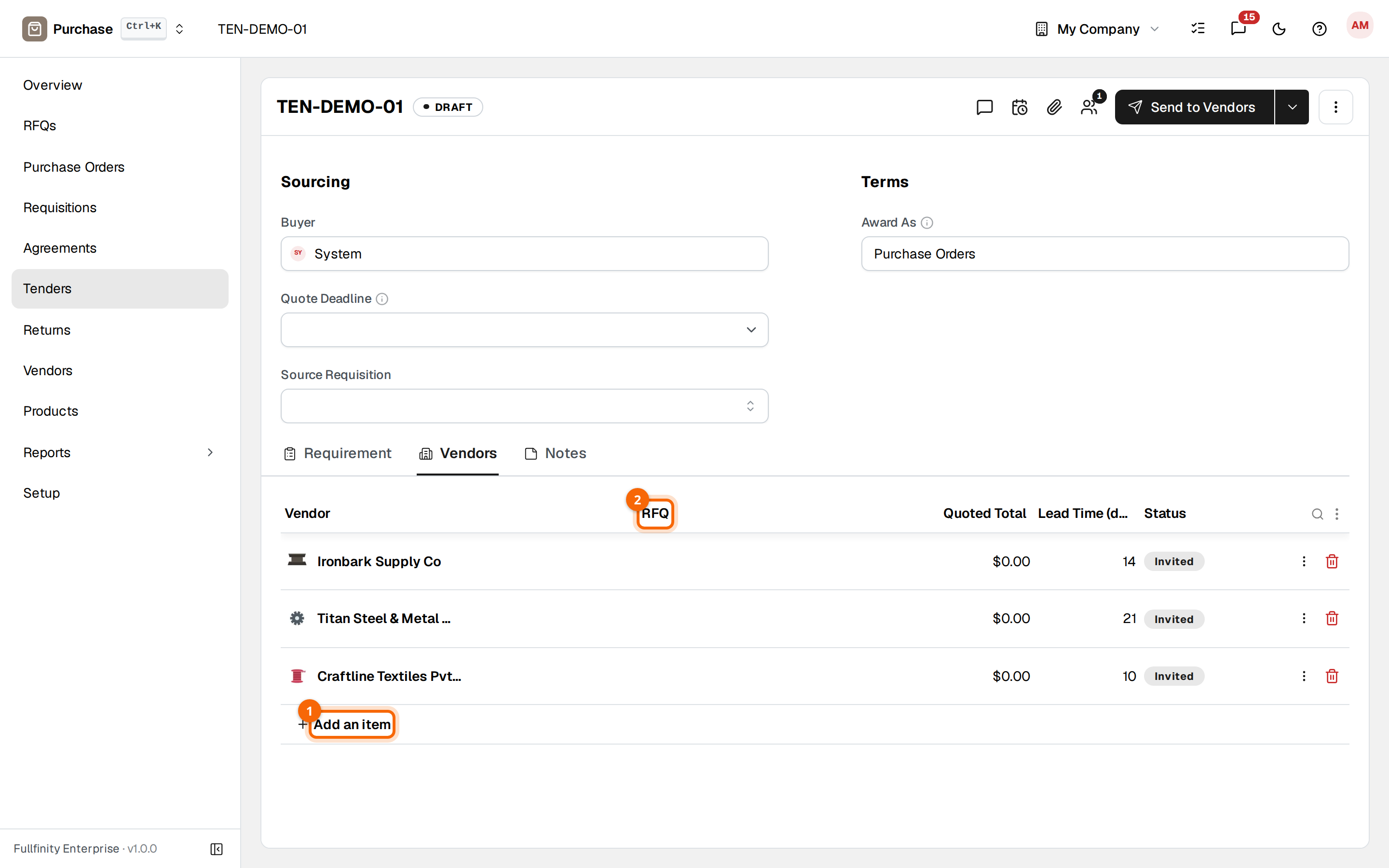
Click Send to Vendors (step 4 above). Fullfinity creates one RFQ per vendor with the requirement lines, and links it in the RFQ column. The tender becomes Sent and each vendor's status Sent. Invited someone later? Add them and click Send to Vendors again — only the new vendor gets an RFQ.
Email each RFQ to its vendor from the RFQ itself (Send), as you would any request.
3. Enter the quotes
The RFQs start with no prices. As each vendor answers, open their RFQ from the RFQ column and enter their Unit Price on each line. Once every line has a price, the vendor's status becomes Quoted, and the Vendors tab shows their Quoted Total (before tax, in the tender's currency) beside their lead time, so you can compare offers side by side.
If a vendor declines to quote, click Mark Declined on their row: their RFQ is cancelled and they can't be awarded.
4. Award
On the Requirement tab, set Awarded To on every line — the same vendor on all lines to give them everything, or different vendors to split it. Record your reasoning in Award Justification on the Notes tab, especially when you didn't choose the cheapest offer. Then click Award.
- Purchase Orders: each winner's RFQ is trimmed to the lines they won and confirmed as a purchase order; the losing RFQs are cancelled.
- Blanket Agreement: each winner gets a confirmed purchase agreement at their quoted prices (the Agreements button opens them), and every RFQ is cancelled.
The tender becomes Awarded, winners show Awarded and the others Lost (vendors who declined stay Declined). To stop a tender instead, click Cancel: any RFQ still open is cancelled.
➡️ Related: How do I use purchase agreements for repeat buying?