How do I create and send a rental quote?
Create a rental quote with its dates and items, priced for the rental period, and email the rental agreement to the customer.
A rental starts as a quotation: the customer, the dates and what they want to rent.
Go to Rental → Quotations and click New. You can also click New Rental Quotation on the Overview.
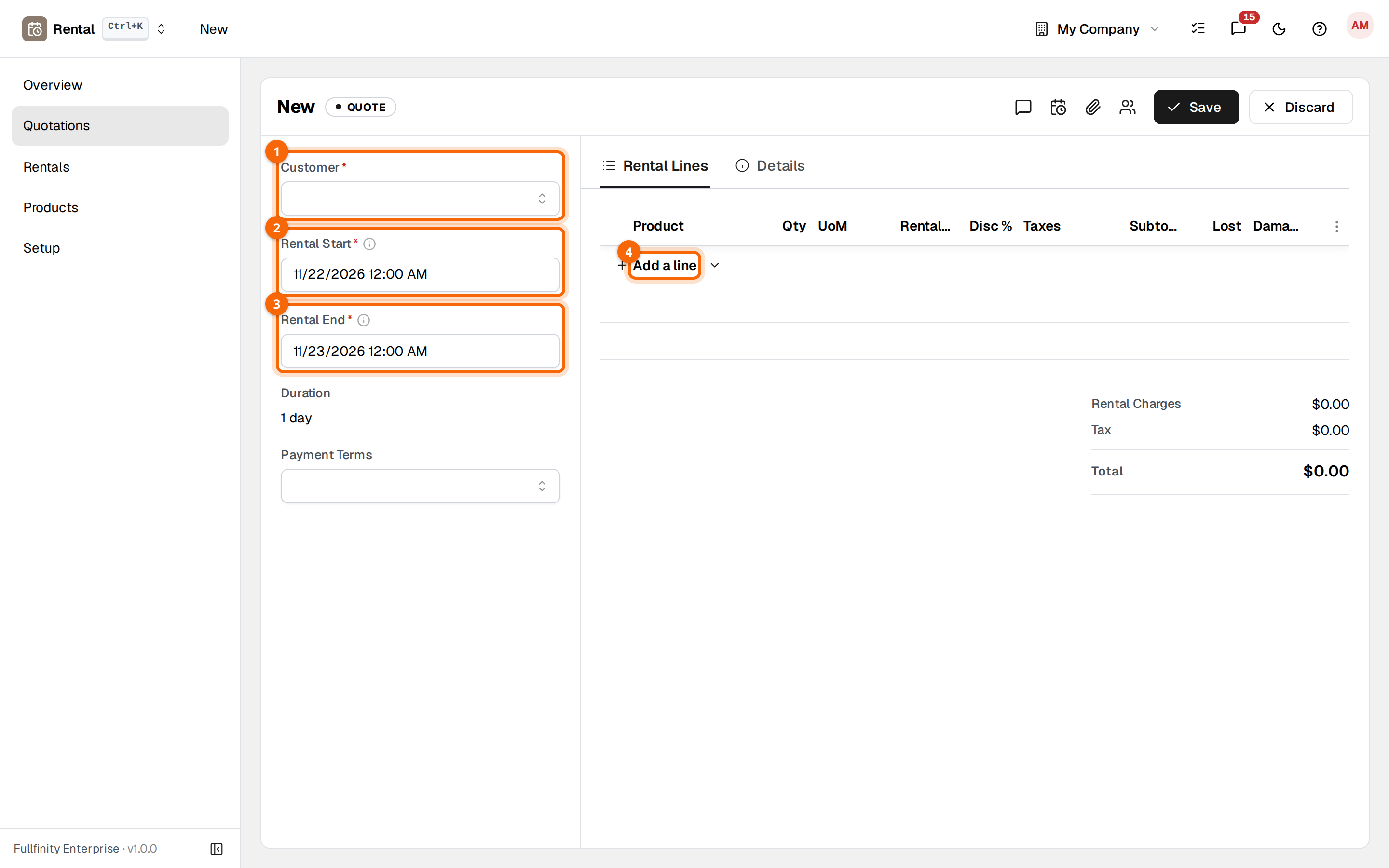
- Customer — who is renting.
- Rental Start — when they take the items.
- Rental End — when the items are due back. Duration shows the length of the rental.
- On the Rental Lines tab, click Add a line and choose each product and the Qty. The Rental Price is the price for one unit for the whole rental, worked out from the product's prices — see How do I set up a product for rent?
Change the dates and every line is priced again for the new length. You can still type your own Rental Price or a Disc %.
Under the lines you see the Rental Charges, the Tax and the Total, and below them the Security Deposit the customer will be asked for. The deposit is not part of the total: it is the customer's money and is given back.
On the Details tab you can set the Rental Agent, the Tax Rule and the Terms & Conditions printed on the rental agreement.
Send it
Click the arrow next to Confirm and choose Send.
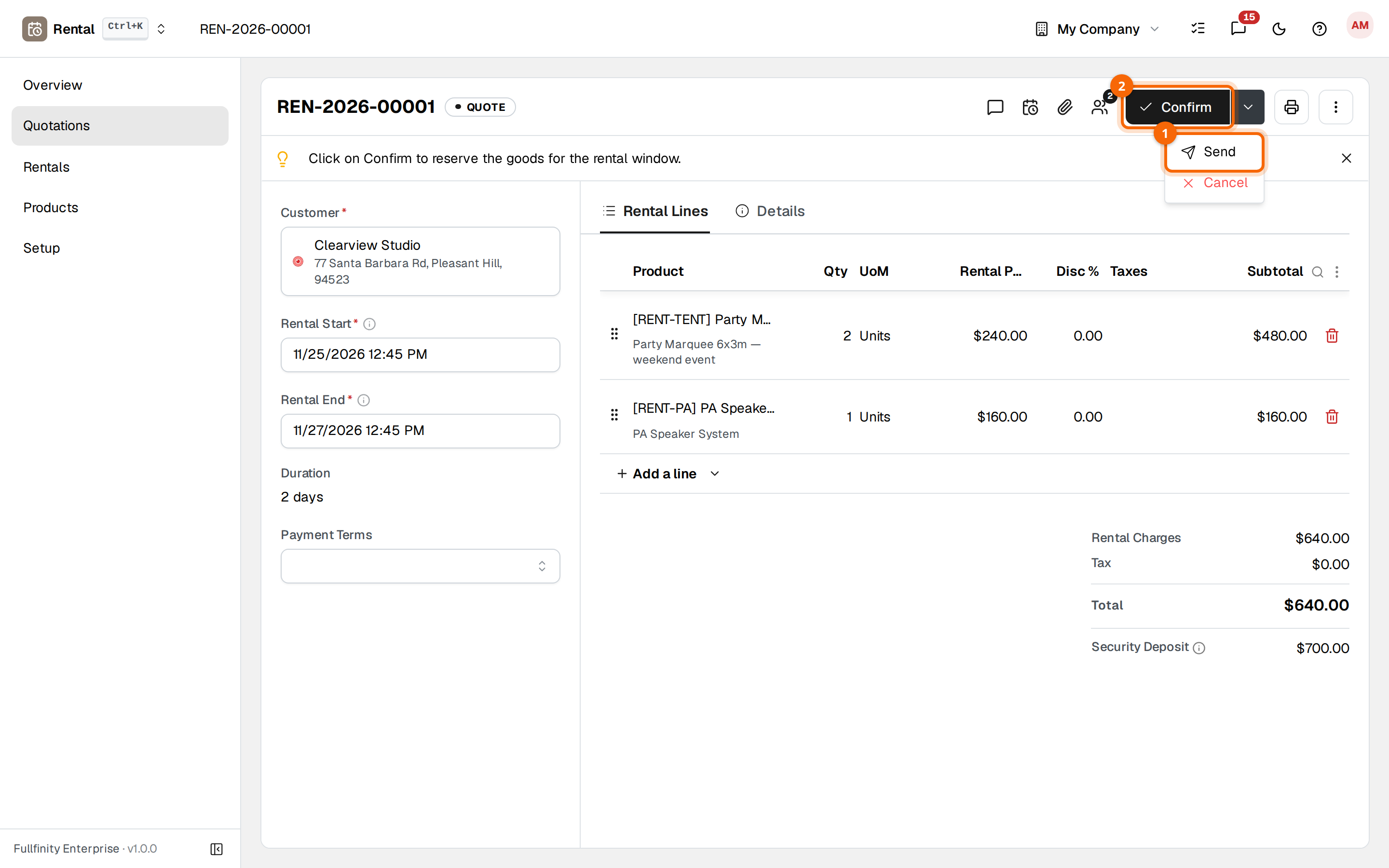
An email opens addressed to the customer, with the rental agreement attached as a PDF and a link to view it online. Check it and send. The quotation becomes Sent.
To print the agreement instead, click the printer button and choose Print Rental Agreement. It carries a QR code that opens the rental online.