How do I move applicants through the hiring stages?
Track each candidate on the hiring board and set up the stages your hiring goes through.
Recruitment → Applicants opens as a board with a column per stage. Each card is a candidate, with the position they applied for and your rating.
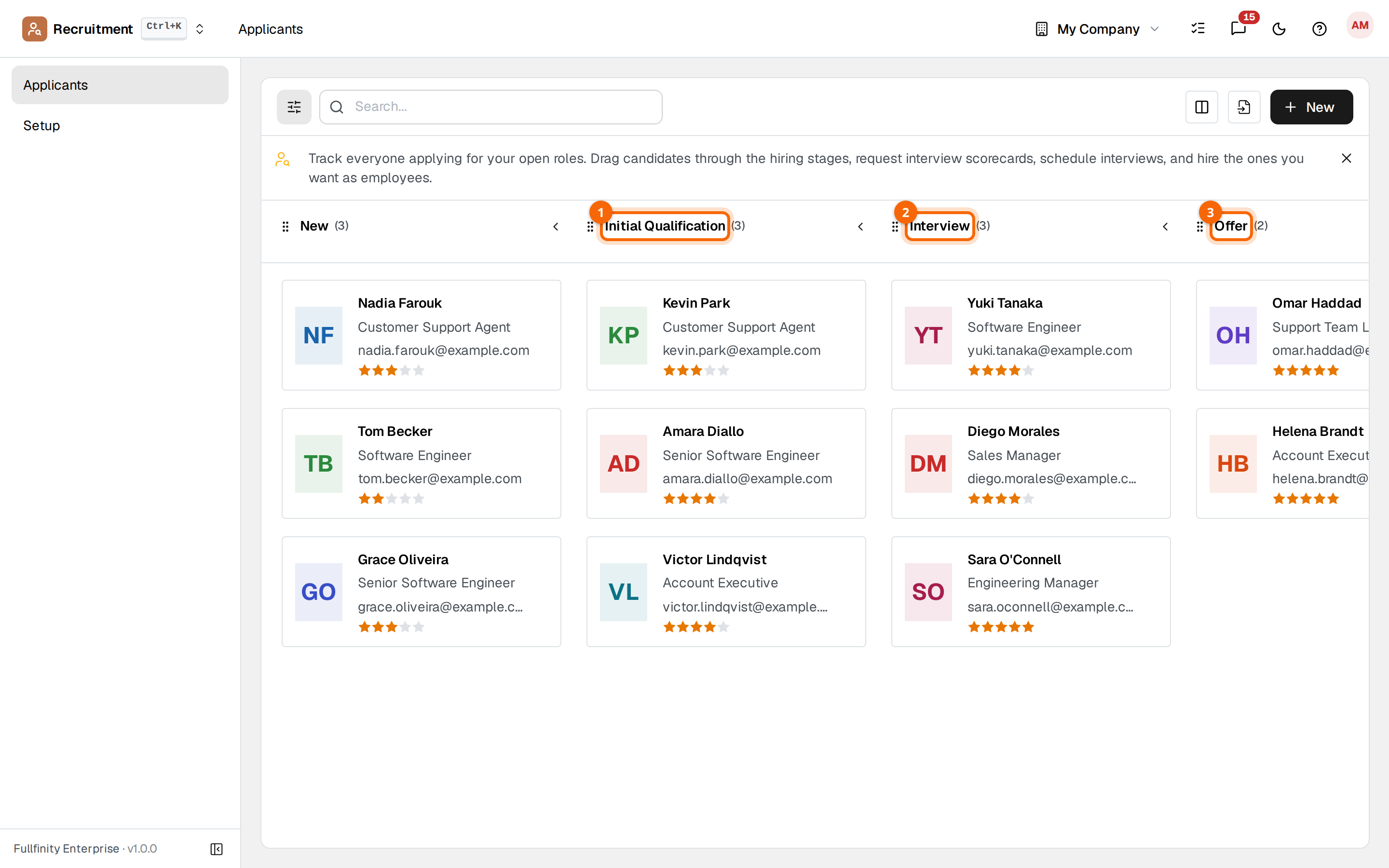
Out of the box the stages are New, Initial Qualification, Interview, Offer and Hired. Drag a card to the next column as the candidate moves on, or change the Stage on the applicant. Drag a card up or down to put the strongest candidates at the top of a column; it stays where you put it.
To see one position's candidates, open the filters and pick it under Position.
Change the stages
Go to Recruitment → Setup and click Stages (HR Managers only).
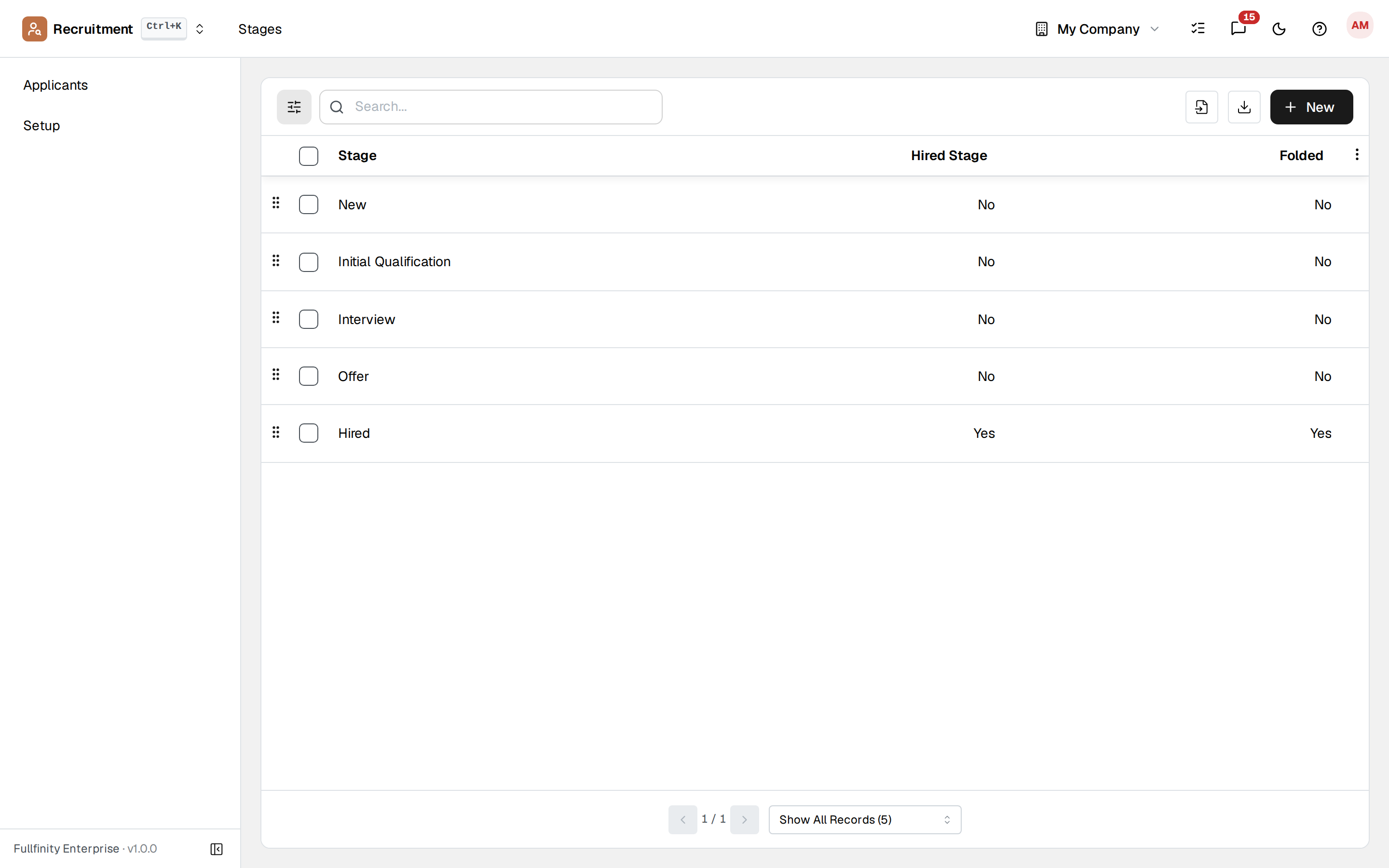
- Drag a stage to change its place on the board, rename it, or add your own (Technical Test, Reference Check).
- Hired Stage marks the stage that means hired. Hiring an applicant moves them there.
- Folded collapses the column on the board, so finished candidates don't take up room.
➡️ Next: How do I schedule interviews and collect scorecards?
Was this article helpful?