How do I schedule interviews and collect scorecards?
Invite the position's interview panel to a meeting, and have each interviewer score the candidate.
Schedule the interview
Open the applicant and open the menu beside Hire:
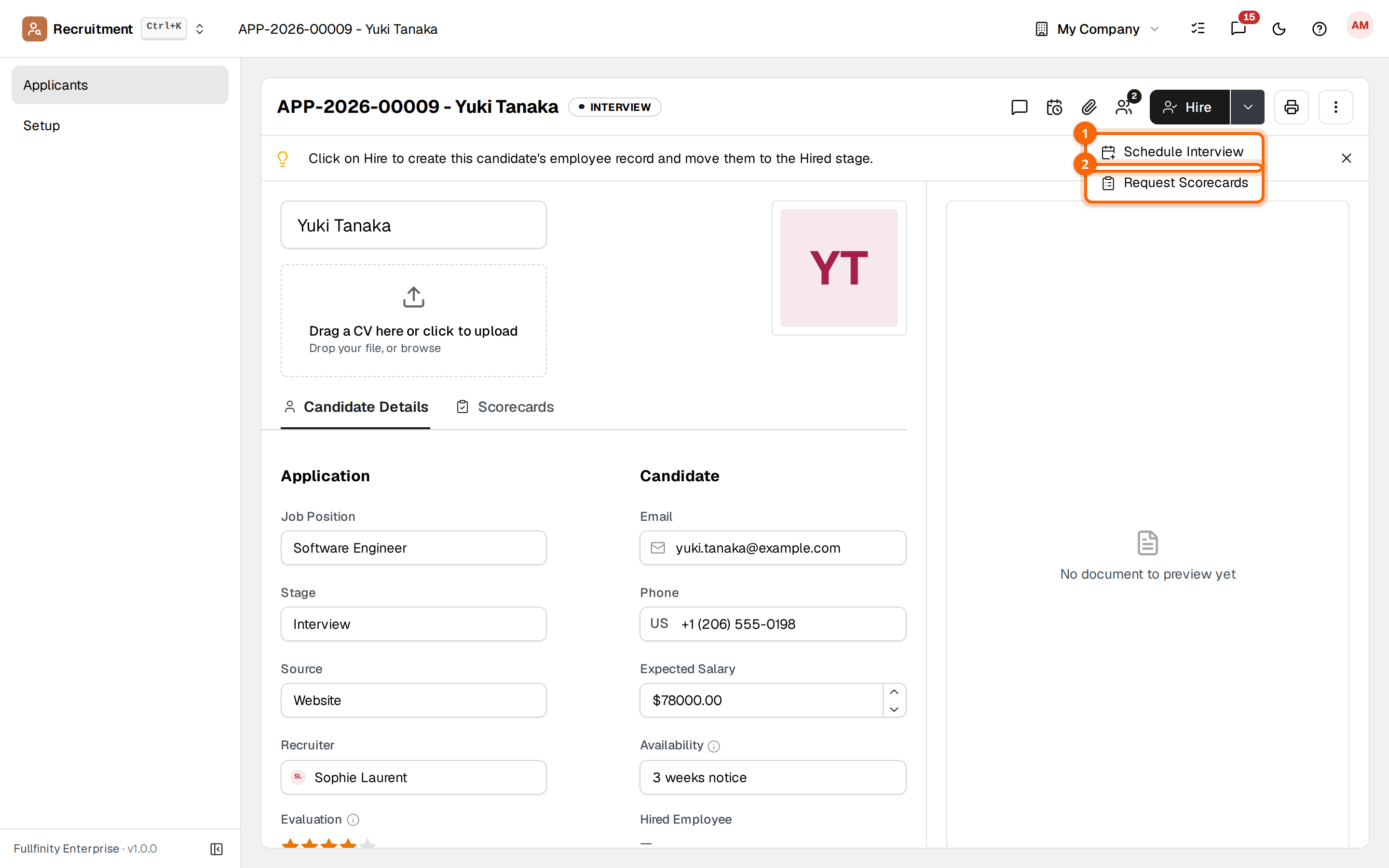
Click Schedule Interview. A meeting called Interview: and the candidate's name opens, with the position's interviewers already invited and the candidate's position, email and phone in its description.
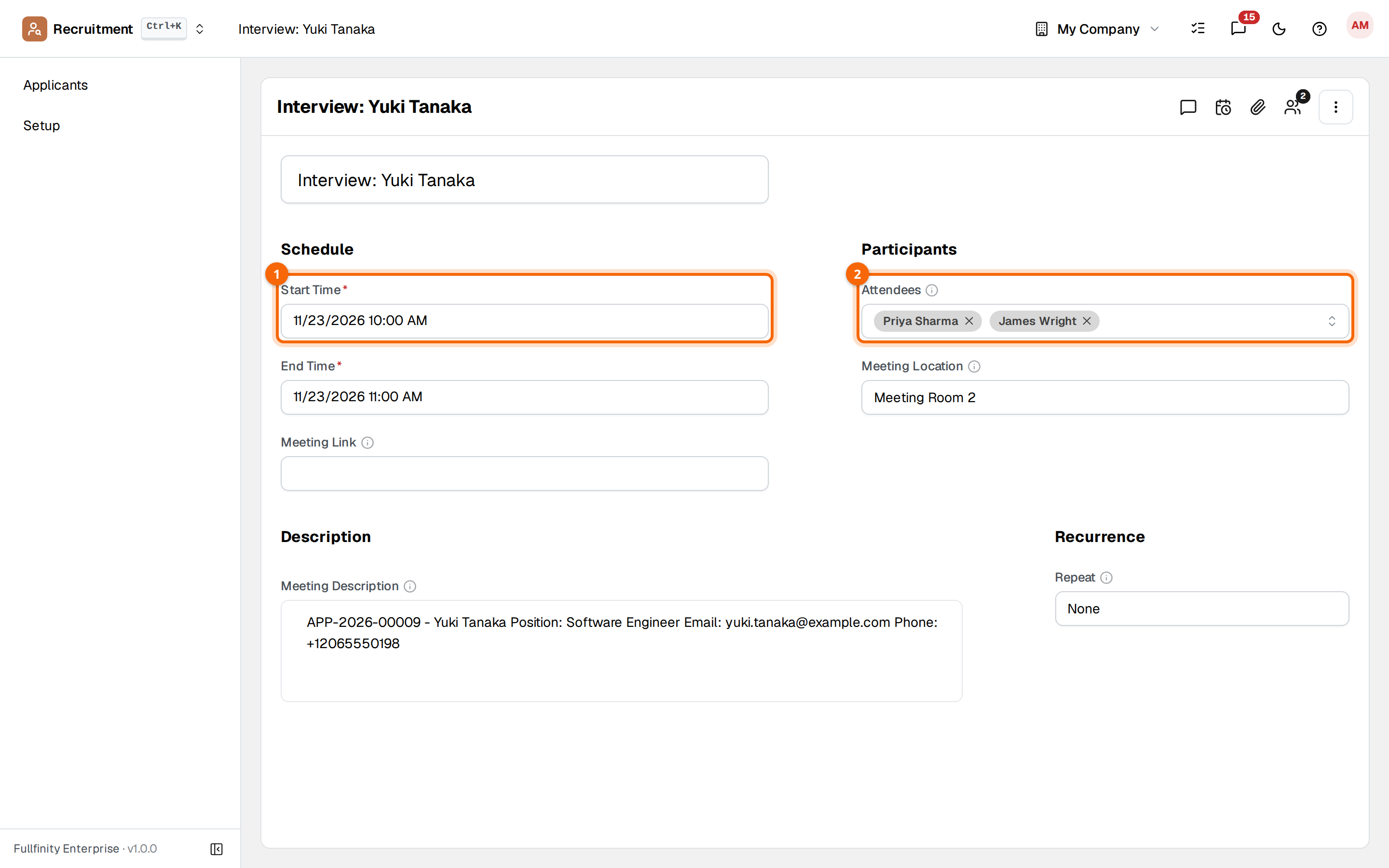
- Set the Start Time (and End Time), and the Meeting Location or Meeting Link.
- Check the Attendees; add anyone else who should join.
Save. The interviewers are invited as attendees.
Ask the interviewers for scores
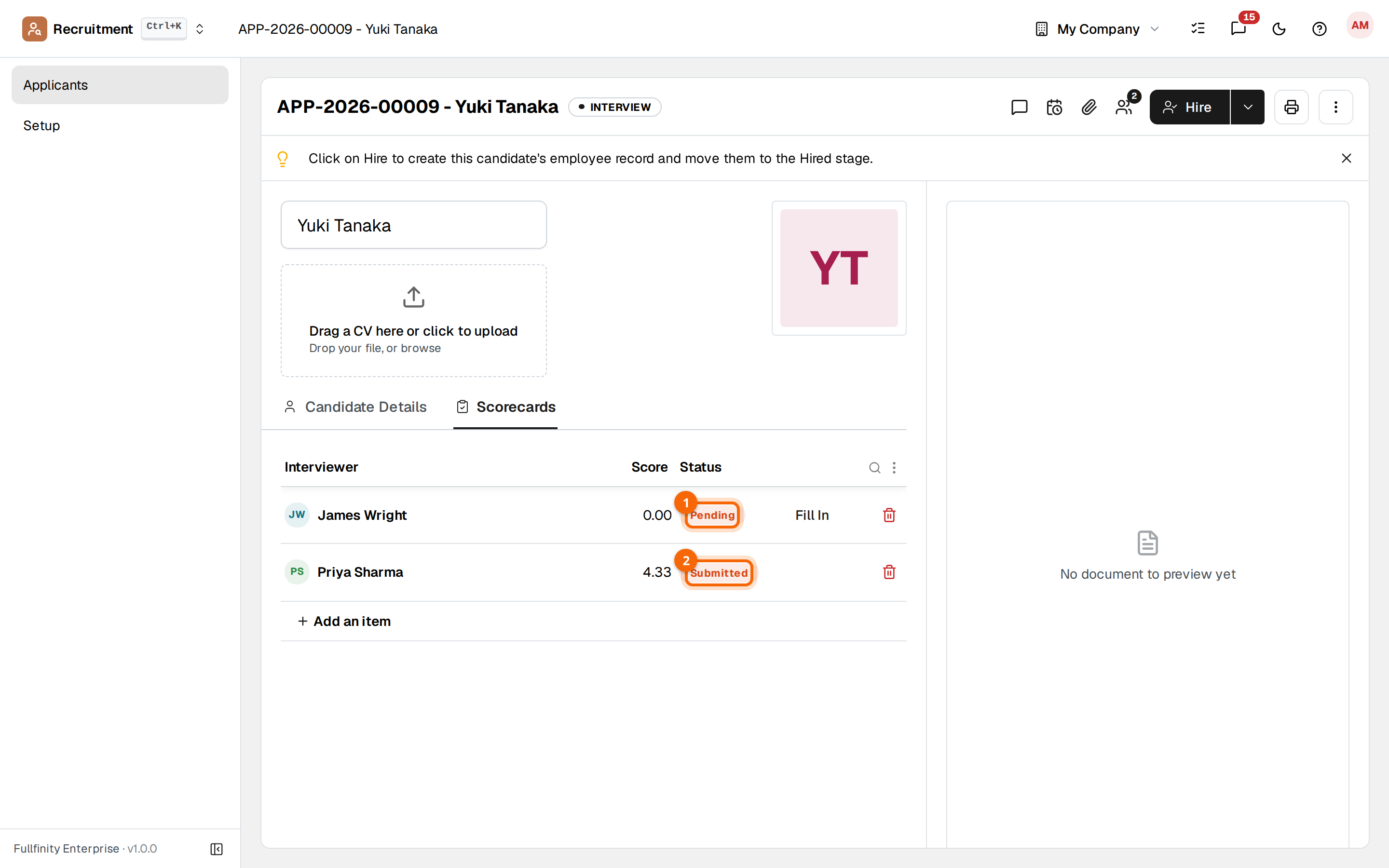
In the same menu, click Request Scorecards. Every interviewer on the position gets a scorecard for this candidate, Pending until they fill it. Clicking it again only adds scorecards for interviewers who don't have one yet.
The scorecards are on the applicant's Scorecards tab:
Fill a scorecard
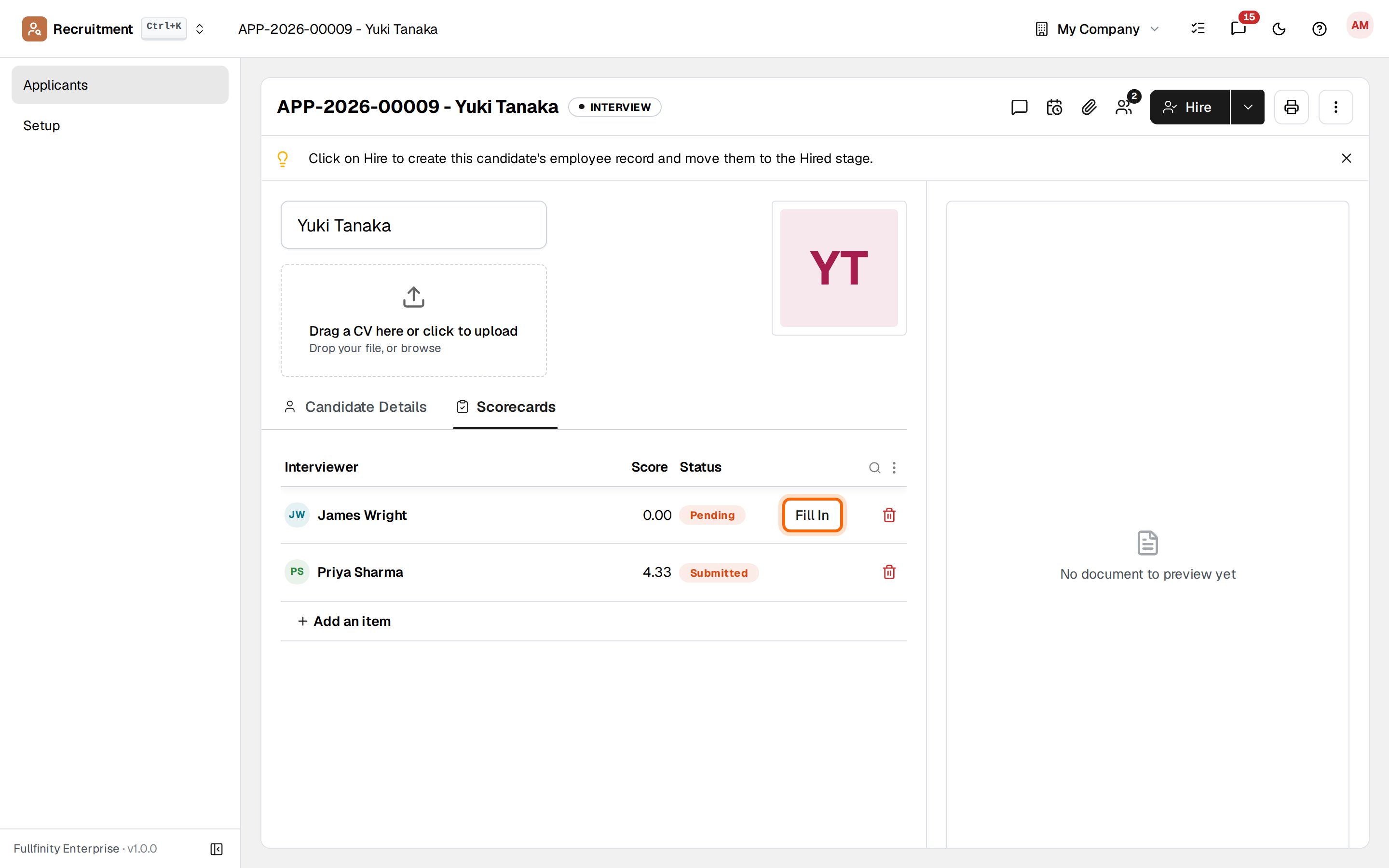
The interviewer opens the applicant, goes to Scorecards, and clicks Fill In on their own row. (On a scorecard already submitted, it reopens their scores so they can change them.)
The scorecard opens one item at a time:
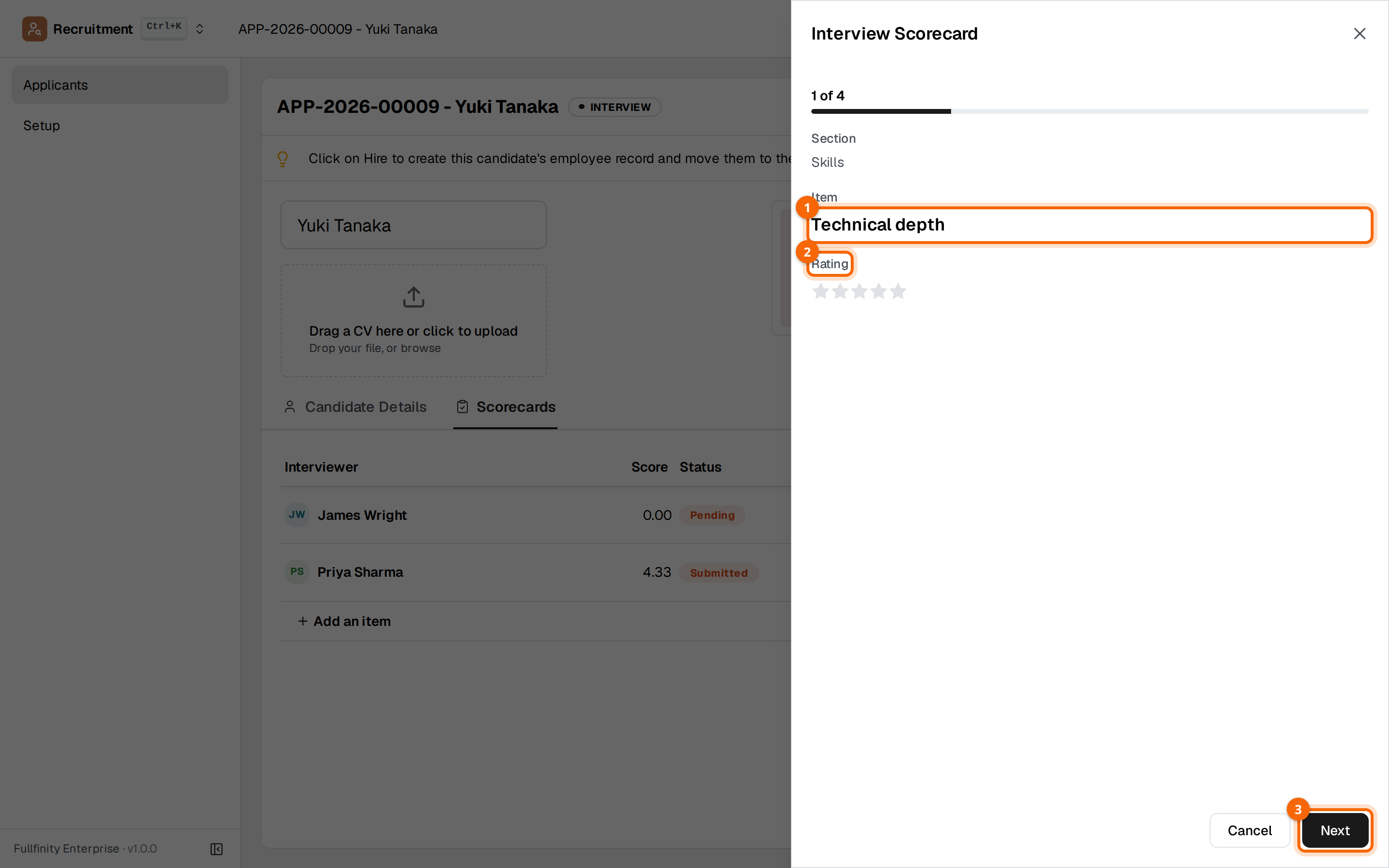
- The item being scored, under its section.
- Give a Rating from one to five stars, or write an answer for a question.
- Click Next. Back returns to the previous item; Submit on the last one finishes.
Submitting marks the scorecard Submitted with its Score — the average of the ratings. The applicant's Avg Interview Score is the average of all submitted scorecards.
➡️ Next: How do I hire an applicant?