Why doesn't my bank balance match?
Read a bank statement's three balances and find the line or payment that makes them disagree.
A bank statement in Fullfinity shows three balances. When they don't agree, they tell you where to look.
Open the statement from Banking → Bank Statements and look at Balances:
- Closing Balance — the balance printed by your bank.
- Computed Balance — the Opening Balance plus every line on the statement.
- Bank Ledger Balance — your bank account in the books: everything posted to it up to the statement's End Date.
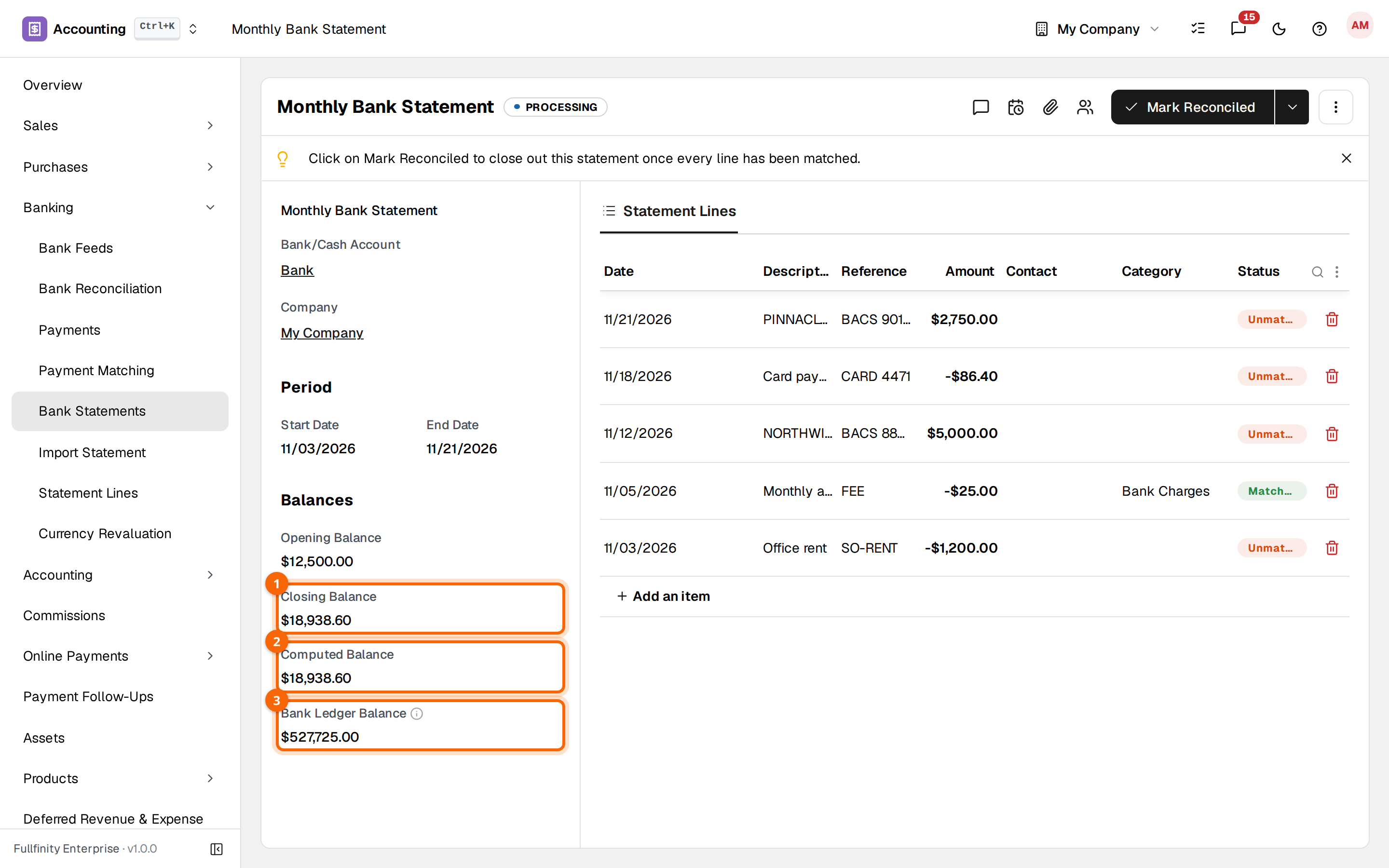
Closing Balance and Computed Balance differ
The statement's lines don't add up to what the bank says. Either the Opening Balance is wrong (it should be the previous statement's closing balance), a transaction is missing from the lines, or one was imported twice — for example when the same file was imported again. Compare the lines with your bank's statement and fix the statement while it's in Draft.
Computed Balance and Bank Ledger Balance differ
The bank and your books disagree. Once every line is reconciled they should be equal. Look for:
- Unmatched lines — a fee or a deposit you haven't recorded yet. Match or categorize it; see Reconcile your bank account.
- Payments the bank hasn't cleared yet — a payment dated before the statement's end that the bank only shows next month. It belongs on the next statement.
- A payment recorded on the wrong journal — it went into Cash rather than Bank, or the wrong date. It can't be matched to this statement's lines; correct the payment.
- A payment recorded twice, or at a different amount than the bank shows.
- Earlier statements — the ledger balance counts everything ever posted to the bank account. A difference left over from a previous month carries into this one.
With a bank feed, the account's Unreconciled Difference compares the bank's own balance with your latest statement and flags a missing or doubled transaction for you. See Connect your bank.