How do I process a customer return?
Record goods a customer sends back against their order, refund what was billed with a credit note, and bring the goods back into stock.
When a customer sends products back, record the return against their sales order. Confirming it issues a credit note for anything that was invoiced and raises a receipt for the warehouse to take the goods back in.
1. Start the return from the order
Open the order from Sales → Orders, click the arrow next to the main button and choose Return Items.
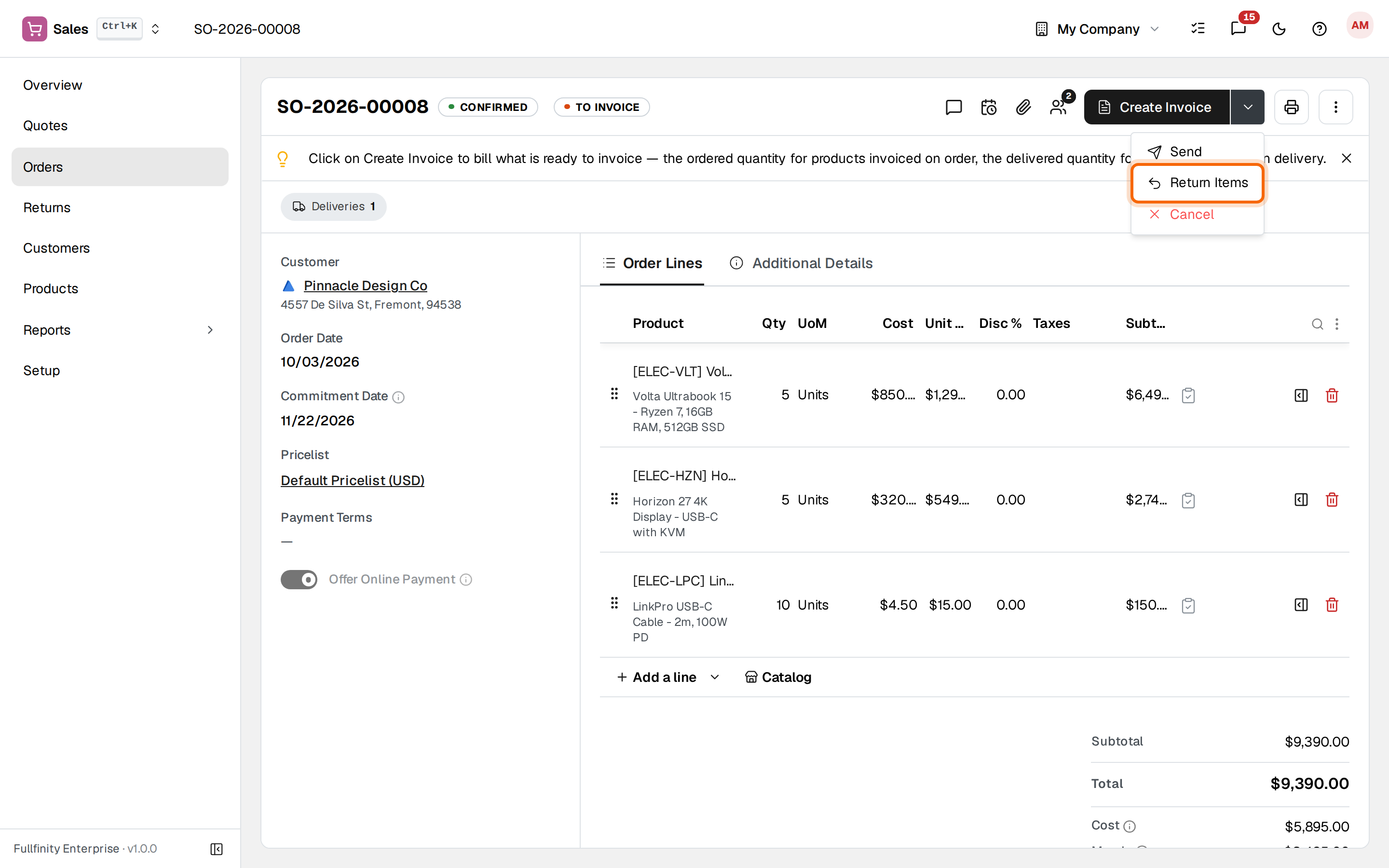
You can only return what has gone out: each line shows how much is Returnable — what was delivered or invoiced, minus anything already returned. If nothing has been delivered or invoiced yet, you'll be told there is nothing to return.
2. Choose what is coming back
- Enter the Return Qty on each line coming back; leave the others at 0.
- Add a Reason, for example Damaged in transit.
- Click Create & Confirm to process it now, or Save Draft to finish it later.
You can also start a return from Sales → Returns with New: pick the Customer and Sales Order, add a Reason, and add the lines with Add an item.
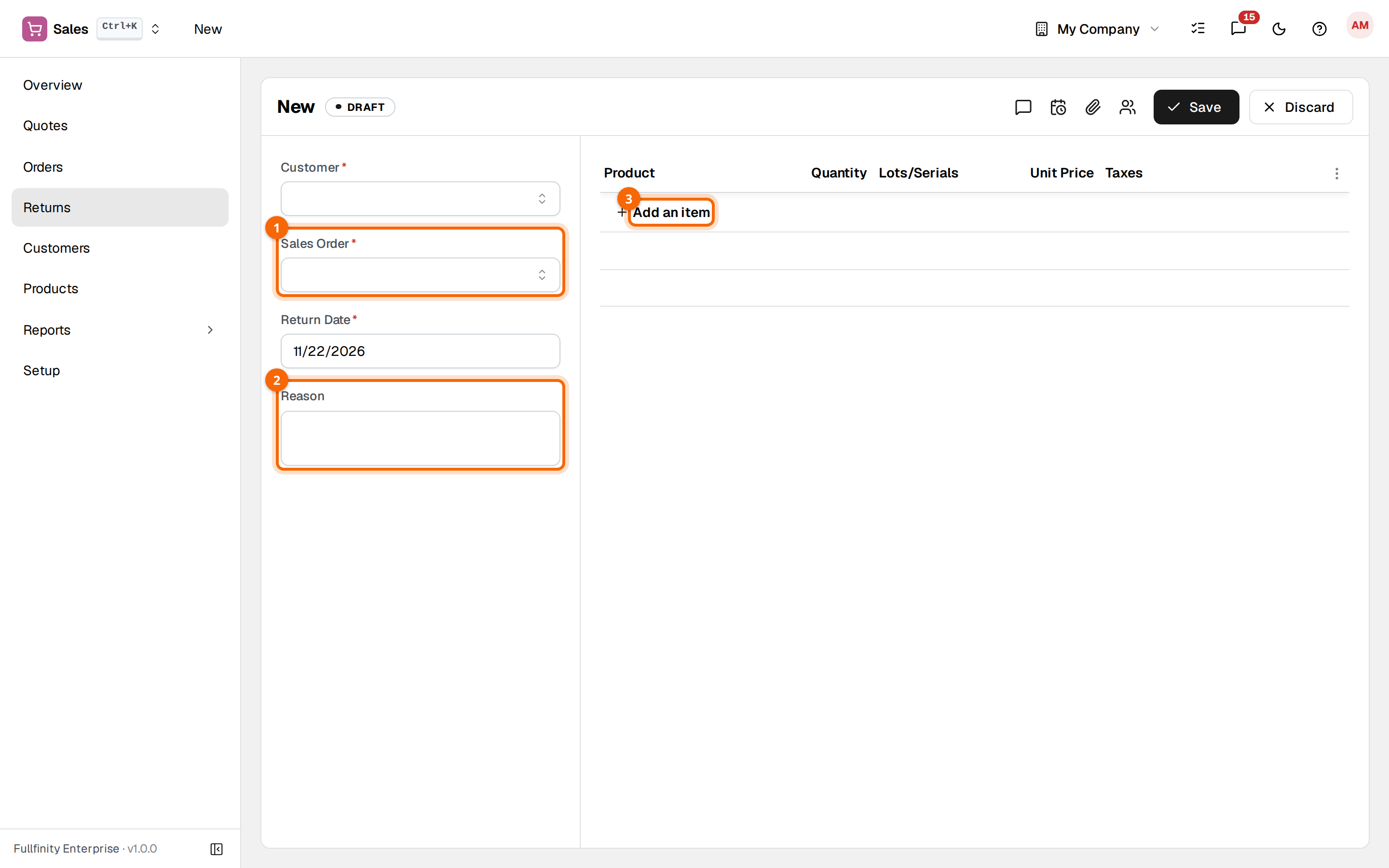
A draft return is confirmed with Confirm Return, or discarded with Cancel.
3. What confirming does
- Credit note — for the returned quantities that were invoiced, a credit note is created and posted straight away. Open it with the Credit Note button on the return. Quantities that were never invoiced get no credit note; they simply won't be billed.
- Receipt — for stocked products, a receipt is raised for the warehouse. The return's Receipt Status moves from To Receive to Fully Received as the goods are checked in; the Receipt button opens it.
- The return's status becomes Done, and the order's Returns button lists every return made against it.
To refund the money itself, see How do I issue a credit note?