How do I correct or refund a posted invoice?
Issue a credit note to reverse all or part of an invoice you've already posted.
A posted invoice can't be edited — its number and accounting entry are final. To correct a mistake or refund a customer, issue a credit note that reverses all or part of it.
1. Create the credit note
- Open the posted customer invoice.
- Click the arrow beside the main button and choose Create Credit Note.
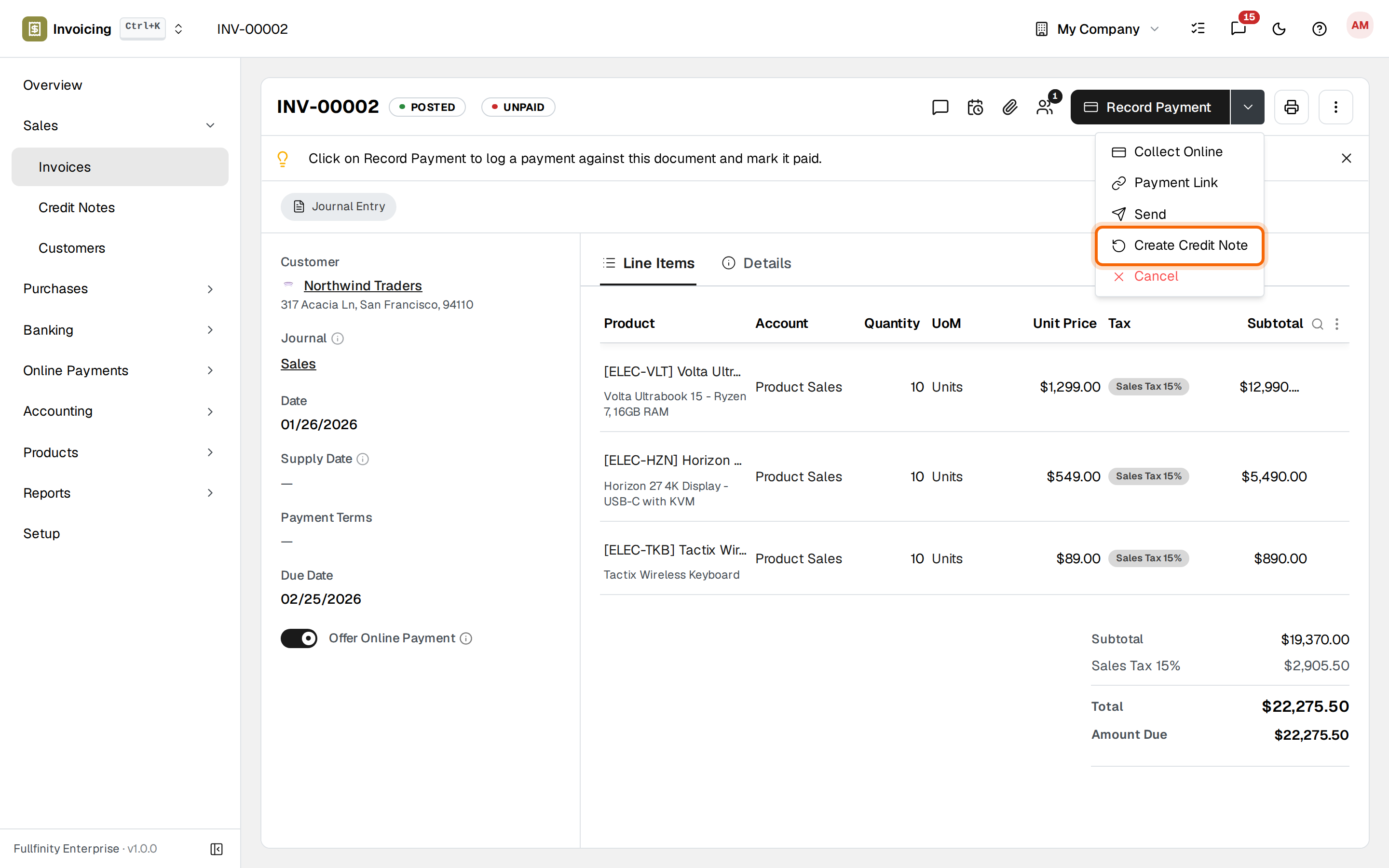
A draft credit note opens with a copy of the invoice's lines, dated today, with Reversal of and the invoice number as its Reference.
2. Adjust and post it
- For a full reversal, leave the lines as they are.
- For a partial credit, delete lines or lower quantities so it covers only what you're crediting.
Then click Post.
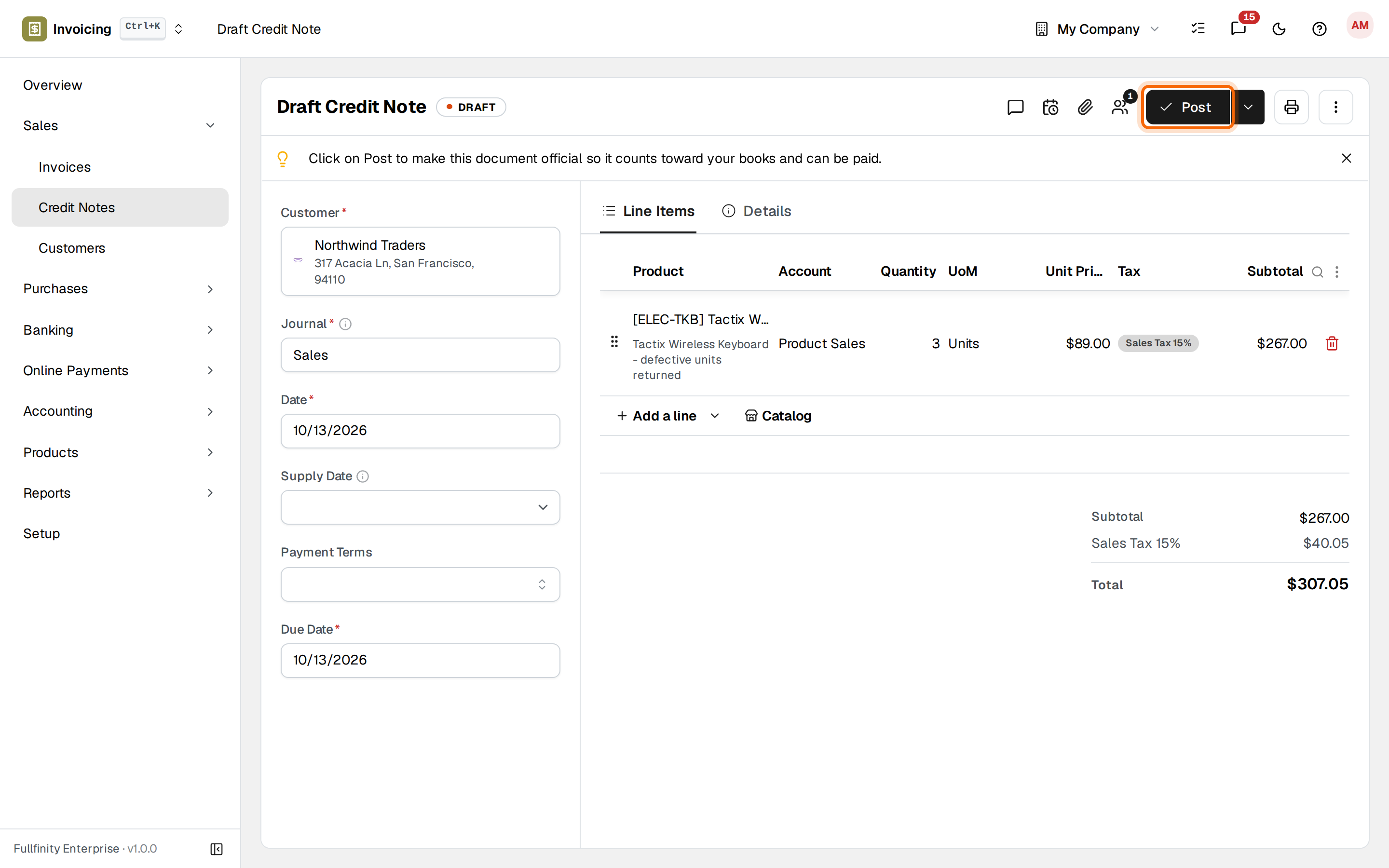
The credit note and the invoice point at each other: the invoice gets a Credit Notes button, and the credit note a Source Invoice button.
3. Settle it
- Against an invoice — apply it to the original invoice or the customer's next one. See How do I apply a credit note to an open invoice?
- As a refund — click Record Payment on the posted credit note and record the money you paid back.
- By email — click Send, as for an invoice.
Was this article helpful?