How do I run work orders at each work center?
Start, pause and finish each step of an order at its work center, and see how long it really took.
Each operation of an order becomes a work order: one step, at one work center. Operators start it, pause it and mark it done, and the time is recorded as they go.
The work order board
Go to Manufacturing → Work Orders. Work orders of confirmed orders are grouped by status: Pending, Ready, In Progress, Paused and Done. Each card shows the operation, its work center, the order and the planned minutes.
- Click Start (1) on a card to begin. The clock starts for you.
- Click Pause (2) when work stops, and Resume to carry on.
- Click Done (3) when the step is finished. The next step becomes Ready.
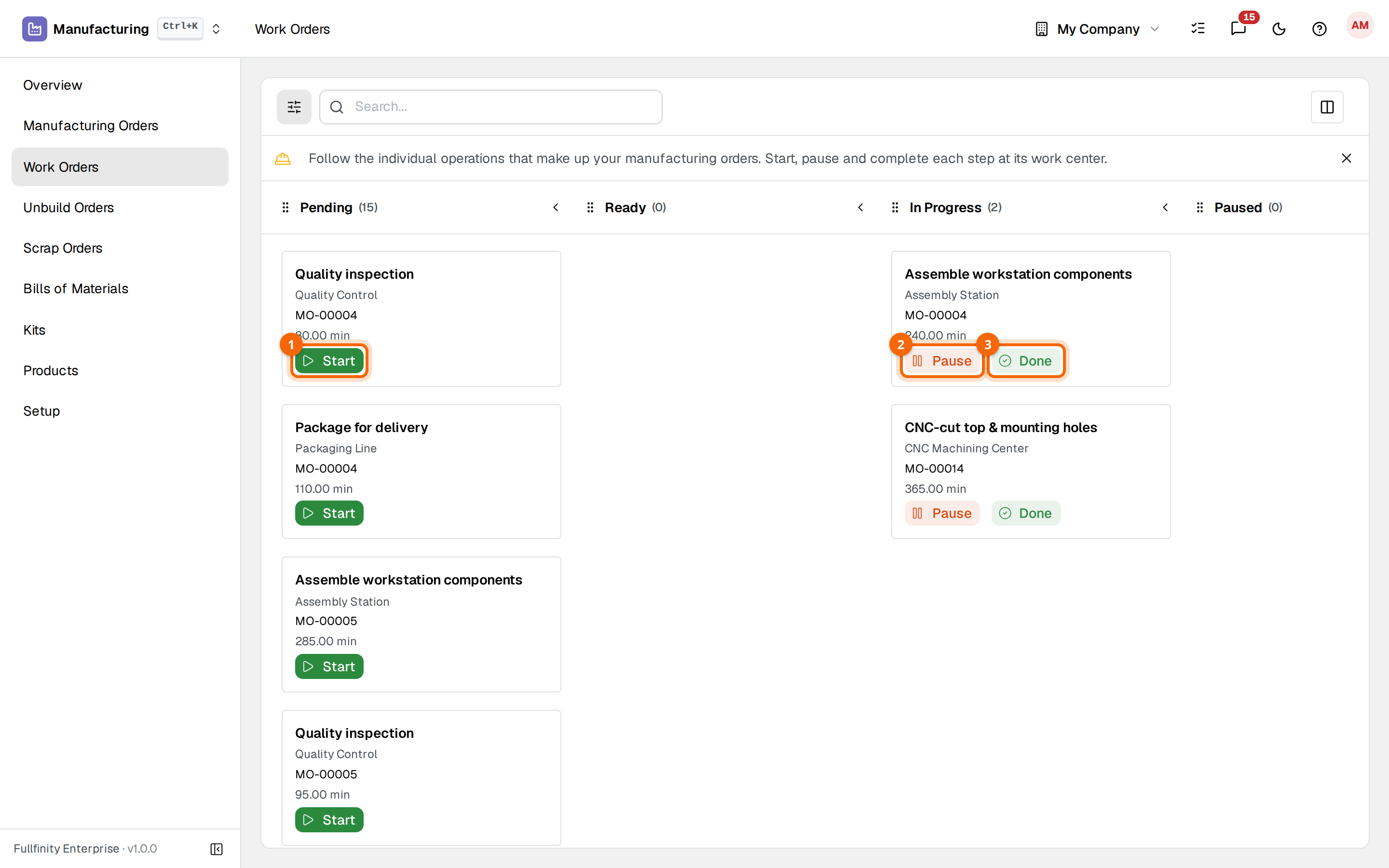
Use Work Center in the filter panel to see only the work for one station.
Open a work order
Click a card to see the Work Instructions (1) written on the operation and any drawing attached to it. The same Start, Pause and Done buttons are at the top.
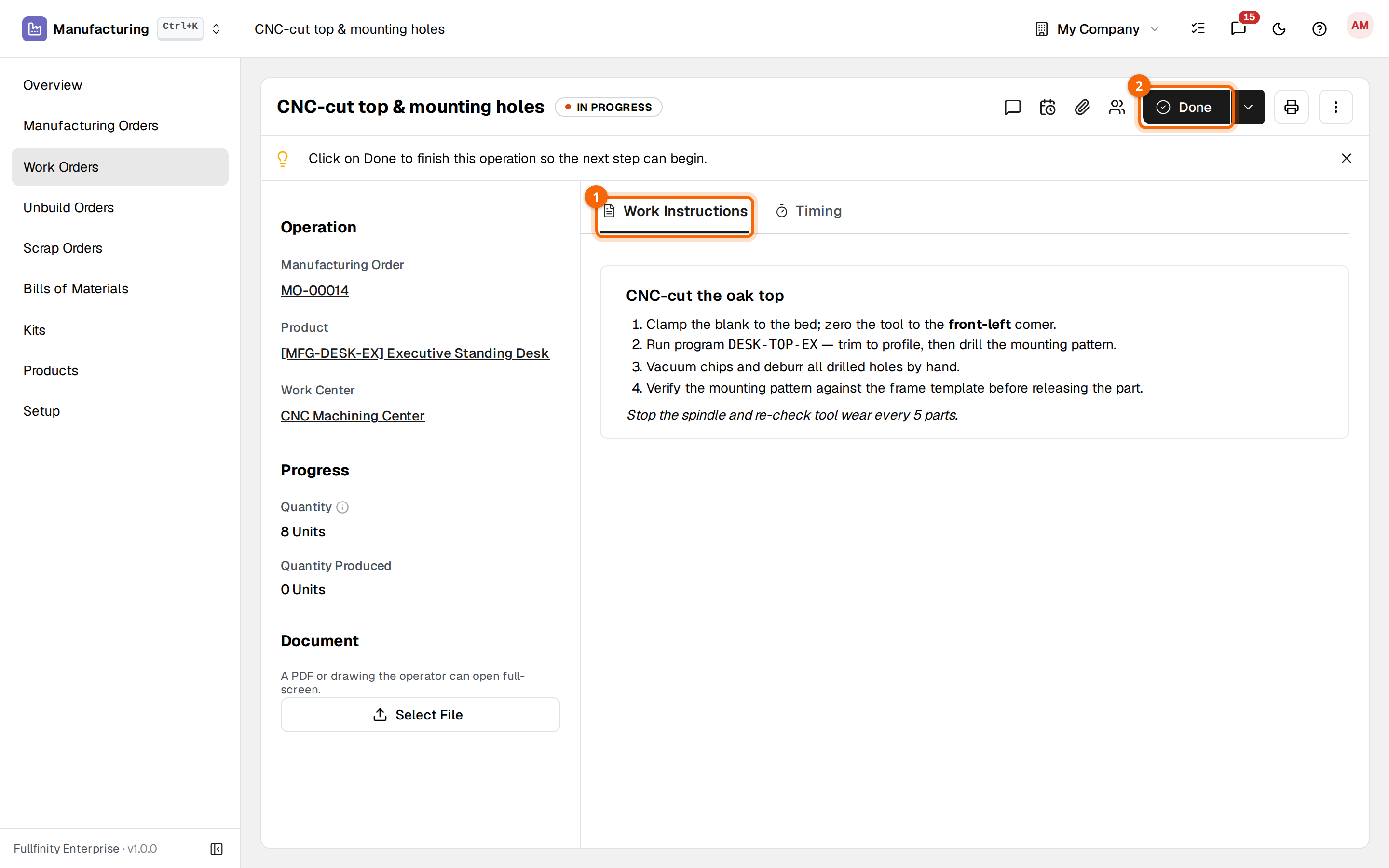
The Timing tab compares the Expected Duration (min) with the Actual Duration (min) and lists every Time Logs entry: who worked on it, and from when to when.