How do I log my time?
Record the hours you spend on tasks — on the task itself, one entry at a time, or a week at once on the weekly grid.
Logging time on tasks shows how long work really takes, what each project costs and — for work sold by the hour — what to bill. Every entry is a date, a number of hours, a short description and the task it was spent on.
On the task
Open the task and choose the Timesheets tab. Click Add an item, then enter the Date, a Description of what you did and the Hours. Click Save.
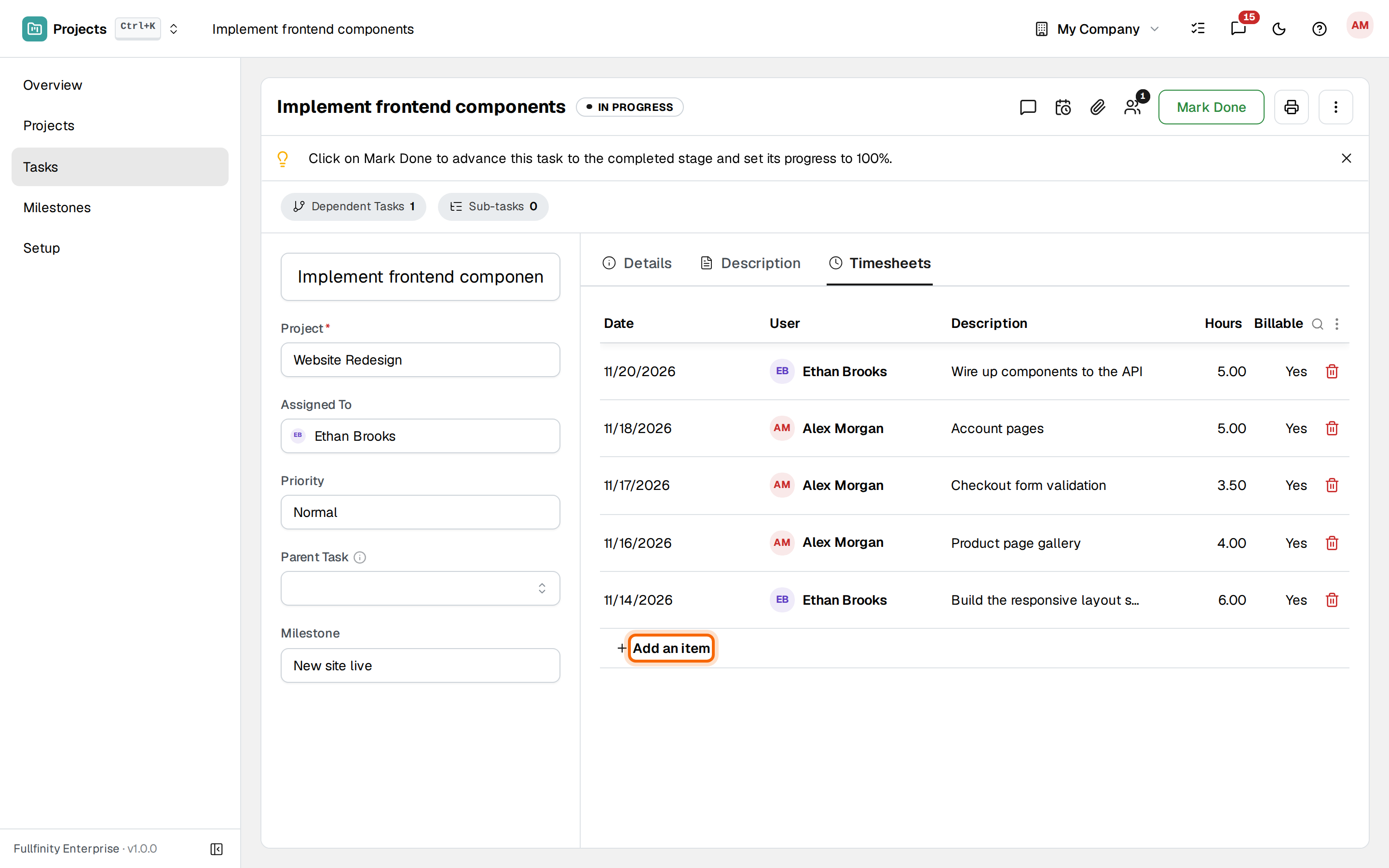
The task's Actual Hours (from timesheets) adds up everything logged on it.
A week at a time
Go to Timesheets → Weekly Grid. Each row is a task and each column a day of the week. The grid opens on this week, with your own time.
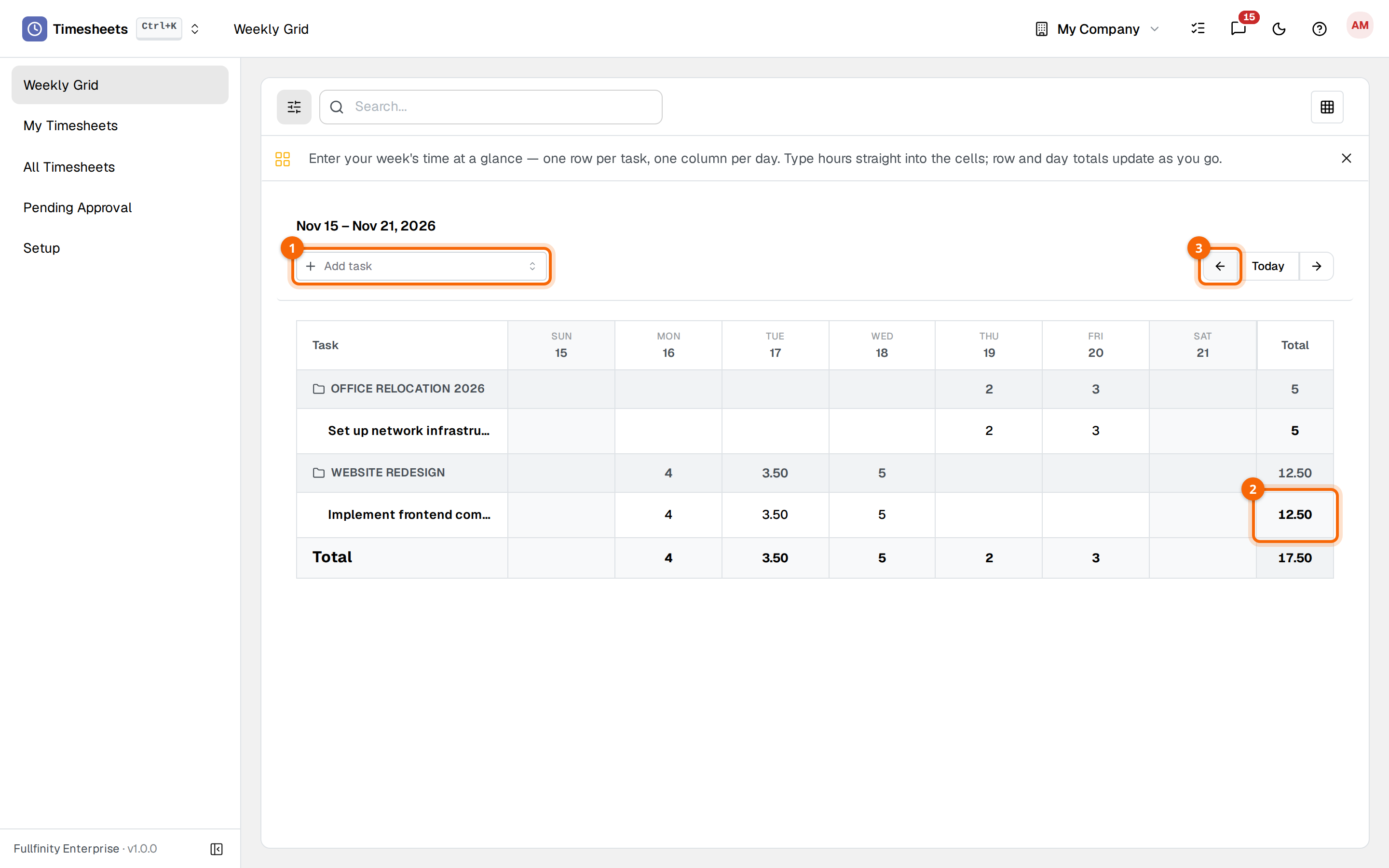
- Choose a task in the picker above the grid (Add task) to add a row for it. Rows are grouped by project.
- Type the hours into the day's cell. Row and day totals update as you go.
- Use the arrows to move between weeks; Today brings you back to this week.
One entry from the Timesheets app
Go to Timesheets → My Timesheets and click New. Fill in the Date, the Task, the Hours and a Description, and click Save.
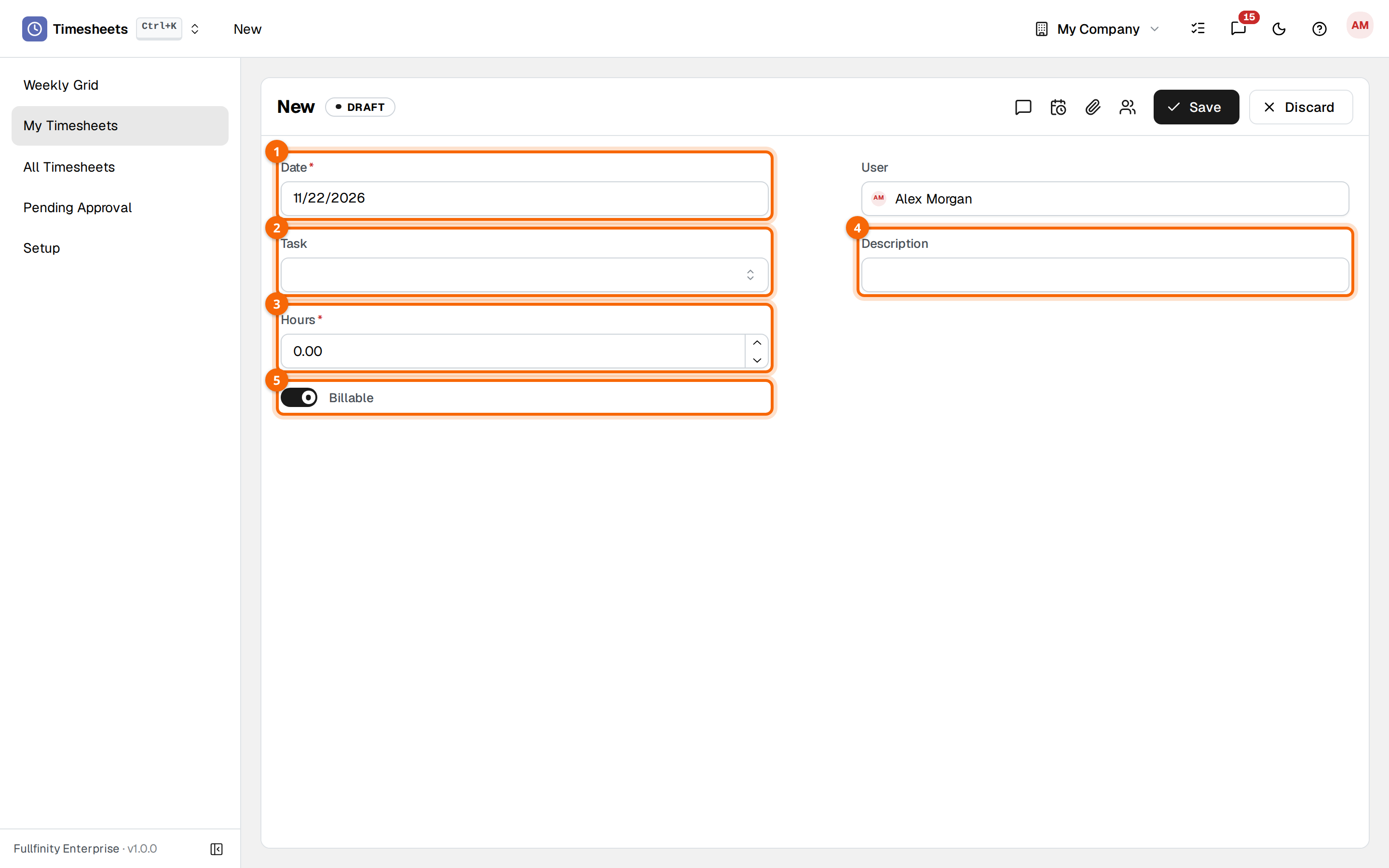
My Timesheets lists everything you have logged, newest first.
Billable or not
When your company bills time to customers, each entry has a Billable switch, on by default. Switch it off for internal work — training, a mistake you fixed for free — so it is not invoiced. See How do I invoice the time spent on a project?