How do I create a project?
Create a project with its manager, customer, team and dates, then move it from Planning to Completed.
A project groups the tasks of one piece of work — a client engagement, an office move, a product launch — with the people working on it and its dates.
1. Create it
Go to Projects → Projects and click New.
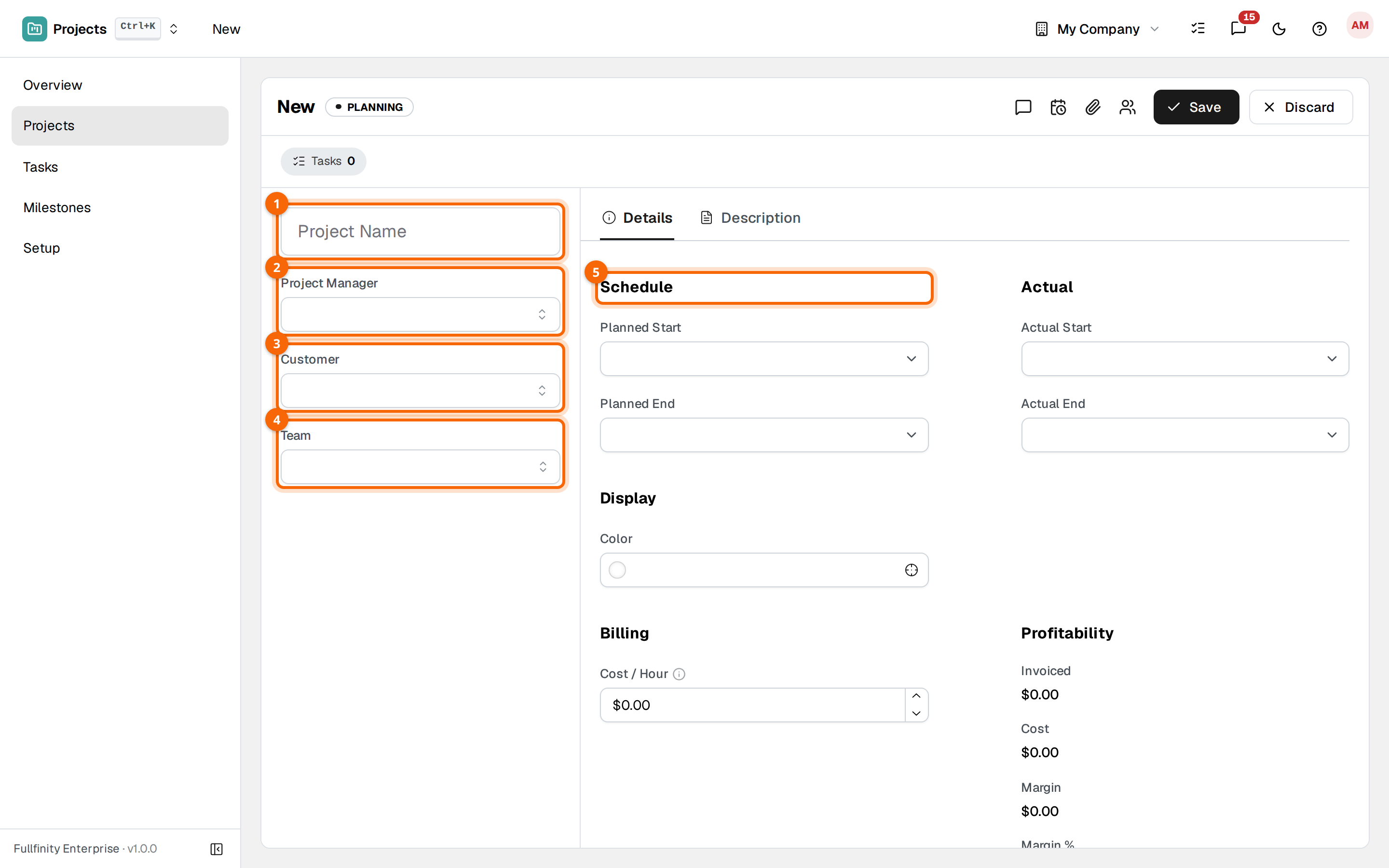
- Type the project's name at the top.
- Project Manager — who runs it.
- Customer — who the work is for, if anyone.
- Team — the people working on it. Together with the manager they are the ones who can see the project; see Who can see a project?
- Under Schedule, the Planned Start and Planned End.
On the Description tab, write what the project is about. Under Display, pick a Color: it is drawn across the top of the project's card, so you can spot it at a glance. Click Save.
2. Add its tasks
Click the Tasks button at the top of the project to open its task board. Tasks you add there belong to this project. See How do I create and assign tasks?
3. Move it through its statuses
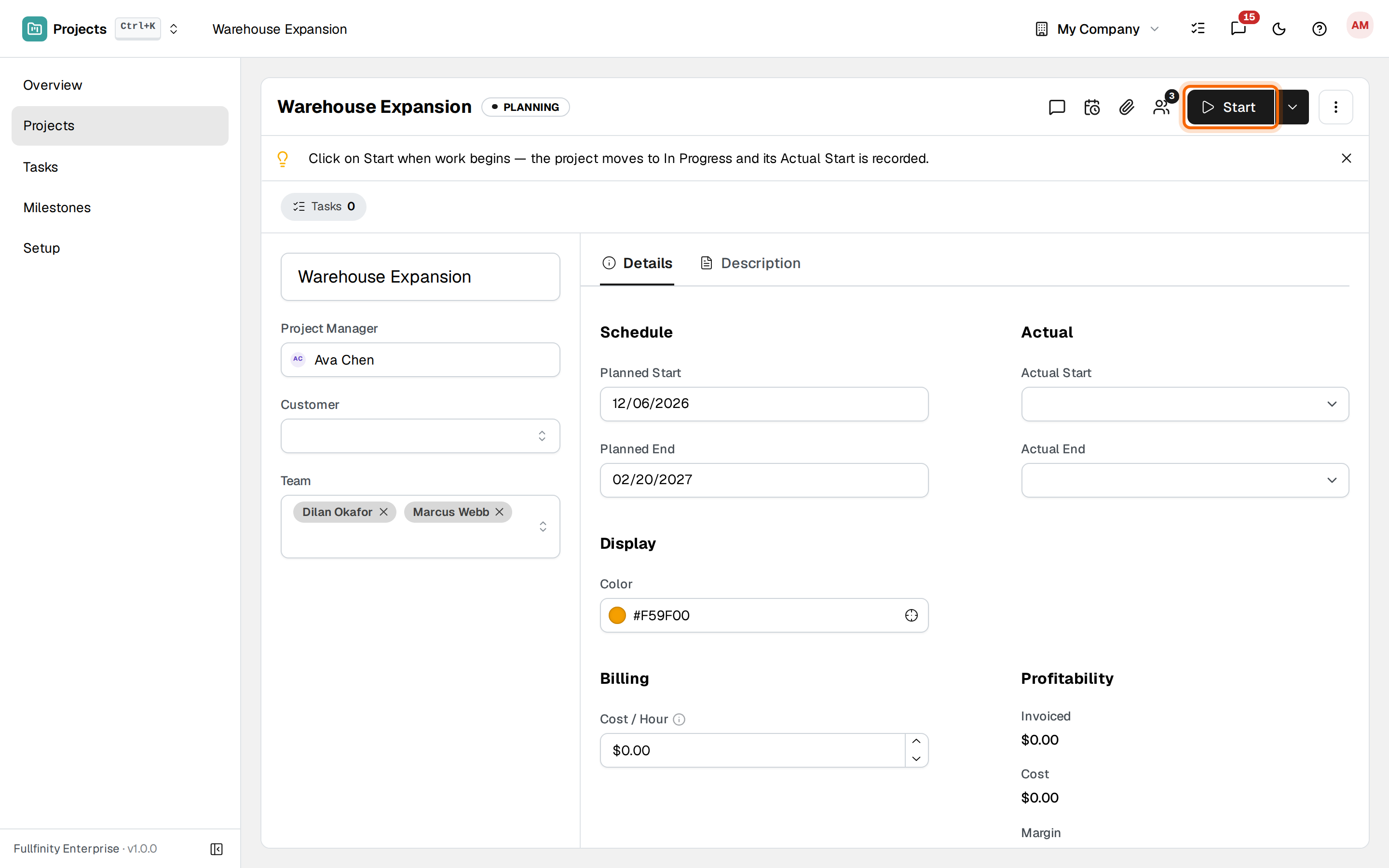
A new project is Planning. The button at the top moves it on; the other moves are under the arrow next to it.
| Button | What it does |
|---|---|
| Start | Moves the project to In Progress and records today as its Actual Start. |
| Put on Hold | Pauses it (On Hold). Start resumes it. |
| Complete | Finishes it (Completed) and records today as its Actual End. |
| Cancel | Stops it (Cancelled). |
| Reopen | Brings a completed or cancelled project back to In Progress. |
Projects that are Planning, In Progress or On Hold count as active on the Projects Overview.
Find your projects
Projects → Projects shows a card for each project with its manager, status, progress, number of tasks and planned end. Clicking a card opens its task board; to open the project itself, point at the card, click its ⋮ and choose Open Project.
Use the My Projects filter for the projects you manage.