How do I submit and approve timesheets?
Send your time to a manager for approval, and as a manager approve it or send it back with a reason.
With timesheet approval, logged time is checked before it counts: you submit it, a timesheet manager approves it, and only approved time can be billed to a customer.
1. Submit your time
Go to Timesheets → My Timesheets. New time shows Draft in the Approval column.
- Click Submit My Time to send every entry you have not submitted yet, or
- tick the entries you want to send and choose Submit.
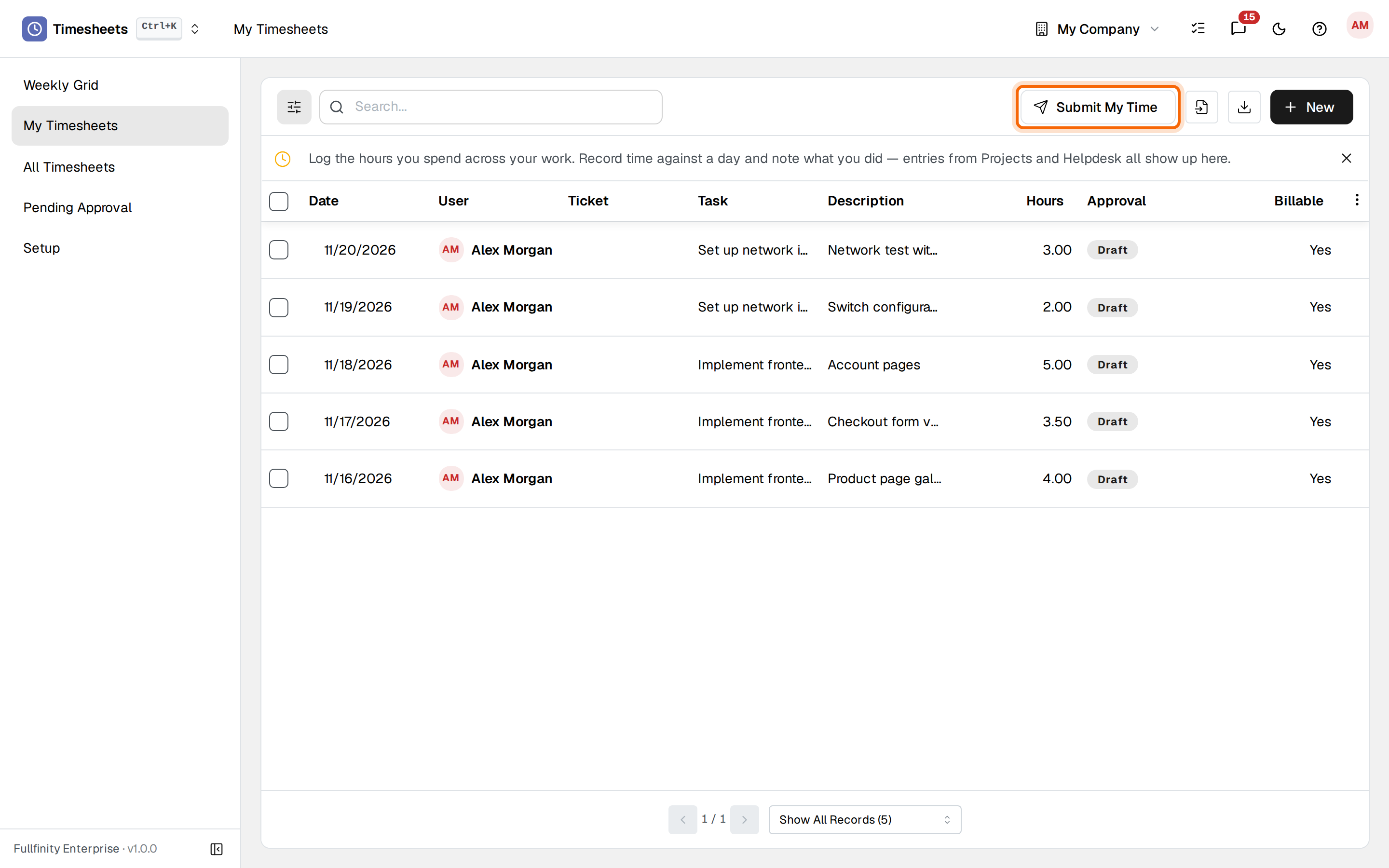
A single entry has its own Submit button too. Submitted time shows Submitted and can no longer be changed while it waits.
2. Approve it (managers)
Go to Timesheets → Pending Approval. It lists the time your team has submitted, with the task each entry was spent on under Work.
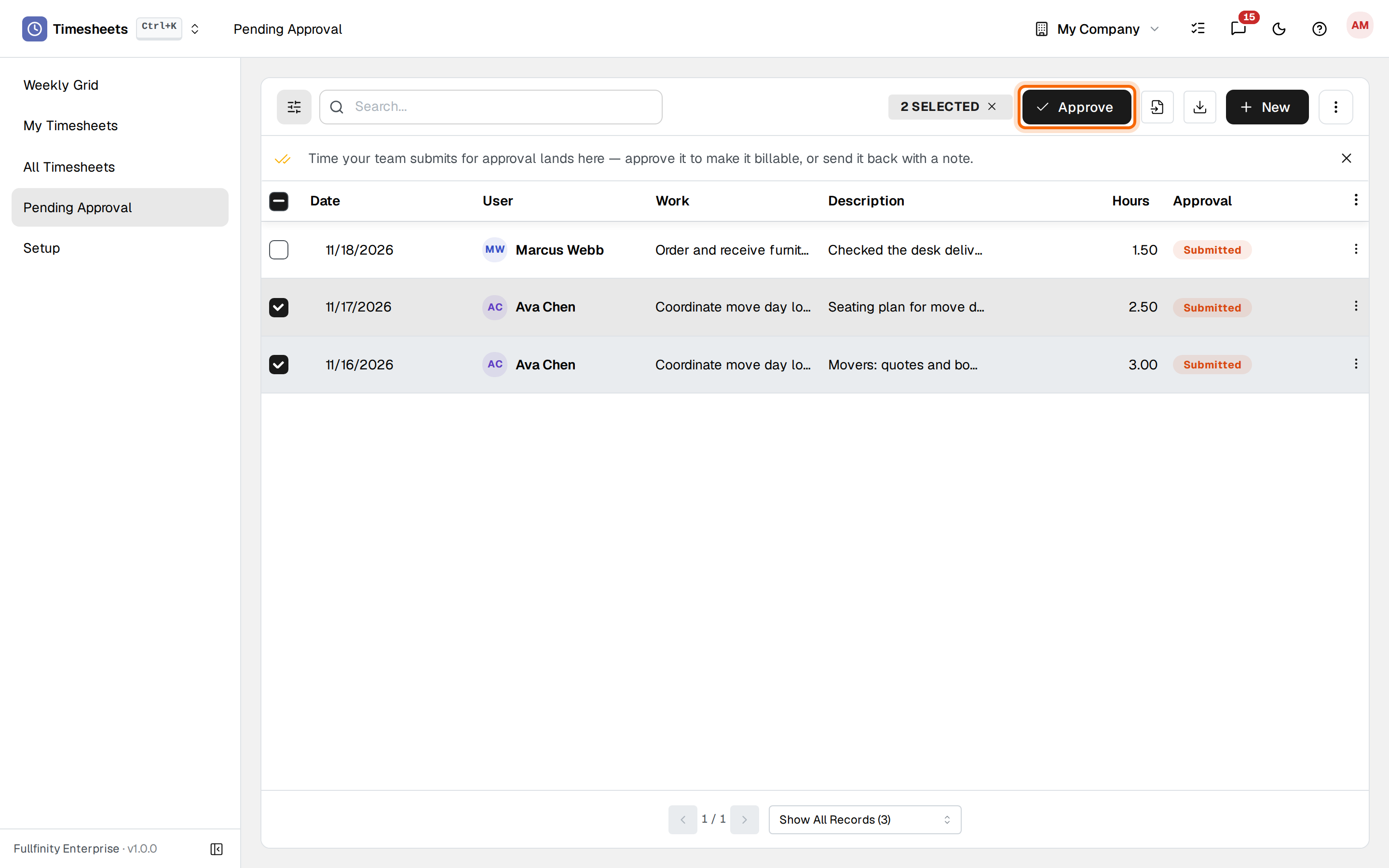
- Tick the entries and click Approve to approve them together, or
- use the ⋮ on a row to Approve or Send Back that one entry.
Approved time is frozen: nobody can change it, and it can now be billed.
3. Send time back with a reason
Open the entry from Pending Approval and write why in Sent Back Because. Then click the arrow next to Approve and choose Send Back.
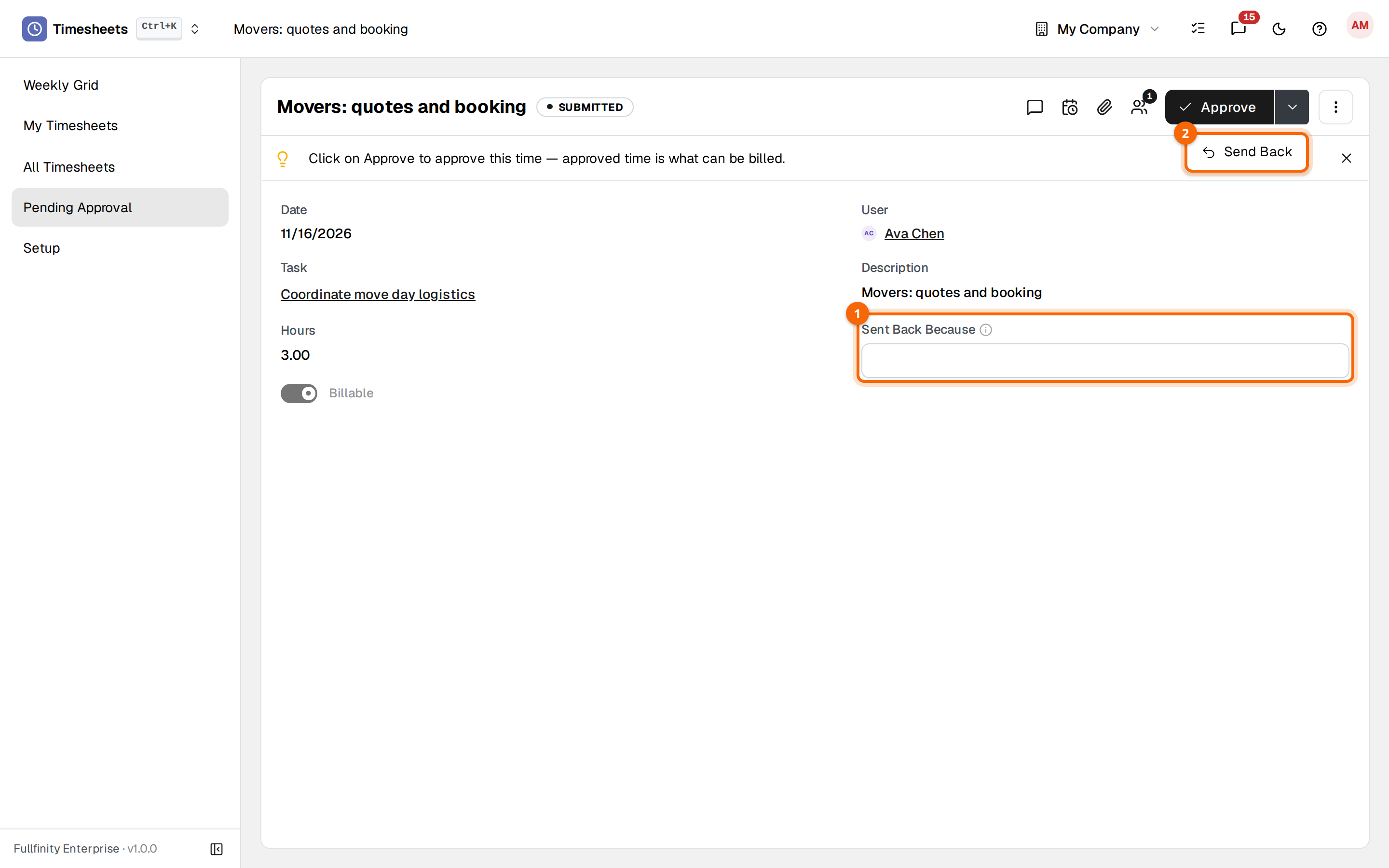
The entry becomes Rejected and the person who logged it sees your reason on it. They correct it and click Submit again.
Approval statuses
| Status | Meaning |
|---|---|
| Draft | Logged, not sent yet. Edit freely. |
| Submitted | Waiting for a manager. Locked. |
| Approved | Signed off and billable. Locked; a manager can click Reopen to undo the approval if it has not been invoiced. |
| Rejected | Sent back. Correct it and submit it again. |
Managers can see everyone's time in Timesheets → All Timesheets, filtered by status with Draft, Submitted, Approved or Rejected.