How do I set up task stages?
Add, rename and reorder the columns of your task boards — for every project, or for one project only.
Task stages are the columns a task moves through on the board: Backlog, To Do, In Progress, Review, Done and Cancelled come ready to use. Change them to match how your team works.
Open the stages
Go to Projects → Setup and, under Setup, click Task Stages.
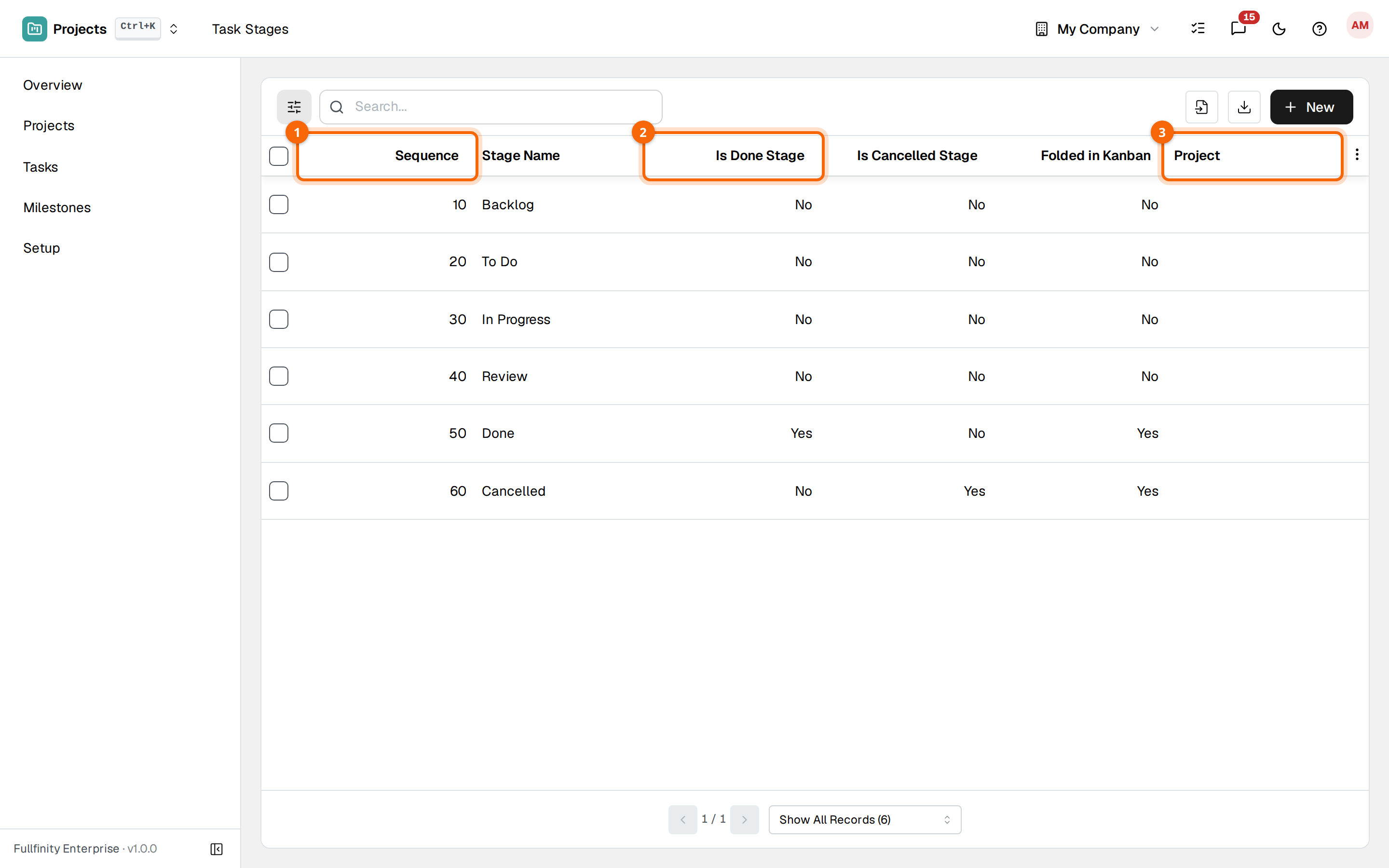
- Sequence — the order of the columns on the board, lowest first.
- Is Done Stage — tasks in this stage count as finished.
- Project — empty means the stage is on every project's board.
Add or change a stage
Click New, or open a stage to change it.
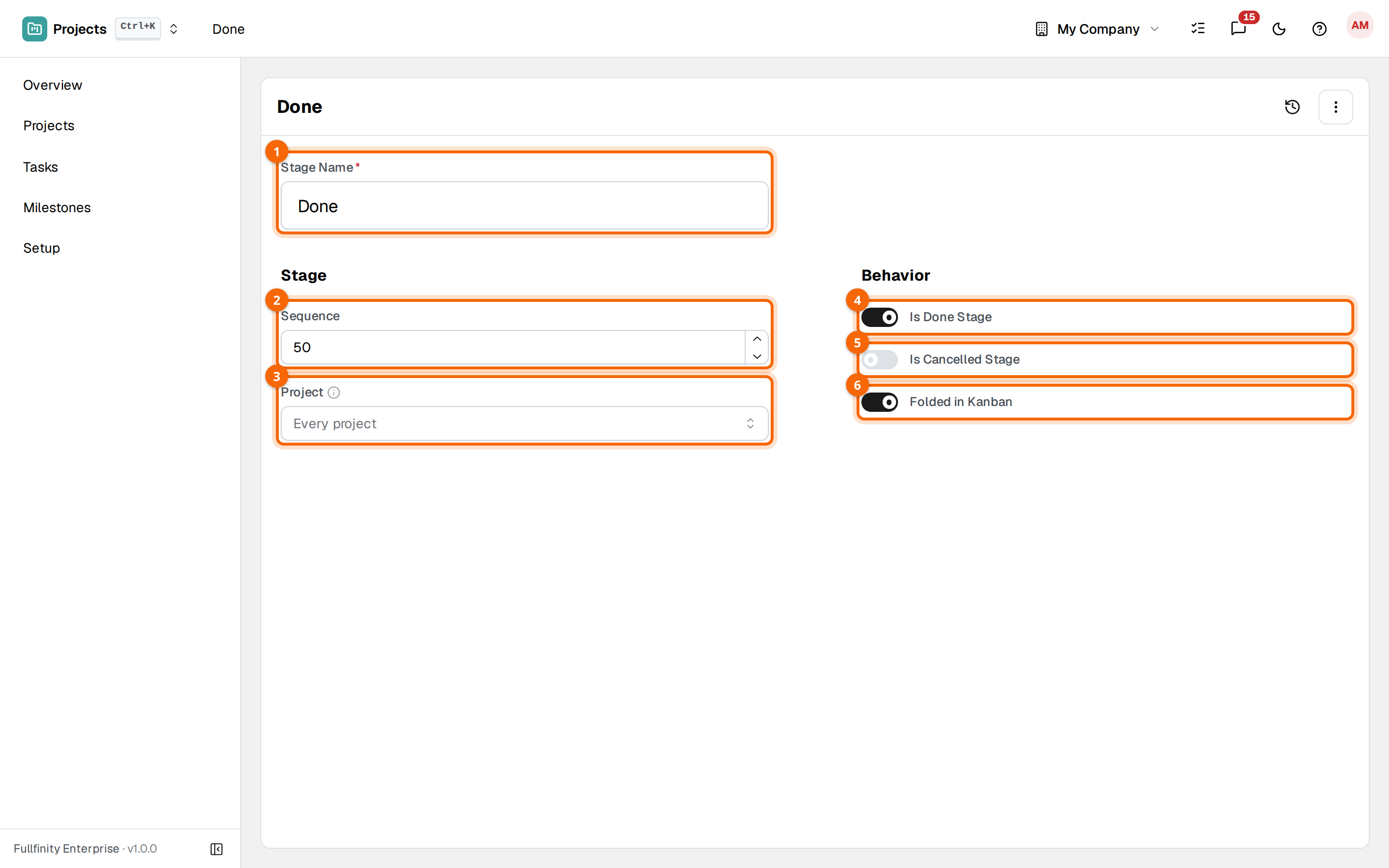
- Stage Name — the column title.
- Sequence — where the column sits.
- Project — leave it empty to offer the stage to every project. Pick a project to add a stage to that project's board only, such as a Legal Review step that only one client needs.
- Is Done Stage — moving a task here sets its progress to 100%, and Mark Done on a task moves it here. A project with its own done stage uses that one.
- Is Cancelled Stage — for work that will not happen. Tasks here are not counted as open or overdue.
- Folded in Kanban — the column starts collapsed on the board, which keeps finished work out of the way.
Click Save. A new task starts in the first stage of its board.
Was this article helpful?