How do I create and assign tasks?
Add a task to a project, give it to someone, set its priority, dates and estimate, and mark it done.
A task is one piece of work in a project: who does it, by when, and how long it should take.
1. Add a task from the board
The quickest way is the project's own board: open the project's card in Projects → Projects, or go to Projects → Tasks for every project's tasks. Click New.
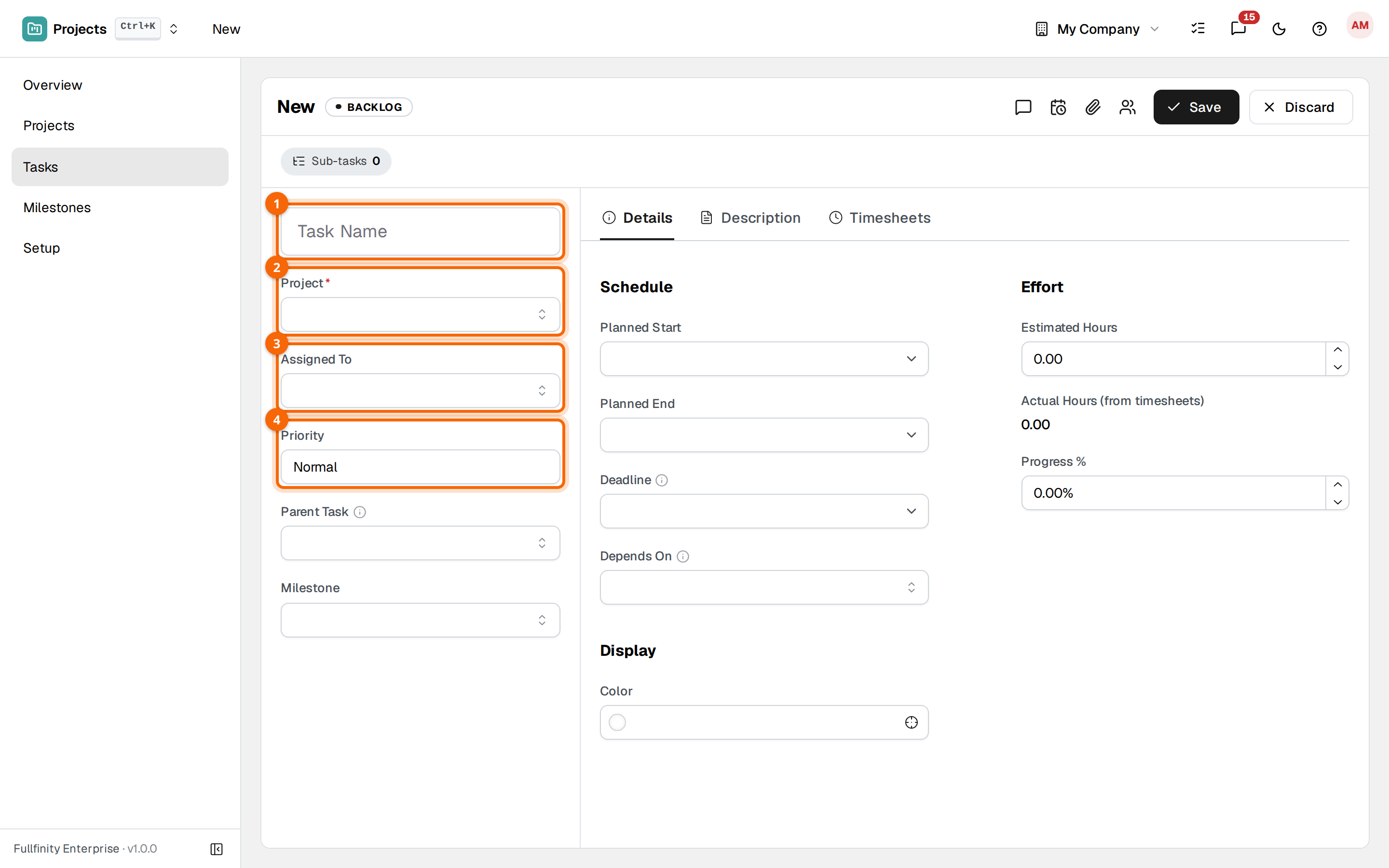
- Type what needs doing as the task name.
- Project — filled in for you when you started from a project's board.
- Assigned To — the person doing it. They follow the task, so they are told about its messages.
- Priority — Low, Normal, High or Urgent. High and urgent tasks are what the High Priority filter finds.
2. Plan it
On the Details tab:
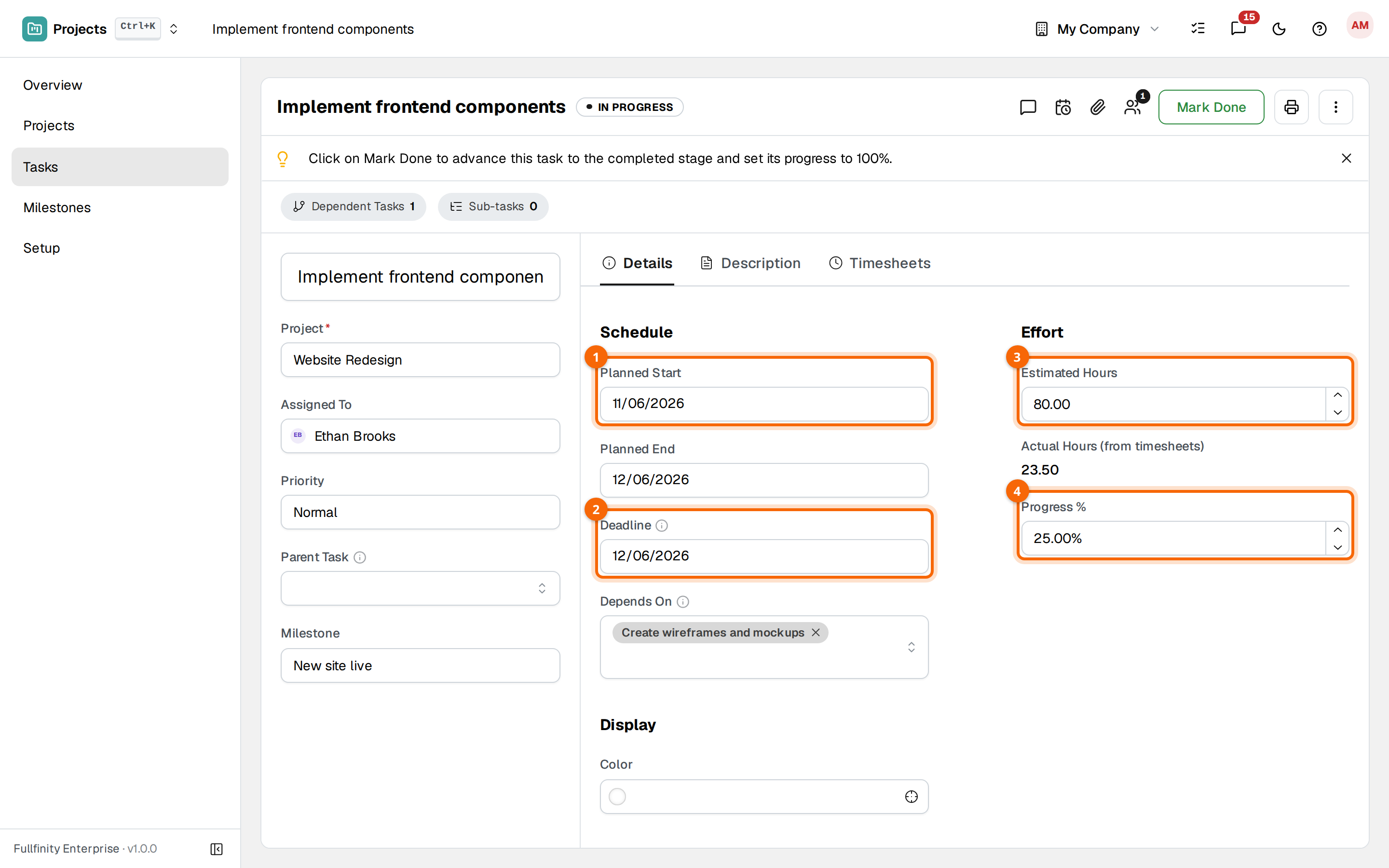
- Planned Start and Planned End — when the work is scheduled; this is what the timeline draws.
- Deadline — the date you have committed to. Once it has passed and the task is not done, the task counts as overdue.
- Estimated Hours — how long you expect it to take. Actual Hours (from timesheets) adds up the time logged on the task, so you can compare the two.
- Progress % — how far along it is. A project's progress is the average of its tasks.
Write the details of the work on the Description tab and click Save.
3. Finish it
When the work is done, click Mark Done. The task moves to the done stage and its progress to 100%. You can also drag it to the done column on the board.
Was this article helpful?