How do I report on my helpdesk?
See your support desk at a glance on the Overview, and break tickets down by team, stage, priority or channel in Ticket Analysis.
Two screens answer most questions about your helpdesk: the Overview for today's queue, and Ticket Analysis for any breakdown you need.
The Overview
Open Helpdesk → Overview.
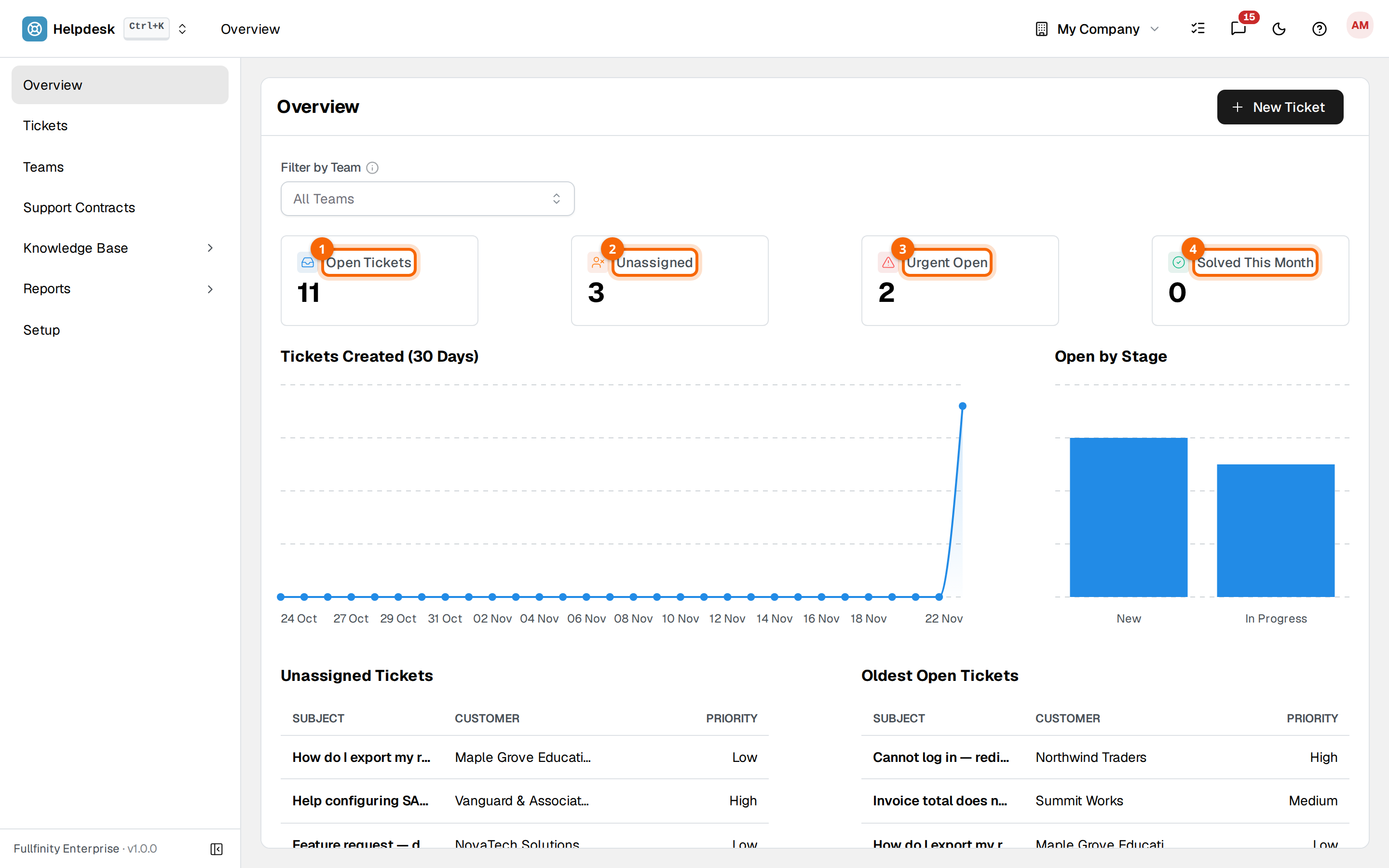
- Open Tickets — tickets not in a closing stage.
- Unassigned — open tickets nobody owns.
- Urgent Open — open tickets with Urgent priority.
- Solved This Month — tickets closed since the first of the month.
Click Open Tickets, Unassigned or Urgent Open to open the tickets behind the figure. Below, Tickets Created (30 Days) shows the daily inflow and Open by Stage where open tickets sit. Unassigned Tickets and Oldest Open Tickets list the ones that need someone — click one to open it.
Filter by Team narrows every figure to one team. The Overview counts only the tickets you are allowed to see, so an agent sees their own queue.
Ticket Analysis
Open Helpdesk → Reports → Ticket Analysis. It starts as a table of tickets by team and stage.
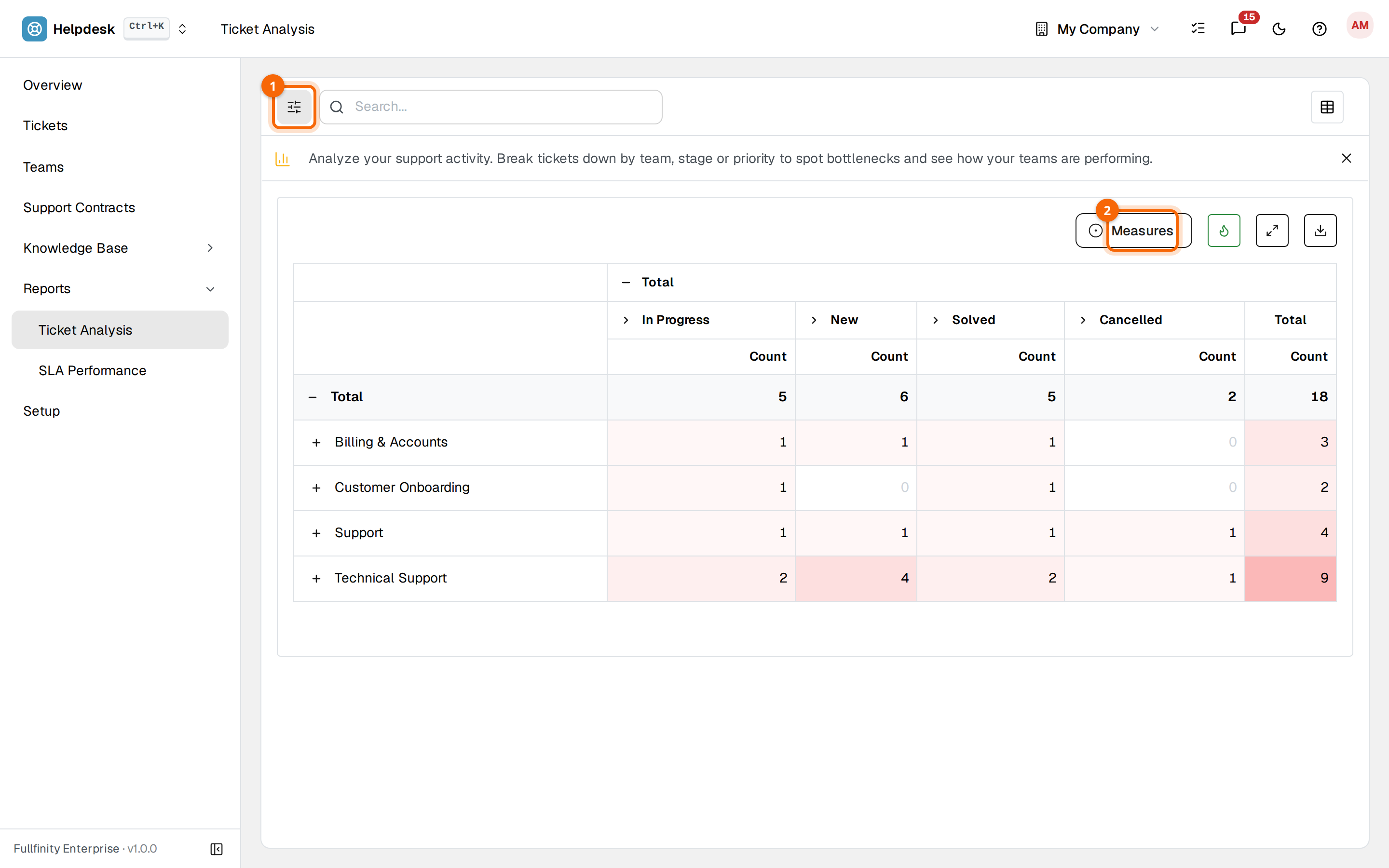
- The filter button keeps only the tickets you want — Open, Closed, Assigned to Me, This Month, This Year — and its panel narrows by team, stage, priority, type, assignee or channel.
- Measures picks what is counted.
Click a row or column heading to break it down further — by priority, channel or assignee. Switch to the chart from the button at the top right. Export the table to a spreadsheet with the download button.
To see how you are keeping your service level targets, open Helpdesk → Reports → SLA Performance — see How do service level targets work?