How do customers raise and follow tickets in the portal?
Customers with a portal login raise support requests, follow their progress and reply from the Support page of their account.
Customers who have a login to your portal find a Support page in their account. There they raise new requests, see where each one stands and reply to your team — without having to email.
Their tickets
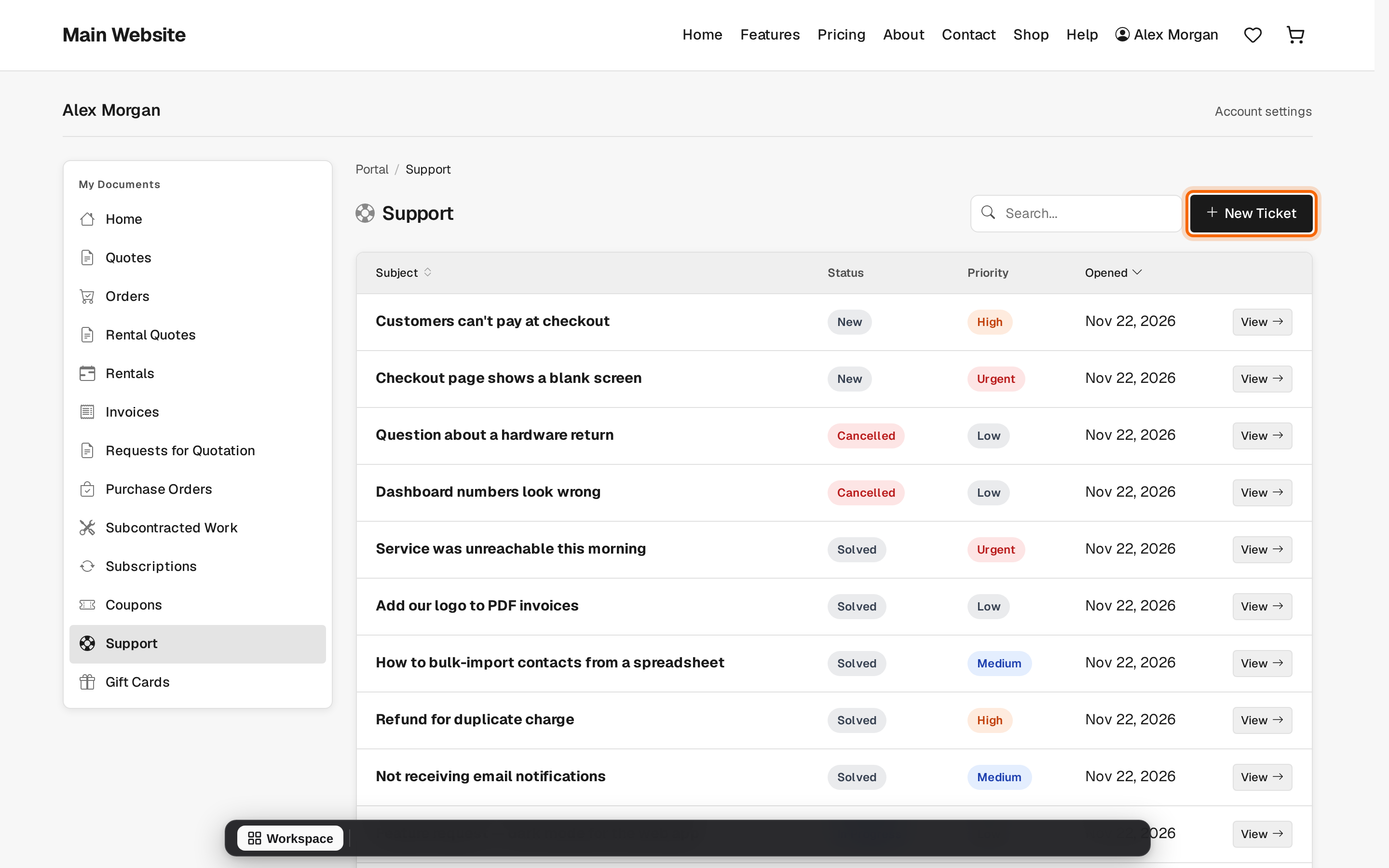
The Support page lists the customer's tickets, newest first, with their status and priority.
Raise a request
The customer clicks New Ticket:
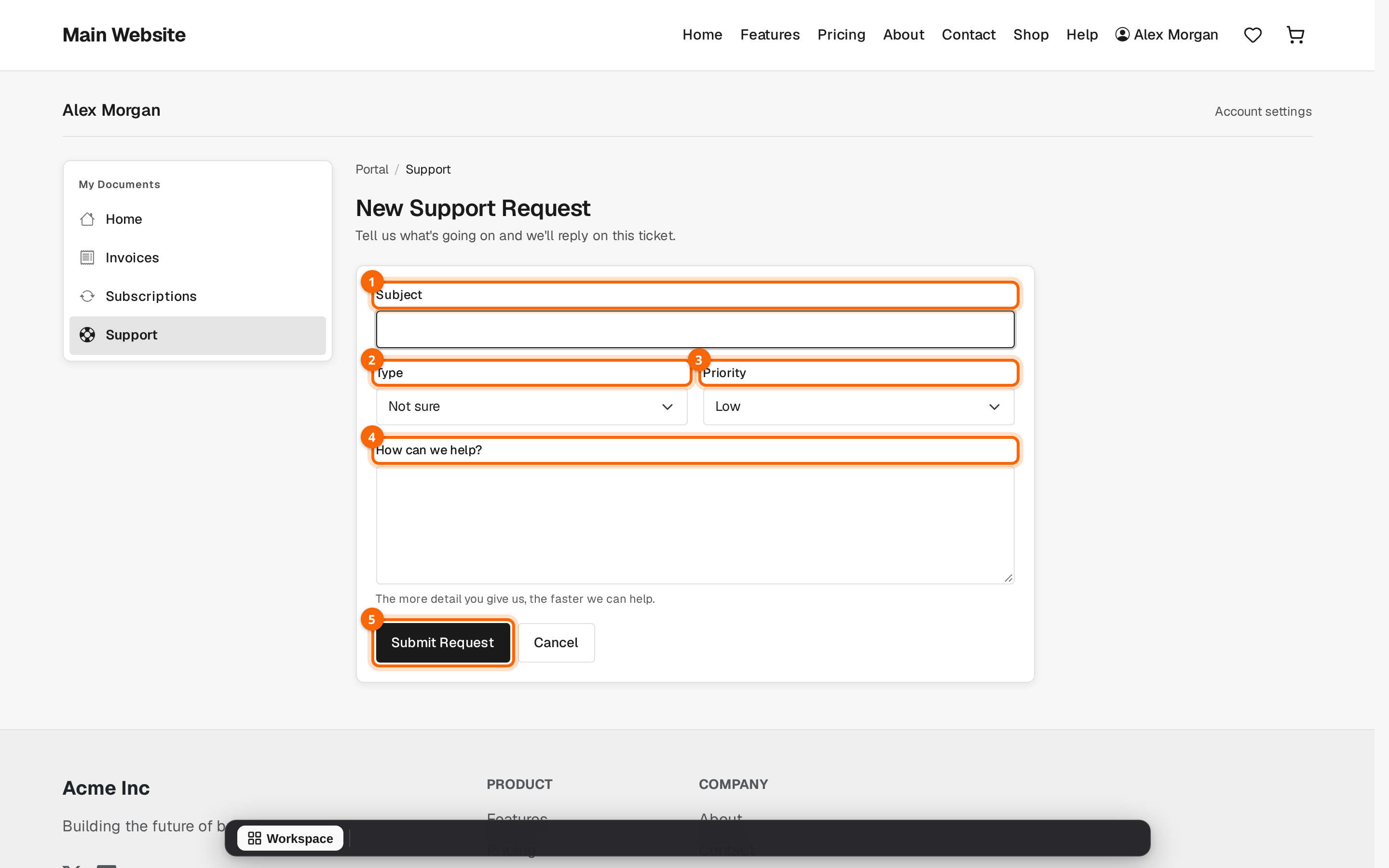
- Subject — a short summary.
- Type — one of your ticket types, or Not sure.
- Priority — how urgent it is for them.
- How can we help? — the details.
- Submit Request creates the ticket and opens it.
The ticket is created with Channel Portal on your Default Team (under Helpdesk → Setup) — or, if none is set, the first team of the customer's own company — and assigned by that team's assignment method.
Follow and reply
Opening a ticket shows its status and the conversation:
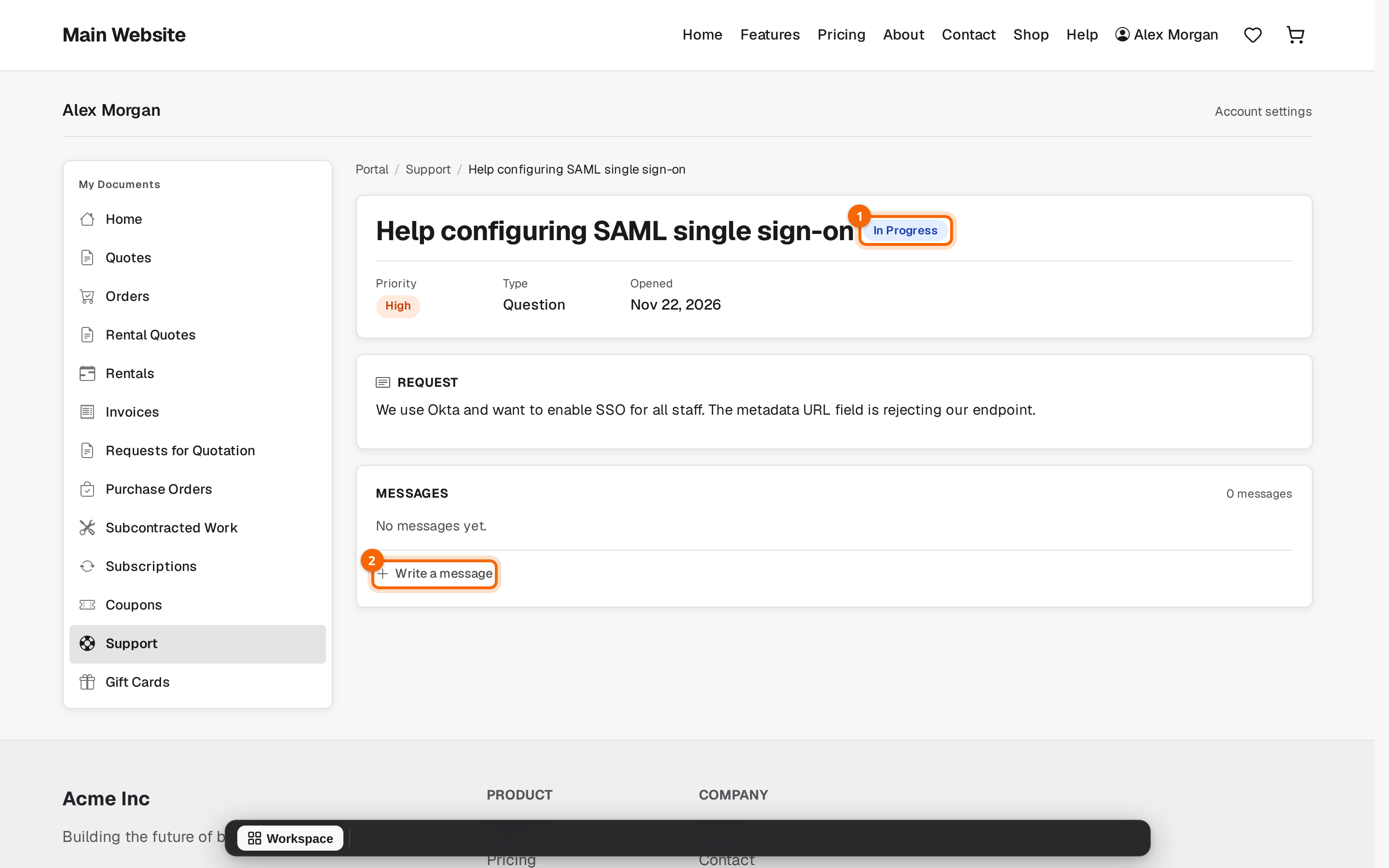
- The status is the ticket's stage — New, In Progress, Solved…
- Write a message replies to your team. The reply appears on the ticket and notifies whoever is assigned. Your internal notes are never shown here.
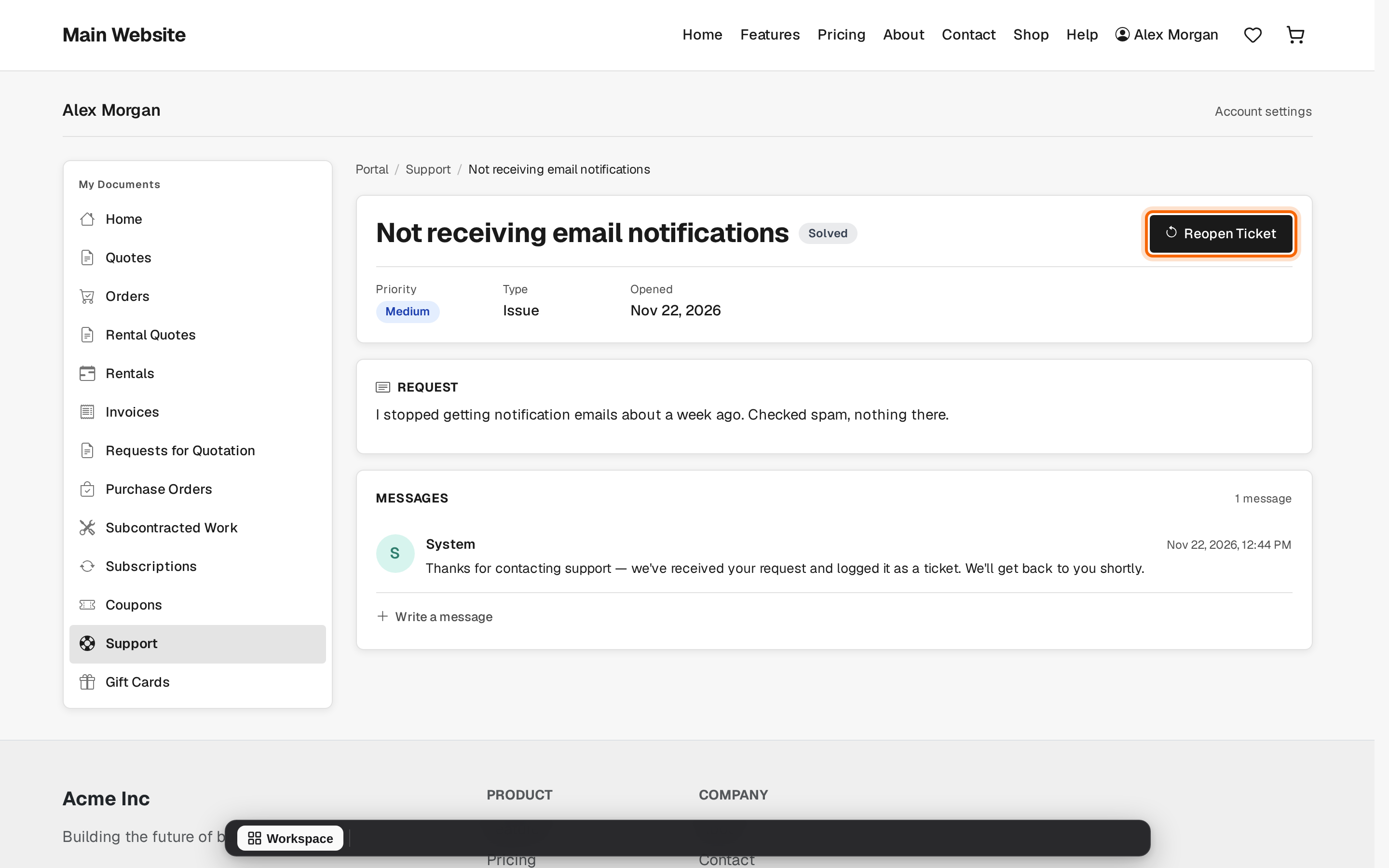
On a closed ticket the customer sees Reopen Ticket, which moves it back to the first open stage. A reply within the Reopen Window (days) reopens it too.