How do I set up tickets for an event?
Offer free and paid ticket tiers, cap the seats on each, open and close their sales, and sell paid tickets through your online shop.
A ticket is a way in: Early Bird, Standard, Student. Visitors choose one when they register, and every registration records which ticket it used.
1. Add the tickets
Open the event and go to the Tickets tab. Click Add a line for each ticket.
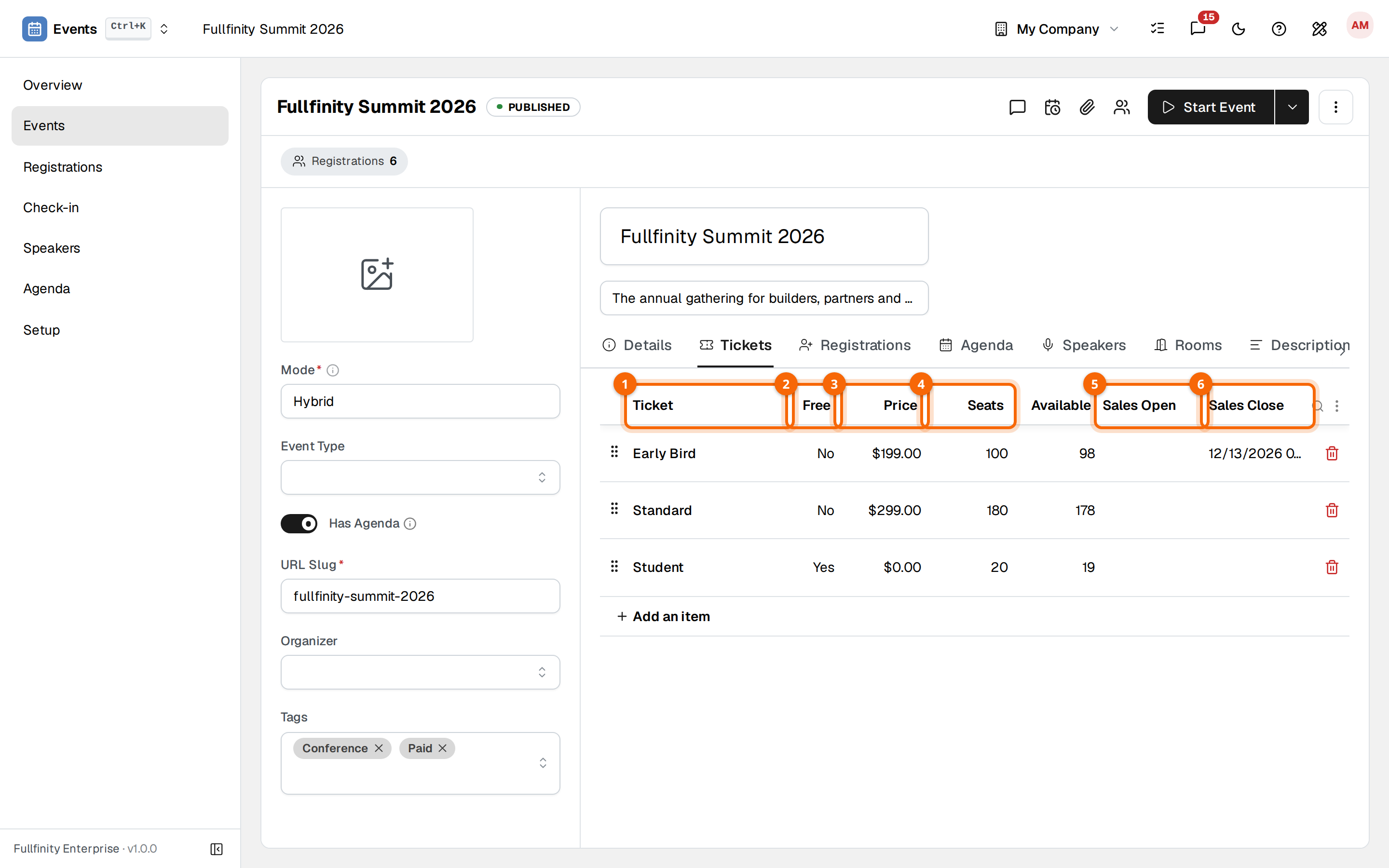
- Ticket — its name, as visitors see it.
- Free — ticked, the visitor registers straight from the event page. Unticked, the ticket must be bought (step 2).
- Price — what the event page shows. For a paid ticket, the amount actually charged is the price of its product in your shop.
- Seats — how many of this ticket can be taken. 0 means only the event's own seat limit applies. Available shows how many are left.
- Sales Open and Sales Close — when the ticket can be had. Outside that window it shows as Not on sale. Leave them empty to sell it all the time.
Drag the rows to put the tickets in the order the event page lists them. A ticket that has run out of seats shows as Sold out; when the event itself is full, registering is refused for every ticket.
2. Sell a paid ticket
A paid ticket is bought through your online shop, so it needs a product. Your shop has to be set up first — see How do I set up my online store?
- Create a product for the ticket — for example Summit 2026 — Standard — priced at the ticket's price.
- Tick Event Ticket in its properties. An Event tab appears.
- On that tab, choose the Event and the ticket it sells under Grants Ticket.
- Publish the product on your website (see How do I publish products?).
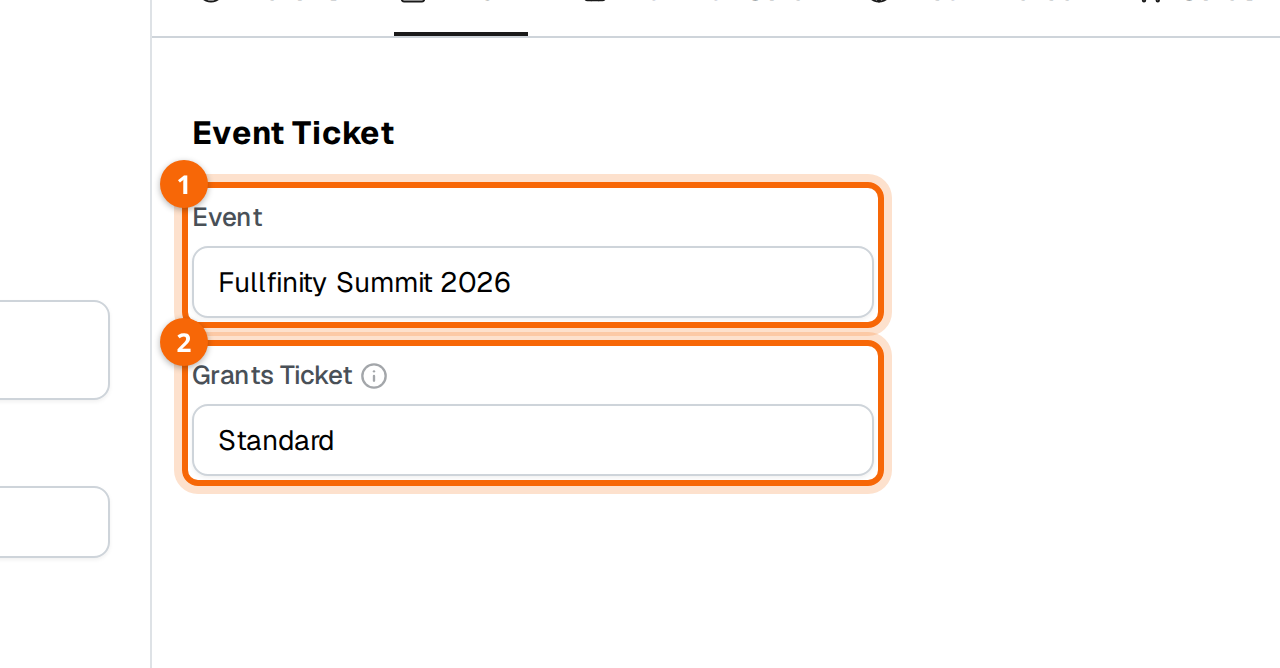
On the event page the ticket now shows a Buy ticket button that takes the visitor to that product in your shop. When their order is confirmed, they are registered and confirmed: one registration for each ticket on the order, all in the buyer's name, marked with the Source Purchased. A sold-out ticket or event stops the purchase too.