How do people register for an event on my website?
What your visitors see — the events page, an event's page and registration — and how they get their badge and join link.
Every published event has its own page on your website, where visitors read about it and register. Here is what they see, so you can answer their questions.
1. The events page
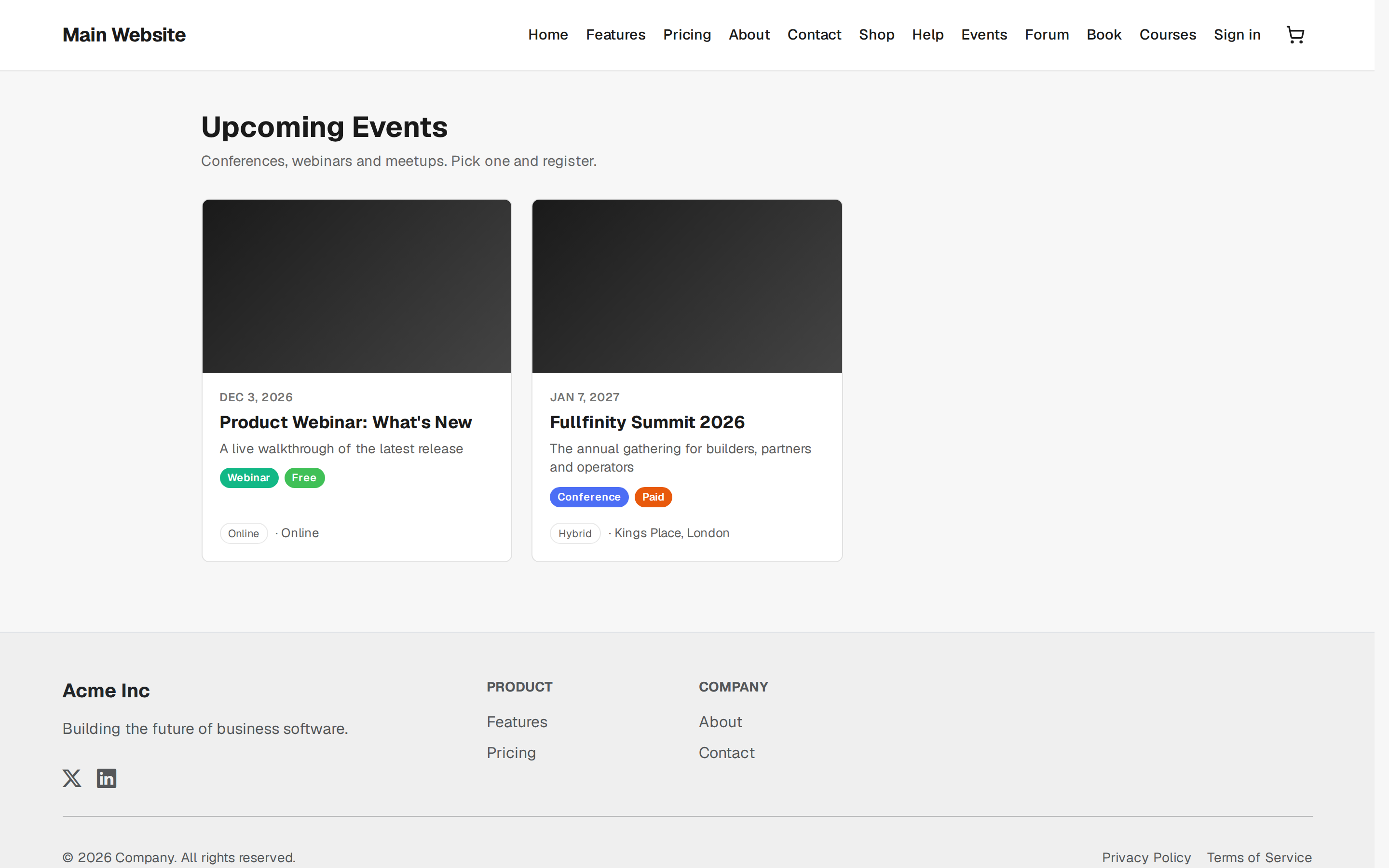
The Events link in your website's menu opens /events: every published or ongoing event that has not ended yet, soonest first, with its date, tags, mode and venue.
2. The event page
Clicking an event opens its page: when and where, the description, the Register box, then — for an event with Has Agenda on — the agenda and the speakers.
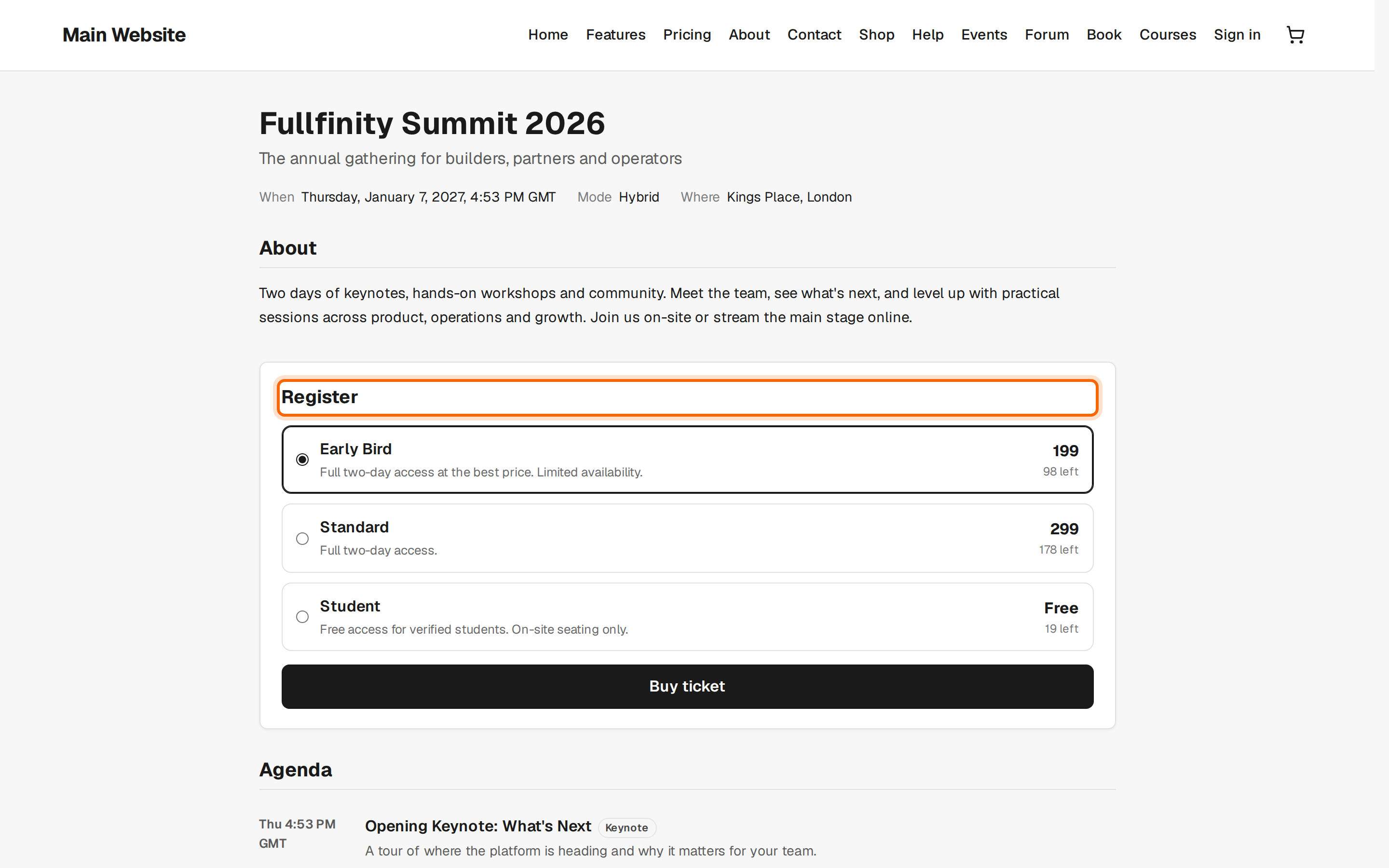
- The visitor picks a ticket. A ticket shows Sold out, Not on sale or how many are left.
- For a free ticket they enter their Full name, Email and, if they like, a phone number, and click Register. For a paid ticket the button reads Buy ticket and takes them to your shop (see How do I set up tickets for an event?).
- They see You're registered — or Registration received when the event waits for you to confirm free registrations — and a View your badge → link.
The registration appears in Events → Registrations with the Source Website. If a contact already has that email address, the registration is added to them; otherwise a new contact is created.
3. The badge
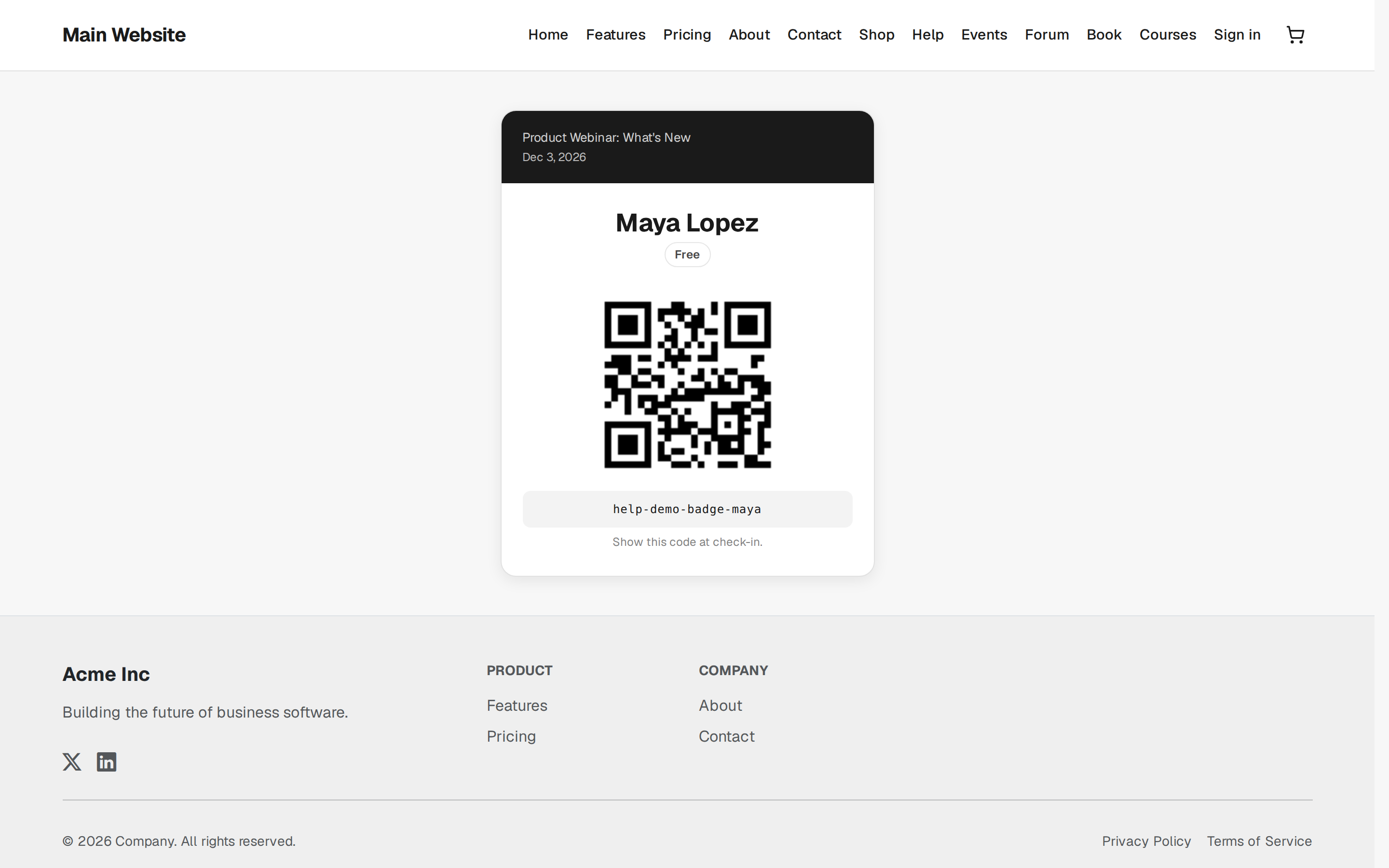
The badge page shows the attendee's name, the event, their ticket and a check-in code: Show this code at check-in. Scanning it at the door checks them in.
4. The confirmation email
As soon as a registration is confirmed — straight away, or when you confirm a Draft — the attendee is emailed You're registered: …, in their own language. It has when the event starts and ends (in the event's timezone), the venue, their ticket, a View my badge button and an event.ics file that adds the event to their calendar. Someone whose registration waits as Draft gets it when you confirm them.
The wording is the Event Registration Confirmation email template; it can be reworded like any other. To send no confirmations at all, switch off Email Registration Confirmations in Events → Setup — then the badge link is only shown once, on screen, so print badges for everyone before the day (see How do I print badges and check people in?).
5. Online events: the join link
The Join URL of an online or hybrid event is never on the public page. It is in the confirmation email while Email Join Links is on in Events → Setup. A confirmed attendee who is signed in to your website also sees it on the event page under You're in. To send it again — say the link changed — use Send Join Link on their registration.