How do I register attendees and manage registrations?
Register several people at once, confirm or cancel registrations, follow the seats, and email the join link of an online event.
Most registrations arrive from your website. You can also register people yourself — a group booking, a speaker's guest — and look after every registration from one list.
Register attendees yourself
Open a published or ongoing event, click the arrow next to the main button at the top, and choose Register Attendees.
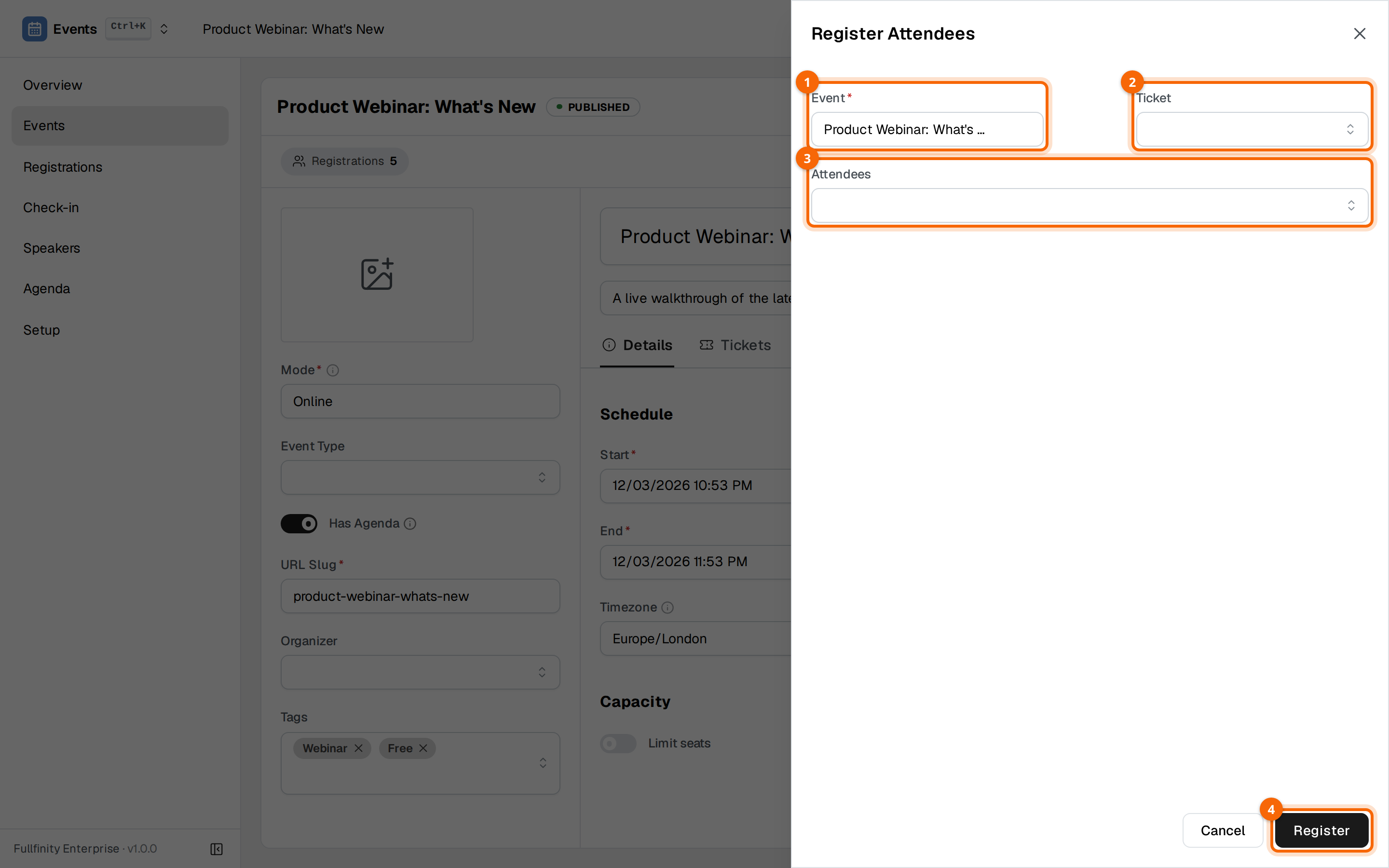
- Event — already filled in.
- Ticket — the ticket they all register on.
- Attendees — pick their contacts.
- Register — one registration per person, confirmed straight away when the event auto-confirms free registrations, otherwise Draft. Each confirmed person with an email address is sent the confirmation email.
Each one takes a seat: if the event or the ticket is full, registering stops with … is sold out.
The registrations list
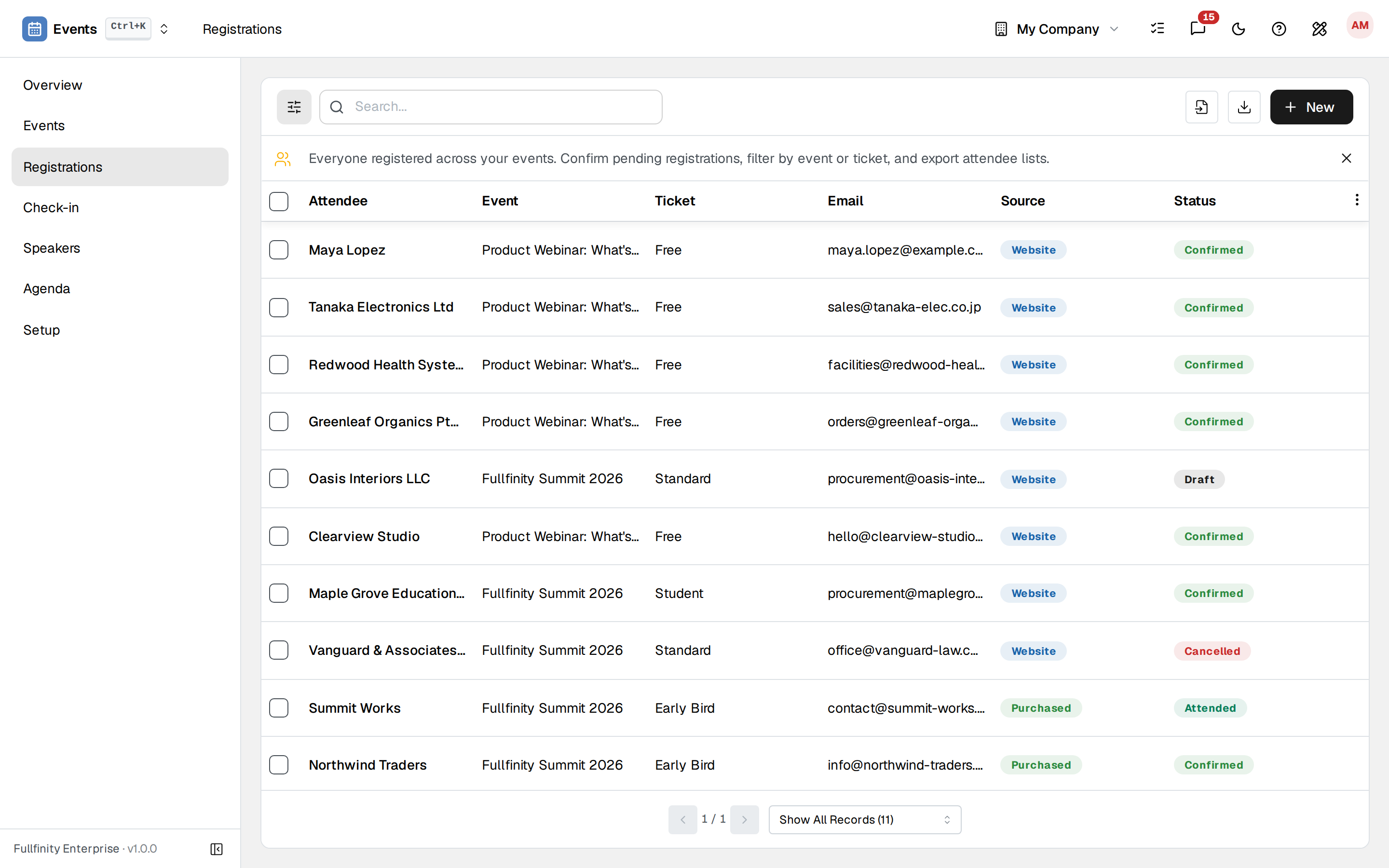
Events → Registrations lists everyone, for every event. On an event, the Registrations button and tab show only its own. Use the Pending, Confirmed and Attended filters, or group by Event or Ticket.
| Status | What it means |
|---|---|
| Draft | Waiting for you to confirm. It already holds a seat. |
| Confirmed | They have a place. |
| Attended | Checked in on the day. |
| Cancelled | No longer coming. The seat is free again. |
Confirm, cancel or email a registration
Open a registration:
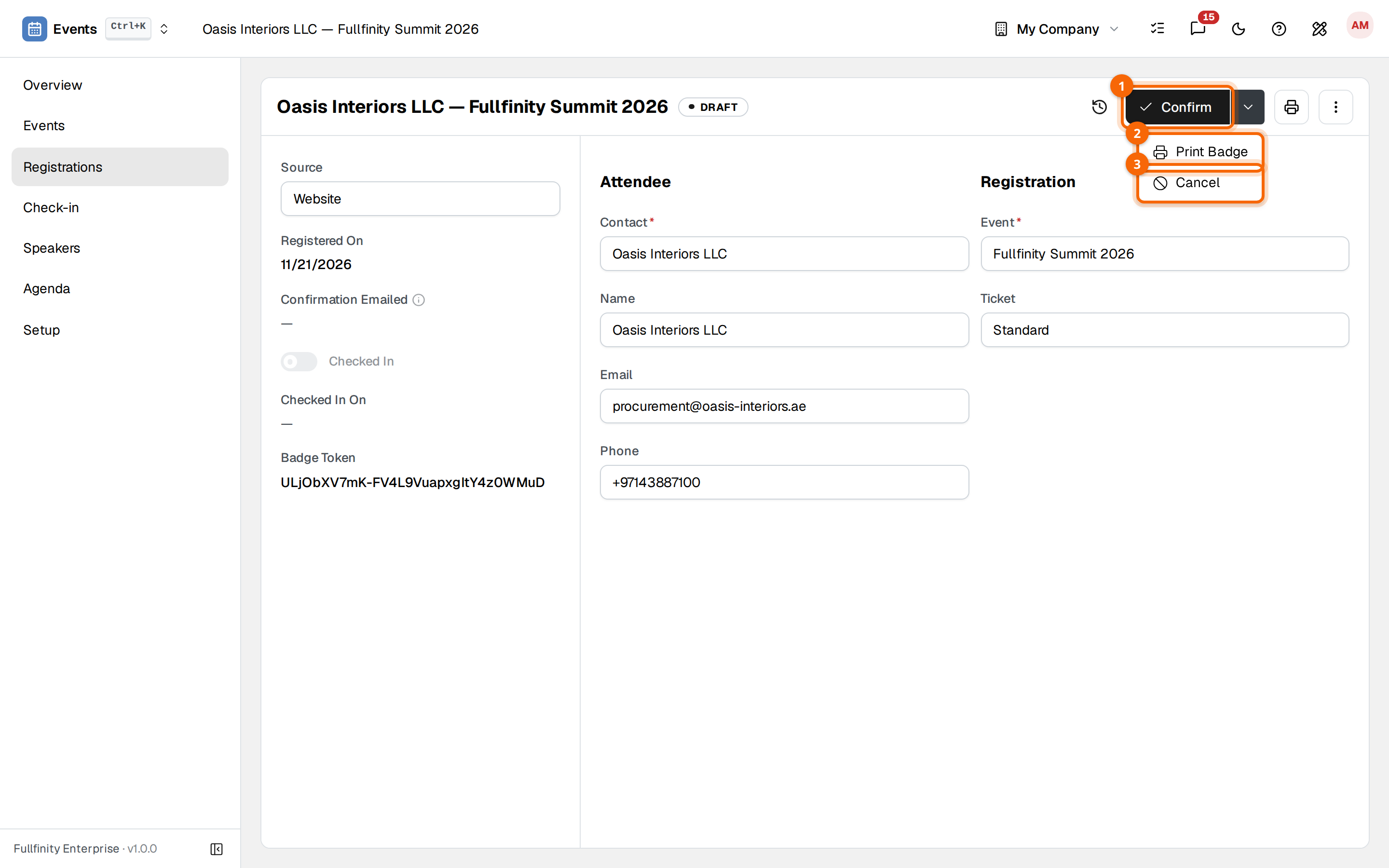
- Confirm — gives a Draft registration its place and emails them their confirmation.
- Print Badge — this attendee's badge, as a PDF.
- Cancel — frees their seat. Cancelling one registration does not email them; cancelling the whole event does.
Confirmation Emailed, in the panel on the left, is when their confirmation went out. It is empty when none was sent: the registration has no email address, it was imported, or Email Registration Confirmations is off. Registrations you import are never emailed.
The name, email and phone are copied from the contact when the registration is made, so the badge prints what was registered even if the contact changes later.
For a confirmed attendee of an online or hybrid event, Send Join Link emails them the event's Join URL. It needs Email Join Links switched on in Events → Setup and an email address on the registration.