How do I set up the Events app?
Choose how registrations are confirmed, whether visitors can register online, and the event types, tags and agenda stages you work with.
The Events app plans conferences, webinars and meetups, takes registrations on your website and checks people in on the day. A few settings decide how every event behaves; set them once before your first event.
1. The settings
Go to Events → Setup.
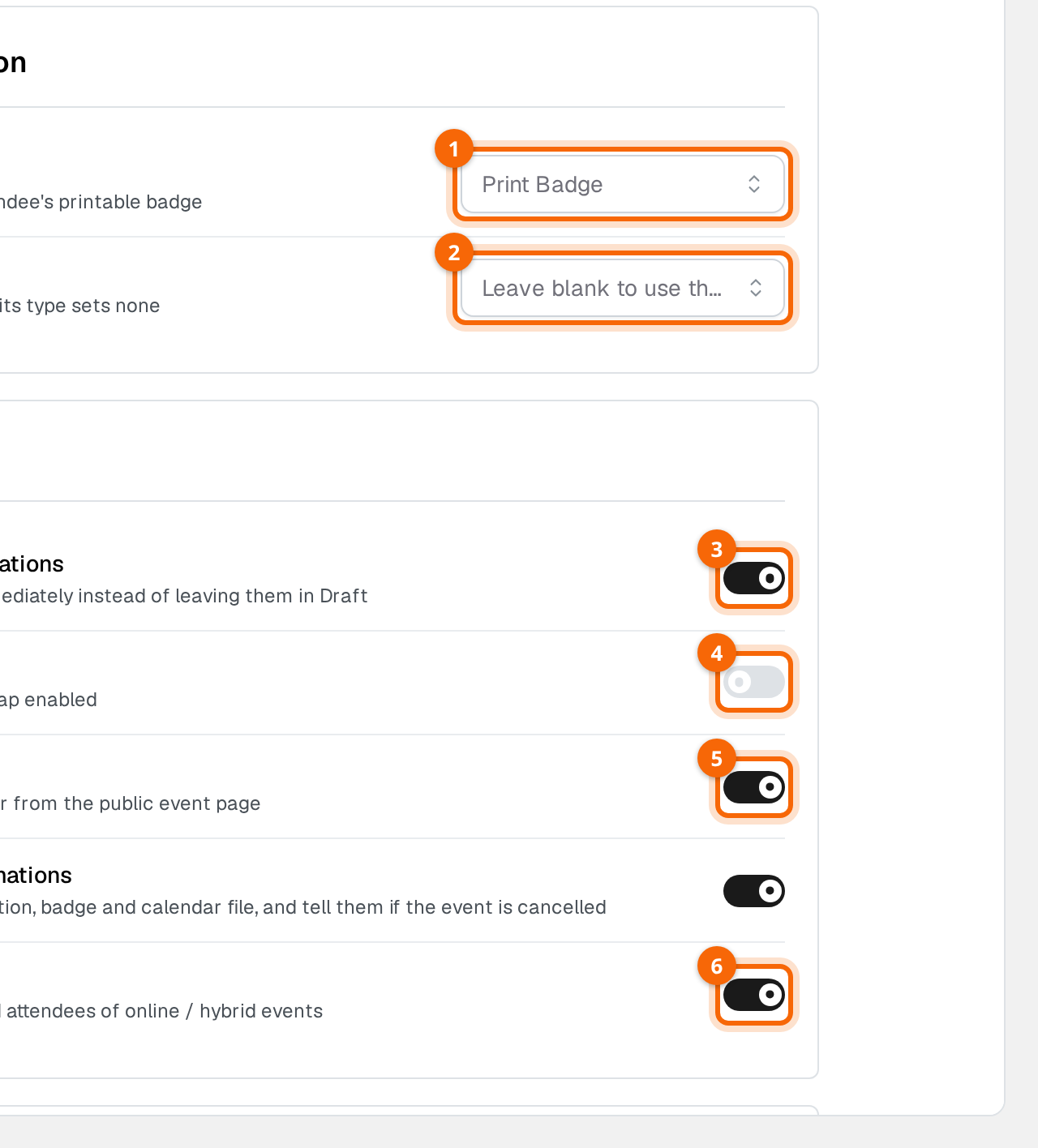
- Badge Template — the layout an attendee's printed badge comes out in. Leave it blank to use the built-in badge.
- Default Timezone — the zone a new event's times are announced in. Blank uses the timezone of whoever creates the event.
- Auto-confirm Free Registrations — a new event confirms free registrations straight away. Turn it off to review each one first: they wait as Draft until you confirm them.
- Limit Seats by Default — a new event starts with a seat limit switched on.
- Allow Public Registration — visitors can register from the event page on your website. Turn it off and every event page says registration is closed.
- Email Registration Confirmations — each attendee is emailed when their registration is confirmed, with the event's details, a link to their badge and a calendar file, and is emailed again if the event is cancelled. On unless you turn it off.
- Email Join Links — lets you email the join link of an online event to its confirmed attendees (see How do I register attendees and manage registrations?).
Click Save. The first two switches only set how a new event starts; each event can be changed on its own form.
2. Event types, tags and track stages
The Setup panel at the bottom of the tab has three lists:
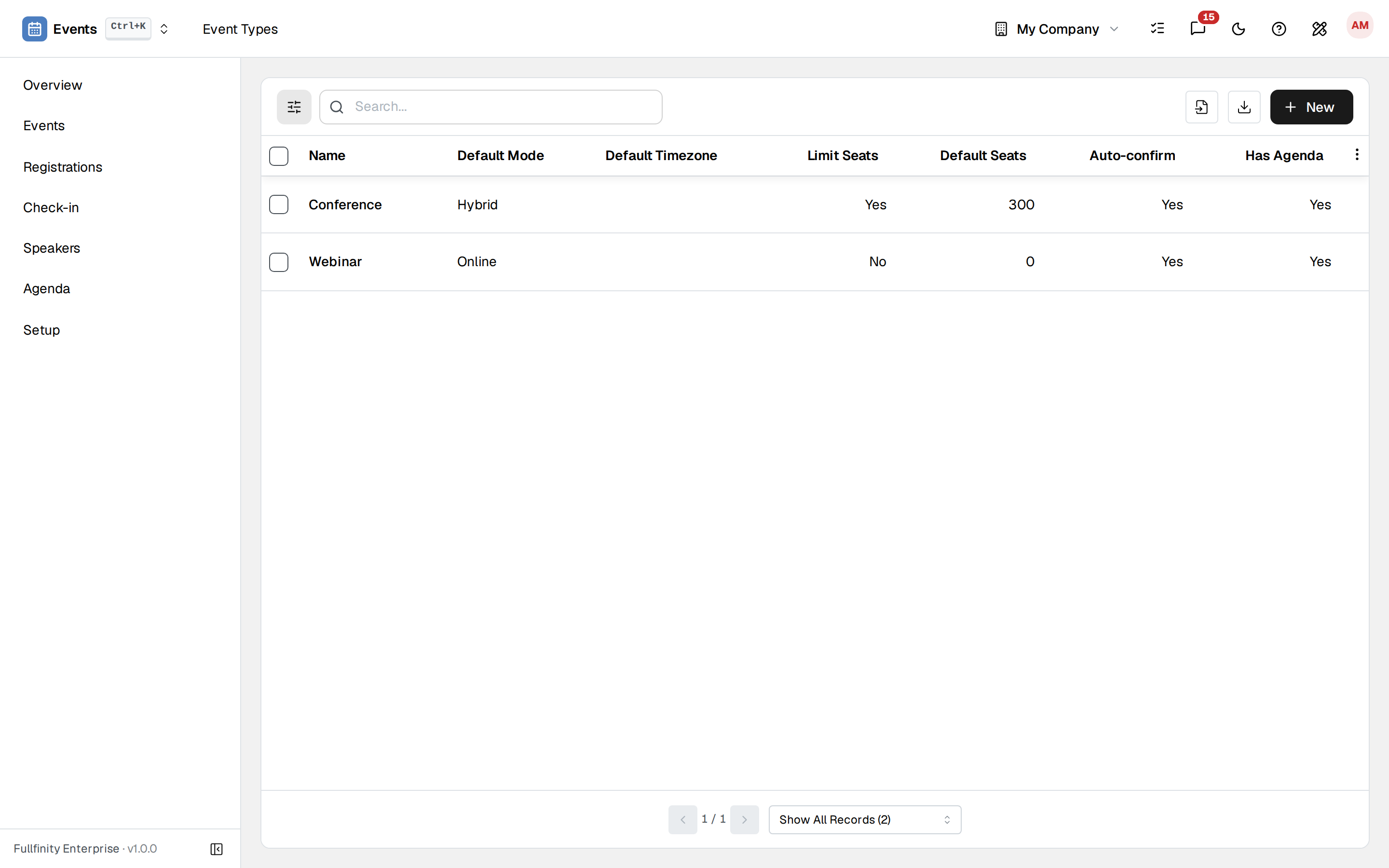
- Event Types — reusable starting points, such as Webinar or Conference. Each has a Default Mode, Default Timezone, Limit Seats, Default Seats, Auto-confirm and Has Agenda. Picking a type on an event copies these onto it, and they win over the settings above. Untick Has Agenda for a simple kind of event, such as a webinar: its events leave out the agenda, speakers and rooms.
- Event Tags — labels such as Free or Workshop, shown in colour on the website's event cards.
- Track Stages — the columns of the agenda board where you plan talks. Fullfinity starts you with Proposal, Confirmed, Announced, Published and Done. New talks land in the stage marked Default; a Folded stage starts collapsed.
Was this article helpful?