How do I edit the emails Fullfinity sends?
Change the subject and wording of the emails sent with your quotes, invoices, statements and orders.
The email that goes out with a quote, an invoice or a statement is written from an email template. Edit the template and every email sent from it changes — the wording, the subject, who gets a copy.
1. Find the template
Go to Settings → Setup, open the General tab and click Email Templates under Email. Each template is named after what it sends, for example:
- Send Quote/Sales Order — quotes and order confirmations;
- Send Financial Document — invoices, bills and credit notes;
- Send Customer Statement and Send Payment Link;
- Send RFQ/Purchase Order — requests for quotation and purchase orders.
The Subject column shows each subject as it reads in the email, with … where the document's own details go.
2. Edit it
Open the template.
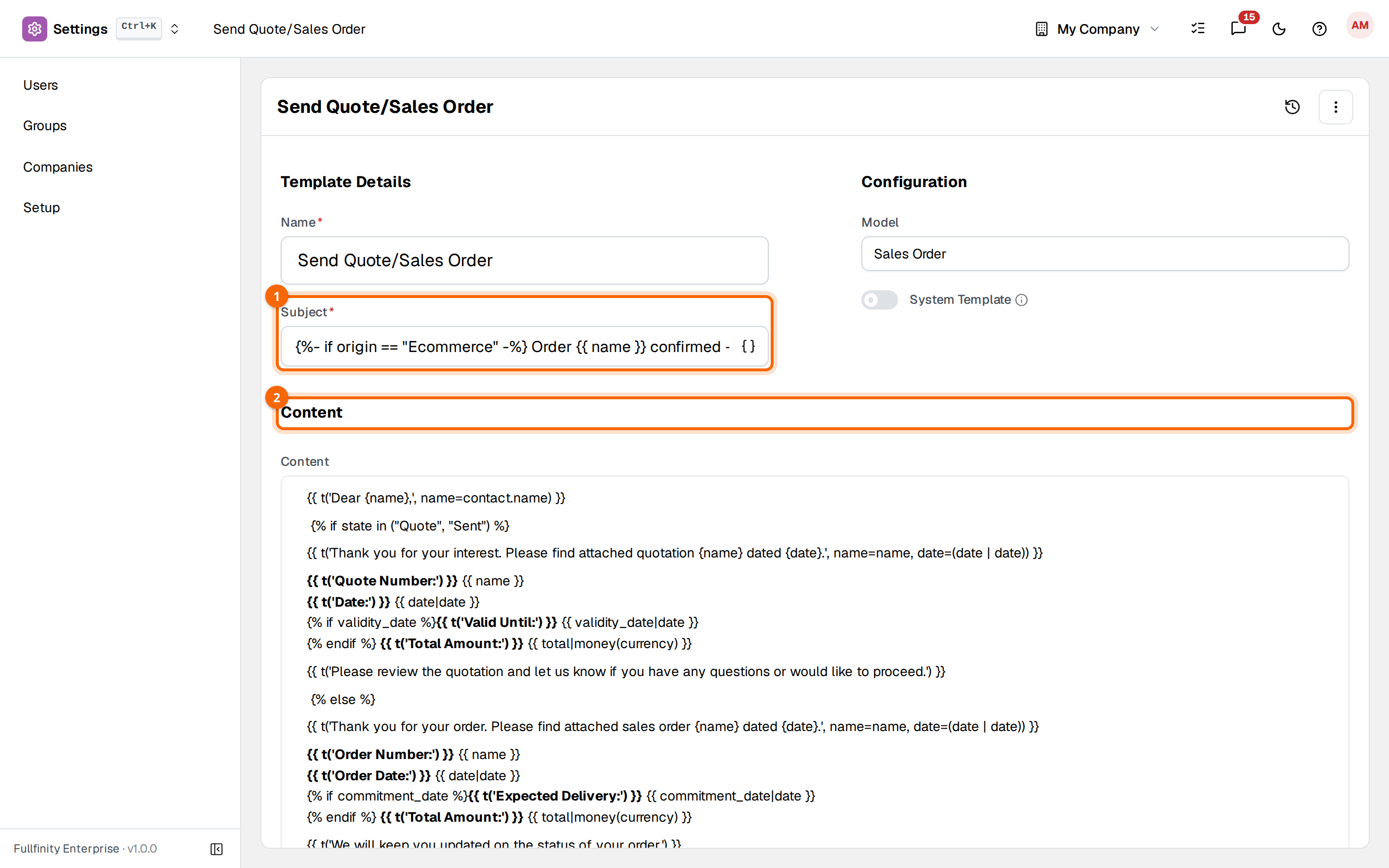
- Subject — the email's subject line.
- Content — the body. Format it like any document: headings, lists, links, images.
Words between double curly brackets, like {{ name }} or {{ company.name }}, are placeholders: when the email is sent they are replaced by the document's own details — its number, the customer's name, your company. To add one, put your cursor where it should go and click Insert field in the editor's toolbar, then pick the field. Leave the brackets of existing placeholders intact; some subjects contain short instructions in {% … %} that choose between wordings, and editing those needs care.
Under Email Configuration and Recipients:
| Field | What it does |
|---|---|
| From | Send from this address instead of the sender's own. Leave empty to send from the person sending it. |
| CC | Addresses that receive a copy, separated by commas. |
| To | Addresses that always receive it, separated by commas. |
| Reply To | Where replies go, if not to the sender. |
Under Attachments, Report to Attach adds a PDF of the record to every email — the quote or the invoice itself — and Attachments adds the same files to every email, such as your terms and conditions.
Save. The next email sent from this template uses your changes.
Templates you write yourself
Click New to write your own template. Choose the Model — the kind of record it is for, such as sales orders — so you can insert that record's fields. When someone sends a message from a record of that kind, they can start from your template with the Template picker.
System Template marks a template that Fullfinity sends by itself; those are hidden from the Template picker.