How do I change how printed documents look?
Choose the layout, font and brand color of your printed and PDF quotes, invoices and other documents.
Quotes, orders, invoices and every other PDF Fullfinity produces share one design: a layout for the header and footer, a font, and your brand color. Change them once and every document follows.
1. Open the report settings
Go to Settings → Setup and open the General tab. The settings are under Reports.
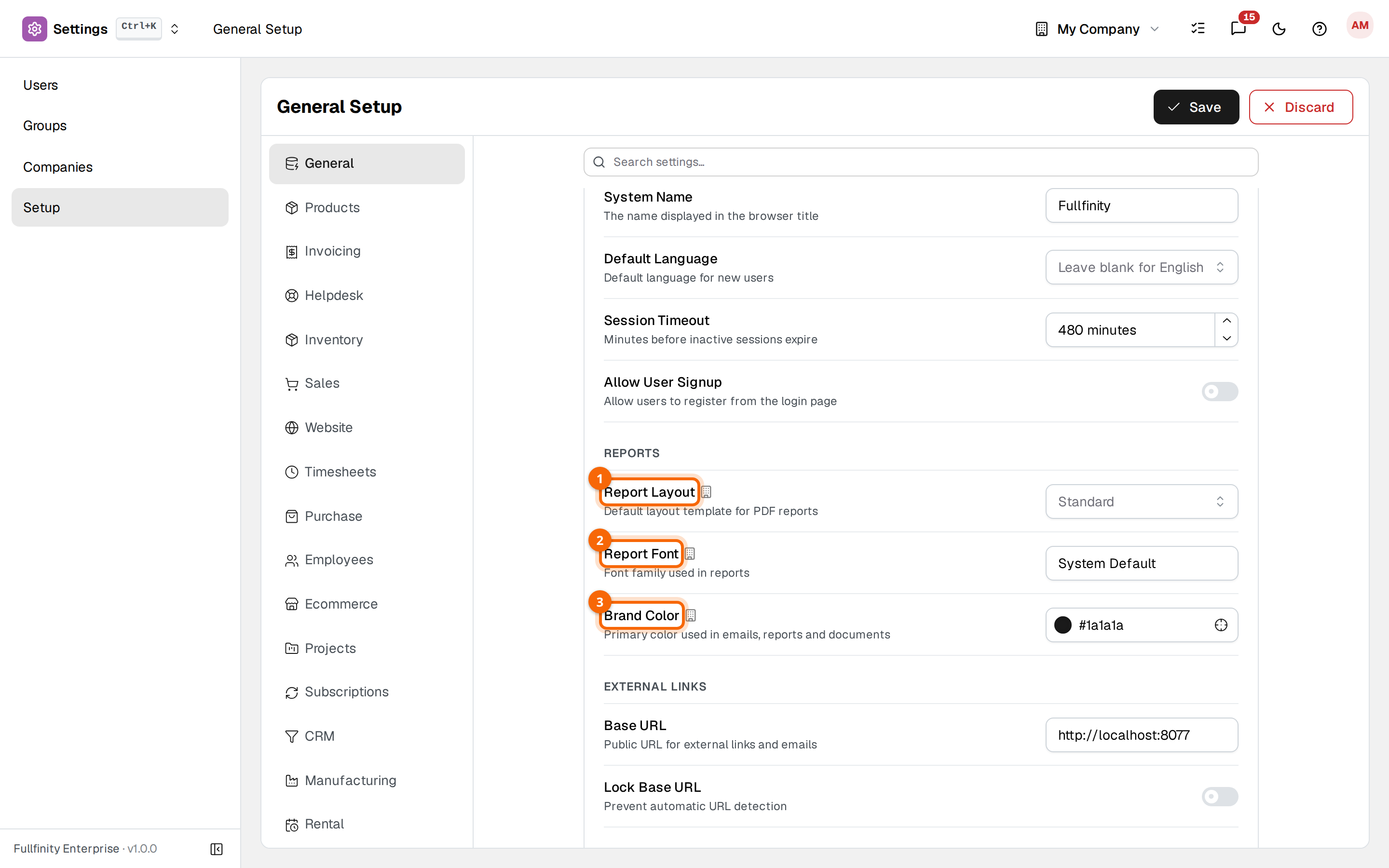
- Report Layout — the header and footer around every document: Standard, Modern Centered, Classic Left-Aligned, Minimal or Boxed. Left blank, documents use Standard.
- Report Font — the typeface: System Default, Inter, Roboto, Open Sans, Lato, Source Sans Pro or Libre Baskerville.
- Brand Color — the accent color of your documents' borders and highlights, and of the headers and buttons in your emails. Pick one or type its hex code (#1a1a1a).
Click Save. The next document you print or send uses the new design.
2. Check your company details
The layout prints your logo, address and registration details from your company — see How do I set my company's name, logo and address?
Need more than these choices? Report Templates, under Technical on the same tab, holds the documents' HTML templates for a developer to adapt.
Was this article helpful?