How do I work with the task board and list?
Move tasks between stages by dragging them, add tasks to a column, colour cards, and switch to the list or timeline.
Projects → Tasks opens a board with one column per stage. Opened from a project, the board shows that project's tasks and stages only.
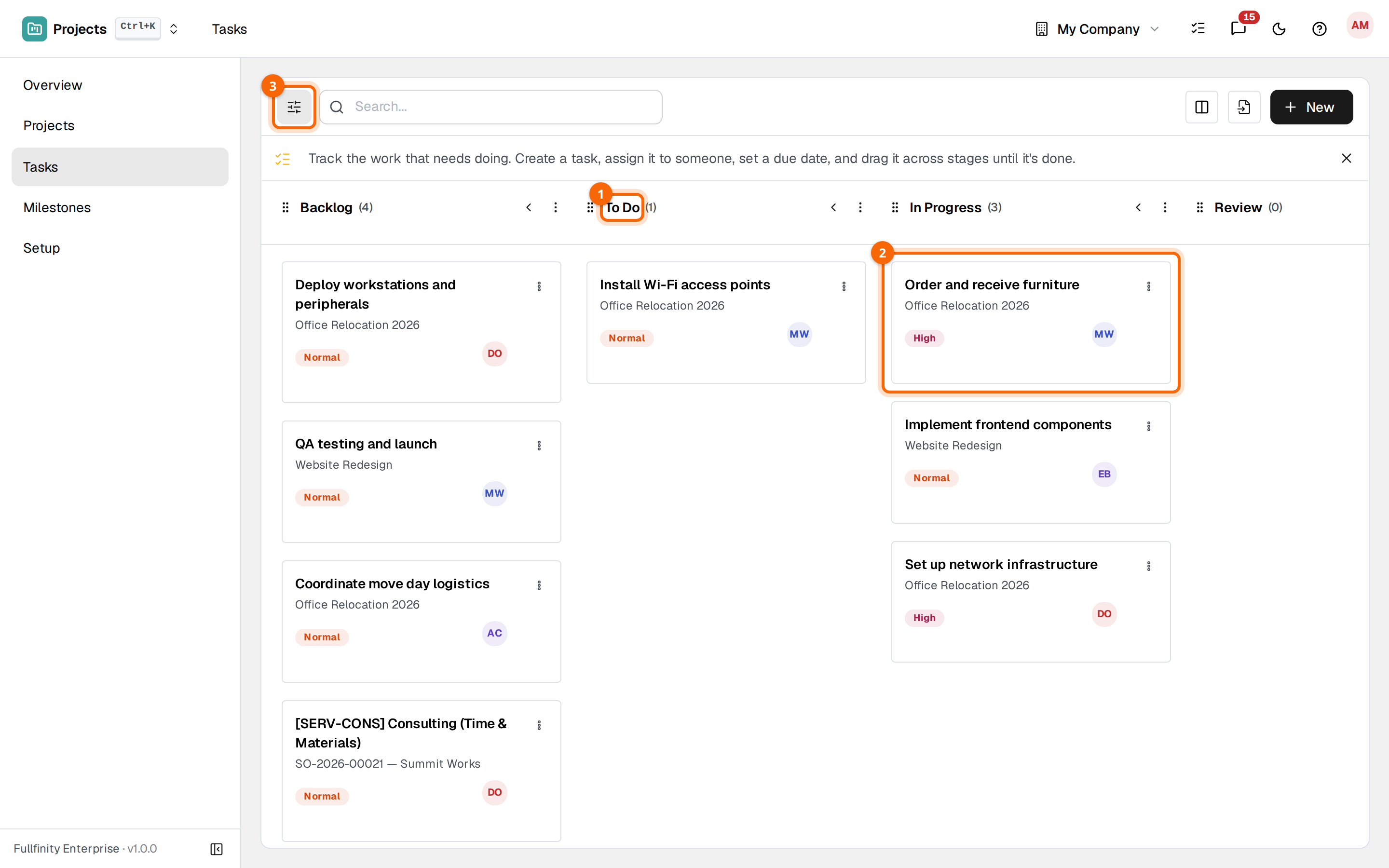
- Each column is a stage, with the number of tasks in it. The done and cancelled columns start folded.
- Each card shows the task, its project, its priority and who it is assigned to.
- Search, or open the filters to narrow the board.
Move a task
Drag a card to another column to change its stage. Dragging it to the done stage sets its progress to 100%. A task that waits for others cannot be moved to done before they are finished — see How do I plan tasks on the timeline?
Find the tasks you want
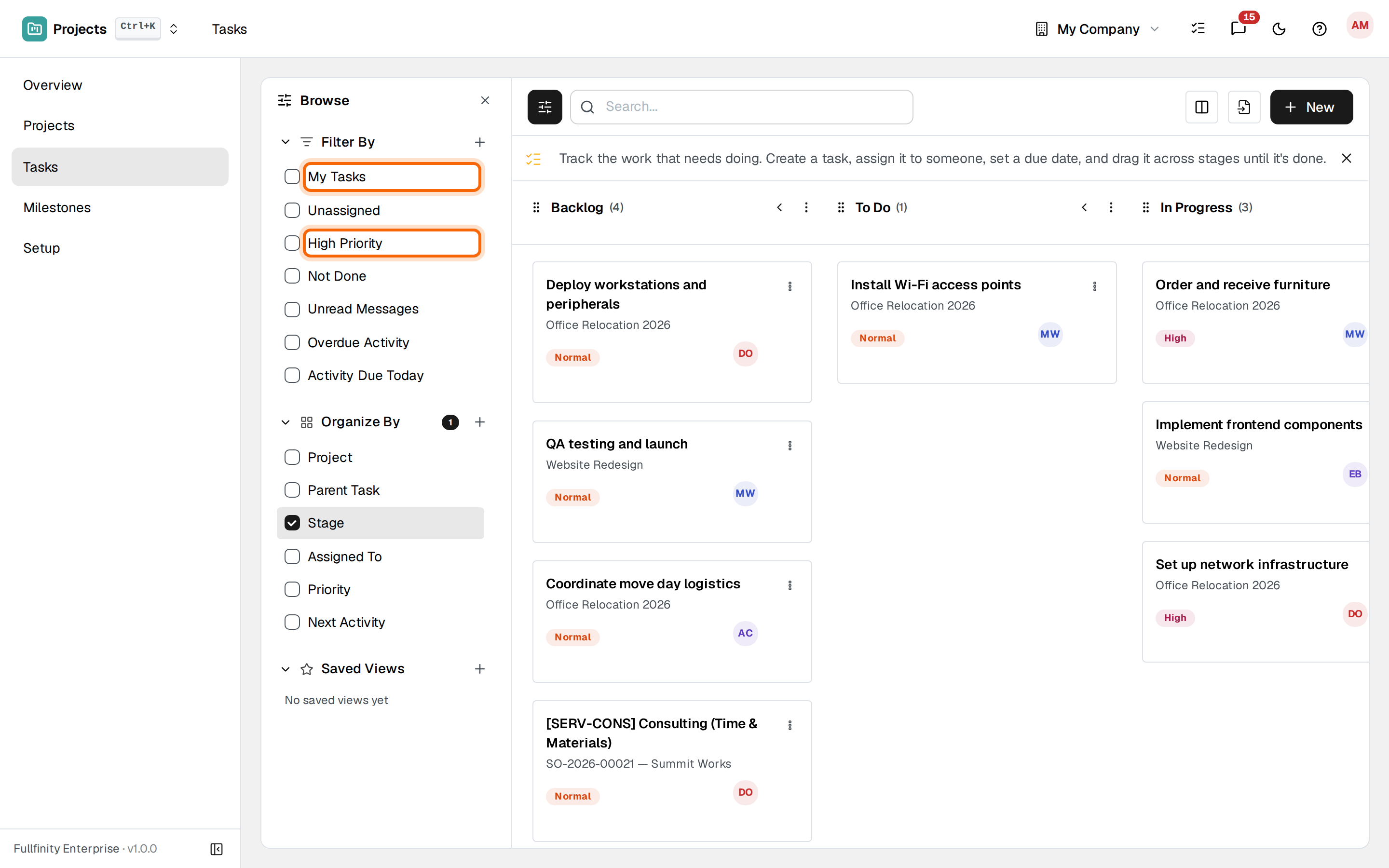
Click the filter button next to the search to choose:
- My Tasks, Unassigned, High Priority or Not Done.
- Group the board by Project, Assigned To or Priority instead of by stage.
Colour a card
Click the ⋮ on a card and pick a colour; the card gets a coloured edge. Use it for whatever your team agrees on — a client, a kind of work, a warning.
The list and the timeline
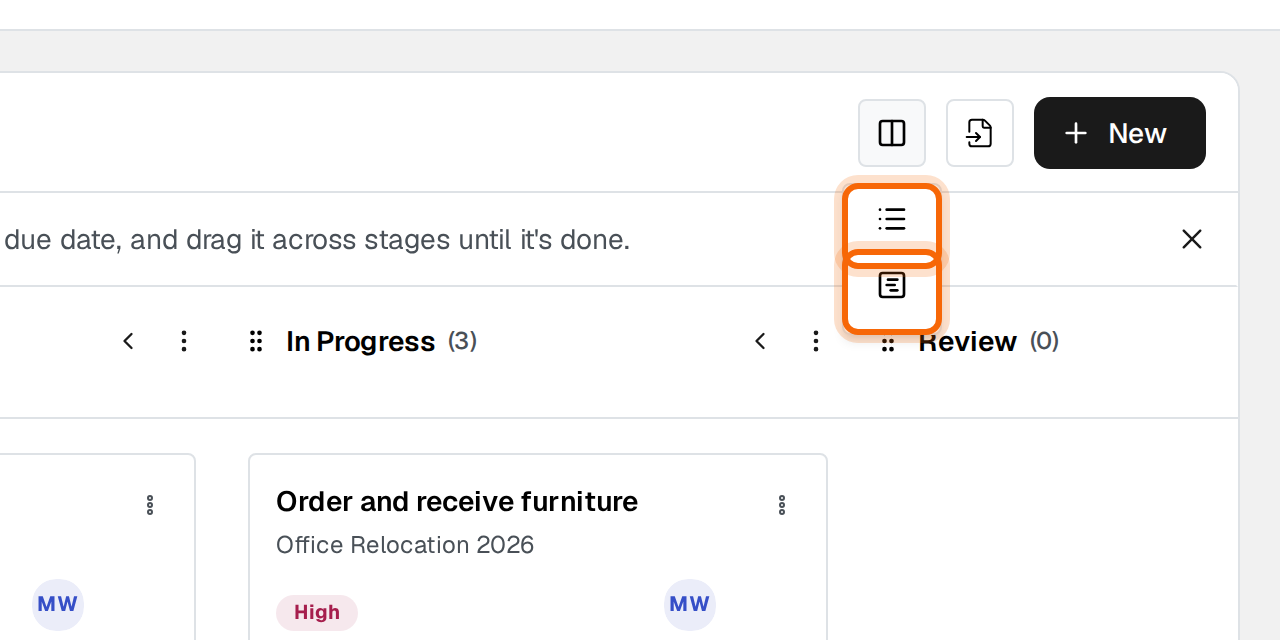
Click the view button next to New and choose List to see the tasks as rows with their project, stage, assignee, dates, progress and priority — handy for sorting and exporting. Gantt shows them on a timeline.