How do I connect my email?
Send email from your own domain and receive replies into Fullfinity — with any mail server, Google Workspace or Microsoft 365.
Fullfinity sends quotes, invoices, invitations and messages by email. Connect your own mailbox so they come from your address and land in your customers' inboxes, and so replies come back into Fullfinity onto the right record.
You can connect:
- any mail provider, with a server address, username and password;
- Google Workspace or Gmail, or Microsoft 365 / Outlook — these no longer accept a password for this, so they connect by signing in to your account instead.
Everything starts at Settings → Setup, on the General tab, under Email at the bottom.
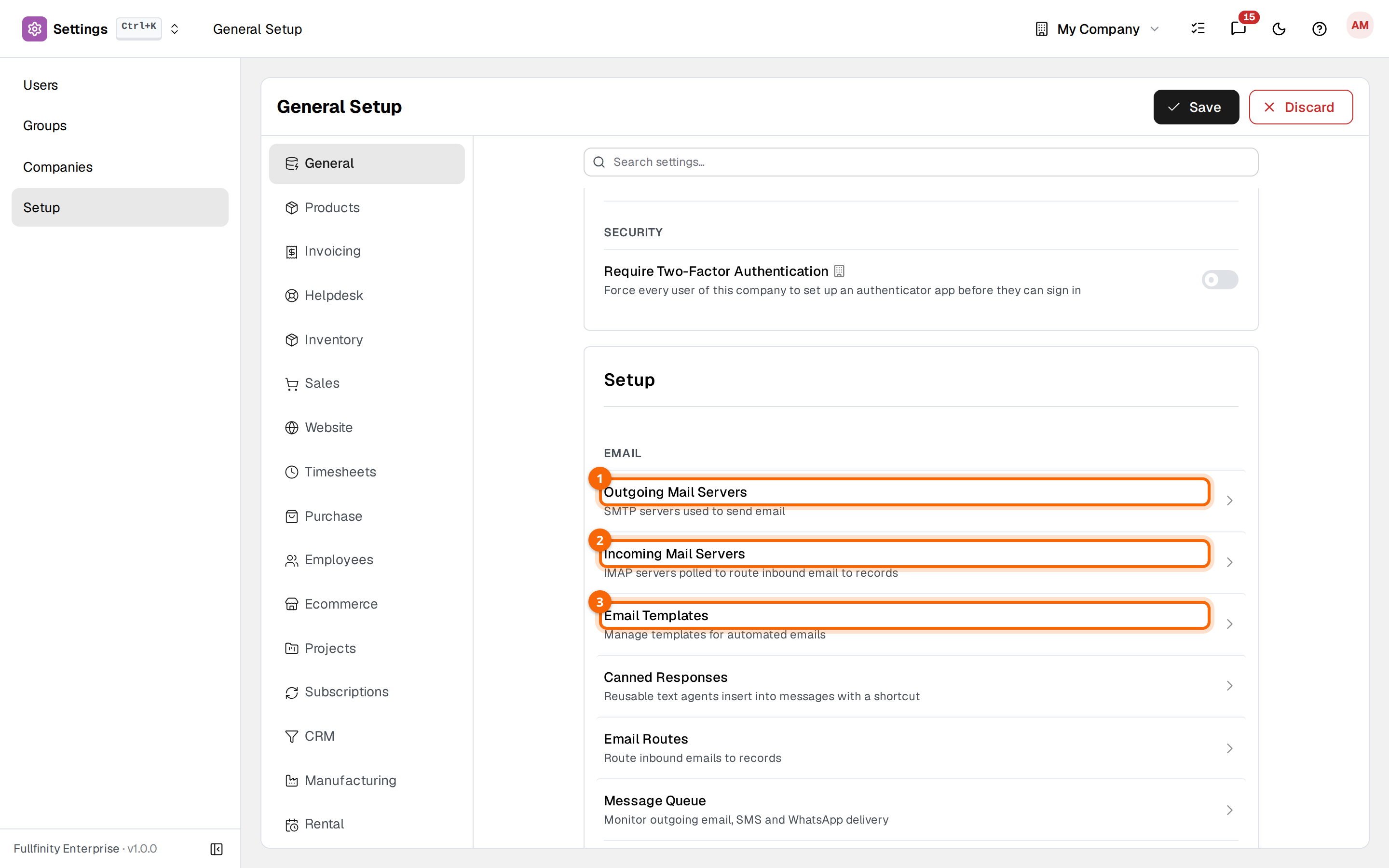
- Outgoing Mail Servers — the servers Fullfinity sends email through.
- Incoming Mail Servers — mailboxes Fullfinity checks for replies and new email.
- Email Templates — the wording of the emails it sends; see How do I edit the emails Fullfinity sends?
Any mail provider
Your provider's help pages list the server addresses and ports to use. Click Outgoing Mail Servers, then New:
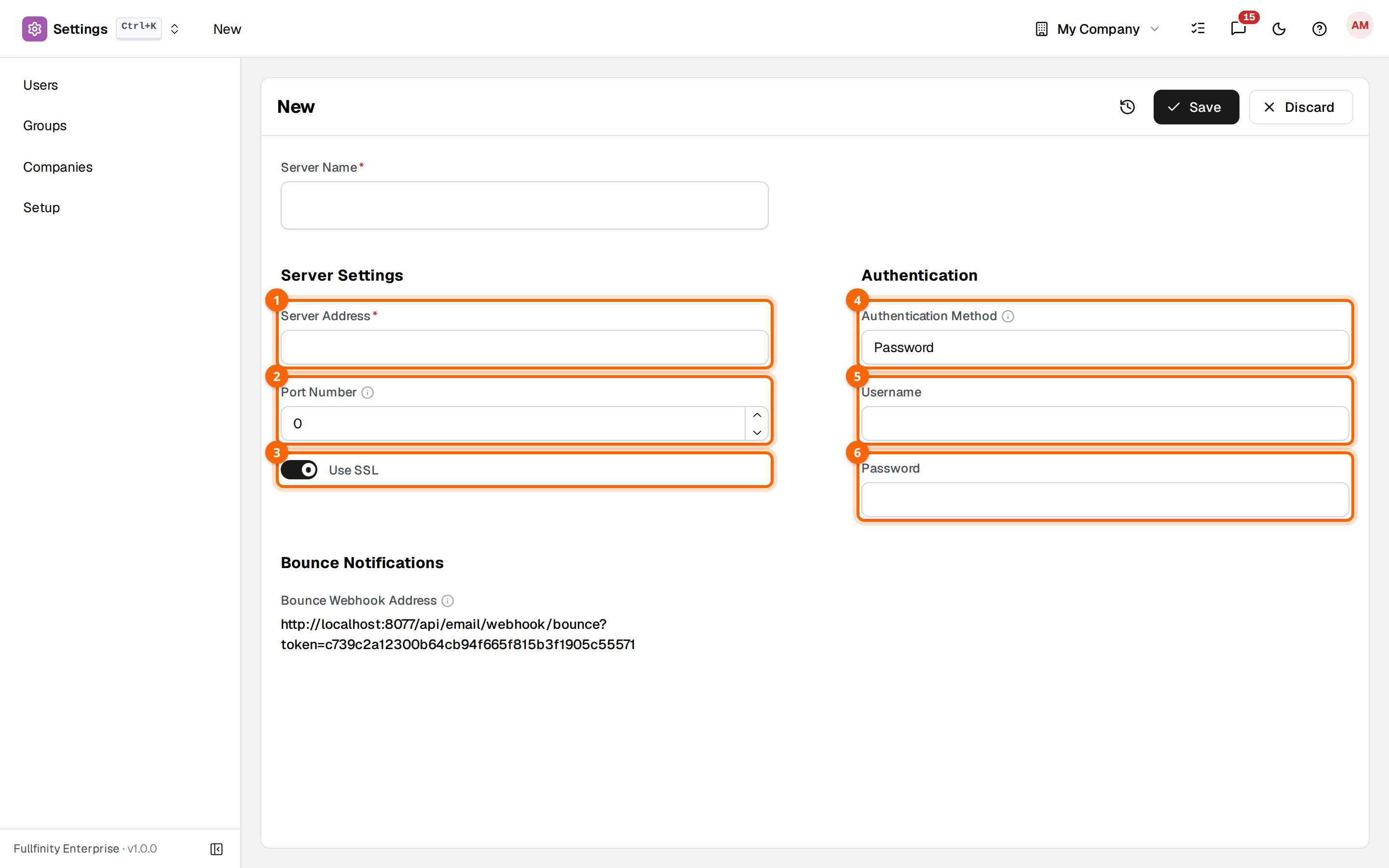
- Server Address — your provider's SMTP server (smtp.example.com).
- Port Number — leave it blank for the standard port; fill it in only if your provider gives you another.
- Use SSL — leave on. If your provider gives you port 587 instead, turn it off: Fullfinity then switches the connection to encryption (STARTTLS) before it sends your password.
- Authentication Method — Password.
- Username — usually the full email address.
- Password — the mailbox password, or an app password if your provider issues them.
Give it a Server Name, save, and click Test Configuration to check Fullfinity can sign in.
To receive email, do the same under Incoming Mail Servers with your provider's IMAP server. Fullfinity checks it regularly; Fetch Now checks straight away. Replies to emails Fullfinity sent are filed on the record they answer; Email Routes, also under Email, decide what new email becomes (a lead, a ticket…).
Google Workspace or Gmail
You need a Google Cloud project with an OAuth client for Fullfinity (your Google administrator can create one). Add <your Fullfinity address>/gmail_mail_auth to its authorized redirect URIs — your Fullfinity address is the Base URL on the General tab of Setup.
- Open Integrations, find Google and click Install.
- Open Google and paste the Client ID and Client Secret from your Google Cloud project. Save.
- Click Connect a Mailbox and sign in to the Google mailbox Fullfinity should use.
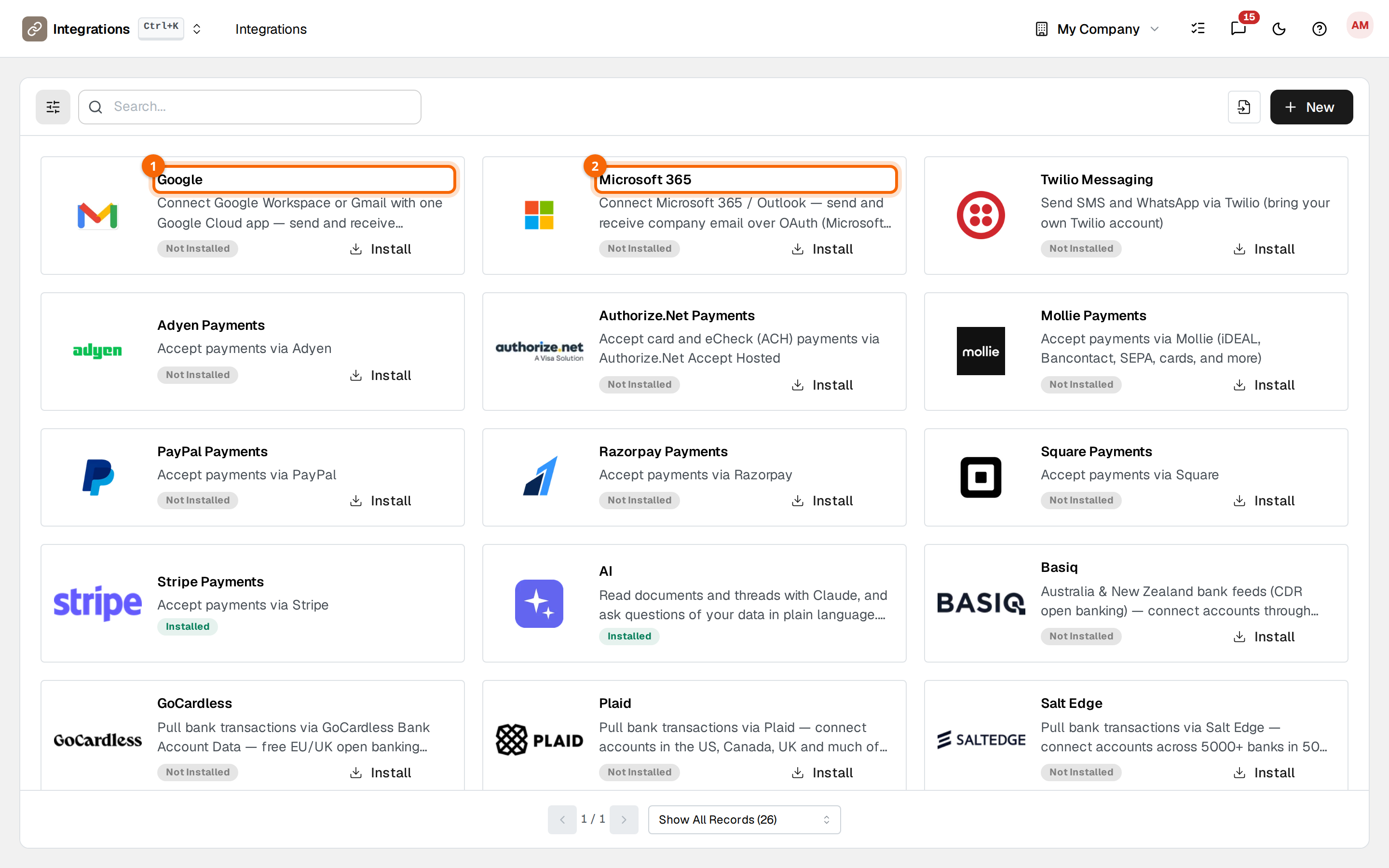
Fullfinity creates both servers for you — sending and receiving — named Google mailbox. The server shows the address you signed in with under Connected Mailbox; check it is the right one. Repeat Connect a Mailbox for each mailbox.
Microsoft 365 or Outlook
You need an app registration in Microsoft Entra (Azure AD), with <your Fullfinity address>/microsoft_mail_auth as a redirect URI.
- Open Integrations, find Microsoft 365 and click Install.
- Open Microsoft 365 and enter the Application (Client) ID, the Client Secret and the Directory (Tenant) ID from the registration. Save.
- Click Connect a Mailbox and sign in to the Microsoft 365 mailbox Fullfinity should use.
Fullfinity creates both servers for you — sending and receiving — named Microsoft 365 mailbox, and names them after the address you signed in with. Check that address under Connected Mailbox. Repeat Connect a Mailbox for each mailbox.