How do I connect a receipt printer, cash drawer or other hardware?
Print receipts through the browser or a network printer, open a cash drawer, show the sale to the customer, read a scale and use a card reader.
Registers work in a web browser and need no extra box: printers and drawers are reached over your network, a scale over USB. Each register has its own hardware.
Open the register (Point of Sale → Setup → Registers) and go to its Hardware tab.
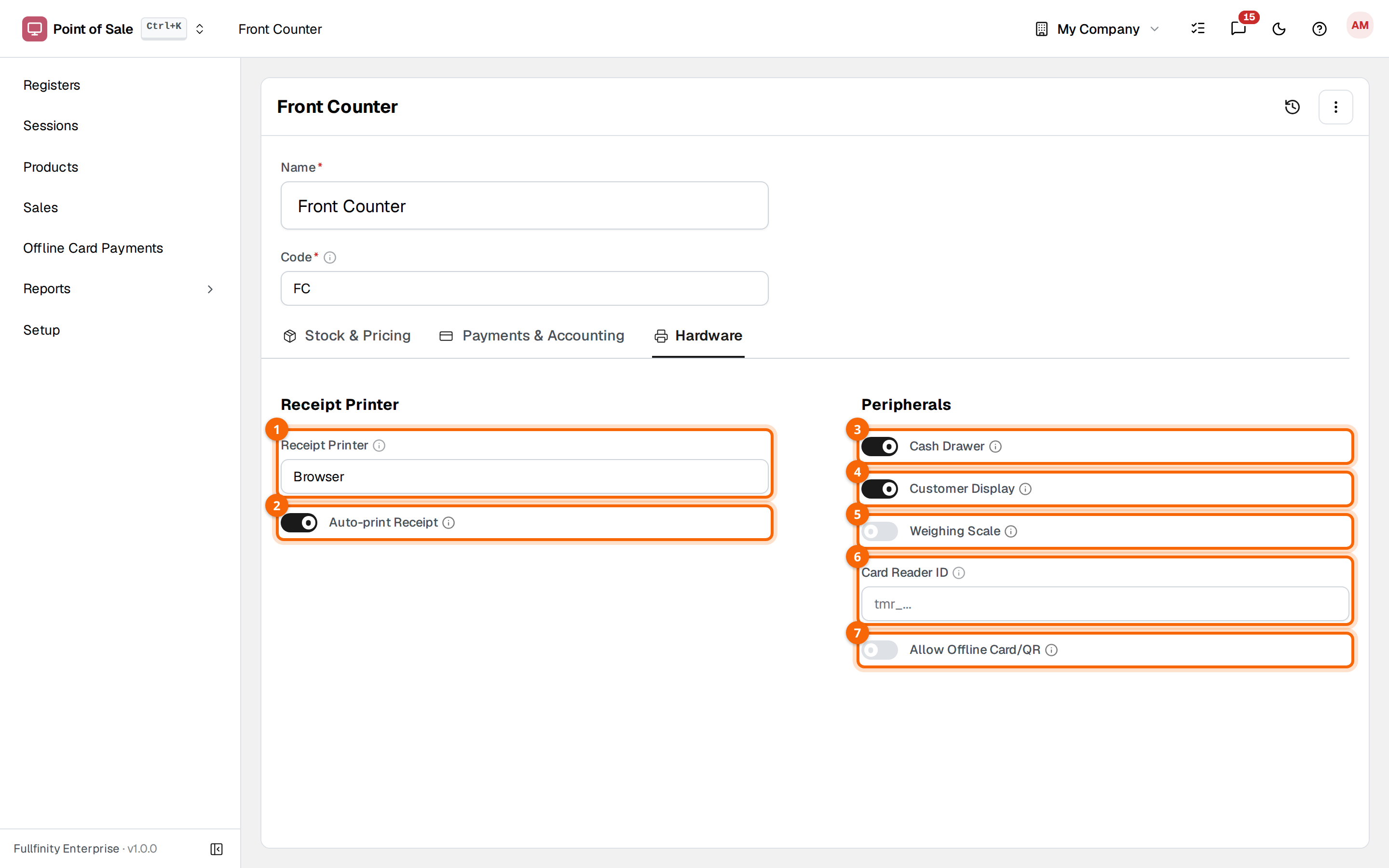
- Receipt Printer — Browser prints through the computer's normal print window, to any printer. Epson ePOS or Star WebPRNT print straight to a network receipt printer: type its address in Printer Address, for example http://192.168.1.50. None prints nothing.
- Auto-print Receipt — prints the receipt as soon as a sale is complete, without clicking Print.
- Cash Drawer — opens a drawer plugged into the network receipt printer when cash is taken, and adds Open drawer to the receipt screen. It needs an Epson or Star network printer.
- Customer Display — a screen facing the customer that shows the sale as you ring it up.
- Weighing Scale — adds Weigh to a line's keypad, reading the weight from a USB scale. It works in Chrome and Edge.
- Card Reader ID — the ID of this register's card reader, from your payment provider. Needed only for a card tender connected to a provider.
- Allow Offline Card/QR — lets card and QR payments be recorded with no connection — see What happens when the register goes offline?
Click Save, then reopen the register so it picks up the change.
Connect the customer display
On the open register, click ⋮ and choose Customer display. Scan the QR code with the tablet or phone that faces the customer, or click Open on this device to show it in a window you drag onto a second monitor. A screen pairs once and keeps working across shifts. Rotate link disconnects every screen paired so far.