How do I give employees time off to take?
Allocate days or hours to an employee for a time off type, or correct a balance with an adjustment.
An employee's balance for a type is what they have earned or been given, less the time off already approved. You give time off by adding an allocation — for example, 25 days of annual leave at the start of the year.
Add an allocation
Go to Time Off → Allocations and click New. (The menu is for HR Assistants and HR Managers.)
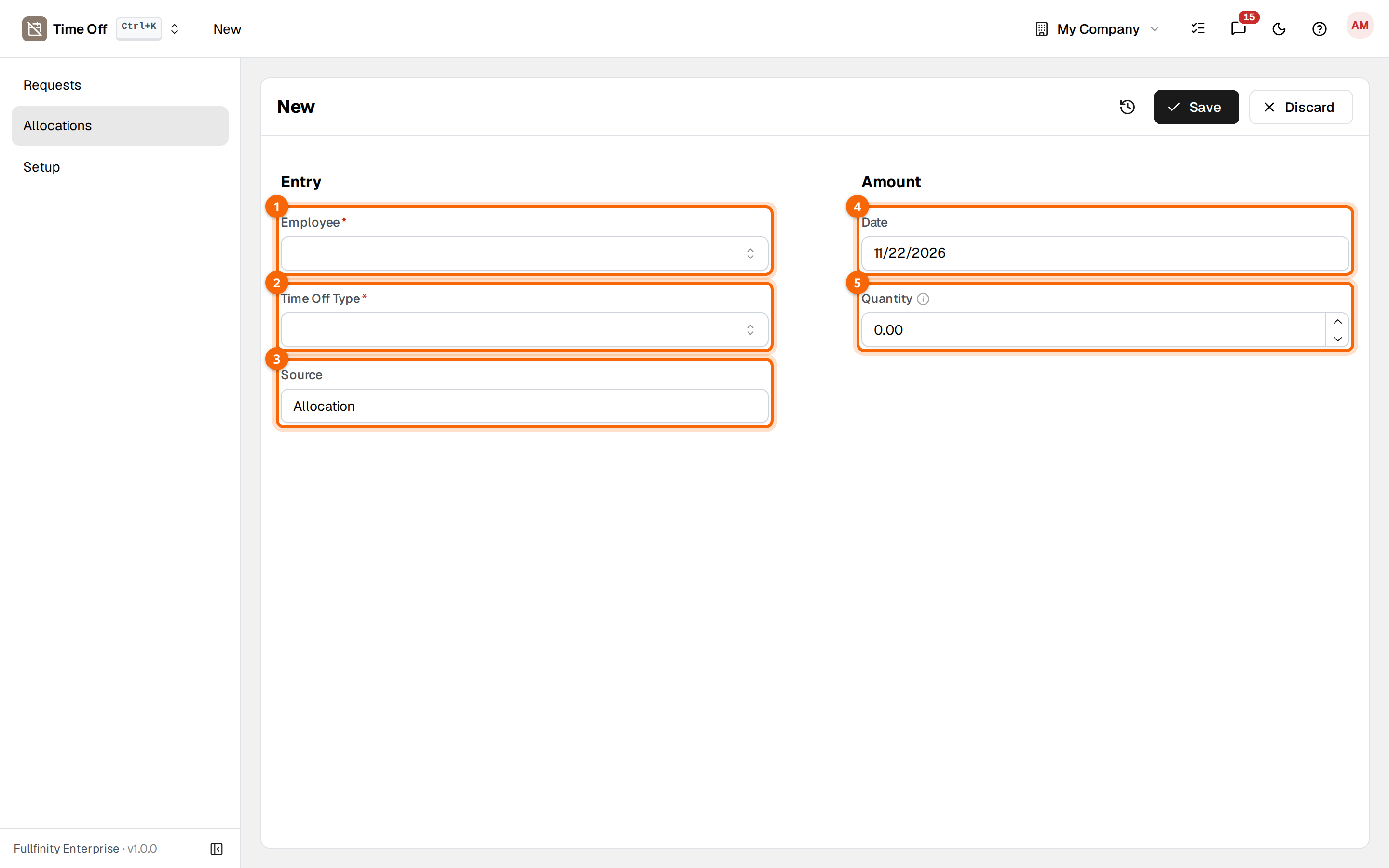
- Employee — who it is for.
- Time Off Type — which balance it adds to.
- Source — Allocation for an entitlement you grant, Adjustment for a correction.
- Date — when it takes effect.
- Quantity — in the type's unit. A positive number adds to the balance; a negative one takes it away (for example -2 to correct days given by mistake).
Click Save. The employee can use it straight away.
See what makes up a balance
The Allocations list shows every movement of every balance: what was given, and each approved request as a negative line with its Request beside it. You never edit those request lines — refusing or resetting the request removes its line and gives the time back.
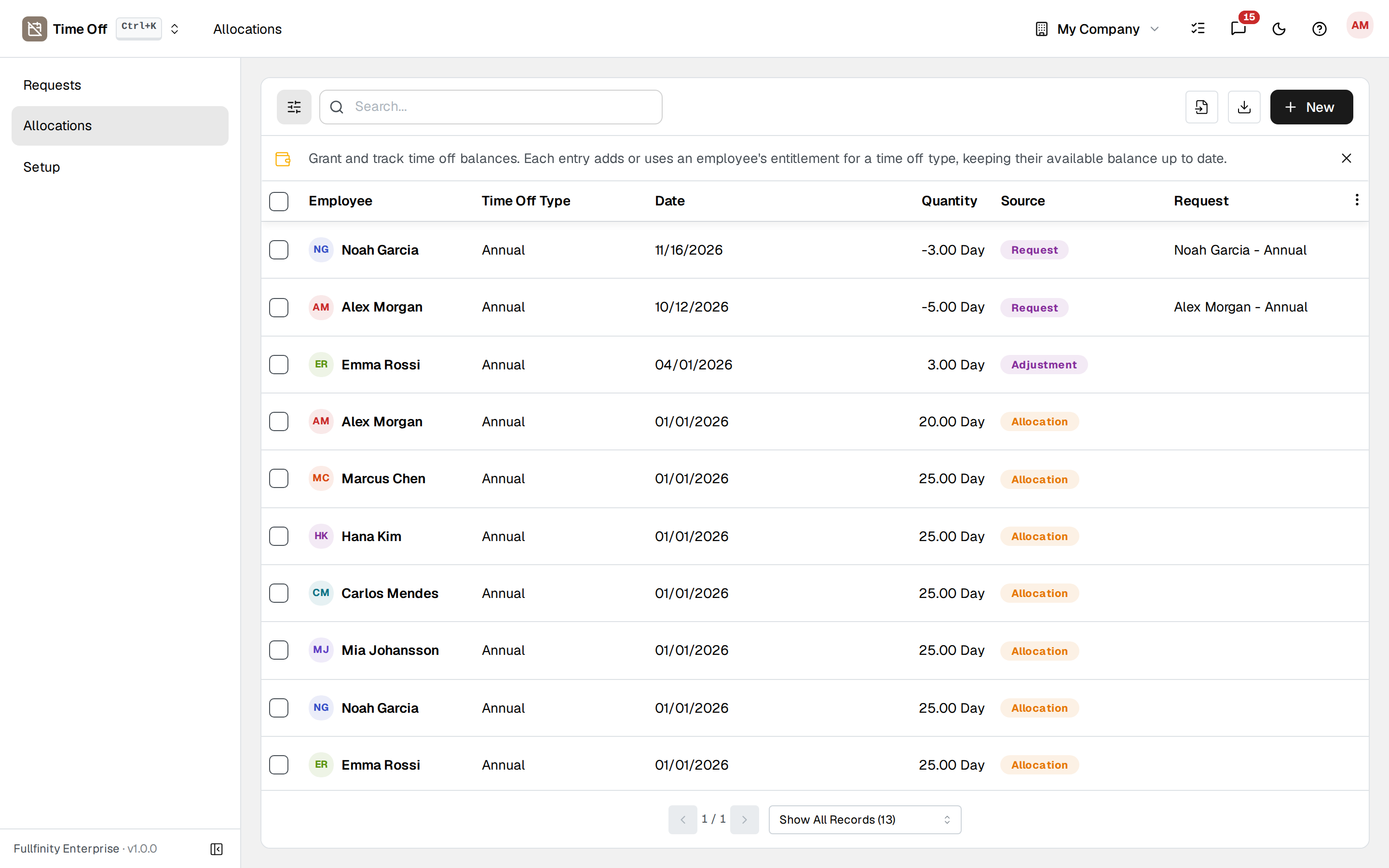
Use the filters Accruals & Allocations, Taken and Manual Adjustments, or group by Employee and Time Off Type, to explain a figure.
➡️ Related: How do I check how much time off I have?