How do I give an employee a login?
Create a user account for an employee from their record, so they can sign in to request time off and claim expenses.
An employee needs a login to request their own time off and submit their own expense reports. You create it from the employee record, so the person keeps one identity across the system.
Create the login
Open the employee from Employees → Employees and click Create User at the top.
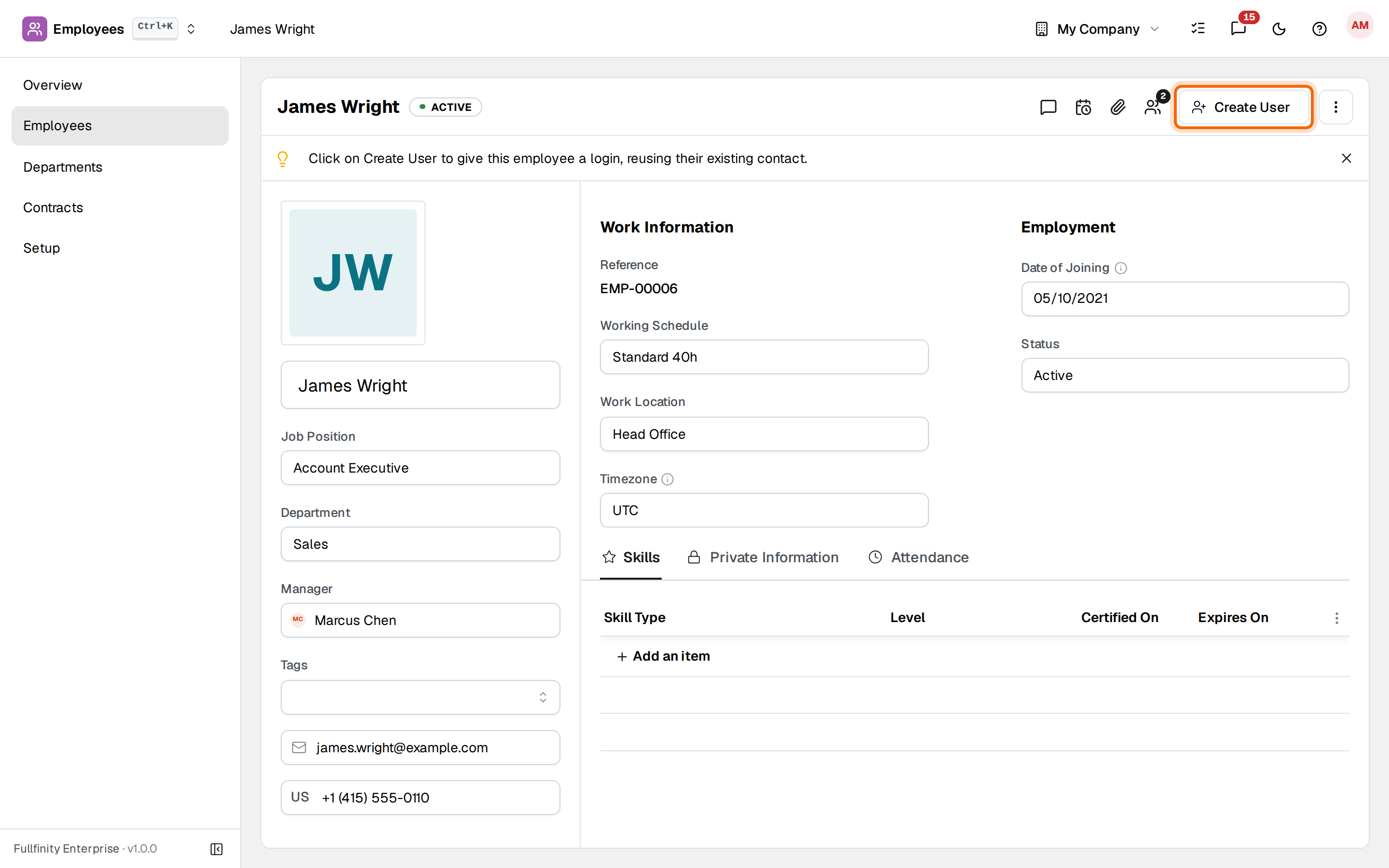
A message tells you what happened:
- Created 1 login. — a new user was made on the employee's work email, using the employee's own contact.
- Linked 1 existing account. — someone already signs in with that email (for example, they were a user before they were an employee). Their account is linked rather than duplicated, so they don't take a second seat.
- no login could be made — the employee has no Work Email. Add one, save, and click again.
Once the employee has a login the button disappears, and their timezone follows the one set on their user account.
Let them sign in
A new user has no password yet. Send them an invitation from their user record and decide what they can access — see How do I add users and choose what they can access? Give them at least the Employee role in Human Resources, so they can request time off and claim expenses.