How do employees earn time off automatically?
Use an accrual plan so balances grow every day an employee works, with more for longer service and a maximum balance.
With an accrual plan, nobody has to allocate time off each month or year. Each employee earns it continuously from their Date of Joining, and their balance is always up to date — there is no batch to run.
1. Create the plan
Go to Time Off → Setup, click Accrual Plans, then New.
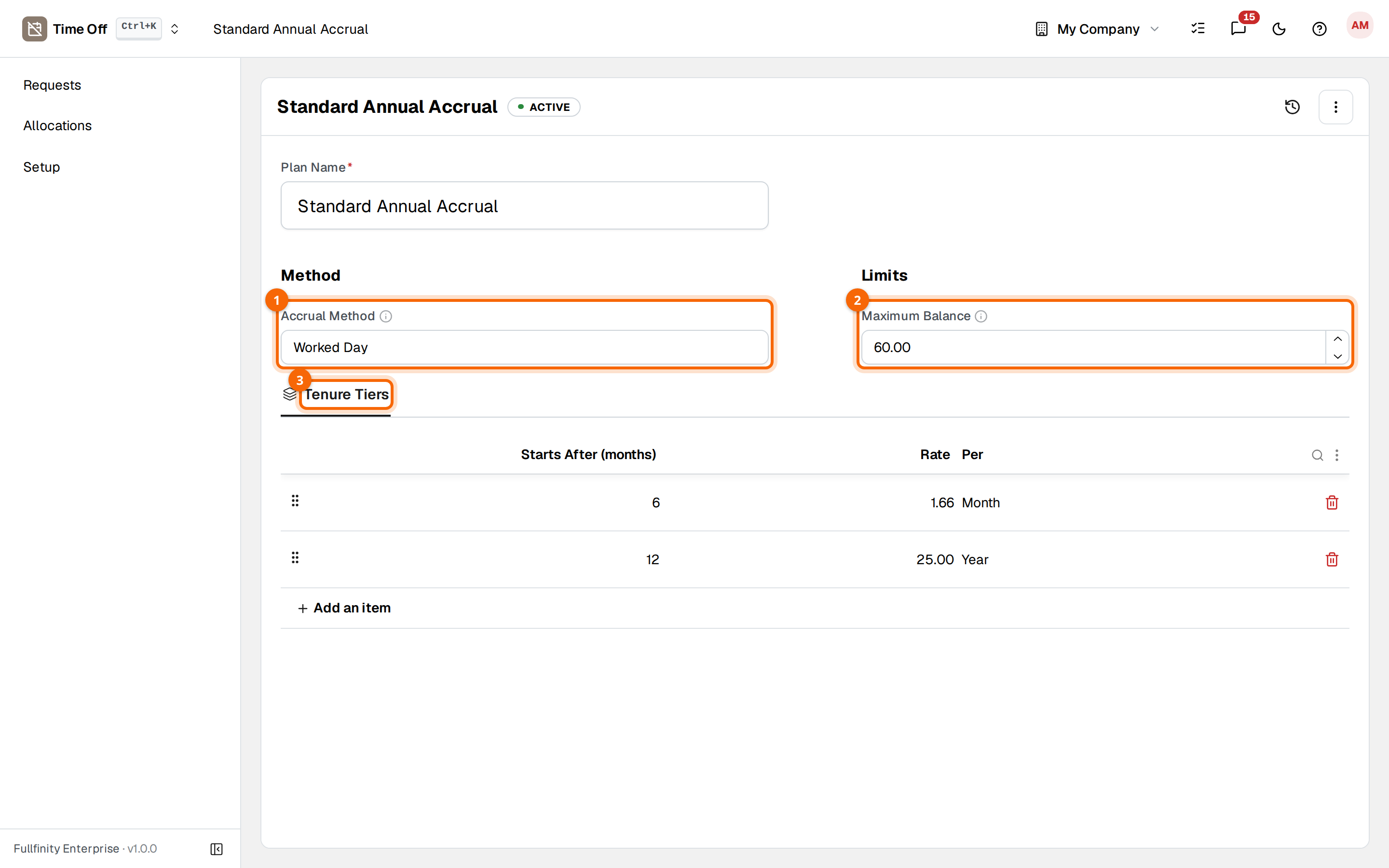
- Accrual Method — how service turns into time off:
- Worked Day — a share for each working day on the employee's schedule; company holidays don't count.
- Calendar Day — a share for every day that passes.
- Monthly — a twelfth of the yearly rate for each completed month.
- Anniversary — the full yearly rate for each completed year of service.
- Maximum Balance — the balance at which earning stops. While an employee is at the maximum they earn nothing more; as soon as they take time off, they start earning again. 0 means no limit. Time you allocate by hand can still take a balance above it.
- Tenure Tiers — click Add an item for each rate. Starts After (months) is the service needed before the tier applies (0 = from the first day), then the Rate and whether it is Per Year or Month. For example, 2.5 per Month from month 0, and 30 per Year after 60 months.
Click Save.
2. Attach it to a time off type
Open the type (Time Off Types in the same Setup tab) and choose the plan as its Accrual Plan. From then on, every employee's balance of that type includes what they have earned. See How do I set up time off types?
Was this article helpful?