How do I set up time off types?
Decide for each kind of time off whether it is counted in days or hours, who approves it, whether it is paid, and how its balance is earned.
A time off type is a kind of absence — Annual, Sick, Unpaid — with its own rules. Annual, Sick and Unpaid are ready when you install Time Off; adjust them to your policy or add your own.
Go to Time Off → Setup and click Time Off Types. (Setup is for HR Managers.)
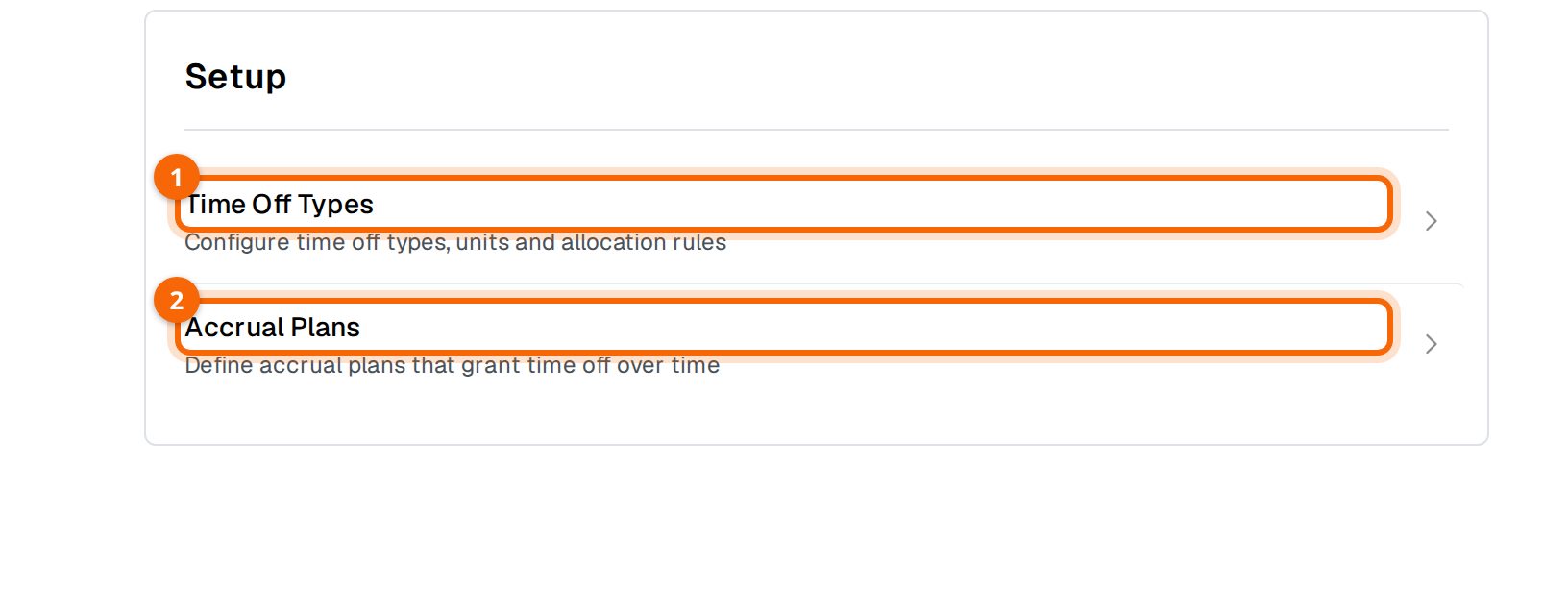
Open a type, or click New:
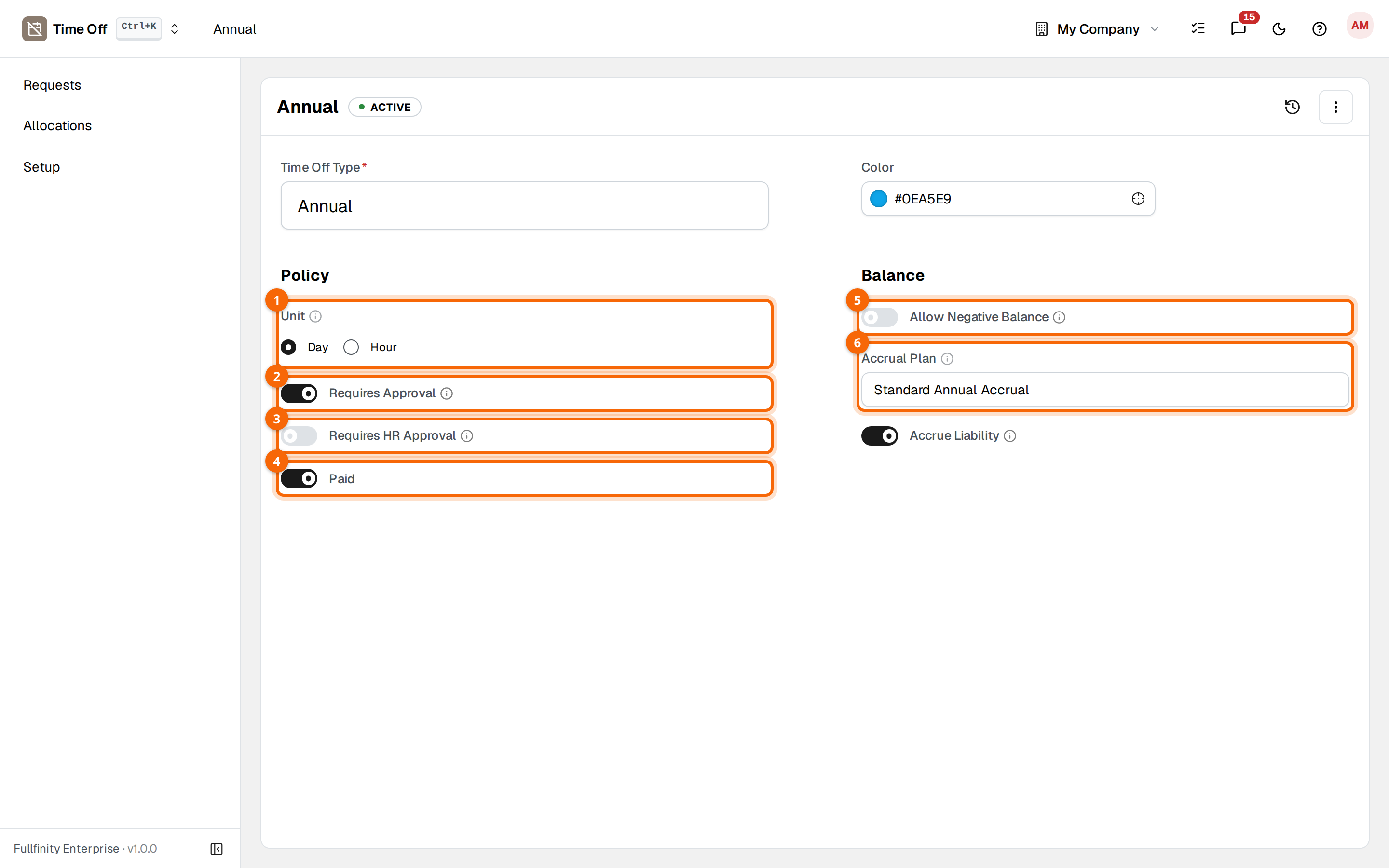
- Unit — Day or Hour. A request counts working days, or the working hours on the employee's schedule.
- Requires Approval — on: a request waits for the employee's manager. Off: a submitted request is approved straight away.
- Requires HR Approval — a second step: after the manager approves, an HR Manager must approve too. Only offered when Requires Approval is on.
- Paid — whether the time off is paid.
- Allow Negative Balance — off: a request that would take more than the employee has is refused. Turn it on for leave you don't count against an allowance, such as unpaid or parental leave.
- Accrual Plan — set one to have employees earn this time off automatically as they work. Leave it empty and the balance is only what you allocate by hand.
The Color is how this type's requests stand out. For paid leave, Accrue Liability marks untaken balance as pay the company owes, such as annual leave that is carried forward or paid out when someone leaves.
➡️ Next: give people a balance — How do I give employees time off to take?
Was this article helpful?