How do I set up departments and job positions?
Organise your company into departments with a manager each, and list the job positions people hold.
Departments group your employees into teams and can sit inside one another, so your structure reads like your organisation does: Management / Sales. Job positions name the roles people hold.
Departments
Go to Employees → Departments. Each department shows its full path, its manager and how many Members it has.
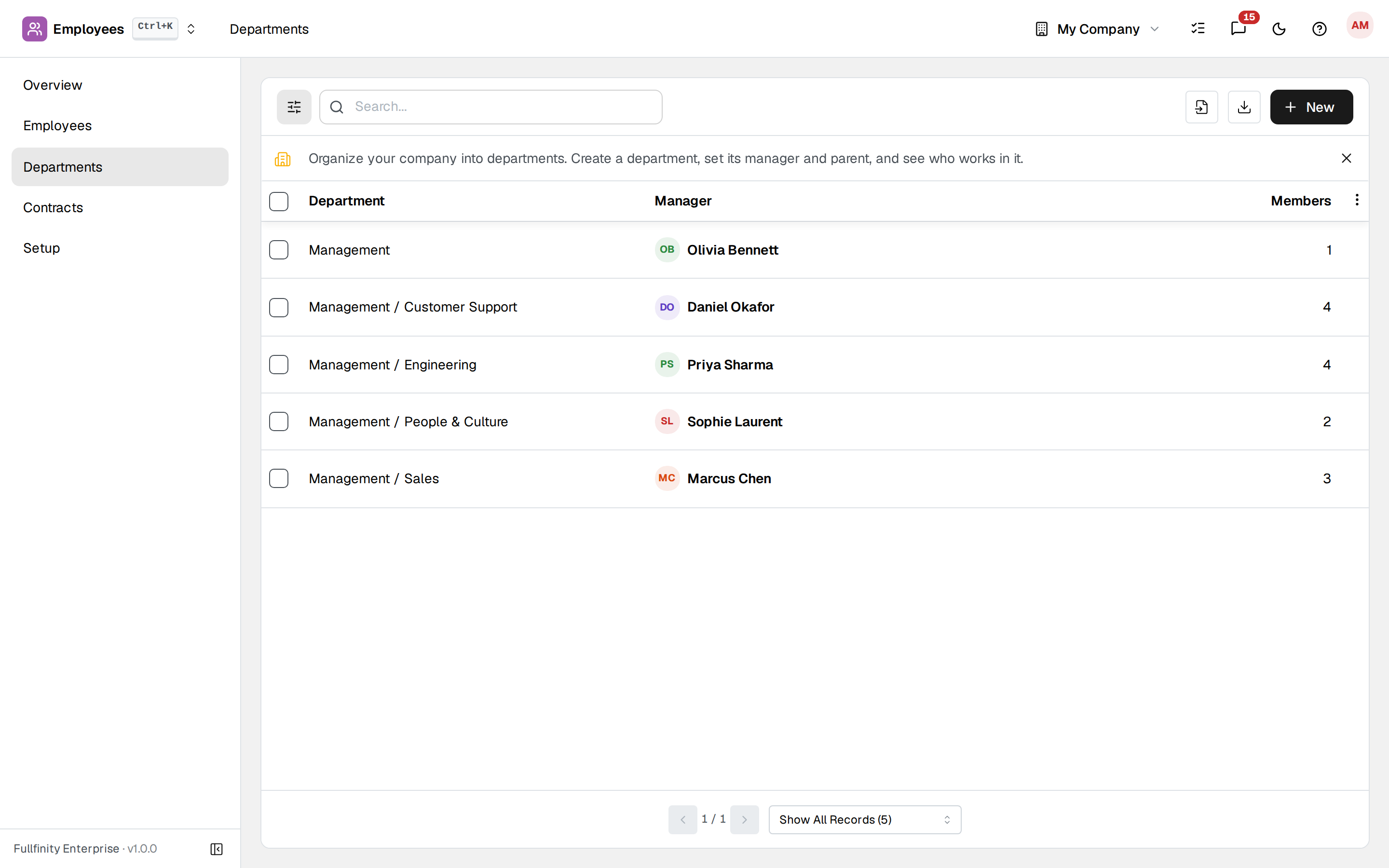
Click New, or open a department to change it:
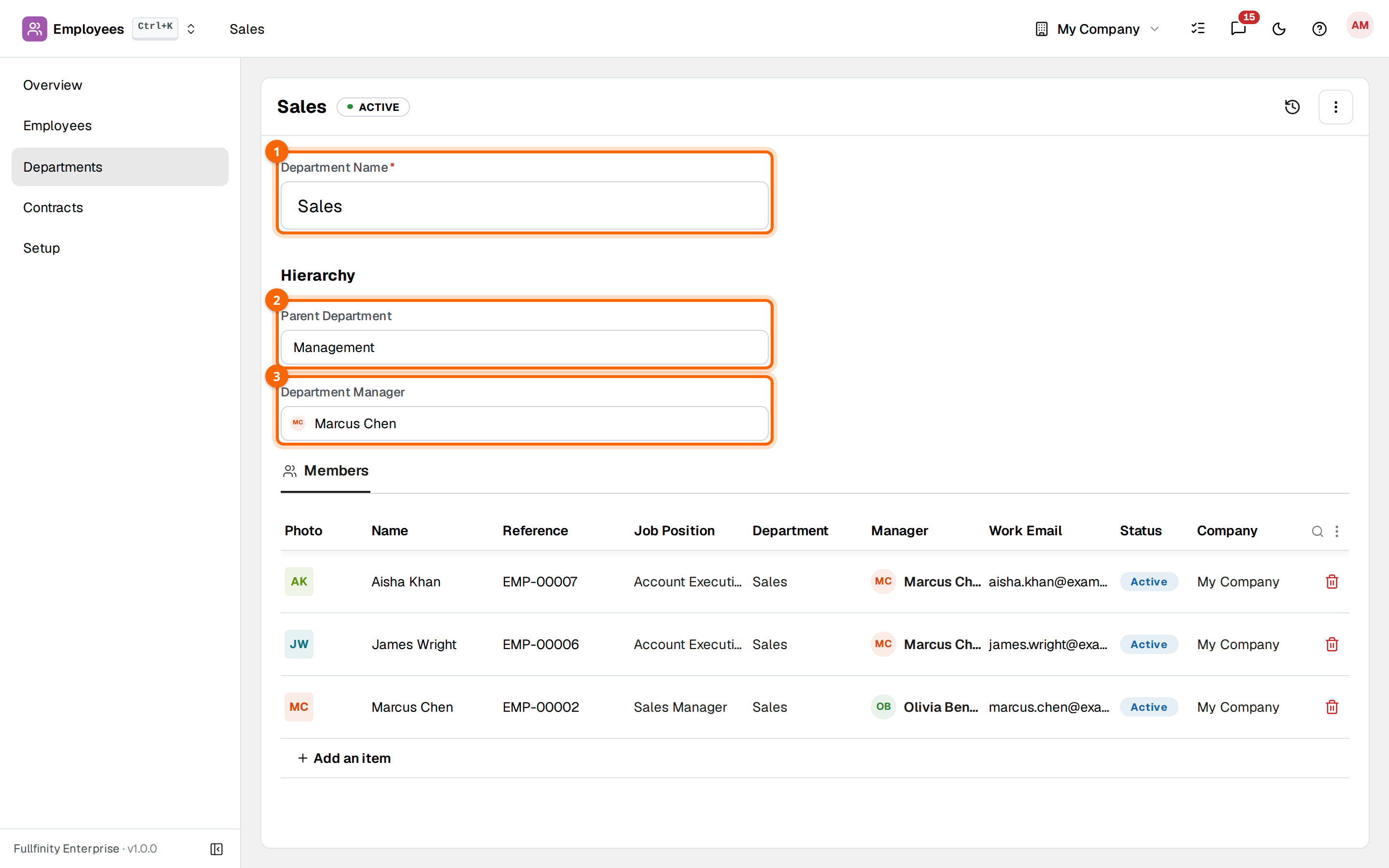
- Department Name — what the team is called.
- Parent Department — the department it belongs to, if any. Leave it empty for a top-level department.
- Department Manager — who leads it.
The Members tab lists everyone in the department. To move someone in or out, change the Department on their employee record. Removing a row from this list only takes the person out of the department; it never deletes the employee.
Job positions, tags and skill types
These live under Employees → Setup, on the Employees tab:
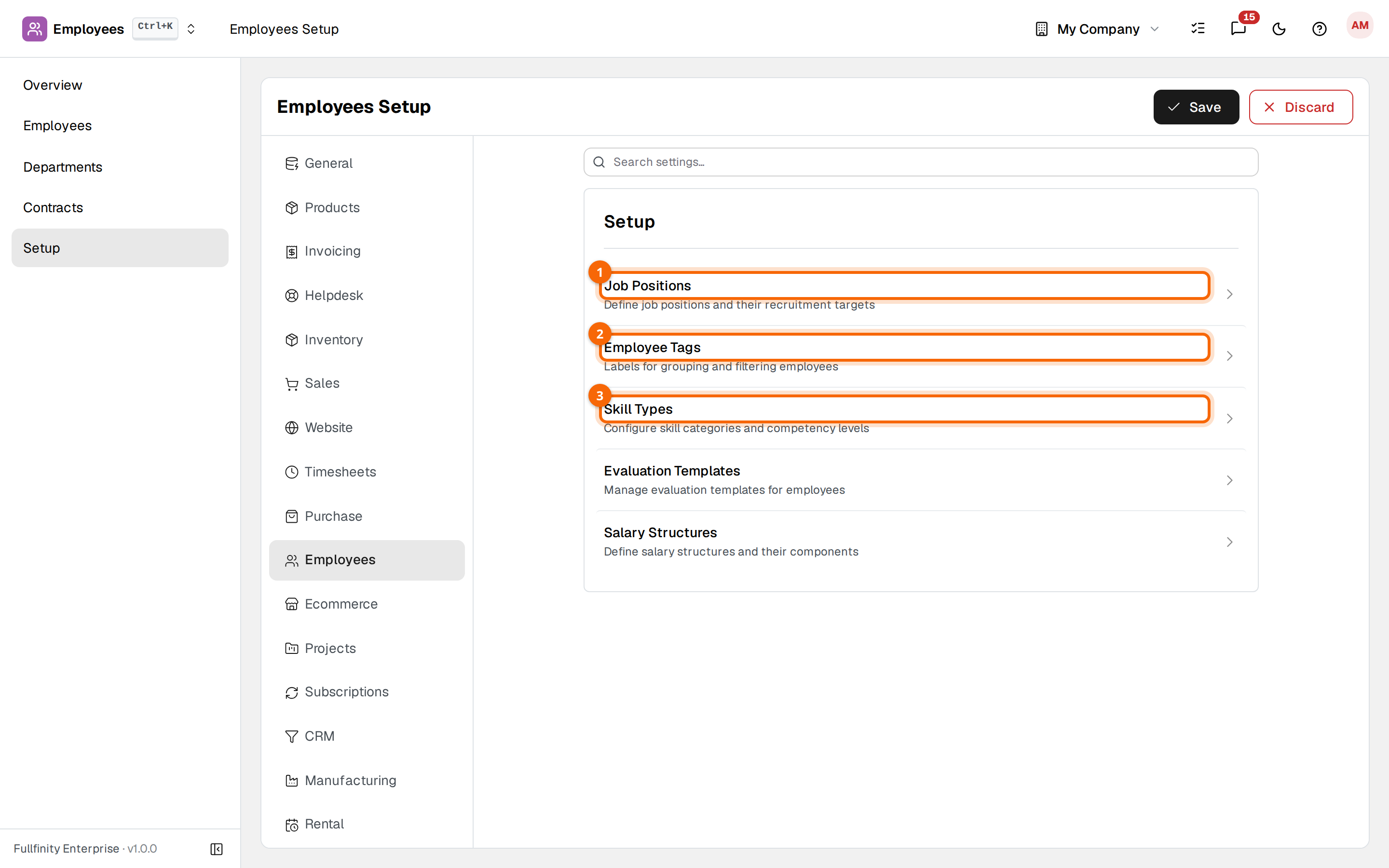
- Job Positions — the roles in your company. Each can belong to a department and carry a Target Headcount; in the list, Current shows how many employees hold it today.
- Employee Tags — labels you put on employees to group and filter them.
- Skill Types — the skills you track (languages, programming) and the levels for each, used on the employee's Skills tab.
Only HR Managers see Setup.
➡️ Related: How do I add an employee?