How do I plan tasks on the timeline?
Schedule tasks on the Gantt timeline, link the ones that wait for each other, and choose what moves when a date changes.
The timeline shows each task as a bar from its Planned Start to its Planned End, grouped by stage. Use it to see what overlaps, what is late and what waits for what.
Open the timeline
Go to Projects → Tasks, click the view button next to New and choose Gantt.
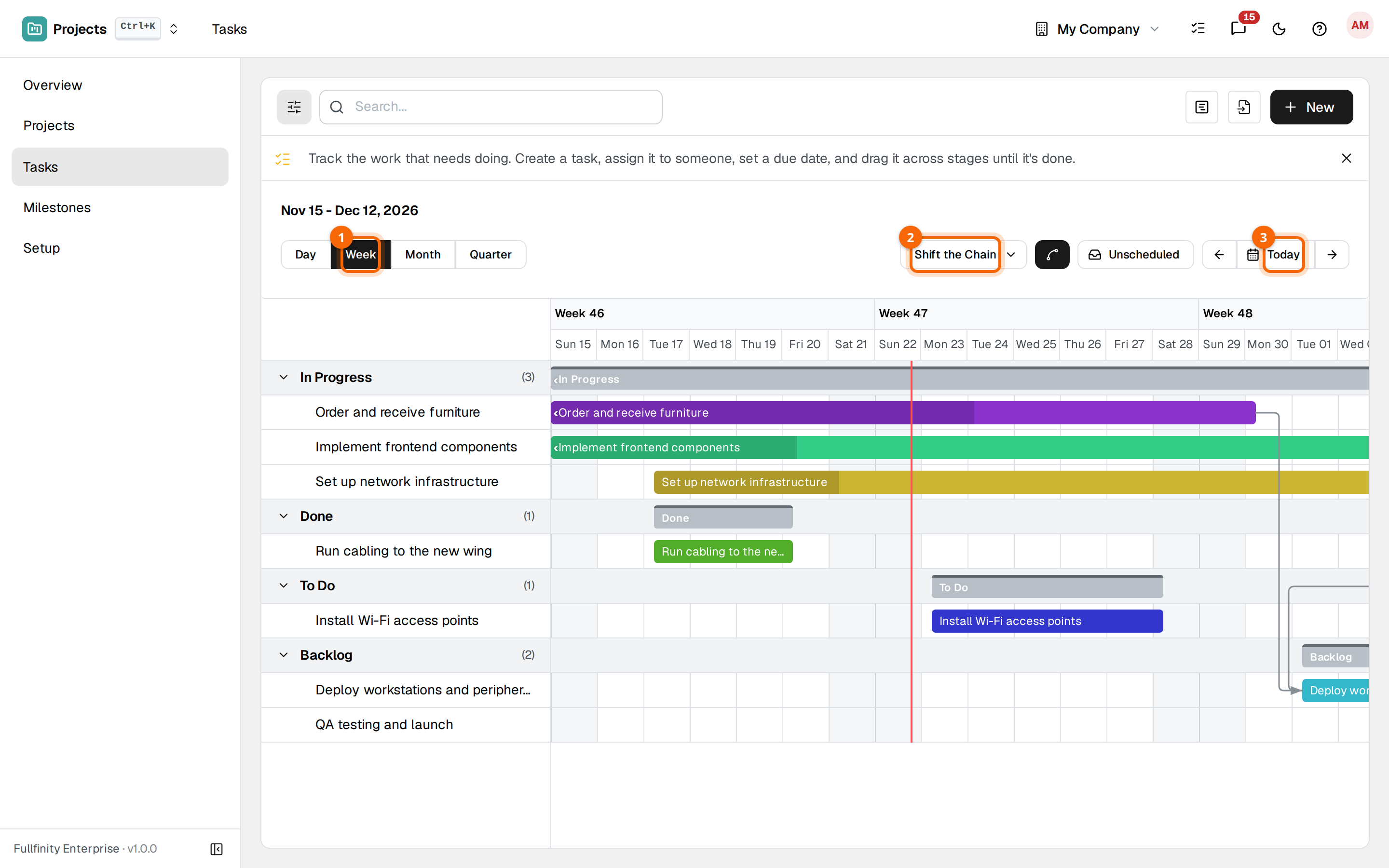
- Day, Week, Month or Quarter — how much time the screen shows.
- What happens to the tasks that follow when you move one (see below).
- Move back and forward in time; Today comes back to now. The red line is today.
Drag a bar to move a task; drag its ends to change its dates. Tasks with no dates are listed under Unscheduled, ready to be dragged onto the timeline.
Link tasks that wait for each other
Drag from the end of one bar to another to say the second waits for the first. An arrow joins them. Click an arrow to change how they are linked or to remove it:
- Finish to Start — the second starts when the first finishes (the usual case).
- Start to Start, Finish to Finish and Start to Finish for work that runs alongside.
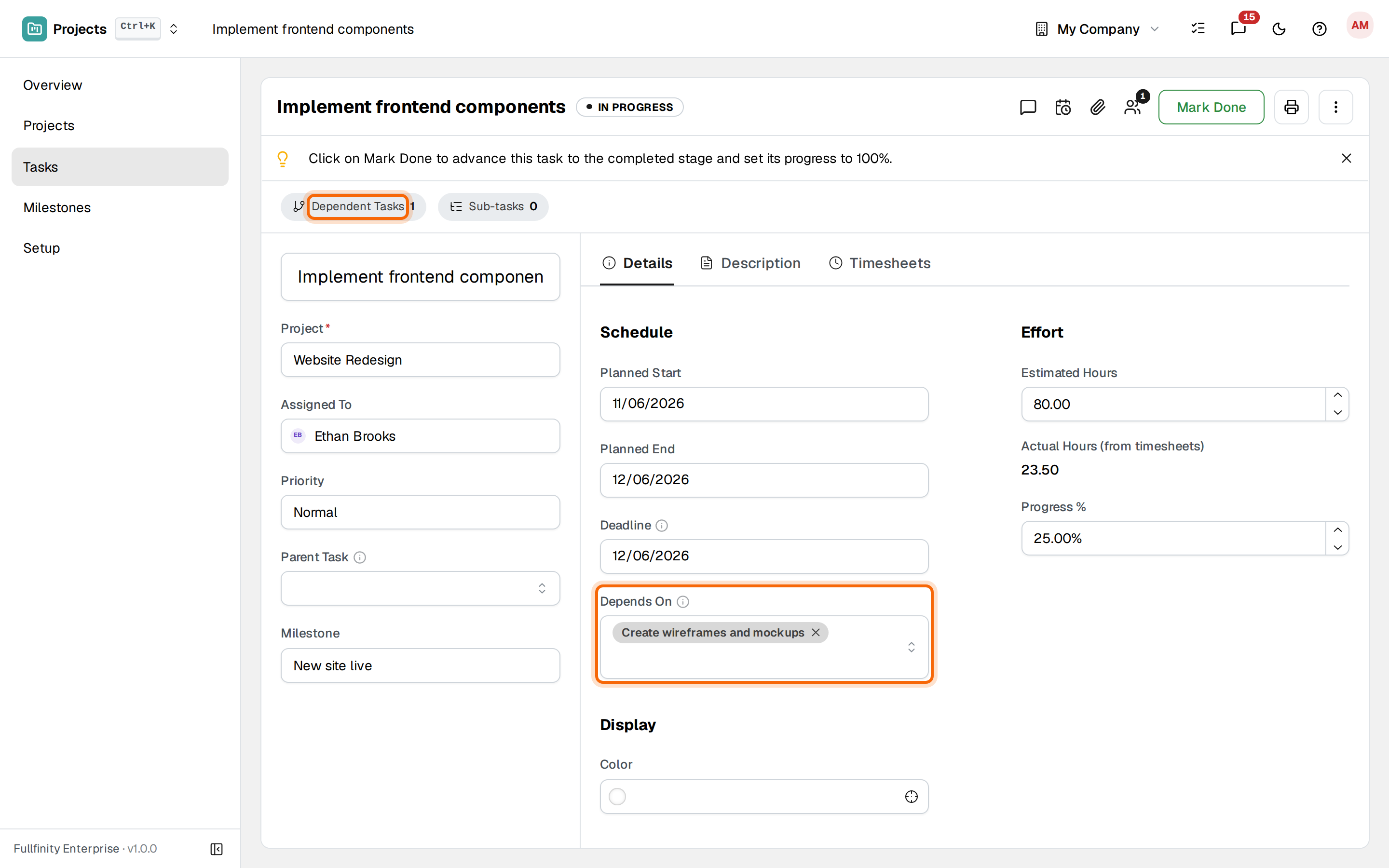
You can also list them on the task itself, in Depends On on its Details tab. A task cannot be marked done while a task it depends on is still open, and the Dependent Tasks button on a task shows what is waiting for it.
Choose what moves with a task
Before dragging, pick what should happen to the tasks waiting on the one you move:
- Shift the Chain — everything that follows moves by the same amount.
- Re-plan What Follows — the following tasks are placed again from the new date, on the working days their assignees actually have.
- Move Only This — only the task you drag moves.