How do I track and pay sales commissions?
Set up a commission plan for your salespeople, and Fullfinity works out each commission from their invoices for you to confirm, correct and mark as paid.
A commission plan says how much a salesperson earns on what they sell. Each time one of their customer invoices is posted (or paid, if you prefer), Fullfinity works out the commission and adds it to the Commissions list, where you confirm it, correct it if needed, and mark it paid.
1. Create a commission plan
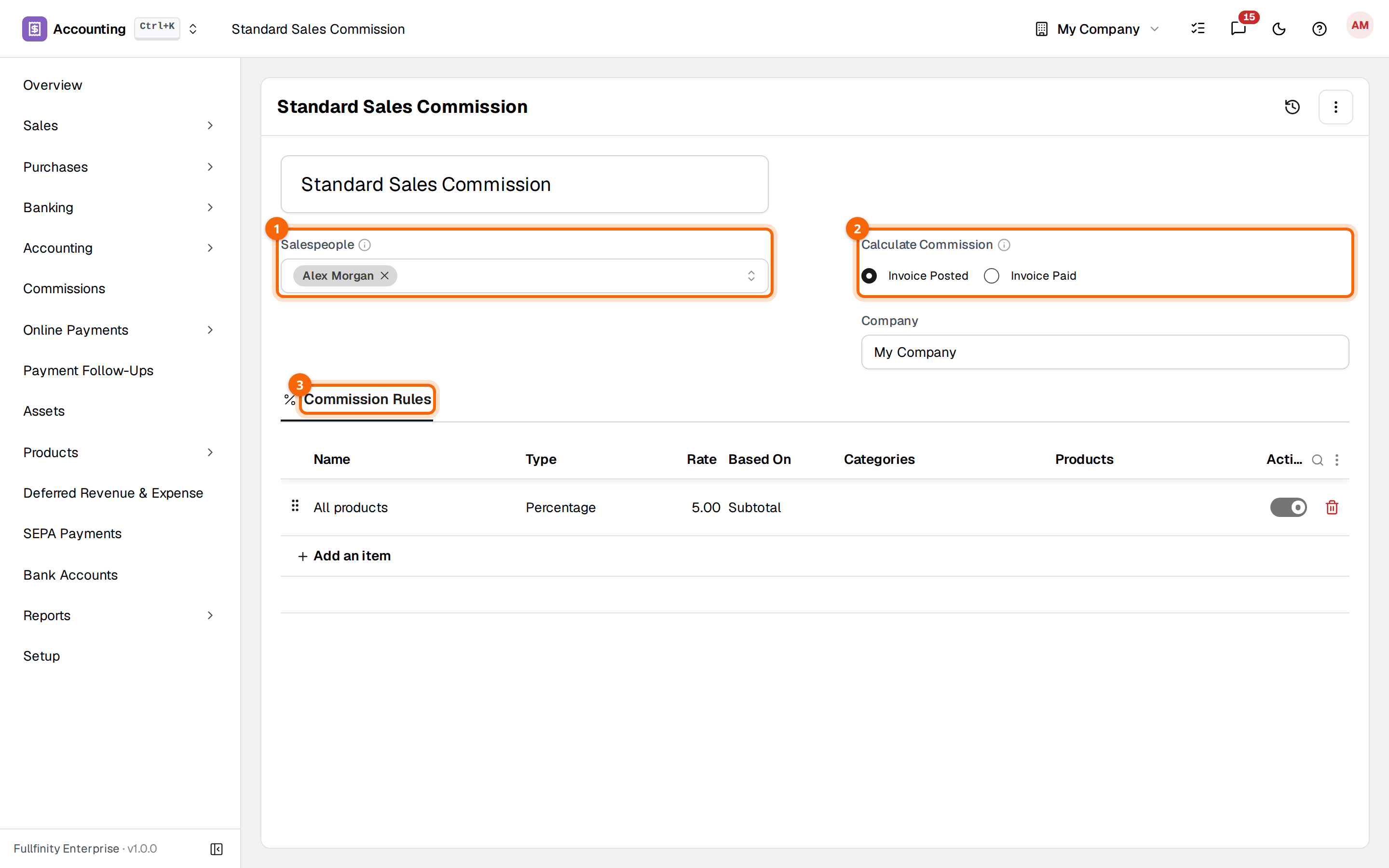
- Click Setup, then Commission Plans in the Setup panel of the Accounting tab, then New.
- Name the plan, then choose the Salespeople it applies to.
- Calculate Commission — Invoice Posted (earned when the invoice is posted) or Invoice Paid (only once the customer has paid in full).
- Add the rules on the Commission Rules tab.
2. Add the rules
Click Add an item (or click a rule to change it); the rule opens in its own form:
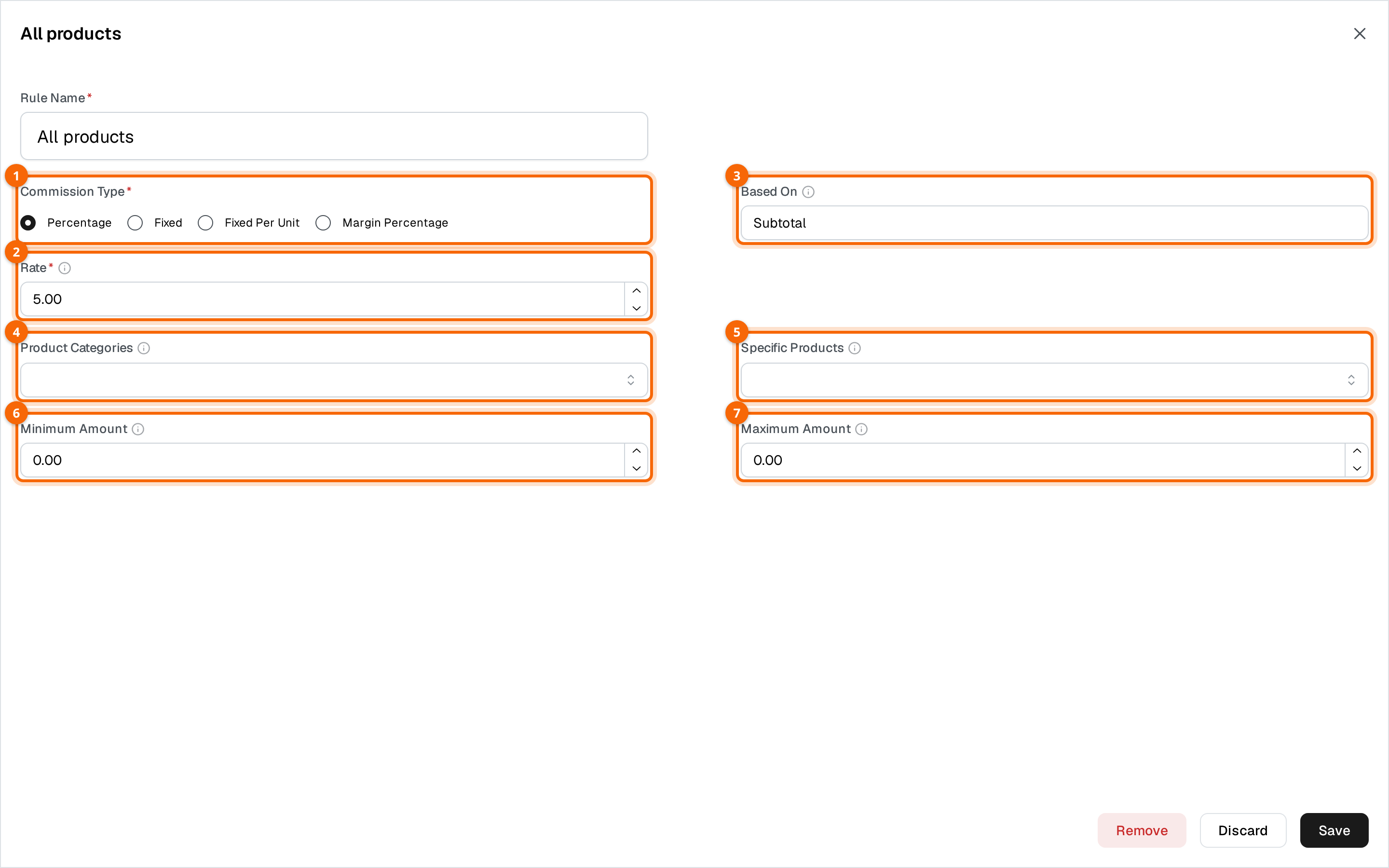
- Type — Percentage of an amount, a Fixed amount, a Fixed Per Unit amount for each unit sold, or Margin Percentage.
- Rate — the percentage, or the amount.
- Based On — what a percentage is taken of: the invoice Total or Subtotal (paid once per invoice), the Line Subtotal of each line, or the line's Margin (its subtotal less the product's cost).
- Product Categories and Specific Products — limit the rule to some categories or products. Leave both empty for every product.
- Minimum Amount and Maximum Amount — the rule pays nothing below the minimum, and counts no more than the maximum.
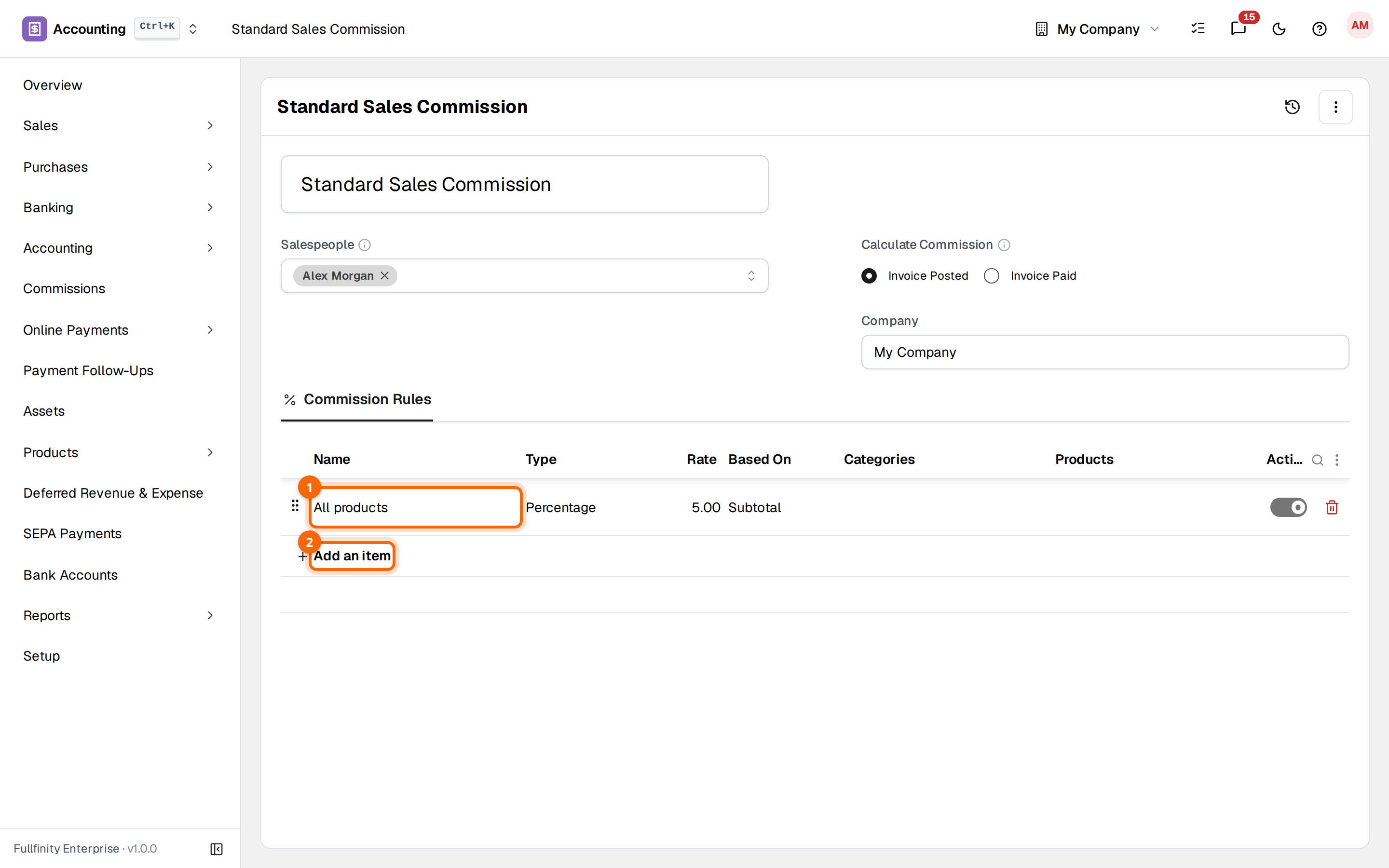
Each invoice line uses its most specific rule: one for that product first, then one for its category, then a rule for everything. Only lines with a product earn commission.
3. Review and pay commissions
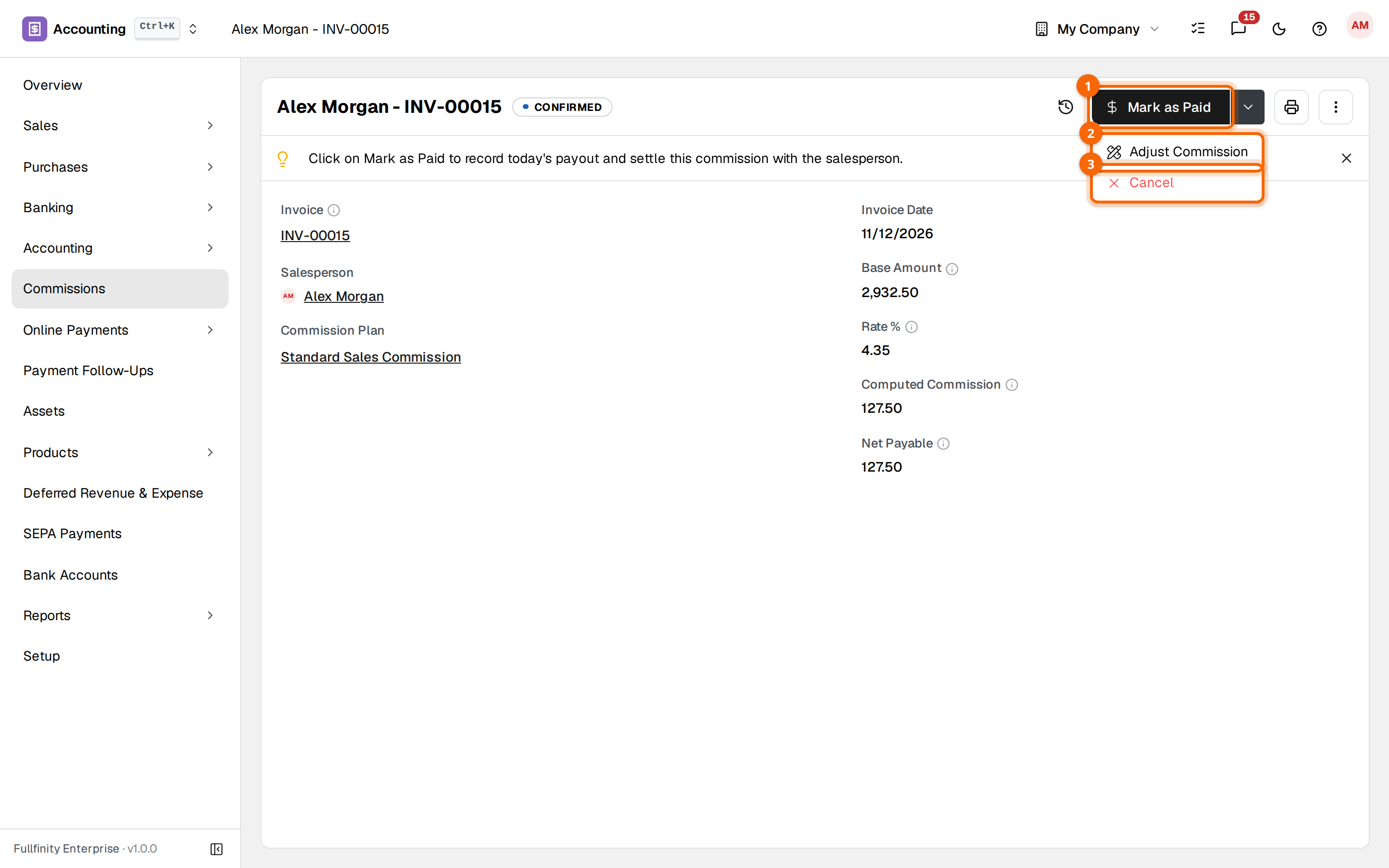
The salesperson is the Salesperson on the invoice. When their invoice is posted (or paid), the commission appears in Commissions as Draft, showing the Computed amount and the Net Payable. On the commission, Rate % is the commission as a percentage of its base amount.
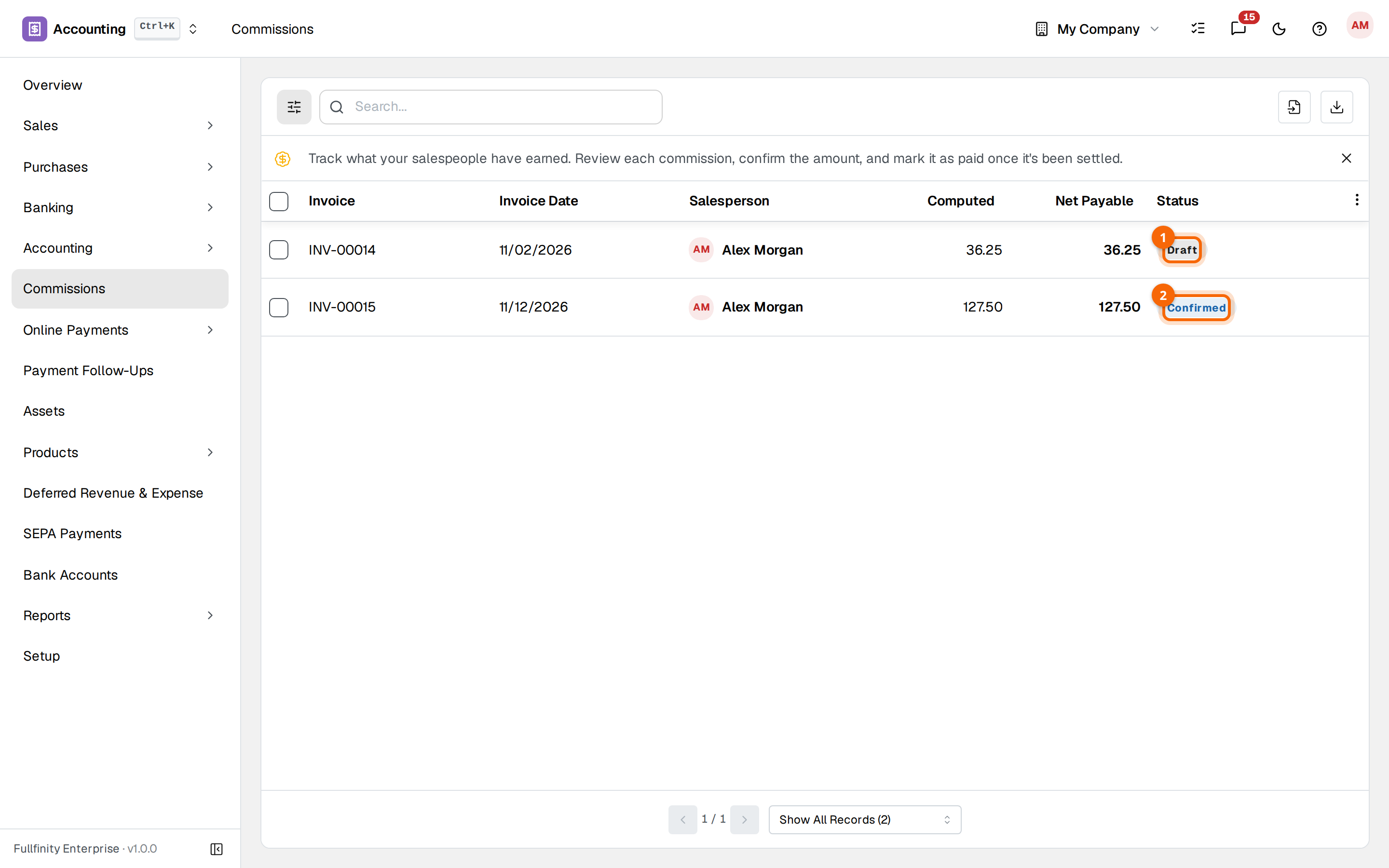
- Open it and click Confirm once you agree with it. You can select several in the list and confirm them together.
- When you've paid the salesperson, click Mark as Paid. The Payment Date is set to today, and you can note a Payment Reference.
Correct a commission
After a partial return or a rule mistake, click Adjust Commission. Enter the Corrected Payable and a Reason, and click Apply. The computed figure stays as it was; the difference is kept as an Adjustment, and Net Payable is what you pay. Cancel drops a commission that shouldn't be paid at all.
If something on the plan stops a commission from being worked out, the invoice says so in a note, so no commission goes missing without a word.