How do I create and publish a survey?
Write the questions, split them into pages, add a welcome and a thank-you, preview it and share the link.
A survey is a list of questions, optionally split into sections. You write it as a draft, preview it, and publish it to start collecting answers.
1. Create it
Go to Surveys → Surveys and click New. Type the title and a short description.
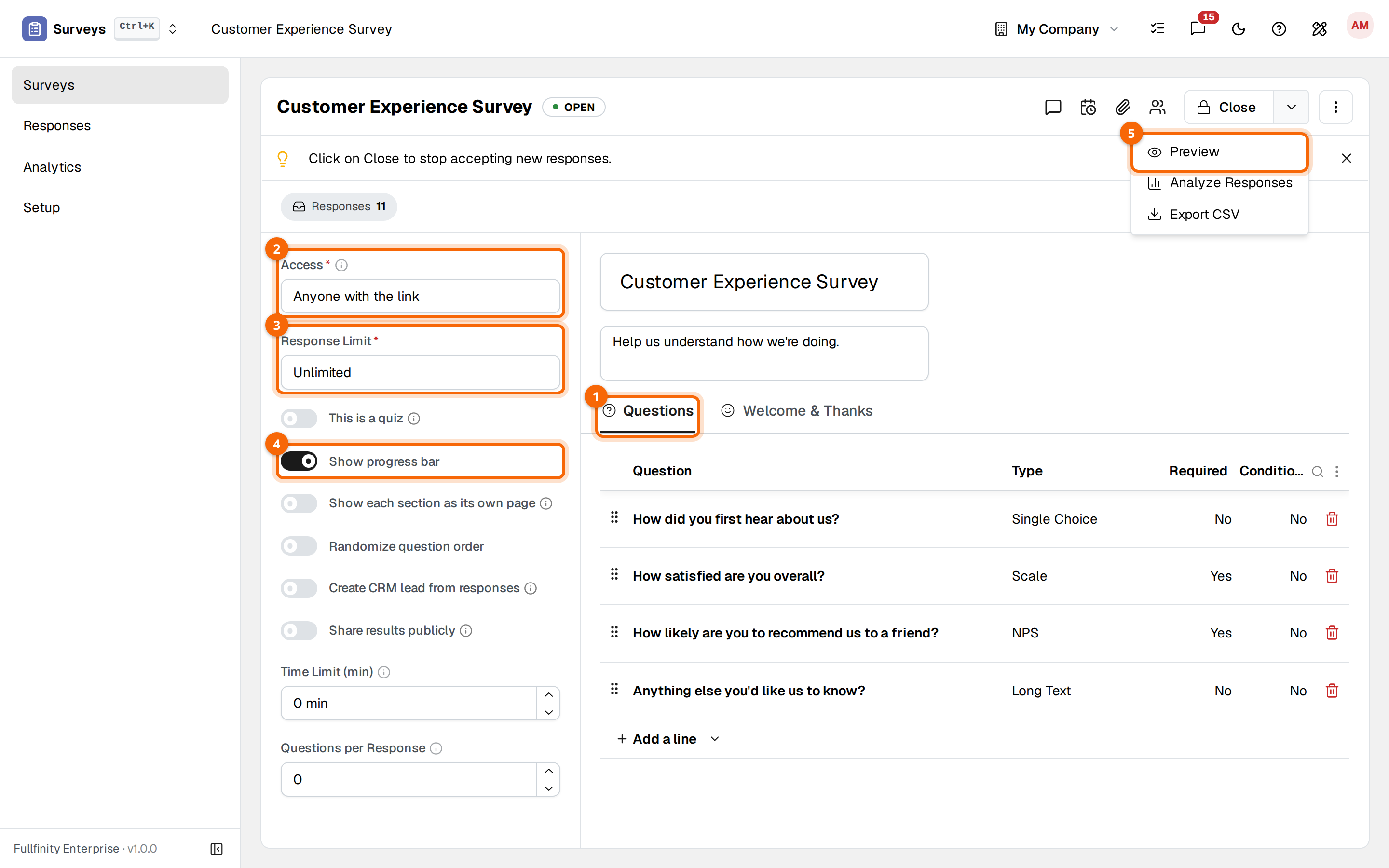
- Questions — what you ask (below).
- Access — who can answer. See How do I choose who can respond and send invitations?
- Response Limit — Unlimited, One per invitation or One per email.
- Show progress bar — a bar across the top as respondents move through the pages.
- Preview — opens the survey as respondents see it, in a new tab. While it is a draft, nothing you answer is saved.
2. Add questions
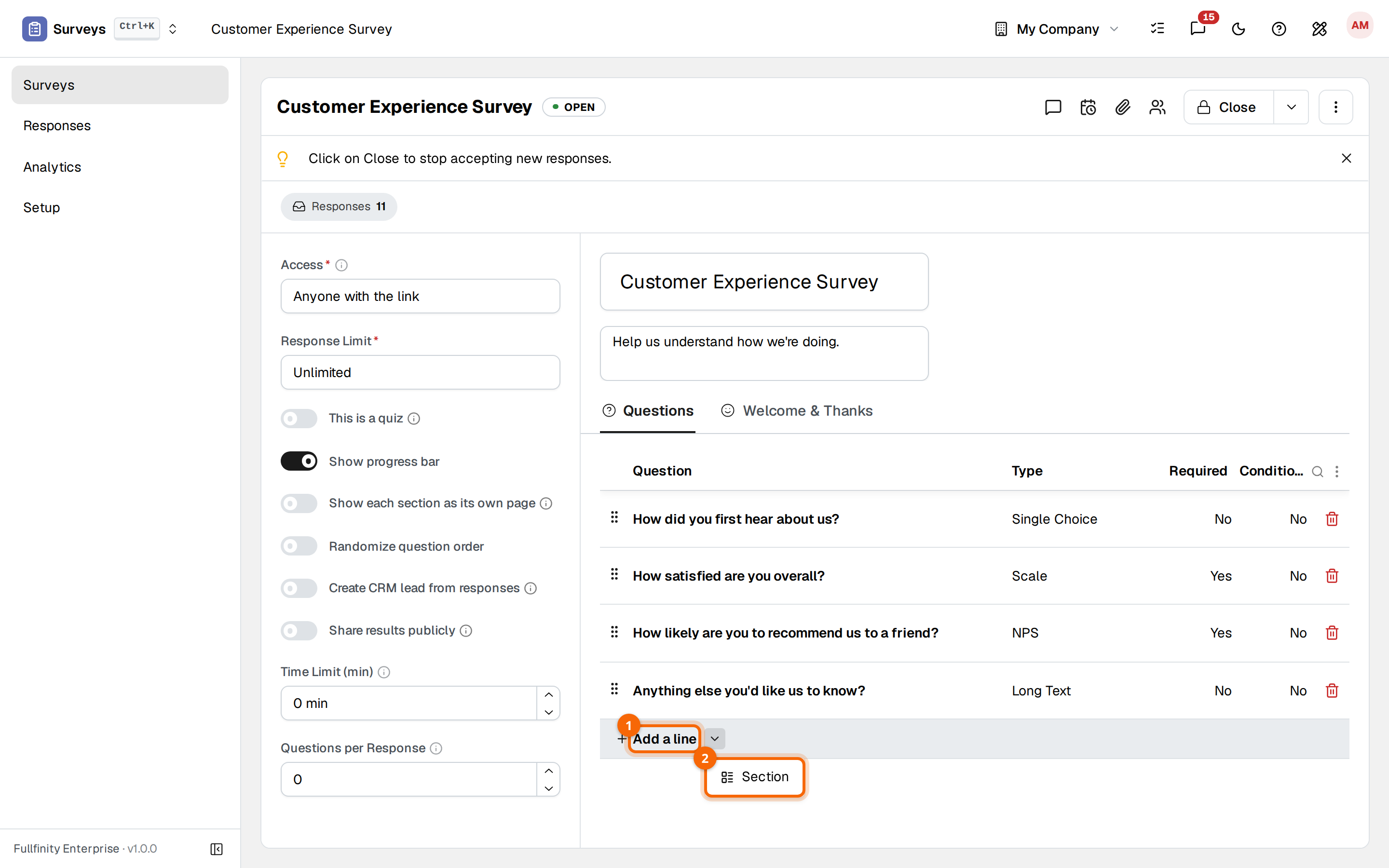
On the Questions tab, click Add a line, type the question and pick its Type. Tick Required if it must be answered. The arrow beside Add a line → Section adds a heading that groups the questions after it. Drag the rows to reorder.
| Type | The respondent… |
|---|---|
| Single Choice, Dropdown | picks one option. |
| Multiple Choice | ticks any number of options. |
| Short Text, Long Text | types an answer. |
| Number, Date, Datetime | enters a number or a date. |
| Scale | picks a value between a minimum and maximum, as numbers or stars. |
| NPS | rates from 0 to 10 how likely they are to recommend you. |
| Matrix | rates several rows on the same set of columns. |
| Ranking | puts options in order. |
| File Upload | attaches a file (up to 25 MB). |
Open a question to finish it off: the options on its Choices tab, the range on Scale, a Hint and Placeholder, limits on Validation, and conditions on Logic — see How do I show questions only when they apply?
3. Pages, order, welcome and thanks
- Show each section as its own page — one page per section, with Next and Back. Off, every question is on one page.
- Randomize question order — shuffles questions for each respondent (within their section).
- The Welcome & Thanks tab: an Introduction shown before the first question, and a Thank-You message shown after submitting.
4. Publish and share
Click Publish. The status becomes Open and the survey accepts answers. Publishing is refused if a question's condition points at a later question, or at itself.
To share it, click Preview and copy the address from the new tab — that is the survey's link. Answers arrive under Responses on the survey. Close stops new answers; Reset to Draft reopens a closed survey for editing.