How do I enroll learners and follow their progress?
Enroll learners yourself, see how far each one has got, and report on completion by course and organization.
An enrollment is one learner taking one course. Learners create their own with Enroll Now on the course page (if the course allows it), by buying the course in your shop, or you enroll them yourself — the only way into an Invite only course.
Enroll someone
- Open the course and go to its Enrollments tab.
- Click Add a line, pick the Learner (a person among your contacts) and, for a partner program, their Organization.
- Save. The learner needs an account to sign in and take the course — give them portal access from their contact if they don't have one.
A learner can be enrolled in a course only once. Learners who enroll themselves get their company filled in as the Organization automatically.
See everyone's progress
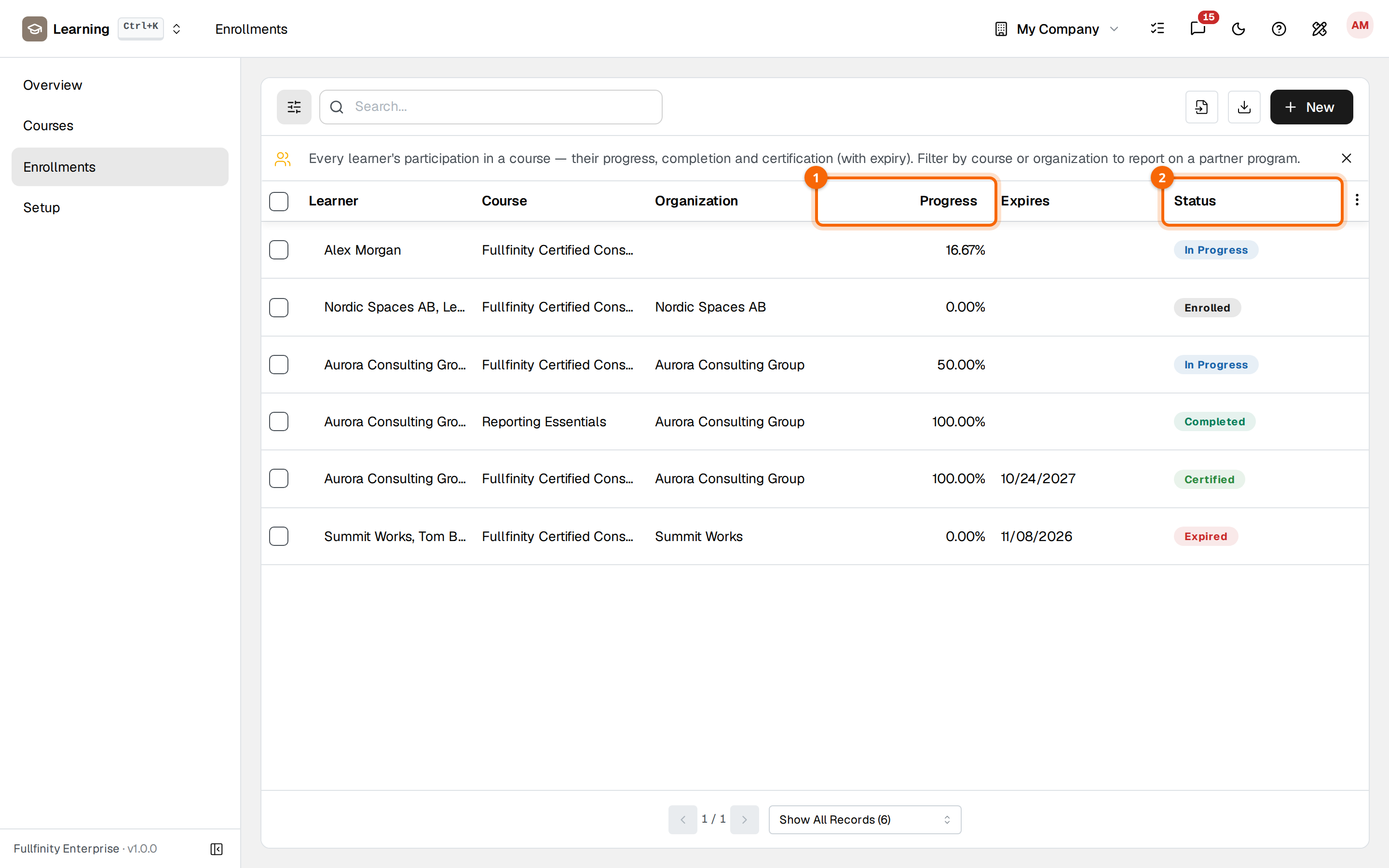
Go to Learning → Enrollments.
| Status | Means |
|---|---|
| Enrolled | Not started yet. |
| In Progress | At least one lesson complete. |
| Completed | Every required lesson complete and the passing rule met. |
| Certified | Completed, and holds the course's certificate. |
| Expired | The certificate's validity has run out. |
Progress is the share of required lessons done. Use the In Progress and Certified filters, or group by Course or Organization to see how each partner company is doing.
Open an enrollment and its Progress tab lists every lesson with its Status, how much of a video was Watched, quiz Attempts and when it was Completed.
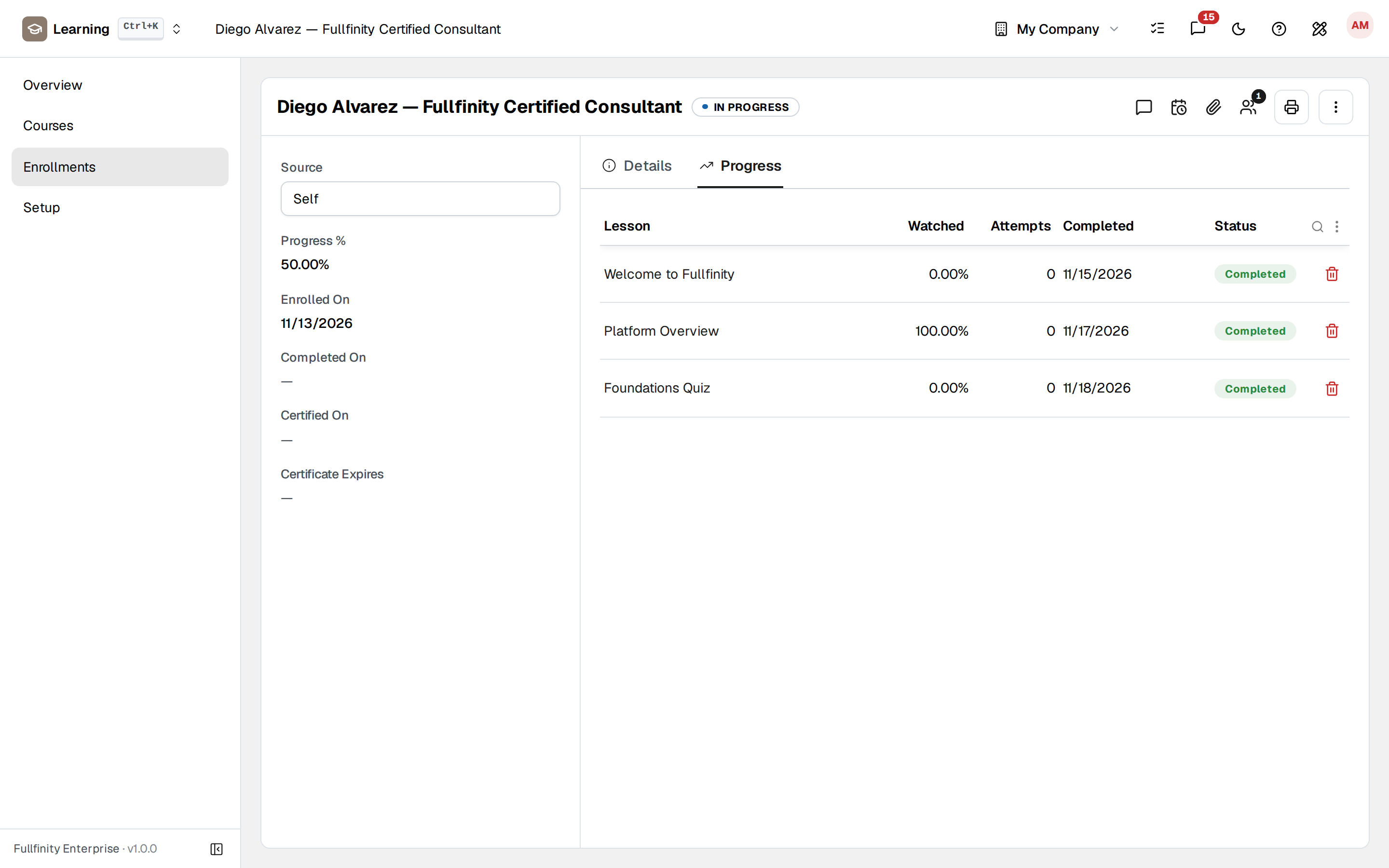
The enrollment's Source says how it began: Manual, Self, Purchased or Invited.
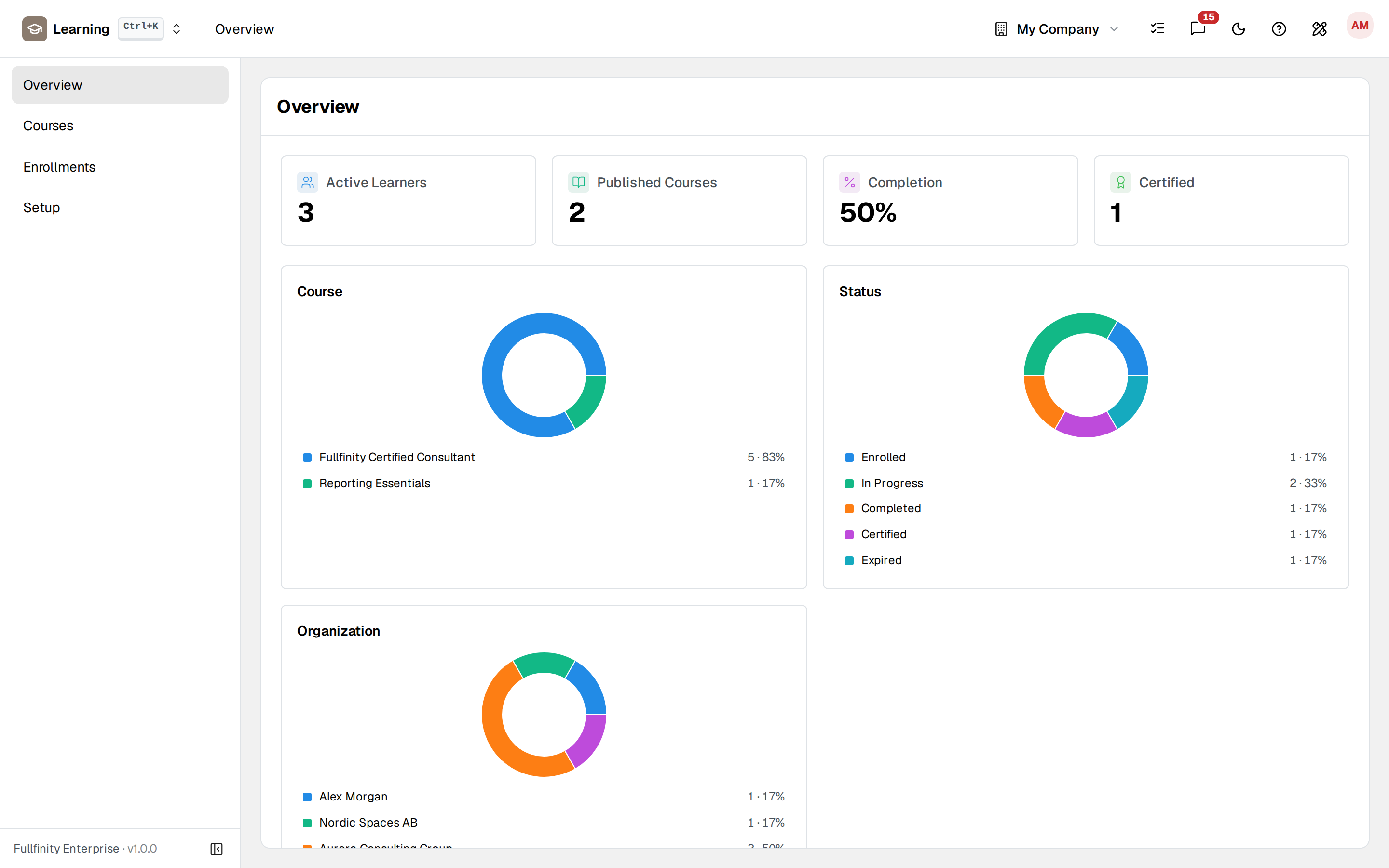
The overview
Learning → Overview shows Active Learners, Published Courses, the Completion rate and how many are Certified, with charts you can click to filter by course, status and organization.