How do I build a course?
Create a course, organize it into sections and lessons of each type, preview it and publish it to the catalog.
A course is a set of sections (chapters), each holding lessons in order. A lesson is a web page, a video, a document or a quiz. You build it as a draft, look at it the way learners will, and publish it when it is ready.
1. Create the course
Go to Learning → Courses and click New. Type the title, a short tagline under it (shown in the catalog) and a description of what the learner will achieve.
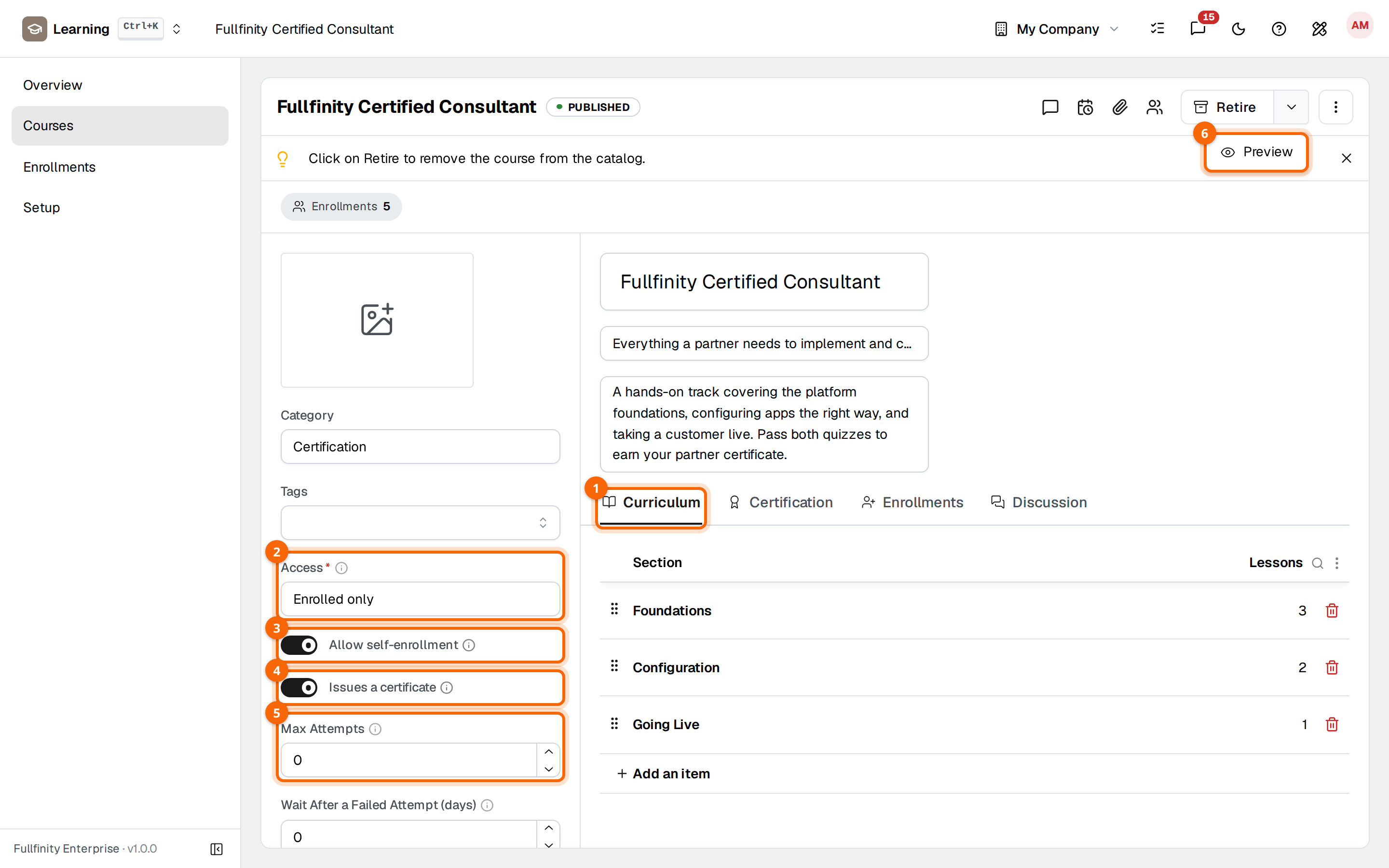
- Curriculum — the sections and their lessons (below).
- Access — who can open the lessons:
- Public — anyone, even without an account. Learners who want their progress recorded and a certificate still enroll.
- Enrolled only — only enrolled learners. Others see the course page and any free-preview lessons.
- Invite only — only learners you enroll yourself.
- Allow self-enrollment — whether learners can enroll themselves with Enroll Now on the course page.
- Issues a certificate — adds the Certification tab. See How do I certify learners who finish a course?
- Max Attempts — how many tries learners get at each quiz and at the final exam (0 is unlimited). See How do I add a quiz to a course?
- Preview — opens the course page in a new tab, even while it is a draft.
Also in the panel: a Category and Tags for the catalog, the cover image, the Author, and the Company — clear it to offer the course in every company.
2. Add sections
On the Curriculum tab, click Add a line and type the section's title — Foundations, Going Live. Drag the rows to put sections in order.
3. Add lessons to a section
Open a section, then click Add a line under Lessons for each lesson. In the row, set the Type, the length in minutes, and whether it is a Preview (free to open without enrolling) and Required (counts towards finishing the course). Open a lesson to fill in its content:
| Content Type | What you add | When it counts as done |
|---|---|---|
| Web Page | Click Edit Page Content to design the page in the website page builder. | The learner clicks Mark as Complete. |
| Video | The Provider (YouTube or Vimeo) and the video's Video URL. | The learner has watched 95% of it. Learners pick up where they left off. |
| PDF, Slides, Resource | Upload the File. | The learner clicks Mark as Complete. |
| Quiz | Pick the survey to take under Quiz (Survey). | The learner passes the quiz. Nothing else completes it. |
Each lesson gets its own address under the course's, made from its title.
4. Publish
Click Publish. The course appears in the catalog at /courses and its status becomes Published. Retire takes it off the website — learners, enrolled or not, can no longer open it — while every enrollment and certificate is kept.
➡️ Next: How do I enroll learners and follow their progress?