How do I set up Employee Scheduling?
Create the roles you staff, reusable shift times, and choose open shifts, bidding, swaps and notifications.
Employee Scheduling plans who works when, for teams that work in shifts — shops, cafés, care homes, warehouses. Before planning, set up what your shifts are made of.
Go to Shifts → Setup (schedulers only).
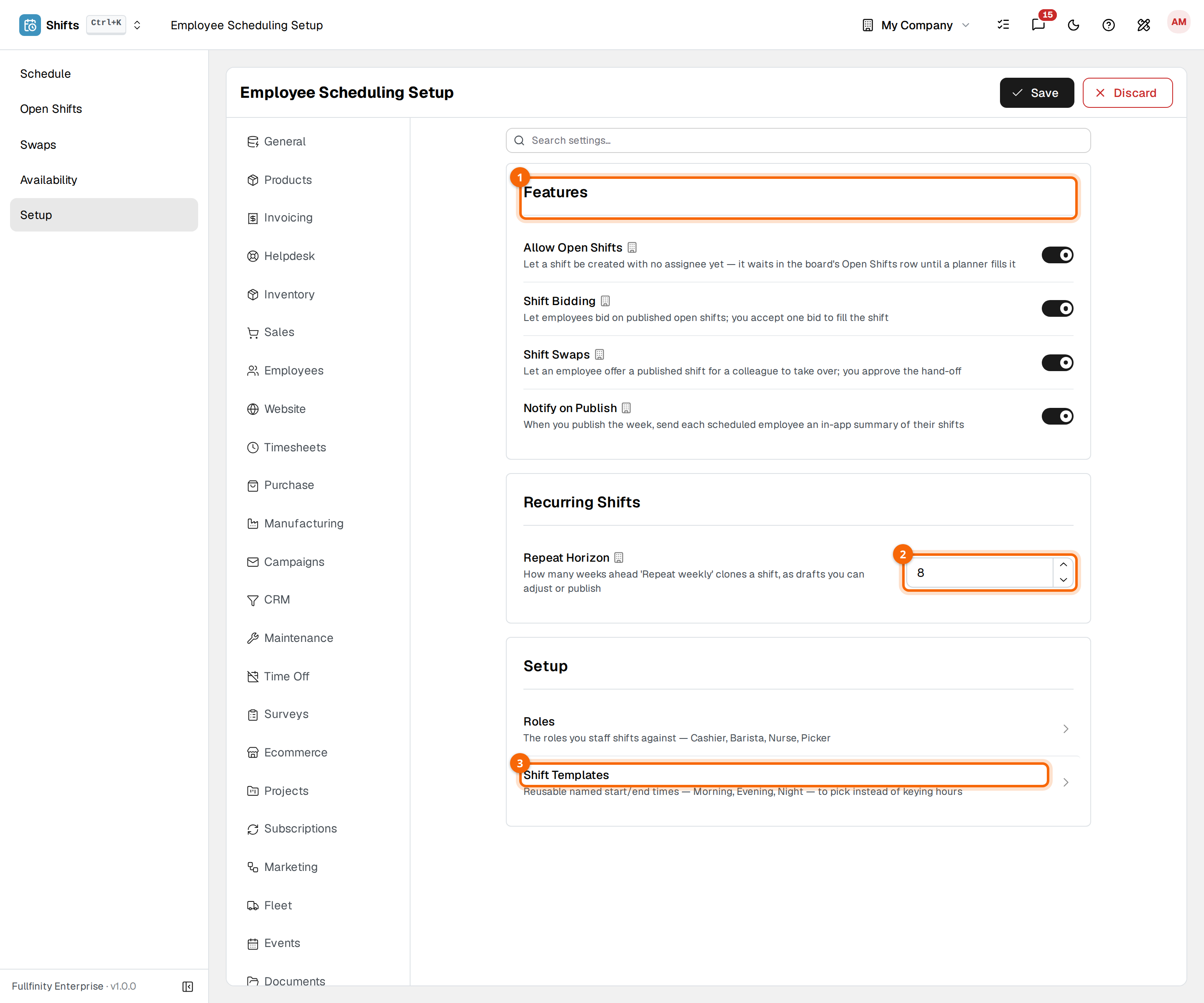
- Features:
- Allow Open Shifts — a shift can be created with nobody on it yet. It waits in the board's Open Shifts row.
- Shift Bidding — employees can bid on published open shifts.
- Shift Swaps — an employee can offer one of their shifts to a colleague, with your approval.
- Notify on Publish — when you publish, each employee gets a message summarising their shifts.
- Repeat Horizon — how many weeks ahead Repeat Weekly copies a shift.
- Under Setup:
- Roles — what people do on a shift (Cashier, Floor, Supervisor), each with a Color for its bars on the board.
- Shift Templates — named times to pick instead of typing hours (Morning 7–15, Night 22–6). An end before the start is an overnight shift. A template can bring a Default Role.
Each employee's working schedule and approved time off come from the Employees and Time Off apps and are shown on the board.
Was this article helpful?