How do I plan the week's shifts?
Use the schedule board to add, move, copy and reassign shifts, and see who has time left.
The schedule is a board: one row per employee, one column per day. Shifts are bars you click, drag and copy.
Go to Shifts → Schedule.
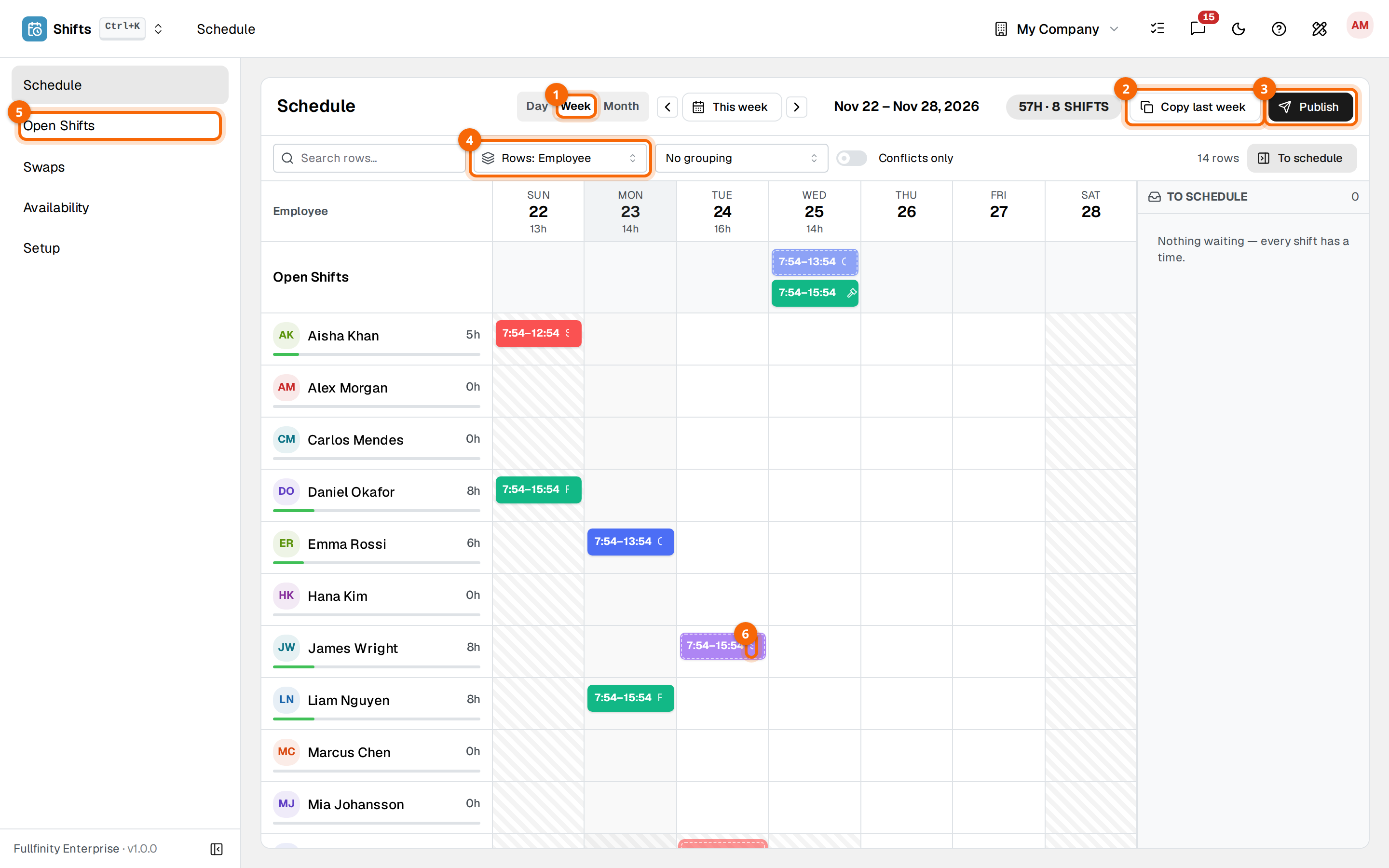
- Day, Week or Month, with the arrows and This week to move through time.
- Copy last week fills this week with last week's shifts, as drafts.
- Publish — see How do I publish the schedule?
- Rows — show a row per Employee, Role, Department, Shift and more; Group adds headings, such as departments.
- Open Shifts — shifts with nobody on them yet.
- A shift. Its colour is its role.
Add a shift
Click an empty cell in an employee's row. The shift opens with that employee and day, from 9:00 for eight hours (in the Day view, from the hour you clicked). Pick a Shift template to fill in the times, choose a Role, and save. A new shift is a Draft: only planners see it until you publish.
Move and copy
- Drag a shift to another day or another person's row to move it. It keeps its times.
- Hold Alt while you drop to copy it there instead.
- To schedule on the right lists shifts that have no time yet; drag one onto the board to place it.
Who has time left
Beside each name are the hours scheduled this period and a bar against their working schedule — orange once they are over. Days they are on approved time off or unavailable are shaded. See How do I avoid scheduling people who can't work?
Was this article helpful?