How do I avoid scheduling people who can't work?
Record when employees can't work, approve it, and find shifts that clash with time off or another shift.
The board warns you when a shift lands where someone can't work: on approved time off, on a time they said they are unavailable, or on top of another of their shifts.
Employees say when they can't work
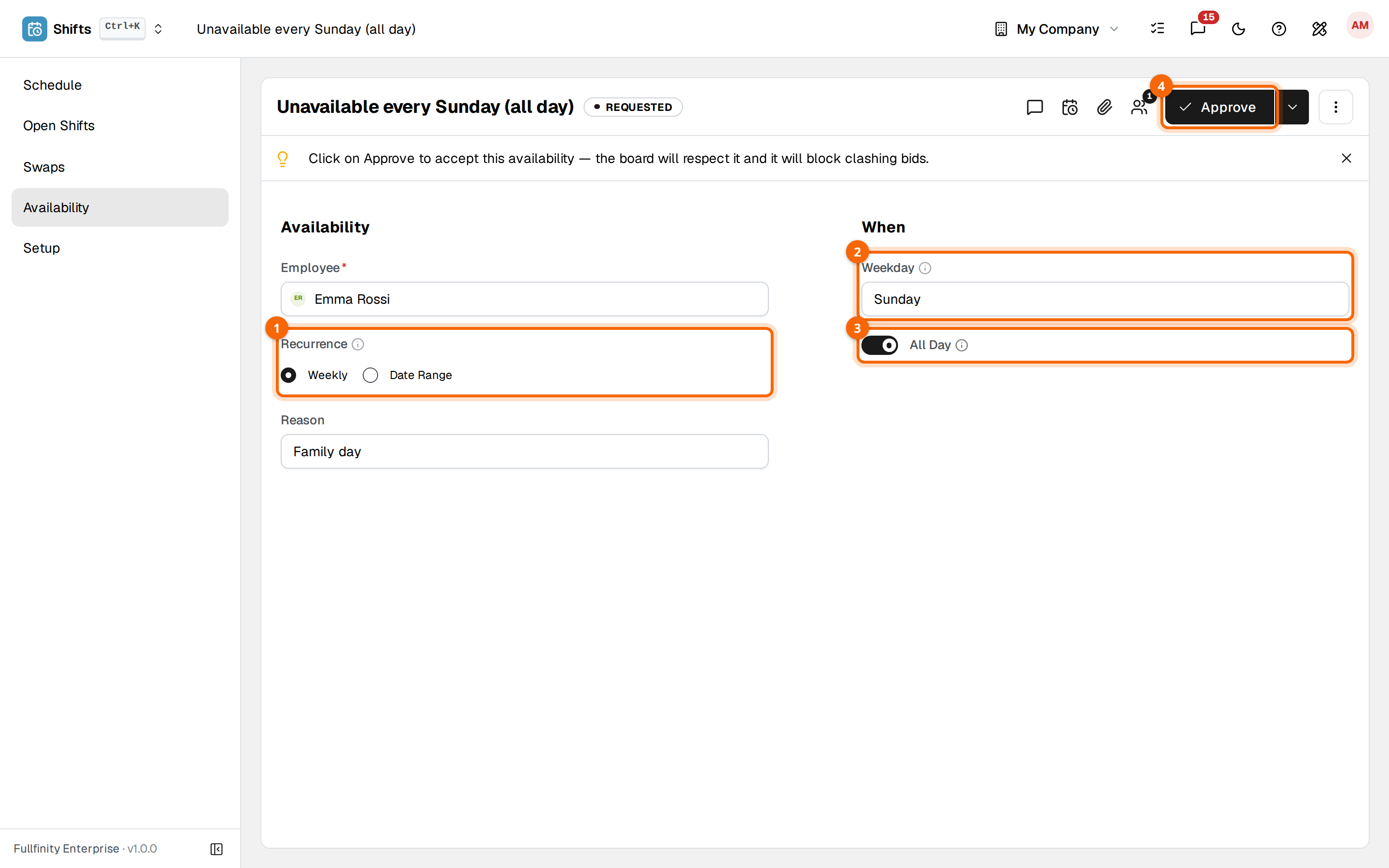
Employees go to Shifts → Availability and click New:
- Recurrence Weekly and a Weekday — every week (never Sundays).
- Date Range with From and To — once.
- Leave All Day on, or turn it off and give the hours — From (hour) and To (hour) as 24-hour numbers, 15.5 for 3:30 PM.
It starts as Requested: you see it, but it doesn't count yet. Open it and click Approve — or Decline.
Find the clashes
On the board, days someone is away or unavailable are shaded in their row. A shift that clashes is flagged Conflict. Turn on Conflicts only above the board to see nothing but the rows that have one, and move or reassign those shifts.
Time off approved after you planned is picked up straight away: the shifts it covers become conflicts, and they clear again if the time off is refused.