How do I publish the schedule?
Publish the shifts you planned so employees see them, and repeat a shift for the weeks ahead.
Shifts you plan are drafts: your working copy. Publishing makes them the real schedule — employees see their own published shifts and are told about them.
- In Shifts → Schedule, go to the period you planned.
- Click Publish. Every draft shift in the period you are looking at becomes Published, and a message says how many.
- If Notify on Publish is on, each employee gets a message such as Your schedule was published: 5 shifts for Mar 2 – Mar 6.
Changing a published shift afterwards is allowed; tell the employee, since they are not notified again.
Repeat a shift every week
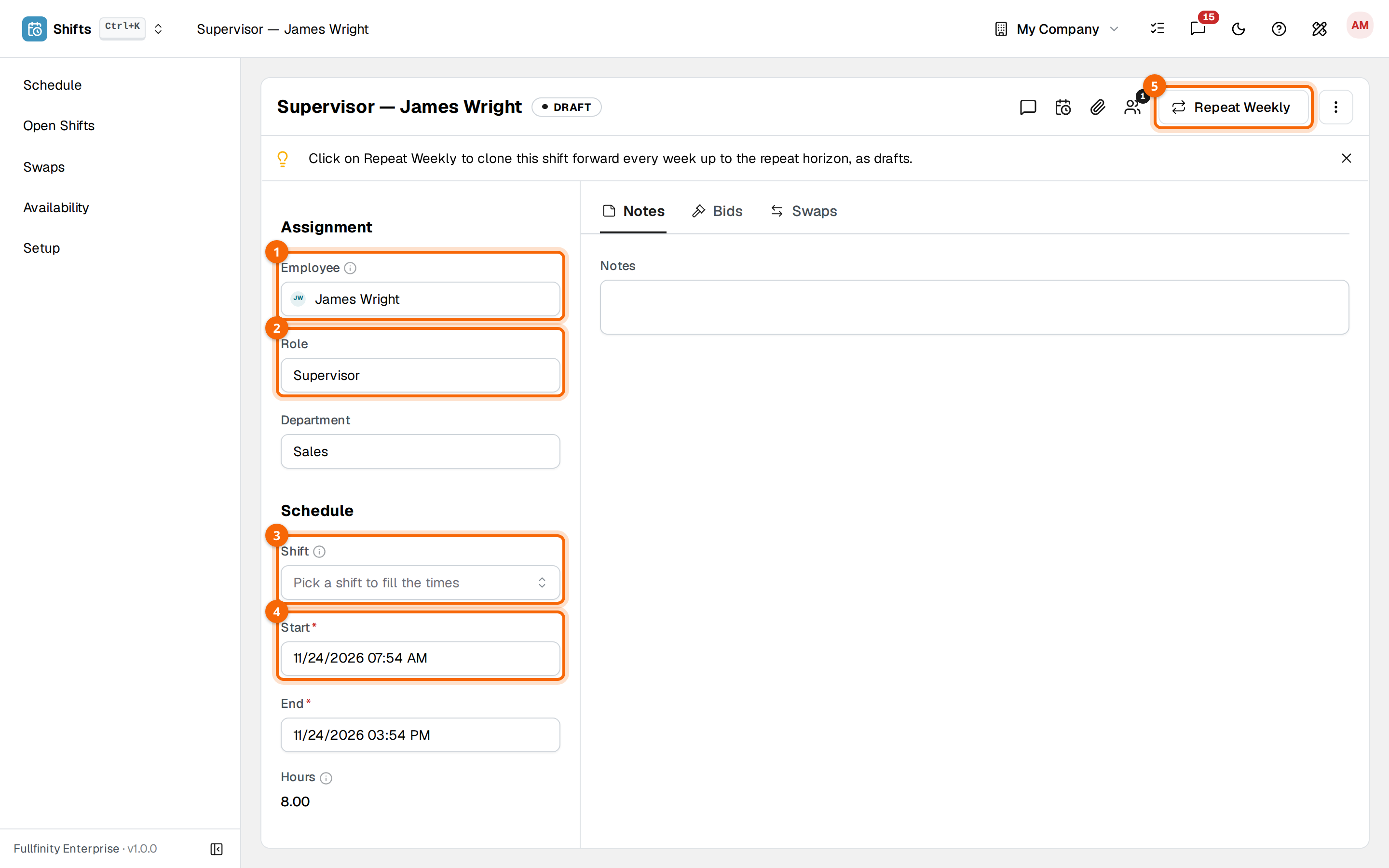
Open the shift (click it on the board) and click Repeat Weekly. It is copied to the same day and time each week, as many weeks ahead as the Repeat Horizon in Setup. The copies are drafts — publish them when their week is ready.
Was this article helpful?