How do I review past shifts and register sales?
Check each shift's cash count and difference, print its session report, look up any sale, and analyse what sells.
Everything rung up at your registers can be checked from the back office, without opening a register.
Shifts
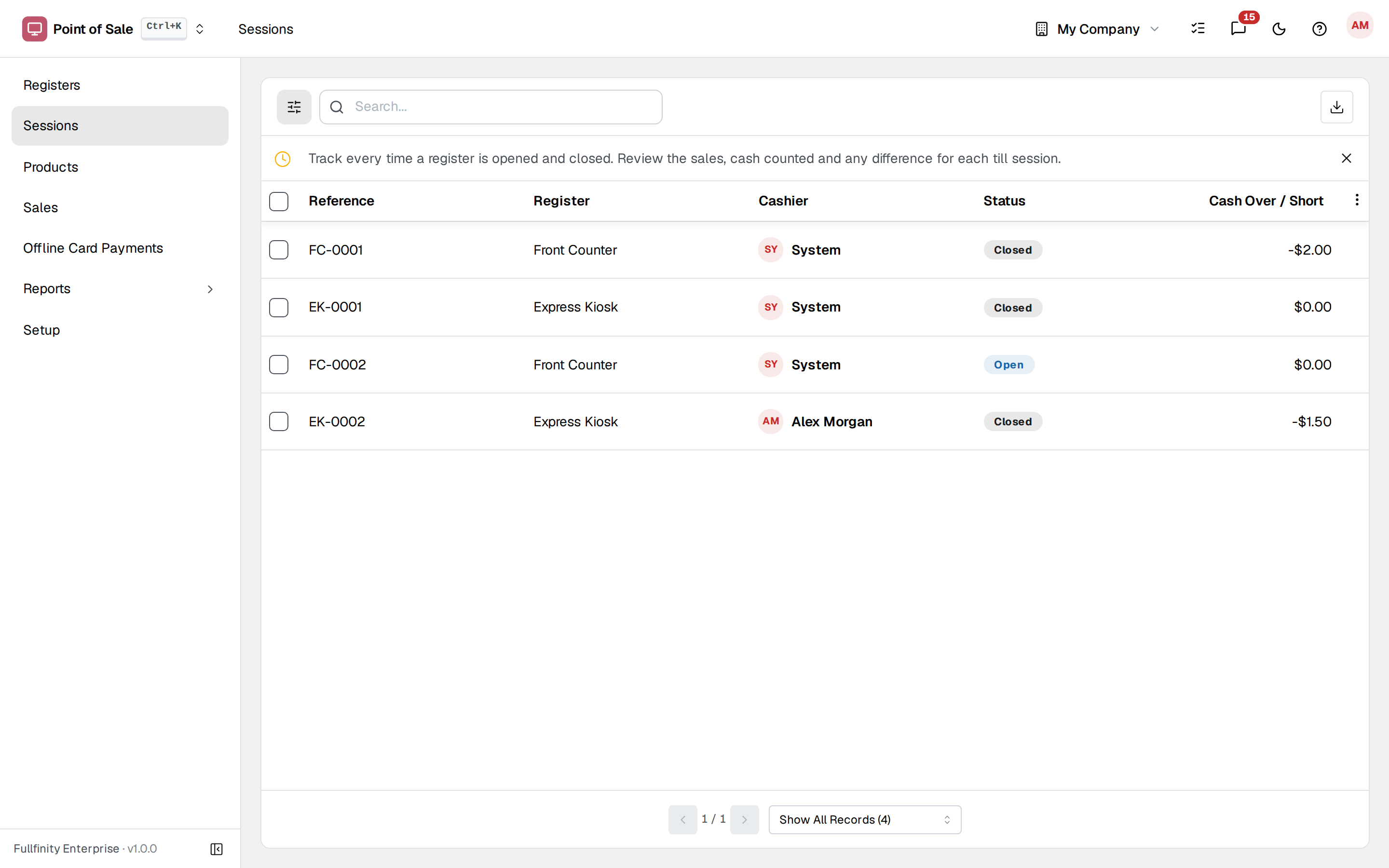
Go to Point of Sale → Sessions. Each line is one shift, with its register, cashier, status and cash difference.
Open a closed shift to see how its cash count went:
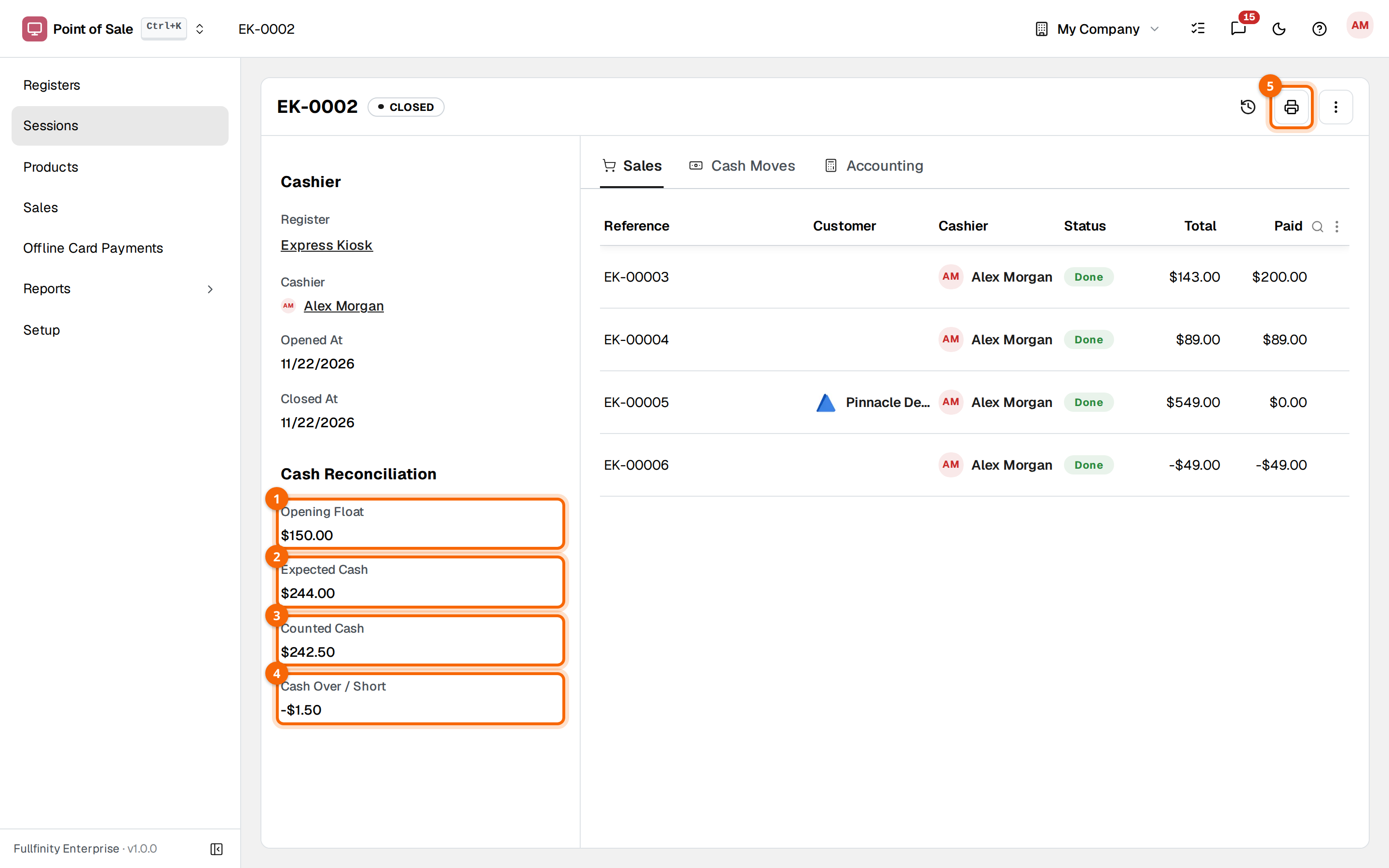
- Opening Float — the cash counted at the start.
- Expected Cash — what the drawer should have held at the close.
- Counted Cash — what was counted.
- Cash Over / Short — the difference: negative when cash was missing.
- The printer button prints the Session Report: sales and refunds, takings by payment method, taxes and the cash reconciliation.
The Sales tab lists the shift's sales, Cash Moves the cash paid in and out, and Accounting the Closing Entry it booked. A shift's status is Open while it runs and Closed once counted; a closed shift can't be changed.
Sales
Go to Point of Sale → Sales to find any sale by its number, customer or cashier. Open one to see its Lines, its Payments and, for a sale that was returned, its Refunds. A refund shows Refund Of with the sale it returned; a sale billed on account shows its Invoice. The printer button prints its receipt again.
Sales can't be changed here — a correction is a refund at the register.
What sells
Go to Point of Sale → Reports → Sales Analysis. It opens as a table of quantity and sales by product.
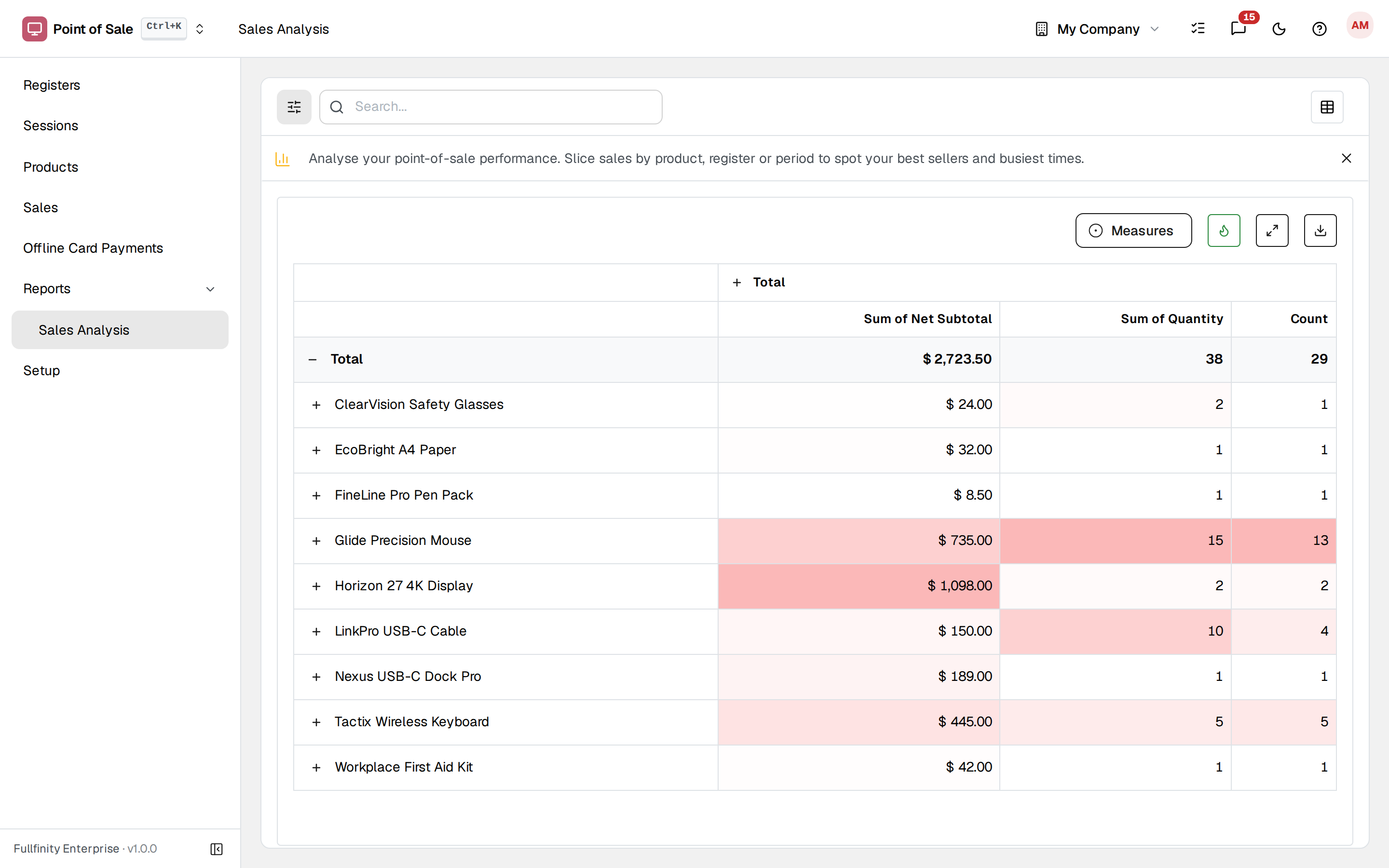
Group it by Product Category, Cashier, Customer, Register or Sale Date instead, filter it to This Month or My Sales, or switch to a chart. Refunds are left out by the Sales (exclude refunds) filter; remove it to see them.