How do I inspect goods before they go into stock?
Checks are created when goods arrive at a control location; record them one screen at a time as you move the goods on.
When a receipt brings goods into a control location, a check is created for each line a control point covers. The goods wait there. When you move them on — the next step of a three-step reception, for example — you are asked to record the checks first.
1. Validate the move out of quality control
Open the transfer that takes the goods from the control location to stock (in Inventory → Transfers) and click Validate. If any of its goods have a check still to do, Quality Inspection opens instead.
2. Record each check
The inspection shows one check per screen, with its place in the list (Check 1 of 3).
- Read What to check.
- Give the result: Pass or Fail; for a measurement, the Measured Value (the Accepted Range is shown beside it); for an instruction, tick I have completed this step.
- Add a Note if there is something to say — what you saw on a failed unit, for instance.
- Click Save & Next. Back returns to the previous check; on the last one the button reads Done.
Each result is saved as you go, so you can close the screen and pick up later — a measurement left blank stays open rather than failing.
3. What moves
After the last check, the transfer is validated. Goods whose checks passed (or are optional, or set to Warn) move on. Goods with a failed or unfinished mandatory check follow the control point's rule: Block stops the transfer; Quarantine keeps those goods behind and the rest go on. See What do I do when a quality check fails?
Checking without moving anything
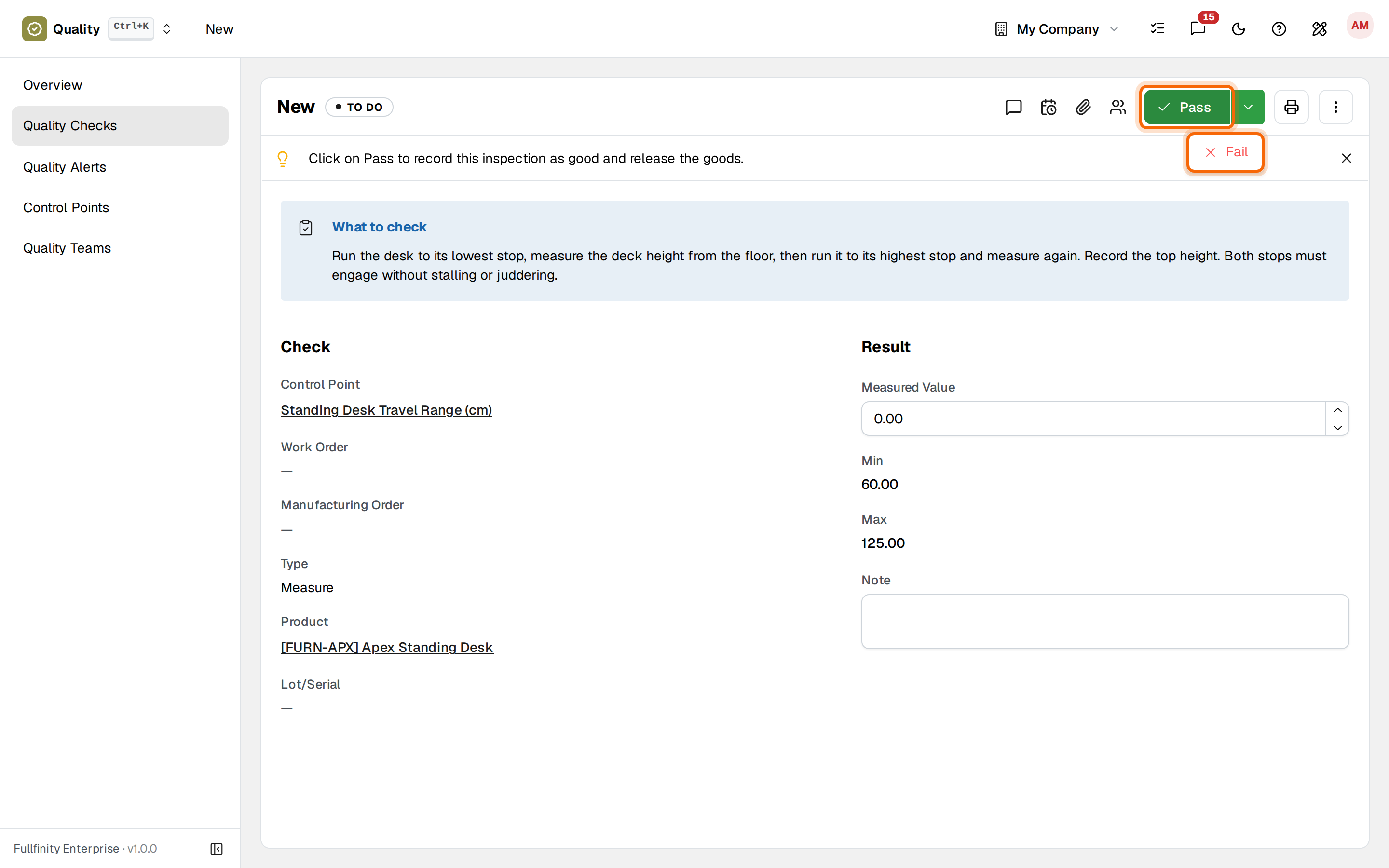
All checks are listed in Quality → Quality Checks. Open one and click Pass or Fail to record it there — useful when the inspector isn't the person who moves the goods.