How do I print vendor checks?
Pay vendors by check, print the checks with their remittance stubs on pre-printed check stock, and void a spoiled one.
Fullfinity prints vendor checks on pre-printed, letter-size voucher check stock: the check itself and two stubs listing the bills it pays. The stock already carries your bank details and check numbers; Fullfinity prints the date, the payee and their address, the amount in figures and in words, and the memo.
1. Set up your check stock
- Open your bank journal (Setup → Journals) and go to its Vendor Payments tab.
- Under Check Stock, set Next Check Number to the number on the next sheet of your stock, and choose where the check sits on the page.
- To pay every vendor from this journal by check, set Default Payment Method to Check; or set Pay By to Check on the vendors you pay that way.
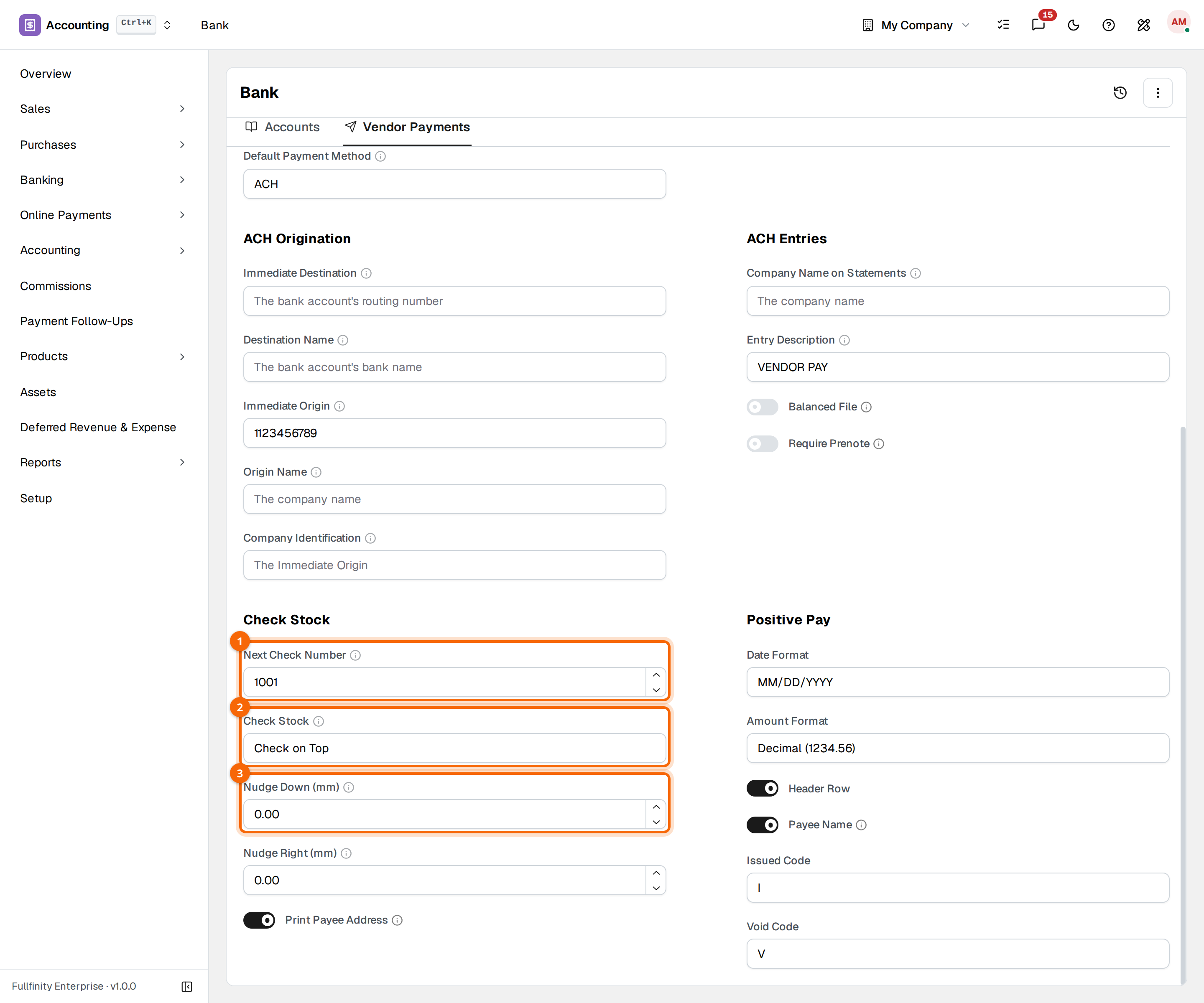
If the printing doesn't line up with your stock, move it with Nudge Down (mm) and Nudge Right (mm).
2. Print the checks
- Record the vendor payments as usual; each takes the Check method from the vendor or the journal.
- Go to Banking → Checks to Print, tick the payments to print, and click Print Checks. (From a single payment, click Print Check.)
- Check the First Check Number — it should match the first sheet loaded in your printer — and click Print.
The checks are numbered in the order you selected the payments, and each number goes into the Check Register. The payment shows its Check Number, and its method and recipient can no longer change.
A check jammed or was spoiled
Open the payment and click Void Check. The check stays in the register as Voided — a check number is never used twice — and the payment goes back to Checks to Print, to print again on the next sheet. Cancelling a payment voids its check too.
Related: Send Positive Pay to your bank