How do I review, approve and apply a change?
Submit a change for review, approve it, and apply it to create the next revision of the bill of materials.
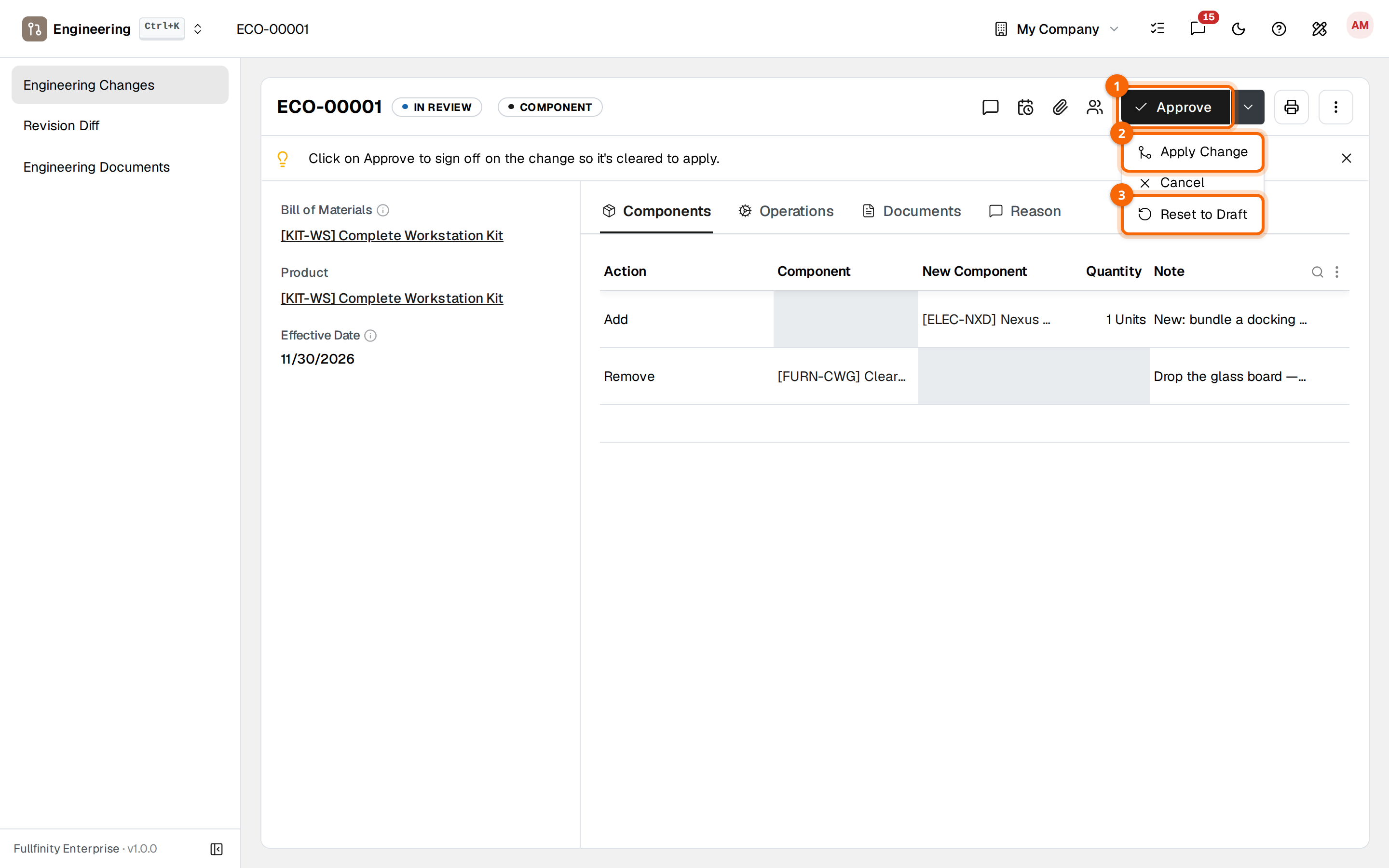
- On a draft change, click Submit for Review. It moves to In Review and can no longer be edited.
- The reviewer reads it — the Reason, the lines, and the before-and-after in Engineering → Revision Diff (see How do I see what a change does to a bill of materials?) — and clicks Approve (1).
- Click Apply Change (2).
To make changes after submitting, click Reset to Draft (3): that withdraws it from review, and it has to be approved again. Cancel drops the change without touching the bill of materials.
What applying does
- A new revision of the bill of materials is created with your changes, numbered one higher, and its documents are released with it. View New Revision opens it.
- The previous revision is marked Superseded and archived, so the list of bills of materials shows only what is in use. Manufacturing orders already made from it keep it; the Archived filter brings old revisions back into view.
- New manufacturing orders use the new revision from its effective date. With an Effective Date in the future, the current revision stays in use until that day, and is retired the day after.
A bill of materials shows its Version, Revision, Effective From and Effective To, and which change order produced it.
Was this article helpful?