How do I pay vendors by SEPA transfer?
Record your vendors' IBANs, collect posted vendor payments into a batch, and generate the SEPA file to upload to your bank.
Instead of typing each transfer into online banking, collect your vendor payments into a SEPA batch and upload one file to your bank. Fullfinity generates the standard SEPA credit transfer file (ISO 20022 pain.001) that European banks accept.
1. Record the bank accounts
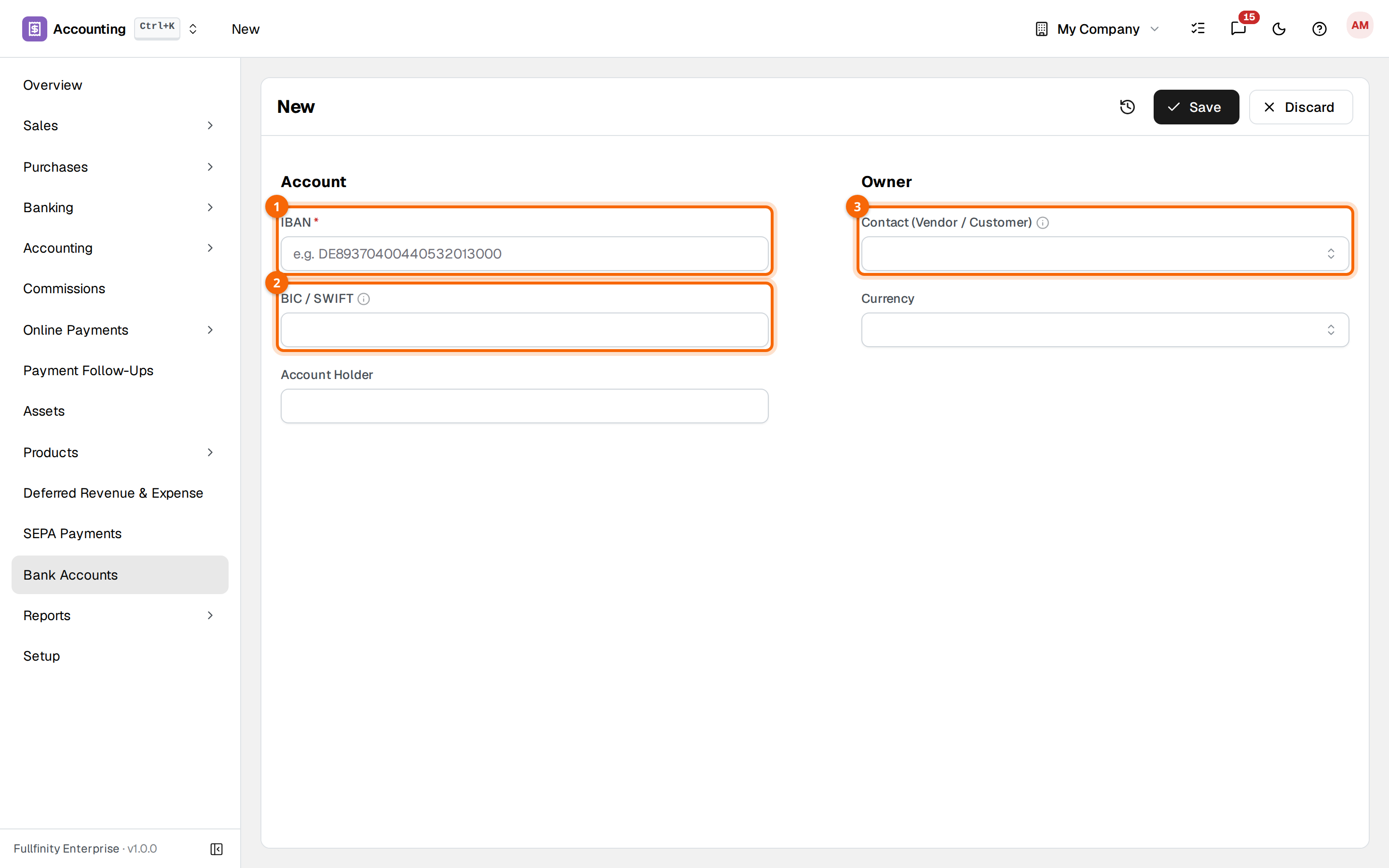
- Go to Bank Accounts and click New.
- Enter the IBAN — it's checked as you save. BIC is optional for SEPA, though some banks ask for it.
- For a vendor's account, choose the vendor in Contact (Vendor / Customer). Leave it blank for your own company's account.
Then put your own account on your bank journal: open the journal (Setup → Journals) and set Bank Account (IBAN). That's the account the transfers are paid from.
2. Pay the vendor bills
On each vendor payment, set Recipient Bank Account — the vendor account the money goes to. You can still set or change it after posting, until the payment's batch file is generated. Only posted payments with a recipient account can go into a batch.
3. Make the batch
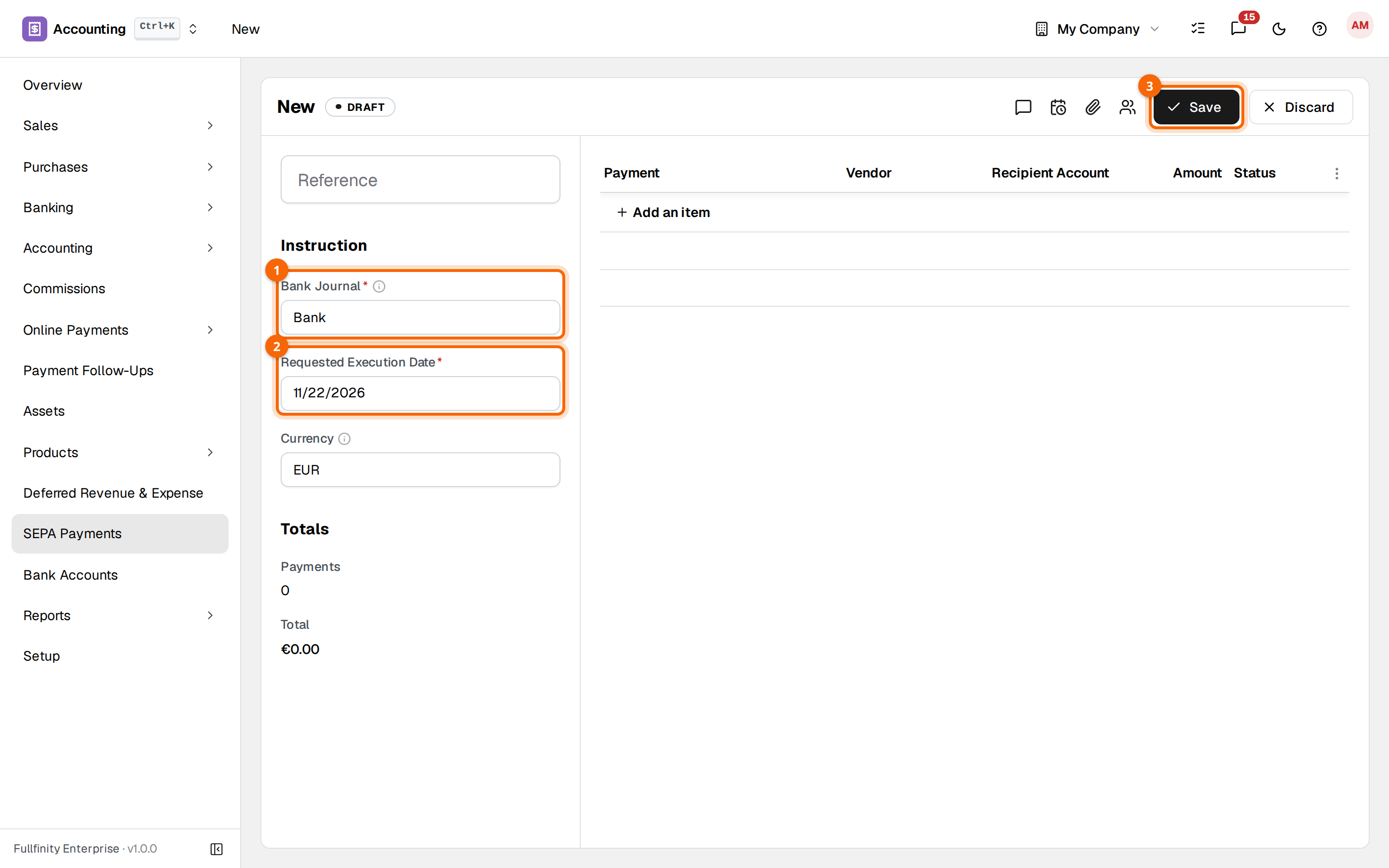
- Go to SEPA Payments and click New.
- Check the Bank Journal, the Requested Execution Date — the day you want the bank to pay — and the Currency, which starts on EUR. Click Save.
- Click Collect Payments. Every posted vendor payment with a recipient account that isn't in a batch yet is added.
- Check the list, the number of Payments and the Total, then click Generate SEPA File.
The batch becomes Generated. Download the SEPA File and upload it in your online banking. A generated batch can't be changed or generated again.